

Your Windows 10 or 11 product key is a 25-character code that activates the operating system, and the fastest way to find it on most PCs is to run a single Command Prompt command: wmic path SoftwareLicensingService get OA3xOriginalProductKey. That said, many modern PCs no longer use a typed key at all. They use a digital license tied to your hardware and Microsoft account, so before you go hunting for a key, it is worth confirming you actually need one. This guide walks through every reliable, Microsoft-native way to find your key, in order.
Before You Begin
A minute of setup saves you chasing a key you may not need:
- First, check whether you even have a key. Free Windows upgrades and most PCs bought in the last several years use a digital license, not a typed product key. Step 1 below shows how to tell.
- Tools you will use: Settings, Command Prompt or PowerShell (run as administrator), your Microsoft account, and your email. All are built in or already in your hands.
- Estimated time: 5 to 15 minutes.
- Skill level: Beginner friendly. If you can copy and paste a command and press Enter, you can do this.
- Write the key down somewhere safe once you find it (a password manager is ideal). Do not store it in a plain text file on the same machine you might be reinstalling.
Key Takeaways
- Try Command Prompt first. One command, no downloads, reads the OEM key stored in your PC’s firmware on most prebuilt machines.
- You may not have a key at all. If you upgraded for free or bought a recent PC, you likely have a digital license instead, which reactivates automatically.
- Microsoft only stores keys bought from its own store. Check your Microsoft account order history if you purchased from Microsoft directly.
- Skip third-party key finders when you can. The built-in commands retrieve the same key without installing unknown software, which matters most on business machines.
- For business and managed devices, keys live in a volume licensing portal or with your IT administrator, not in these consumer methods.
What’s in This Guide
- Product Key vs Digital License: Know Which You Have
- Step 1: Check Your Activation Type
- Step 2: Find the Key With Command Prompt
- Step 3: Find the Key With PowerShell
- Step 4: Check Your Microsoft Account Order History
- Step 5: Check the Confirmation Email or Retailer Locker
- Step 6: Look for a Physical Sticker or Card
- A Word on Third-Party Key Finder Tools
- When You Should Not Be Hunting for Keys at All
- Troubleshooting Common Problems
- Keep Your Key Safe After You Find It
- Frequently Asked Questions
Product Key vs Digital License: Know Which You Have
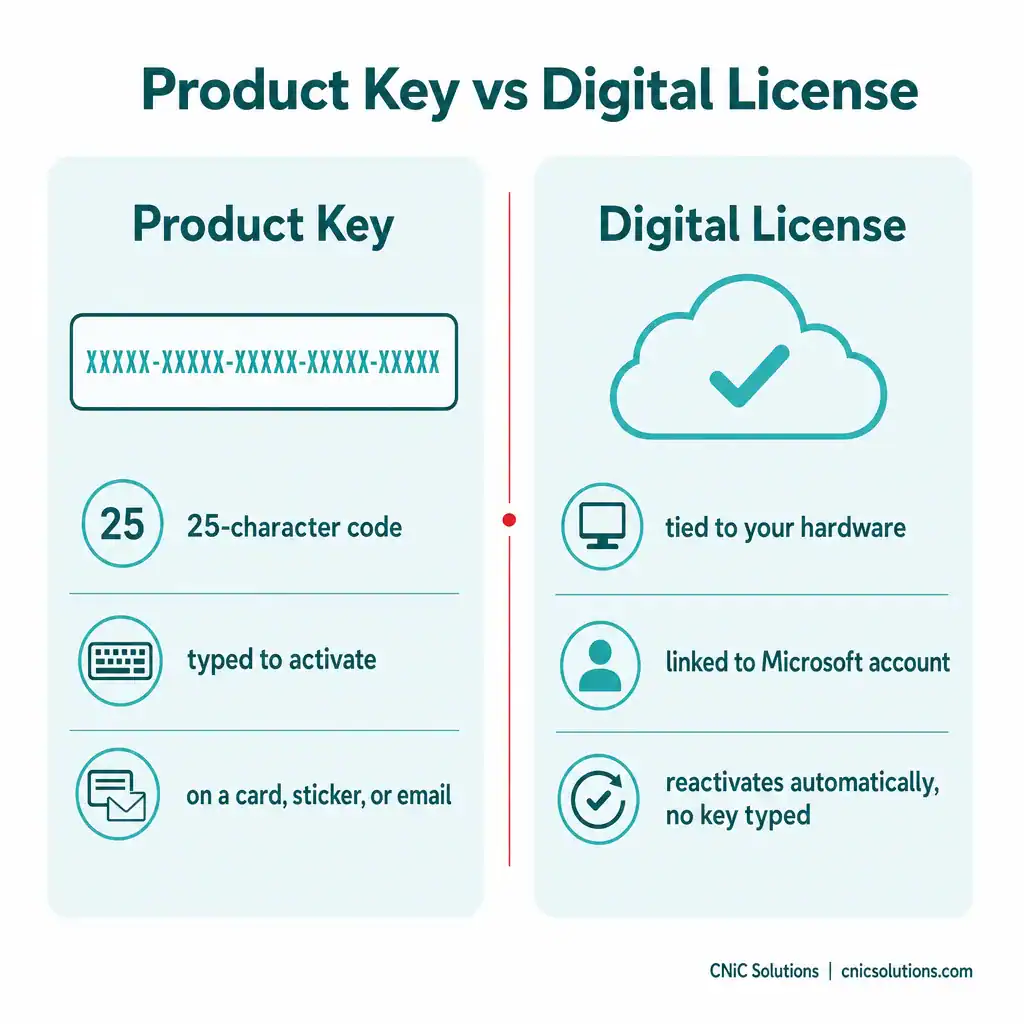
This distinction saves more wasted effort than any single command. A product key is the classic 25-character code you type to activate Windows. A digital license (Microsoft also calls it a digital entitlement) ties your activation to your device’s hardware and, if you sign in, your Microsoft account, so nothing needs to be typed.
According to Microsoft, if you upgraded to Windows 11 for free from Windows 10, or to Windows 10 for free from Windows 7 or 8.1, you have a digital license rather than a product key. The same is true for most PCs bought already running Windows 10 or 11. That matters because if you have a digital license, the “find my key” question often has no answer, and no answer is needed: Windows reactivates itself.
Myth: “I always need my product key to reinstall Windows.”
For modern PCs this is usually false. If your device activated with a digital license, a clean reinstall of the same Windows edition reactivates automatically once it connects to the internet, with no key entered, as long as the hardware has not changed significantly. Linking that license to a Microsoft account first makes reactivation even more reliable, especially after a hardware change. Chasing a key you do not need is a common time sink.
Source: Microsoft Support: Find your Windows product key
1Step 1: Check Your Activation Type
Start here so you know whether you are looking for a key or already covered by a digital license.
What to do:
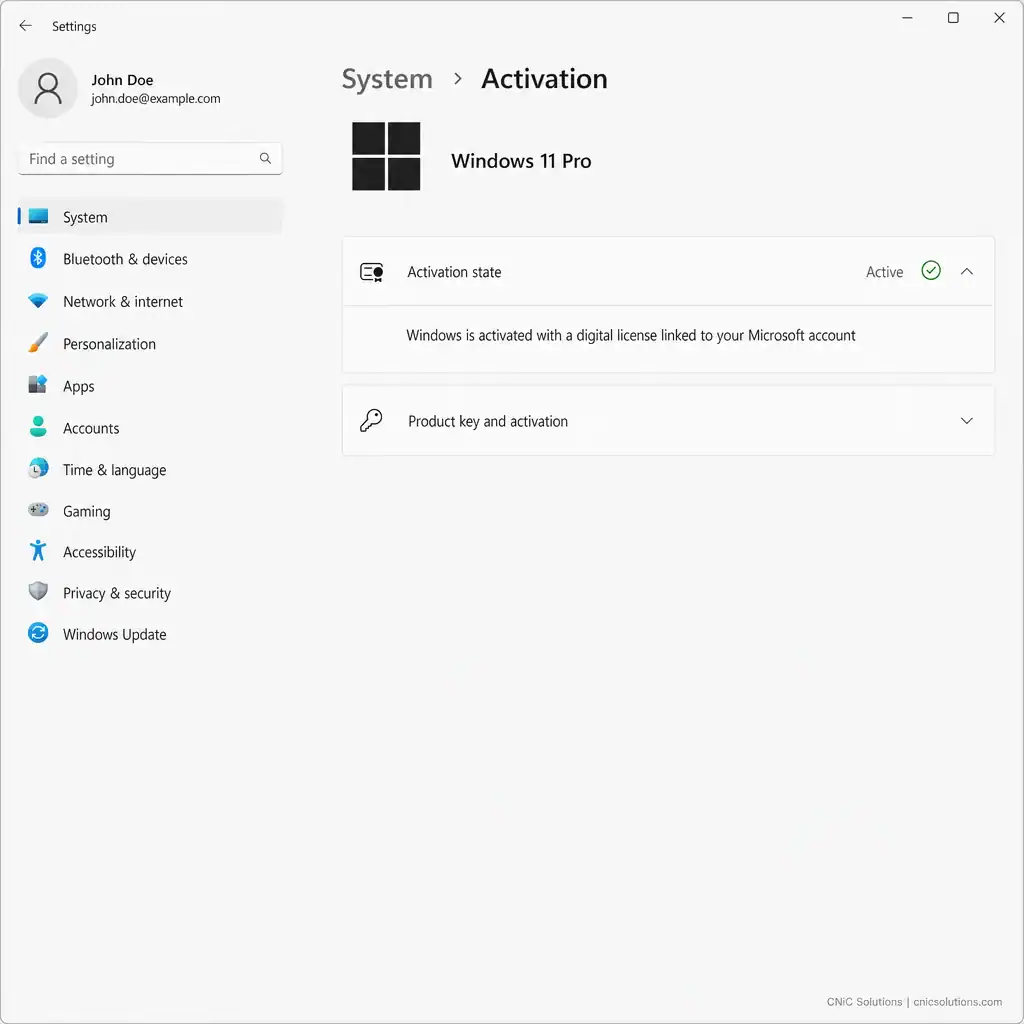
- Right-click Start and choose System, or open Settings > System > Activation.
- Read the Activation state line. You will see one of: “Windows is activated with a digital license,” “activated with a digital license linked to your Microsoft account,” or a prompt indicating a product key is in use or required.
Why this step matters: if it says digital license, you can stop worrying about a typed key for everyday reactivation. If it asks for a key, the methods below retrieve it.
What success looks like: you can state plainly whether your PC uses a digital license or needs a product key.
Source: Dell Support: Where to find the Windows product key
2Step 2: Find the Key With Command Prompt
This is the fastest method and the one to try first. It reads the OEM key embedded in your PC’s firmware, which covers most prebuilt desktops and laptops.
What to do:
- Press Win + S, type cmd, and choose Run as administrator.
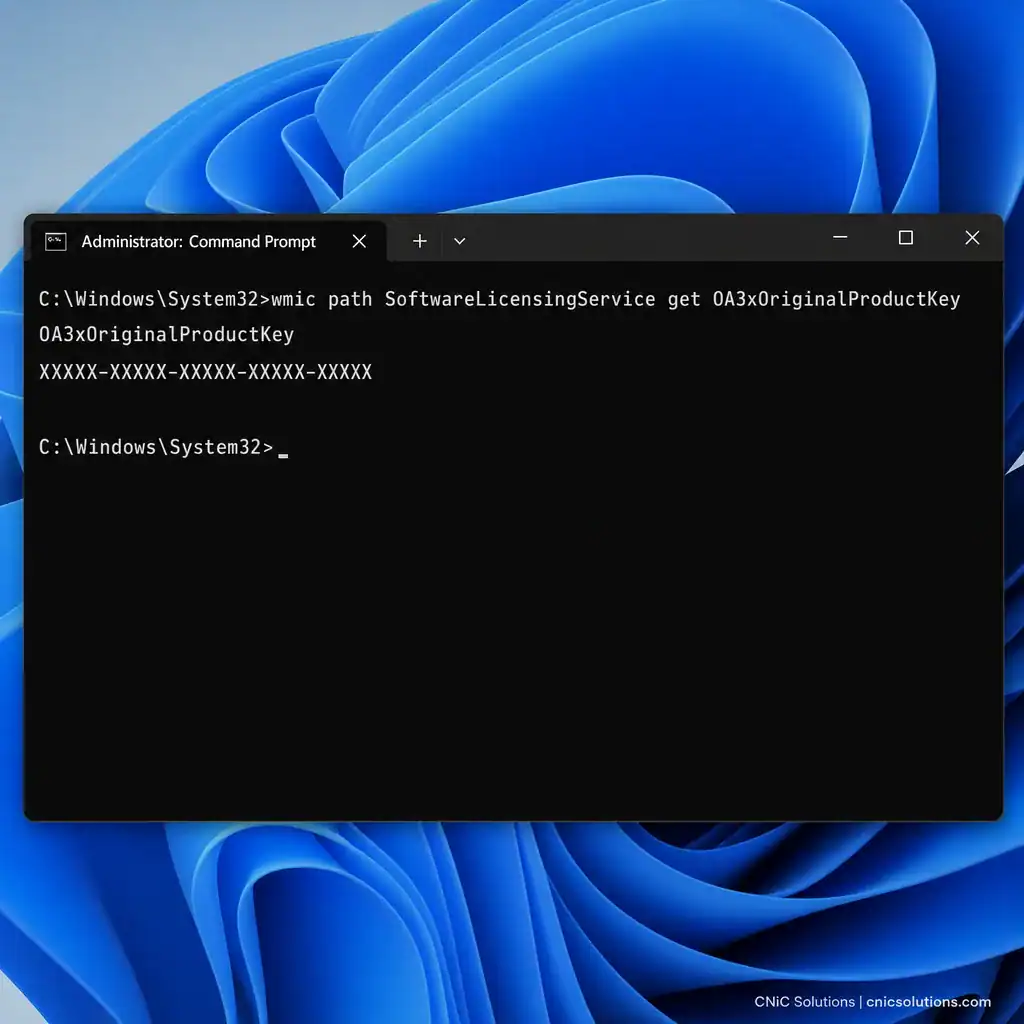
- Type or paste this command and press Enter:
wmic path SoftwareLicensingService get OA3xOriginalProductKey - The 25-character key appears beneath the command. Copy it and store it somewhere safe.
Why this step matters: it retrieves the key with no downloads and no third-party software, straight from Windows itself.
What success looks like: a 25-character code in the format XXXXX-XXXXX-XXXXX-XXXXX-XXXXX appears. If the line comes back blank, your key is not an embedded OEM key, so move to the account and email methods.
Note: the wmic command is being retired
Microsoft is phasing the legacy wmic tool out of newer Windows builds. If wmic is not recognized on your system, use the PowerShell method in Step 3, which returns the same key and is fully supported going forward.
Source: TechRepublic: Find your Windows 10 product key | Tom’s Hardware: Find a Windows product key
3Step 3: Find the Key With PowerShell
PowerShell returns the same firmware-embedded key and is the better choice on newer Windows versions where wmic has been removed.
What to do:
- Press Win + S, type powershell, and choose Run as administrator.
- Type or paste this command and press Enter:
(Get-WmiObject -query ‘select * from SoftwareLicensingService’).OA3xOriginalProductKey - Wait a moment, then copy the key it displays.
Why this step matters: it is the forward-compatible way to read the embedded key, and it sometimes succeeds when Command Prompt returns a blank.
What success looks like: the same 25-character key appears. A blank result again means your activation does not use an embedded OEM key, so use the purchase records below.
Source: MakeUseOf: Find your Windows 11 product key
4Step 4: Check Your Microsoft Account Order History
If you bought Windows directly from Microsoft, the key is on record in your account.
What to do:
- Sign in at your Microsoft account using the same address you bought Windows with.
- Open Order history and locate the Windows purchase. The key or a link to retrieve it is shown there.
Why this step matters: Microsoft only keeps a record of keys purchased from its own store, so this is the authoritative source when it applies.
What success looks like: the Windows order appears in your history with its associated key or digital license.
Source: Microsoft Support: Find your Windows product key
5Step 5: Check the Confirmation Email or Retailer Locker
Bought Windows as a digital download from a retailer other than Microsoft? The key was delivered at purchase.
What to do:
- Search your email inbox for the order confirmation from the retailer. The 25-character key is usually printed in that message.
- If the retailer uses a digital locker, sign in to their website and open your account’s orders or downloads section to retrieve it.
Why this step matters: for third-party digital purchases, the confirmation email or locker is the only place the key is stored.
What success looks like: you locate the original confirmation containing the key.
Source: Microsoft Support: Find your Windows product key
6Step 6: Look for a Physical Sticker or Card
Older and boxed copies kept the key in the physical world.
What to do:
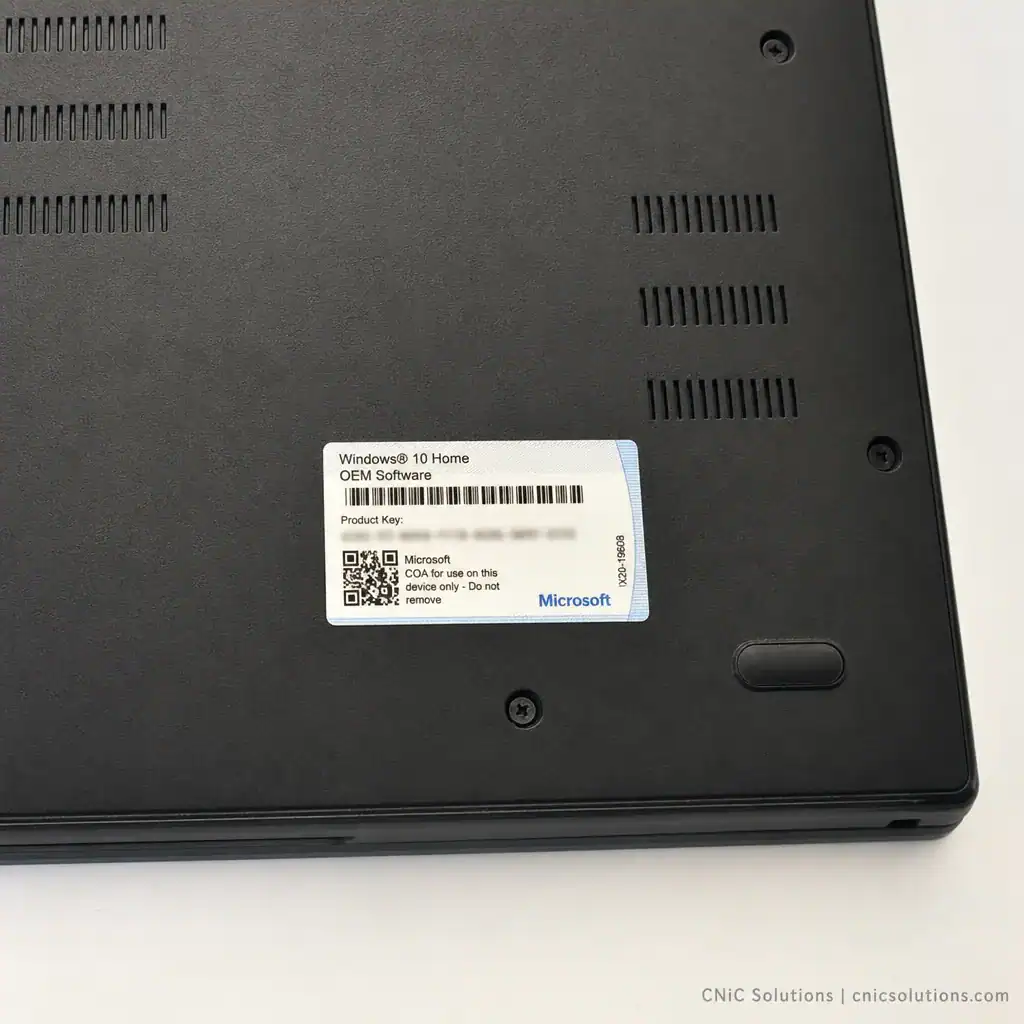
- Preinstalled Windows: check the device chassis (bottom of a laptop, back or side of a desktop) for a Certificate of Authenticity sticker bearing the key.
- Boxed retail copy: the key is on a label or card inside the original packaging.
- If the sticker is worn or the box is lost, contact the PC manufacturer, who can often help if the device is still supported.
Why this step matters: on older machines this may be the only copy of the key in existence.
What success looks like: you find a legible 25-character key on the sticker or card.
Source: Microsoft Support: Find your Windows product key
A Word on Third-Party Key Finder Tools
Use built-in methods before any third-party tool
You will see consumer guides recommend downloadable key-finder utilities. Some are reputable, but every one of them runs on your system with access to read sensitive licensing data, and the less-known ones can bundle unwanted software. As TechRepublic notes, these tools essentially do what the built-in Command Prompt does while introducing someone else’s programming and potential security issues. The commands in Steps 2 and 3 retrieve the same key with nothing installed, so reach for those first.
On a work computer, do not run an unknown key-extraction tool at all. Business machines are often licensed through volume agreements or managed by an IT provider, and running random utilities on them can violate policy and introduce risk. If you manage company devices, the next section is for you.
When You Should Not Be Hunting for Keys at All
If you are a business owner or office manager digging through Command Prompt to find a Windows key, that is usually a sign the licensing is not being managed centrally, and that creates risk well beyond one PC.
On a properly managed fleet, Windows licensing is handled through volume licensing or OEM agreements, keys and digital entitlements are documented in one place, and reactivation after a reinstall or hardware swap is routine rather than a scramble. Nobody is running unvetted key-finder tools on company hardware, and no machine sits unlicensed or out of compliance without anyone noticing. When licensing is ad hoc, a single failed reactivation can knock a staff member offline for hours, and software audits become a genuine liability.
This is the kind of quiet, behind-the-scenes work a managed IT partner takes off your plate: license tracking, compliant activation, documented keys, and reinstalls that just work. CNiC Solutions handles jobs of every size, but for a business running more than a handful of machines, centralized license management turns a recurring headache into something you never have to think about.
Get your business IT and licensing managed properly
Troubleshooting Common Problems
| Problem | What it means | What to do |
|---|---|---|
| Command returns a blank line | No OEM key embedded in firmware (digital license, retail, or volume activation) | Use Microsoft account order history, the confirmation email, or the device sticker instead. |
| “wmic is not recognized” | The legacy wmic tool has been removed from your Windows build | Use the PowerShell command in Step 3, which is fully supported. |
| The retrieved key will not activate on a different PC | It is an OEM key, tied to the original hardware | OEM keys generally cannot move to new hardware. You will need a retail or new license for the other machine. |
| Activation says digital license but you wanted a key | Your entitlement is hardware and account based, not a typed code | Link the license to a Microsoft account so it reactivates automatically after a reinstall. |
| It is a work computer and no method shows a key | The device is volume licensed or organization managed | Contact your IT administrator or provider. Keys are in the licensing portal, not on the device. |
Source: Microsoft Support: Find your Windows product key | Tom’s Hardware: OEM vs retail key behavior
Keep Your Key Safe After You Find It
Once you have the key, a few habits keep it from being lost again:
- Store it in a password manager, not a text file on the same PC you might wipe and reinstall.
- Link your digital license to a Microsoft account (Settings > Accounts) so Windows can reactivate itself after a reinstall or hardware change without you typing anything.
- Photograph the Certificate of Authenticity sticker before it wears off, and keep the image with your records.
- Keep purchase confirmation emails in a dedicated folder so retailer-delivered keys are easy to find later.
For a business, this is exactly the documentation that should live in a central asset and license record rather than in individual employees’ inboxes. Keeping licensing organized, compliant, and recoverable is part of the ongoing oversight a managed IT partner provides, and it is what keeps a reinstall from ever becoming an emergency.
Plan smarter IT with a Virtual CIO
Frequently Asked Questions
Where is my Windows 10 or 11 product key stored?
What is the difference between a product key and a digital license?
Do I need my product key to reinstall Windows?
Why does the Command Prompt method return a blank product key?
Are third-party product key finder tools safe to use?
Methodology and Sources
This guide documents Microsoft-native methods for locating a Windows 10 or 11 product key, ordered from fastest and safest to fallback. Activation behavior, the product-key-versus-digital-license distinction, and retrieval locations follow Microsoft’s official “Find your Windows product key” documentation and Dell’s activation guidance. Command syntax (wmic and PowerShell OA3xOriginalProductKey) is corroborated across Tom’s Hardware, TechRepublic, and MakeUseOf. Third-party key-finder tools are intentionally not recommended; the security caution reflects TechRepublic’s own note that such tools introduce outside programming and potential security issues.
Primary and authoritative sources: Microsoft Support (Find your Windows product key), Dell Support (Windows product key FAQ).



related posts
What Is NIST Compliance? Frameworks, Requirements, and Who Needs It
October 25, 2026NIST compliance means aligning your organization's security program with the cybersecurity standards published by the National…
What Is Network Penetration Testing? Types and Process
October 25, 2026Network penetration testing is a controlled, authorized simulation of a real cyberattack on your network, run…
What Is Mobile Device Management (MDM)? A Guide for Businesses
October 24, 2026Mobile Device Management (MDM) is software that lets an organization remotely enroll, configure, secure, and monitor…
What Is MFA? How Multi-Factor Authentication Protects Your Accounts
October 24, 2026Multi-factor authentication (MFA) is a security method that requires two or more separate proofs of identity…