

The IRQL_NOT_LESS_OR_EQUAL blue screen (stop code 0x0000000A) means a driver or kernel-mode process tried to reach a memory address at a priority level it was not allowed to use, so Windows halted everything to protect your data. In most cases the fix is to update or roll back the offending driver, then rule out faulty RAM, corrupted system files, and an unstable overclock. Work through the steps below in order, from safest to most involved.
Before You Begin
Spend two minutes setting up so you can troubleshoot safely:
- Back up anything important first. Several steps below reset drivers, scan disks, or change BIOS settings, and a kernel crash can corrupt files mid-write. Copy critical files off the machine before you start.
- Tools you will use: Windows Update, Device Manager, Command Prompt (as administrator), Windows Memory Diagnostic, System Configuration (msconfig), and BIOS/UEFI. All are built into Windows 10 and 11.
- Estimated time: 20 to 60 minutes, longer if you run an extended memory test or a full minidump analysis.
- Skill level: Comfortable intermediate. You should be able to restart into Safe Mode and run a command as administrator.
- If the PC will not stay on long enough to work, start with Step 1 (Safe Mode). Everything else assumes you can reach the Windows desktop.
Key Takeaways
- It is usually a driver. Microsoft’s own research has long attributed roughly 70% of Windows stop errors to device drivers, and Microsoft’s documentation for stop code 0x0000000A names drivers and memory as the usual causes.
- Work from safest to most involved: reverse recent changes, update or roll back drivers, test RAM, repair system files, clean boot, then disable overclocking.
- ntoskrnl.exe is the witness, not the criminal. When the kernel is named in the crash, the real cause is almost always a third-party .sys driver revealed in the minidump.
- For a business, repeated crashes are expensive. Industry research puts a single hour of downtime above $300,000 for most mid-size and larger organizations, which is why ad-hoc crash fixing across a fleet rarely pays off.
- Change one thing at a time and reboot between changes, or you will never know which fix worked.
What’s in This Guide
- What the IRQL_NOT_LESS_OR_EQUAL Error Means
- Step 1: Boot Into Safe Mode (If Windows Will Not Stay Up)
- Step 2: Reverse Your Most Recent Change
- Step 3: Update or Roll Back Your Drivers
- Step 4: Test Your Memory (RAM)
- Step 5: Repair Corrupted System Files
- Step 6: Perform a Clean Boot
- Step 7: Disable Overclocking in BIOS
- Step 8: Isolate the Driver With Driver Verifier
- When to Call a Professional
- Troubleshooting Common Problems
- Maintain and Monitor After the Fix
- Frequently Asked Questions
What the IRQL_NOT_LESS_OR_EQUAL Error Means
IRQL stands for Interrupt Request Level, the priority system Windows uses to decide which tasks can interrupt others. The error appears when a process running at a high priority level tries to access memory that is paged out or otherwise off-limits at that level. Windows cannot safely pause to fetch it, so it stops the system with a blue screen rather than risk corrupting data.
According to Microsoft’s documentation, stop code 0x0000000A is most often caused by faulty or outdated drivers, memory problems, or hardware faults. That ordering matters: it tells you to start with drivers and memory before touching anything more drastic. You may also see a close relative, DRIVER_IRQL_NOT_LESS_OR_EQUAL (stop code 0x000000D1), which points even more directly at a specific driver and is handled by the same driver-isolation steps below.
Myth: “ntoskrnl.exe caused the crash, so Windows is broken.”
When you read a crash dump and see ntoskrnl.exe (the Windows kernel) named as the faulting module, it is tempting to blame Windows and reinstall the whole operating system. That is almost always the wrong move. The kernel is the security guard that caught the violation and raised the alarm, not the intruder. The actual offender is a third-party driver further down the stack. Reinstalling Windows wipes your data and very often brings the same bad driver right back. Identify the driver first.
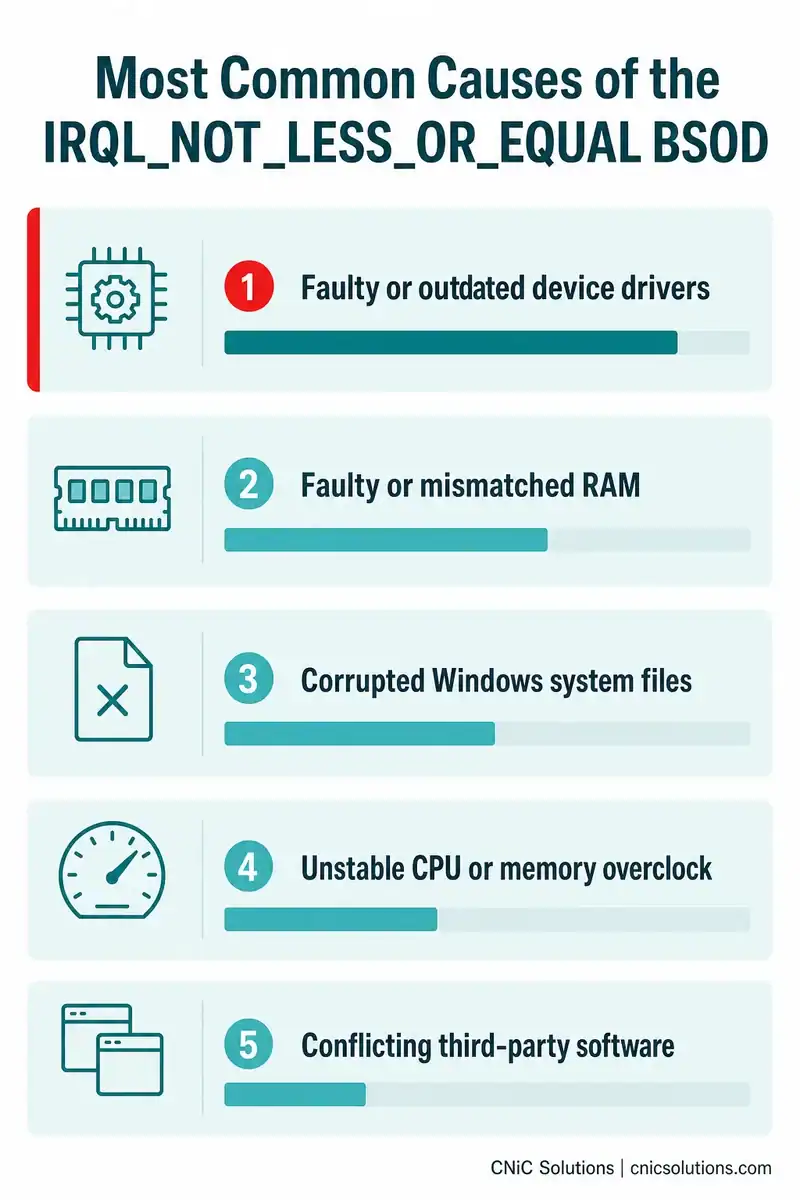
One question solves most cases on its own: what changed recently? A driver that updated overnight, a newly installed app, a fresh stick of RAM, or a new overclock profile is the usual trigger. Keep that question in mind as you work through the steps.
Source: Microsoft Support: Error 0xA IRQL_NOT_LESS_OR_EQUAL
1Step 1: Boot Into Safe Mode (If Windows Will Not Stay Up)
If the blue screen appears before you can reach the desktop, or loops continuously, you need a minimal environment where the crashing driver does not load. Safe Mode loads only essential Microsoft drivers, which usually gives you a stable session to work in.
What to do:
- Power on the PC, and as soon as you see the Windows logo or spinning dots, hold the power button for 5 to 10 seconds to force a shutdown.
- Repeat this two or three times. On the next start, Windows boots into the Recovery Environment (WinRE).
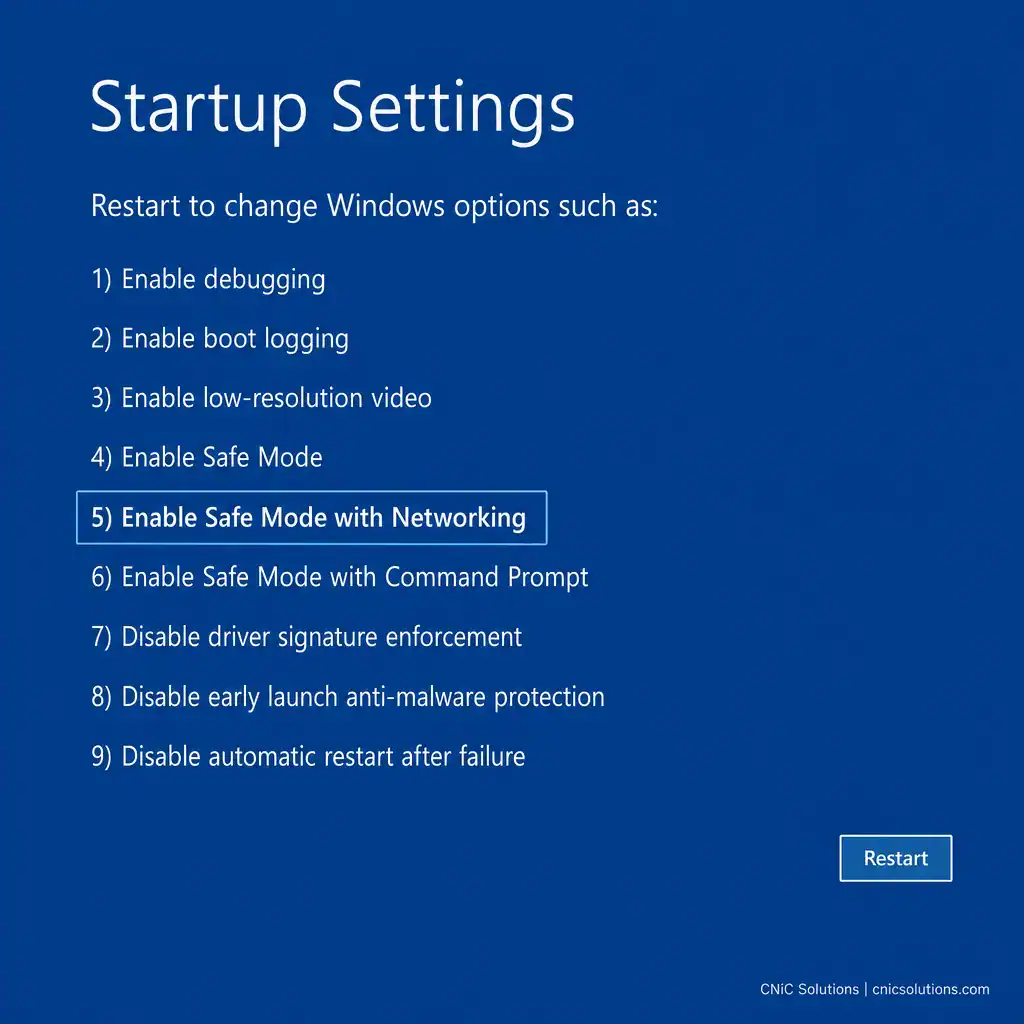
- Choose Troubleshoot > Advanced options > Startup Settings > Restart.
- When the menu appears, press 5 (or F5) for Safe Mode with Networking so you still have internet access for driver downloads.
Why this step matters: it gets you a usable desktop without the faulty driver running, so the rest of the guide is possible even on a machine that otherwise crashes instantly.
What success looks like: Windows loads to the desktop with “Safe Mode” shown in the corners and stays up without crashing.
Source: Microsoft Support: Error 0xA IRQL_NOT_LESS_OR_EQUAL
2Step 2: Reverse Your Most Recent Change
Before you change anything new, undo whatever changed right before the crashes started. This is the single highest-yield step because the trigger is usually recent.
What to do:
- Uninstall a recent Windows update: go to Settings > Windows Update > Update history > Uninstall updates, and remove the most recent quality update if the timing matches.
- Uninstall recently added software, especially VPNs, antivirus tools, and anything that installs a system-level driver.
- Use System Restore: press Win + R, type rstrui.exe, and choose a restore point dated before the BSOD began. This rolls back drivers and settings while leaving your personal files in place.
Why this step matters: reversing one recent change often fixes the crash without any deeper diagnosis.
What success looks like: after the uninstall or restore and a reboot, the machine runs normally through tasks that used to trigger the crash.
Common mistake: changing several things at once
If you uninstall an update, roll back a driver, and run a restore all before rebooting, a fix will hide which action worked, and you may undo something you needed. Make one change, reboot, and test before moving on.
Source: Tom’s Hardware: Fix IRQL_NOT_LESS_OR_EQUAL Errors
3Step 3: Update or Roll Back Your Drivers
Drivers are the most common cause of this error, so they get the most attention. Microsoft’s long-cited research attributes roughly 70% of Windows stop errors to device drivers, and the fix is straightforward once you know which way to move: forward to a newer driver, or back to the one that was stable.
What to do, if the crash is NOT tied to a recent driver update (update forward):
- Run Settings > Windows Update > Check for updates, install everything, and reboot. Then check Advanced options > Optional updates for additional driver updates.
- Visit the hardware manufacturer’s site for the newest drivers, prioritizing network, graphics, and chipset drivers.
- For the graphics driver, download directly from AMD’s support site, NVIDIA’s driver download page, or Intel’s download center, and choose the clean install option to remove leftover files from the old driver.
What to do, if the crash STARTED right after a driver update (roll back):
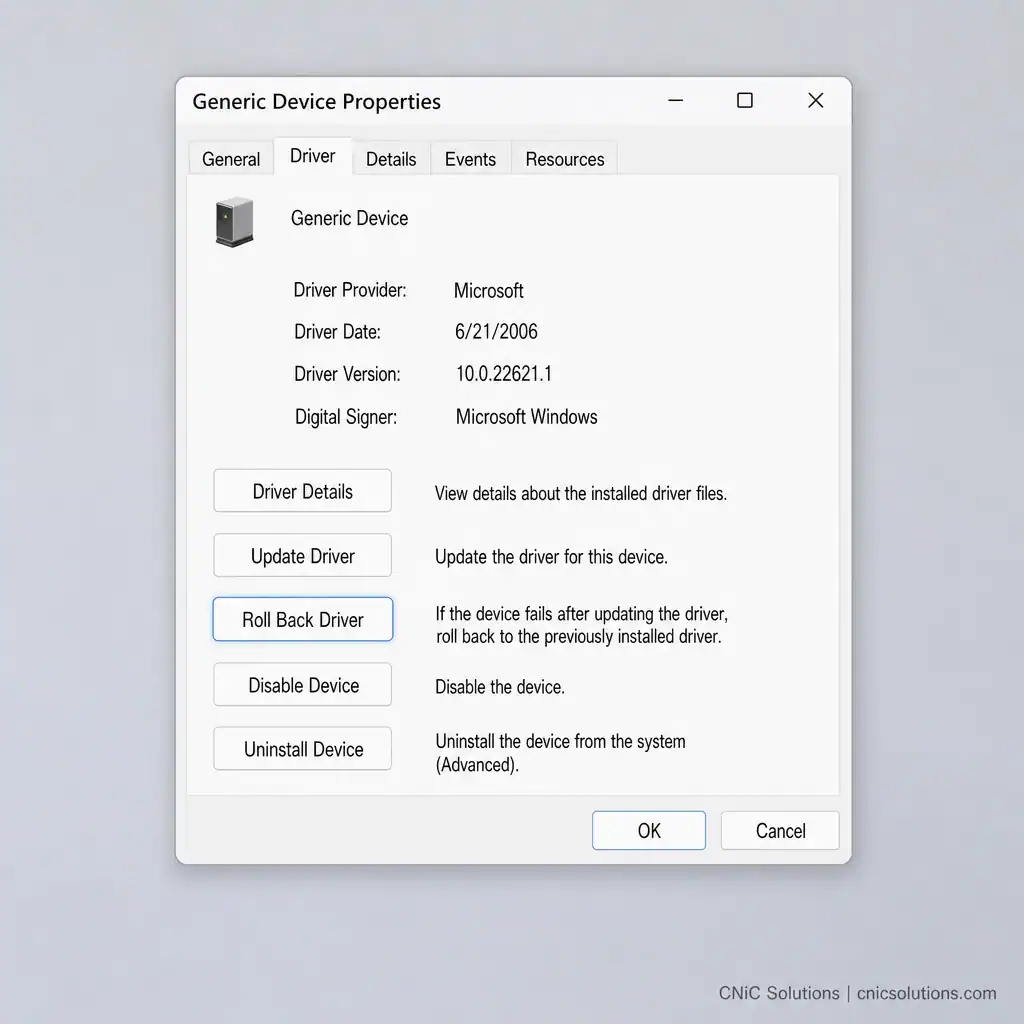
- Open Device Manager, right-click the device, choose Properties > Driver > Roll Back Driver, and reboot.
- If Roll Back is greyed out, uninstall the driver and install the last known good version from the manufacturer.
Why this step matters: a single bad or mismatched driver is the most likely root cause, and correcting it resolves the majority of cases.
What success looks like: Device Manager shows no warning icons, and the machine runs the activity that used to crash it without a blue screen.
Source: Microsoft Support: Error 0xA IRQL_NOT_LESS_OR_EQUAL | Windows Central: Troubleshoot IRQL_NOT_LESS_OR_EQUAL
4Step 4: Test Your Memory (RAM)
If drivers are clean, faulty or mismatched RAM is the next suspect. This error frequently shows up after adding or swapping memory.
What to do:
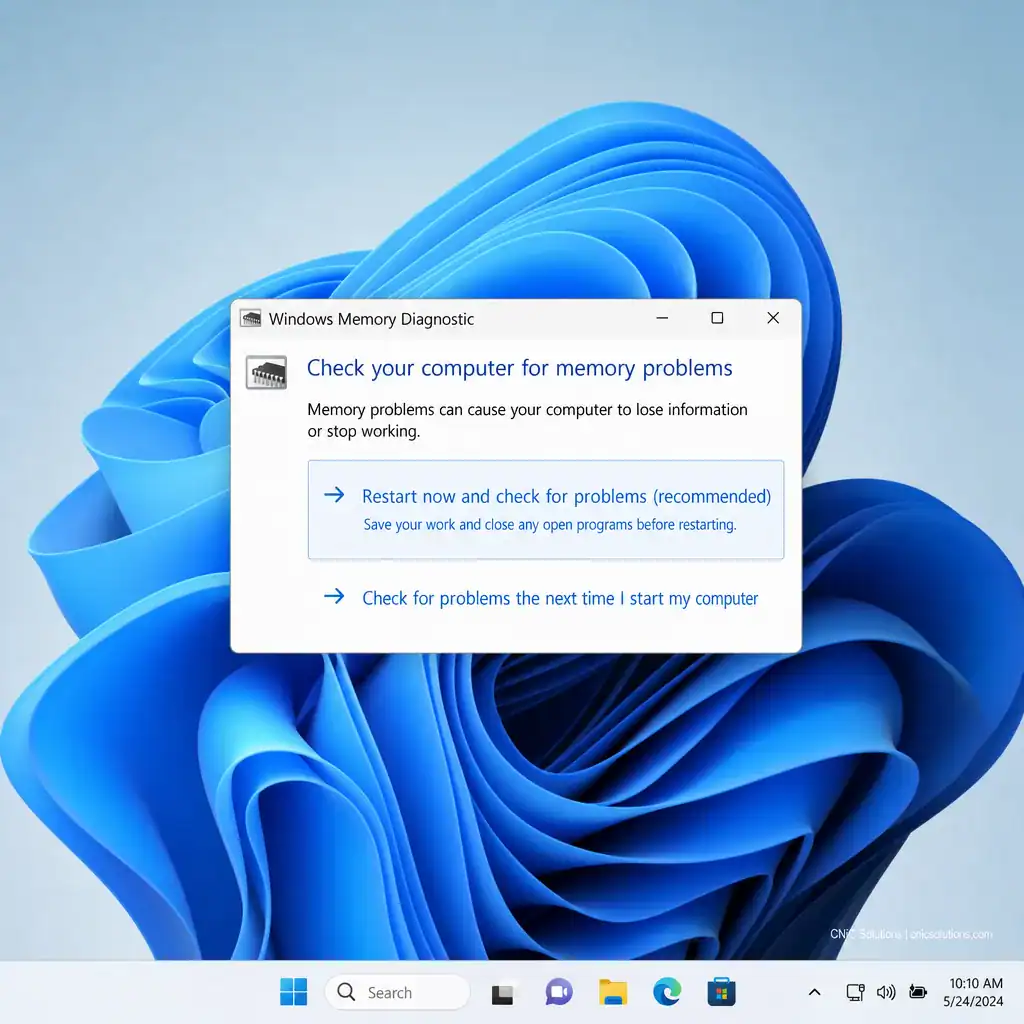
- Press Win + R, type mdsched.exe, and press Enter to open the Windows Memory Diagnostic.
- Choose Restart now and check for problems. The PC reboots and tests the RAM. Press F1 during the test to switch to the Extended test set for a more thorough pass.
- Review the result after Windows reboots. For a deeper, longer test, run MemTest86 from a USB stick overnight.
- If errors appear: power down, reseat each module, and test one stick at a time to find the bad one. Replace any module that fails.
Why this step matters: no software fix will stop the crashes if the underlying memory is physically failing.
What success looks like: the diagnostic reports no memory errors, which clears RAM as a cause and points you back toward drivers or system files.
Source: Microsoft Support: Error 0xA IRQL_NOT_LESS_OR_EQUAL
5Step 5: Repair Corrupted System Files
Corrupted Windows system files, common after forced or intermittent shutdowns, can trigger this BSOD. Two built-in tools repair them.
What to do:
- Right-click Start, open Terminal (Admin) or Command Prompt (Admin).
- Run sfc /scannow and let the System File Checker finish. It verifies and repairs protected system files.
- Then run DISM /Online /Cleanup-Image /RestoreHealth to repair the underlying Windows component store that SFC draws from.
- Reboot when both finish, and watch for the crash to recur.
Why this step matters: if a damaged system file is the cause, these tools repair it without a full reinstall and without touching your data.
What success looks like: SFC reports either that it found no violations or that it repaired the files it found, and the system is stable on reboot.
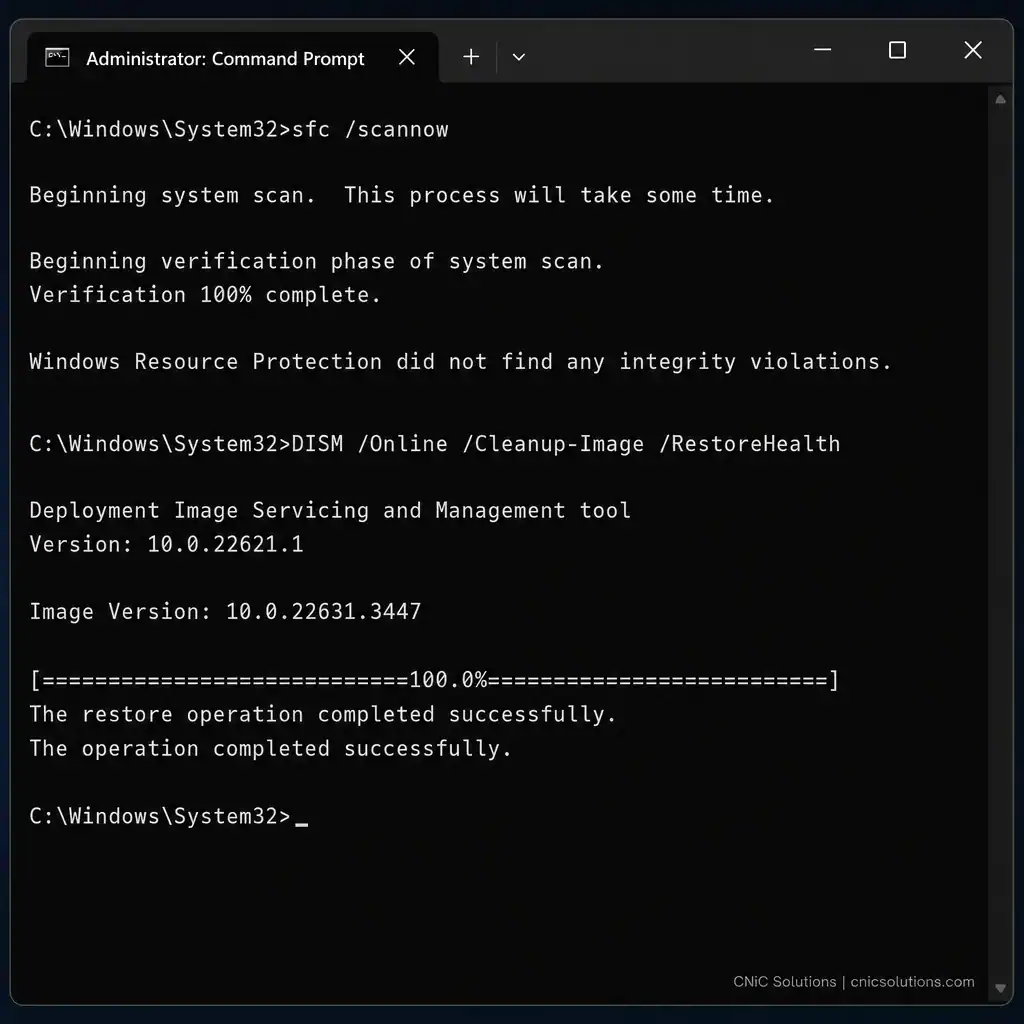
Source: Driver Easy: IRQL_NOT_LESS_OR_EQUAL DISM and SFC steps
6Step 6: Perform a Clean Boot
If the crash is intermittent and tied to a background service or startup app, a clean boot strips the system down to Microsoft-only services so you can find the conflict.
What to do:
- Press Win + R, type msconfig, and press Enter.
- On the Services tab, check Hide all Microsoft services, then click Disable all.
- On the Startup tab, click Open Task Manager and disable every startup app.
- Click OK and restart. If the crashes stop, re-enable services and startup items in small batches, rebooting after each, until the crash returns and exposes the culprit.
Why this step matters: it separates third-party software conflicts from driver and hardware faults, narrowing the search.
What success looks like: a stable clean-boot session, followed by the crash reappearing when you re-enable one specific service or app, which names your offender.
Source: NinjaOne: Fix the IRQL_NOT_LESS_OR_EQUAL BSOD
7Step 7: Disable Overclocking in BIOS
An unstable CPU or memory overclock, including an aggressive XMP/EXPO memory profile, is a frequent cause on custom-built and gaming PCs.
What to do:
- Restart and press the BIOS key during boot, usually Del, F2, or Esc (check your motherboard or PC maker’s guidance).
- Find the overclocking, performance, or memory profile section. Set CPU ratio, turbo, and XMP/EXPO back to default or auto.
- Press F10 to save and exit, then test for stability.
Why this step matters: an overclock that looks stable in everyday use can still violate memory timing under load and trigger this exact stop code.
What success looks like: with stock settings applied, the crashes stop, confirming the overclock was the cause.
Common mistake: clearing CMOS without noting your settings
If you reset BIOS to defaults or clear CMOS, you will lose custom fan curves, boot order, and storage mode settings too. Photograph or note any settings you rely on before you reset, so you can restore them after you confirm the fix.
Source: DiskGenius: IRQL_NOT_LESS_OR_EQUAL overclocking steps
When to Call a Professional
If you reach this point and the blue screen still returns, the remaining work, minidump analysis and Driver Verifier, gets technical and carries real risk of making an unstable system worse. That is the natural handoff point, and for a business it usually arrives sooner.
CNiC Solutions handles work of every size, from a single problem machine to a full fleet, but the math changes fast once more than one device is involved. Industry research from ITIC puts a single hour of unplanned downtime above $300,000 for most mid-size and larger organizations, and IDC pegs the average infrastructure failure at roughly $100,000 per hour. Fixing the same crash by hand on machine after machine, while each one sits idle, is rarely the cheapest path. A managed IT provider can push the correct driver versions across every device at once, catch a bad update before it reaches your fleet, and keep dump files centralized so the root cause is found once, not re-diagnosed ten times.
If the crash hits several machines, loops before Windows loads, or sits on a device holding data you cannot lose, that is the moment to bring in help rather than let a kernel-level fault keep corrupting files with every reboot.
Get proactive managed IT support for your business
Troubleshooting Common Problems
| Problem | What it points to | What to do |
|---|---|---|
| BSOD loops before Windows loads | Bad driver or update loading at startup | Use WinRE to reach Safe Mode (Step 1), then uninstall the last update or roll back the driver. |
| Crash dump always names ntoskrnl.exe | Kernel is the witness, a third-party driver is the cause | Open the minidump in WinDbg, run !analyze -v, and find the non-Microsoft .sys file in the stack. |
| No minidump files in C:\Windows\Minidump | Dump creation is disabled or files were cleared | In sysdm.cpl, under Startup and Recovery, set “Write debugging information” to Small memory dump, then wait for the next crash. |
| Crash returns only during gaming or video | Graphics driver or thermal/overclock instability | Clean-install the GPU driver (Step 3) and disable any GPU or memory overclock (Step 7). |
| Stop code reads DRIVER_IRQL_NOT_LESS_OR_EQUAL (0xD1) | A specific driver is directly implicated | Go straight to Driver Verifier (Step 8) against the named driver, then update or roll it back. |
Source: Cloudzy: IRQL Not Less Or Equal 0xA and 0xD1 | Microsoft Q&A: minidump and Driver Verifier guidance
8Step 8: Isolate the Driver With Driver Verifier
This is the most advanced step and the last resort. Driver Verifier forces selected drivers to run under strict scrutiny so a flawed one crashes immediately with clear attribution, instead of intermittently.
What to do:
- First, create a System Restore point so you can recover if the system becomes unbootable.
- Read your minidump in WinDbg with !analyze -v to get a short list of suspect third-party drivers.
- Run verifier, choose Create custom settings, then Select driver names from a list, and check only the specific non-Microsoft drivers you identified.
- Reboot and use the PC normally. If a flagged driver has an IRQL flaw, Verifier triggers an immediate crash that names it clearly.
- When done, run verifier /reset to turn it off, then update or remove the identified driver.
Critical warning: never verify all drivers at once
Do not choose “Automatically select all drivers” or drivers built for older Windows versions. Verifying everything at once can make the system completely unstable and hard to recover. If Verifier sends you into a boot loop, reach Safe Mode and run verifier /reset from an elevated Command Prompt to disable it.
Why this step matters: when the crash is intermittent and the dump is ambiguous, this is the reliable way to force the guilty driver to identify itself.
What success looks like: either Verifier crashes with a specific driver named (your culprit), or the system runs stably for 24 to 48 hours, suggesting the suspected driver is not the cause.
Source: Atera: minidump analysis and Driver Verifier process
Maintain and Monitor After the Fix
Once the crashes stop, a few habits keep them from coming back:
- Keep drivers and Windows current, but stagger updates so a bad one is easy to trace. Install one major driver update at a time and use the machine for a day before the next.
- Leave minidump creation on so the next crash, if any, leaves evidence you can read.
- Watch Event Viewer (Windows Logs > System) for critical entries that hint at instability before it becomes a blue screen.
- Avoid re-enabling an aggressive overclock on a machine that does real work. Stability beats a few percent of performance.
For a business, this is exactly the kind of ongoing, low-drama maintenance that is easy to skip until a crash forces the issue. Centralized patch management, driver version control, and fleet-wide monitoring turn a recurring fire drill into a non-event. That ongoing oversight is the core of what a managed IT partner provides, and where the value shows up is in the crashes that never happen.
Strengthen your endpoint stability and security
Frequently Asked Questions
What does IRQL_NOT_LESS_OR_EQUAL mean?
Is IRQL_NOT_LESS_OR_EQUAL a hardware or software problem?
Why does ntoskrnl.exe show up as the cause of the crash?
Can a Windows update cause the IRQL_NOT_LESS_OR_EQUAL error?
When should a business call an IT professional for this BSOD?
Methodology and Sources
This guide synthesizes the documented diagnostic process for Windows stop code 0x0000000A from primary and authoritative technical sources. Cause ordering (drivers first, then memory, system files, and BIOS) follows Microsoft’s official Error 0xA documentation. Downtime cost figures are attributed to their original sources: the $300,000-per-hour figure to ITIC’s Hourly Cost of Downtime Survey, and the $100,000-per-hour infrastructure figure to IDC. The widely cited “roughly 70% of stop errors are driver-related” finding originates from Microsoft’s own crash research. Step-level procedures are corroborated across Microsoft Support, Microsoft Q&A, Tom’s Hardware, Windows Central, NinjaOne, and Atera.
Primary and authoritative sources: Microsoft Support (Error 0xA), Microsoft Q&A, ITIC 2024 Hourly Cost of Downtime Report.



related posts
What Is NIST Compliance? Frameworks, Requirements, and Who Needs It
October 25, 2026NIST compliance means aligning your organization's security program with the cybersecurity standards published by the National…
What Is Network Penetration Testing? Types and Process
October 25, 2026Network penetration testing is a controlled, authorized simulation of a real cyberattack on your network, run…
What Is Mobile Device Management (MDM)? A Guide for Businesses
October 24, 2026Mobile Device Management (MDM) is software that lets an organization remotely enroll, configure, secure, and monitor…
What Is MFA? How Multi-Factor Authentication Protects Your Accounts
October 24, 2026Multi-factor authentication (MFA) is a security method that requires two or more separate proofs of identity…