

To restart the graphics driver in Windows, press Windows + Ctrl + Shift + B. The screen goes black for about a second, you hear a short beep, and the display driver reloads, which clears most freezes, flickers, and black screens without closing a single app or losing any unsaved work. It is one of the fastest fixes in Windows, and it is completely safe. When the glitch keeps coming back, the same problem is usually a driver that needs updating, rolling back, or a clean reinstall. This guide walks through all of it, from the instant keyboard reset to a full driver rebuild, in order from easiest to most involved.
Before You Begin
This takes under two minutes for the quick fix, and the steps get more involved only if you need them:
- Tools you will use: your keyboard, Device Manager, Windows Update, and, for the deepest fix, Display Driver Uninstaller (DDU) plus a fresh driver from your graphics card maker. All of the Windows tools are built into Windows 10 and 11.
- Estimated time: a few seconds for the keyboard shortcut, 2 to 5 minutes for the Device Manager and update methods, and 15 to 30 minutes for a clean DDU reinstall.
- Skill level: Beginner for the shortcut, comfortable intermediate for the reinstall.
- Save your work first for the deeper steps. The keyboard shortcut keeps your session intact, but the update and reinstall steps involve restarts, so save open files before you reach them.
Key Takeaways
- The one-shot fix is Windows + Ctrl + Shift + B. It restarts the display driver in about a second, and Microsoft documents it as a first step for black screen problems.
- It will not lose your work. The shortcut reloads the graphics pipeline behind your desktop. It closes nothing and saves nothing, so it is safe to use whenever the screen acts up.
- A reset is not a repair. If the flicker, artifacts, or freezing keep returning, the driver itself needs attention: update it, roll it back if a recent update caused it, or clean-reinstall it.
- Drivers are a leading cause of Windows trouble. Microsoft’s own crash research has long attributed roughly 70% of Windows stop errors to device drivers, which is why keeping the graphics driver healthy prevents far more than cosmetic glitches.
- Recurring faults across several machines are an IT problem, not a keyboard problem. When the same display fault spreads, a bad driver update or failing hardware is usually behind it.
What’s in This Guide
- What “Restarting the Graphics Driver” Actually Does
- Step 1: Restart the Driver With the Keyboard Shortcut
- Step 2: Restart the Driver From Device Manager
- Step 3: Update or Roll Back the Graphics Driver
- Step 4: Do a Clean Reinstall With DDU
- When to Call a Professional
- Troubleshooting Common Problems
- Maintain and Monitor After the Fix
- Frequently Asked Questions
What “Restarting the Graphics Driver” Actually Does
The graphics driver is the software that lets Windows talk to your graphics hardware and draw everything you see on screen. Like any software, it can stall. When it does, the desktop can freeze, flicker, fill with artifacts, or drop to a black screen while the rest of the computer keeps running underneath. Restarting the driver forces that layer to reload from scratch, which usually clears the glitch instantly.
The keyboard shortcut does this by discarding and recreating the graphics stack that paints your desktop, the Windows Display Driver Model (WDDM) and the Desktop Window Manager surface. It briefly pauses and reloads the display pipeline rather than rebuilding the driver itself. That is why it is so fast, and why it leaves your open apps and unsaved work untouched. Microsoft lists this exact shortcut in its guidance for troubleshooting blank screens in Windows.
Myth: “Restarting the graphics driver reinstalls it and risks my open work.”
Both halves of that fear are wrong. The Windows + Ctrl + Shift + B reset does not reinstall, update, or delete anything. It reloads the running graphics stack, nothing more. And it does not close programs or discard unsaved files: the screen flickers, and everything you had open is still there when it comes back. The only time a graphics driver actually gets reinstalled is when you deliberately do it (Step 4), and even that keeps your personal files in place.
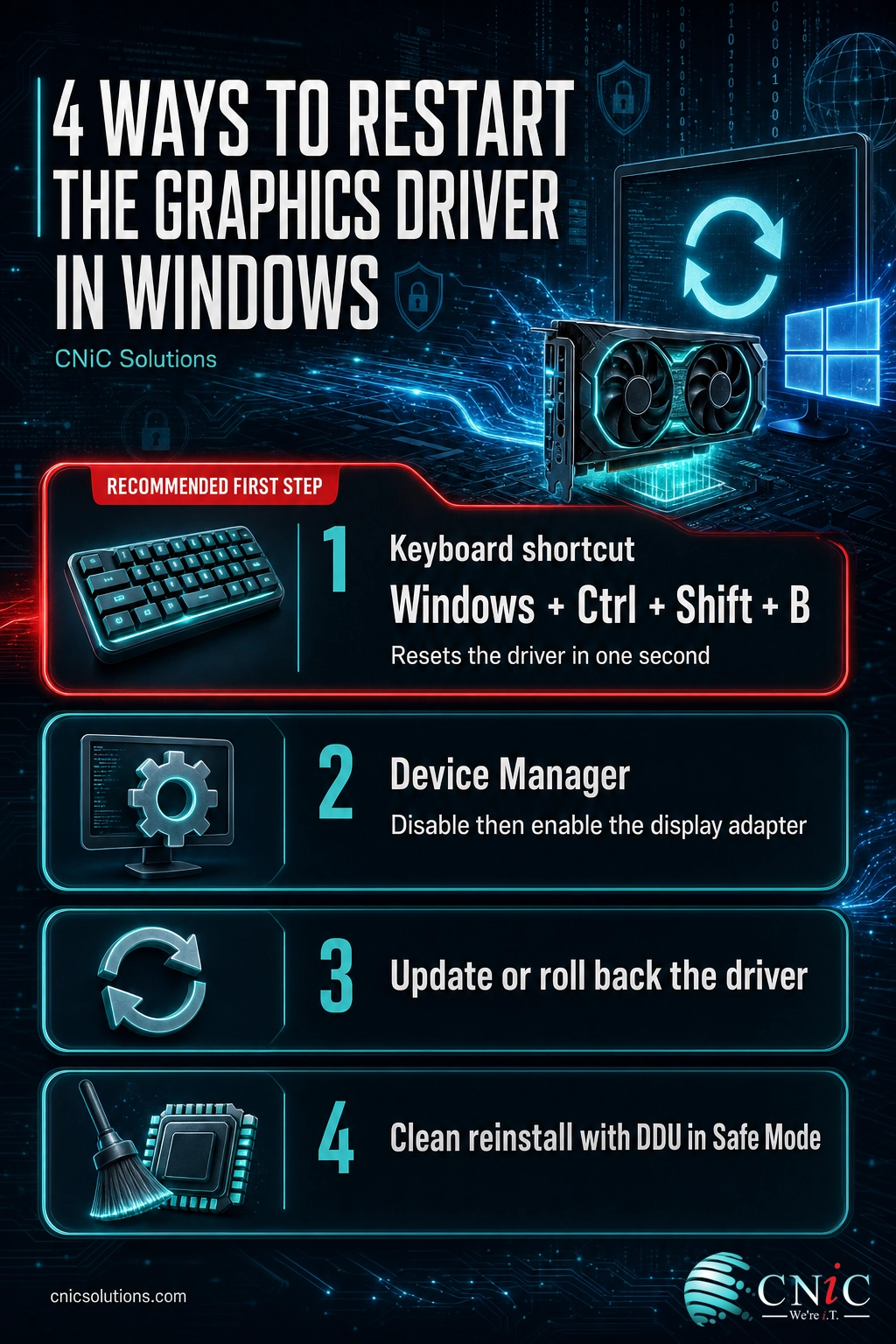
One question tells you which method you need: does the problem come back? A one-off freeze or flicker is solved by the keyboard shortcut and never returns. A glitch that reappears every day, after every wake from sleep, or every time you launch a certain program, is a driver that needs updating or reinstalling, covered in Steps 3 and 4. If you have seen this display fault alongside full crashes or blue screens, our companion guide to diagnosing a driver-related stop code covers the deeper driver isolation process.
Source: Microsoft Support: Troubleshooting blank screens in Windows
1Step 1: Restart the Driver With the Keyboard Shortcut
This is the fastest fix in Windows for a misbehaving display, and it is the one to try first every time.
What to do:
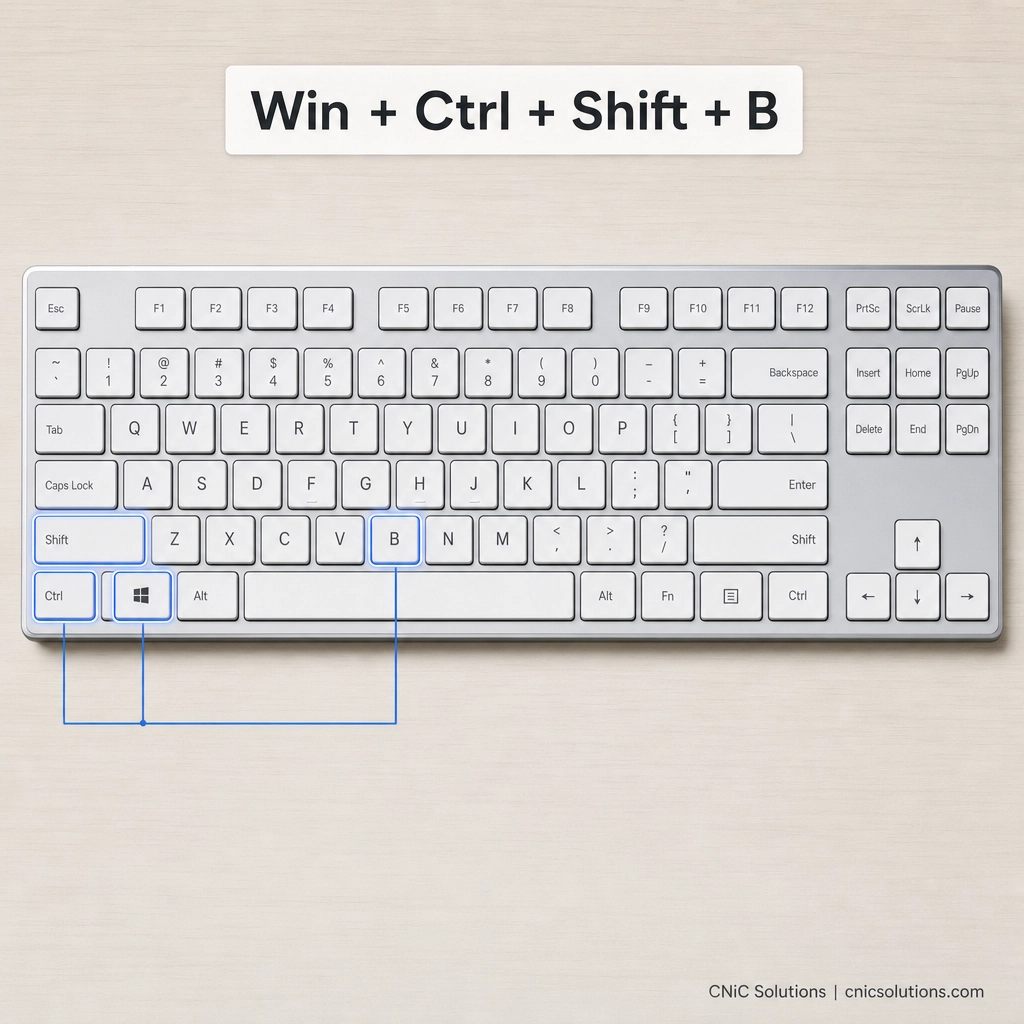
- Hold down Ctrl and Shift with one hand.
- With your other hand, press and hold the Windows key, then tap B.
- Release all four keys. You should see the screen go black for about a second and hear a short beep as the driver resets.
Why this step matters: it reloads the graphics pipeline without a full restart, so a frozen or black desktop usually comes right back to life in seconds, with every window and unsaved file intact.
What success looks like: the beep sounds, the screen flickers once, and the display returns to normal. Whatever was frozen, flickering, or blank is working again.
Common mistake: assuming it failed when the Windows key is off
Many gaming keyboards have a “game mode” switch that disables the Windows key to prevent accidental presses mid-game. With it off, the shortcut cannot fire. If you get no beep and no flicker, check for a game-mode toggle, make sure a full-screen game or video is not capturing the keyboard, then try the combination again with a firm, simultaneous press.
Source: Microsoft Support: Troubleshooting blank screens in Windows
2Step 2: Restart the Driver From Device Manager
If the shortcut does nothing, or you would rather reset the driver by hand, you can unload and reload it manually from Device Manager. This does the same job in a more visible way, and it works even when the keyboard shortcut is blocked.
What to do:
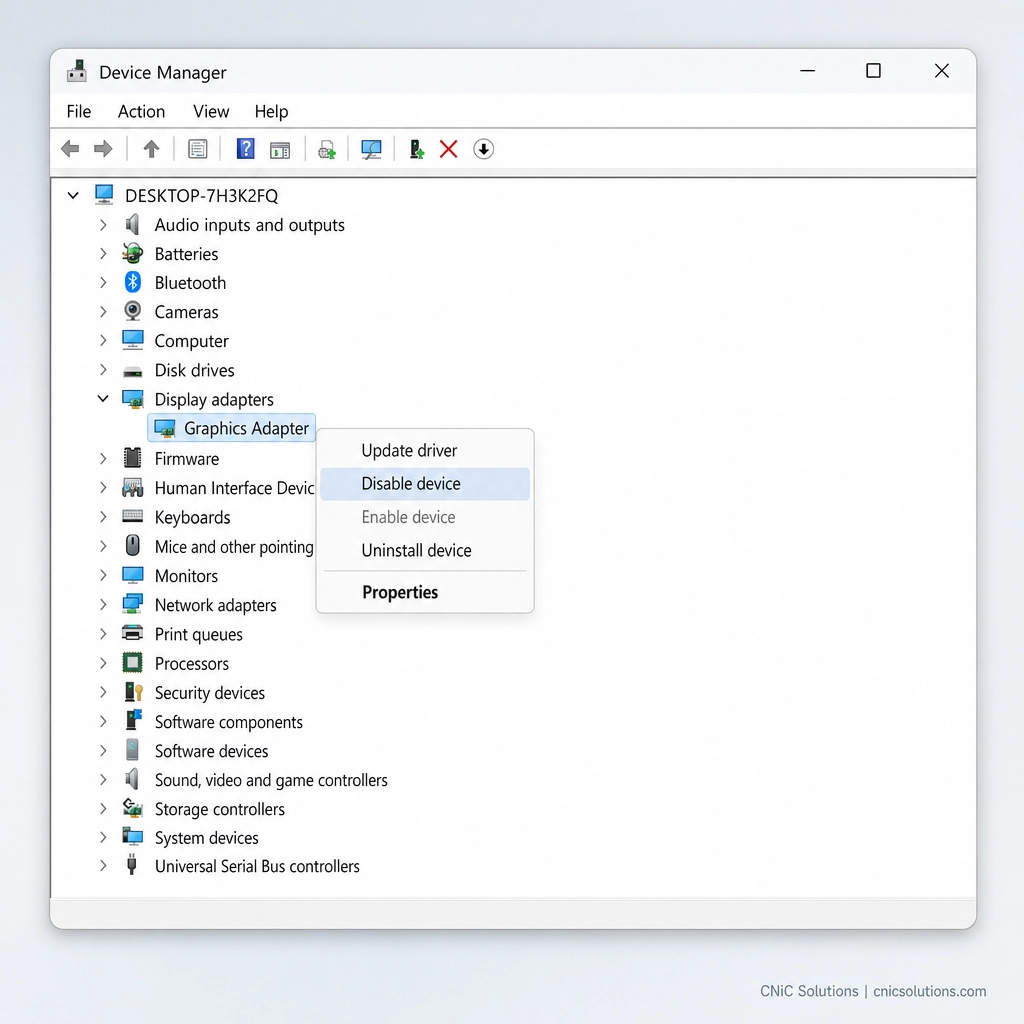
- Right-click Start and choose Device Manager.
- Expand Display adapters to see your graphics card (an NVIDIA, AMD, or Intel entry).
- Right-click the adapter and choose Disable device. The screen may go black or blank for a few seconds. This is expected.
- Right-click the same adapter again and choose Enable device to reload the driver.
Why this step matters: it gives you a manual reset when the keyboard shortcut is unavailable, and it confirms Windows can see and control the adapter at all, which is useful information if the display fault is more serious.
What success looks like: the screen returns after you re-enable the device, and the display glitch is gone. If nothing appears at all after enabling, restart the PC and move on to updating the driver.
Source: Microsoft Support: Troubleshooting blank screens in Windows | Intel Support: graphics driver troubleshooting
3Step 3: Update or Roll Back the Graphics Driver
A reset revives a stalled driver, but it cannot repair one that is buggy, outdated, or broken by a recent update. When the display problem keeps returning, the fix is to move the driver, either forward to a newer version or back to the one that was stable.
If the problem is NOT tied to a recent update (move forward):
- Run Settings > Windows Update > Check for updates, install everything, and check Advanced options > Optional updates for driver updates.
- For the newest and most stable version, download the driver directly from your card’s maker: NVIDIA’s driver download page, AMD’s support site, or Intel’s download center. Choose the clean install option if the installer offers it.
If the problem STARTED right after a driver update (move back):
- Open Device Manager, right-click your display adapter, and choose Properties > Driver > Roll Back Driver, then restart.
- If Roll Back is greyed out, uninstall the current driver and install the last version that worked from the maker’s site.
Why this step matters: the graphics driver is one of the most frequently updated drivers on any PC, and a bad or mismatched version is the usual reason a display glitch will not stay fixed. Microsoft’s crash research has long attributed roughly 70% of Windows stop errors to device drivers, so a healthy graphics driver prevents far more than flickering.
What success looks like: Device Manager shows no warning icon on the adapter, and the display fault stops recurring through the activity that used to trigger it.
Source: Microsoft Learn: Windows Display Driver Model (WDDM)

4Step 4: Do a Clean Reinstall With DDU
When a driver is corrupted, or a normal update or reinstall keeps failing, leftover files from old drivers are usually the cause. A standard uninstall often leaves those pieces behind. Display Driver Uninstaller (DDU) is a free, widely trusted utility that strips out every trace so a fresh driver installs cleanly.
What to do:
- Download the newest driver for your card first, from NVIDIA’s driver download page, AMD’s support site, or Intel’s download center, so you can reinstall while offline.
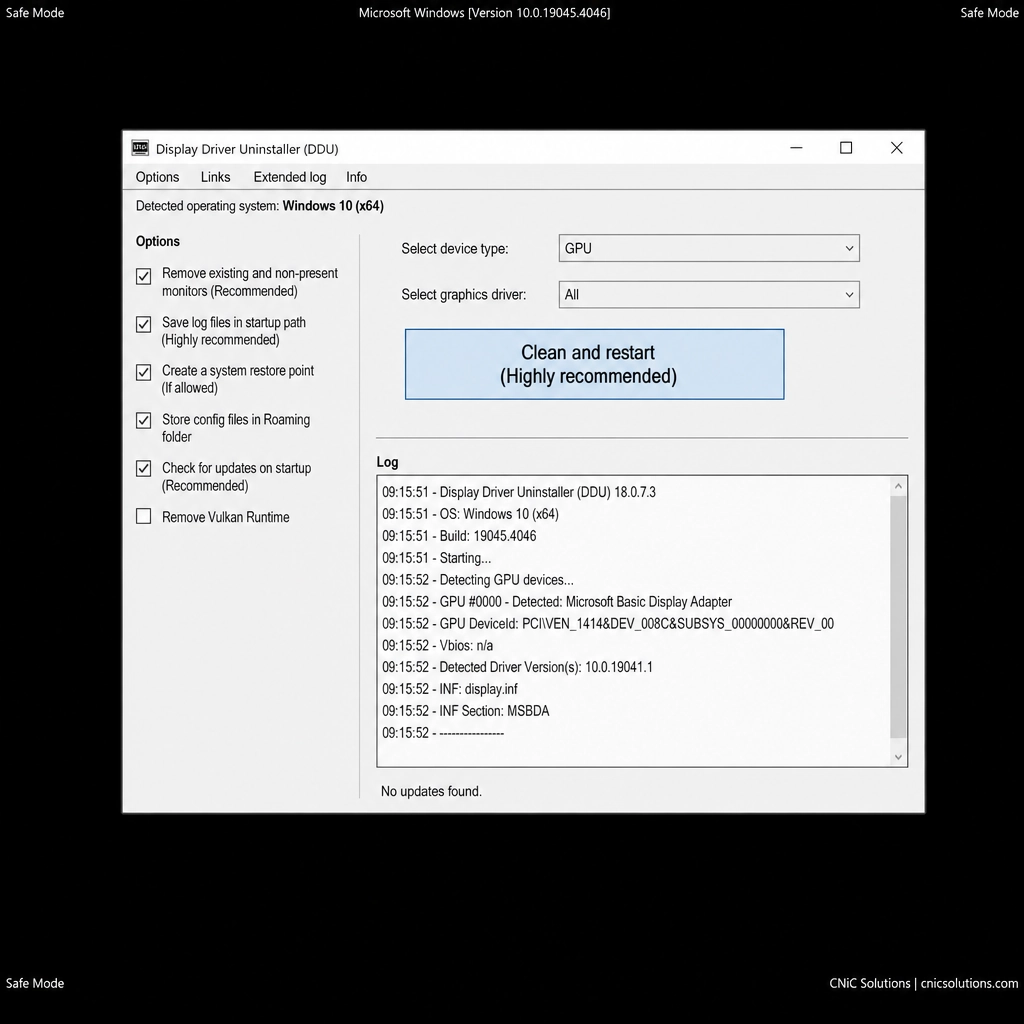
- Download DDU from its official source, Wagnardsoft’s Display Driver Uninstaller page, and boot Windows into Safe Mode.
- Run DDU, set the device type to GPU, pick your card’s brand, and choose Clean and restart.
- After the reboot, install the fresh driver you downloaded, then restart once more.
Why this step matters: it gives you a true blank slate, which resolves the stubborn cases where resets and ordinary updates never hold because damaged files keep coming back.
What success looks like: the new driver installs without errors, Device Manager reports the adapter is working properly, and the display fault is finally gone.
Common mistake: only running DDU is not the fix
DDU removes the driver but does not install a new one. If you clean the driver and reboot without installing a fresh version, Windows falls back to a basic display driver and the screen will look low-resolution until you install the real one. Always download the new driver before you run DDU, then install it right after the clean reboot.
Source: Intel Support: How to use the Display Driver Uninstaller (DDU)
When to Call a Professional
If you have reset, updated, and cleanly reinstalled the driver and the display fault still returns, the problem has likely moved past software, into failing memory on the graphics card, an overheating GPU, a bad cable, or a monitor on its way out. Chasing that on a single home PC is a fair afternoon of trial and error. On a business machine, and especially across several, the math changes fast.
CNiC Solutions handles work of every size, from one stubborn workstation to a full fleet, but a display fault that appears on multiple machines at once is rarely a coincidence. It usually means a bad graphics driver was pushed out through an update, and hand-resetting each device while it sits idle is the slow, expensive path. Industry research from ITIC puts a single hour of unplanned downtime above $300,000 for most mid-size and larger organizations, and IDC pegs the average infrastructure failure at roughly $100,000 per hour. A managed IT provider tests and stages driver versions before they reach your machines, rolls out the right version everywhere at once, and rules out hardware quickly, so a recurring glitch stops being a daily distraction.
If the fault hits several machines, appears on a workstation your business depends on, or survives a clean reinstall, that is the point to bring in help rather than keep resetting the same driver by hand.
Get proactive managed IT support for your workstations
Troubleshooting Common Problems
| Problem | What it points to | What to do |
|---|---|---|
| No beep or flicker when you press the shortcut | Windows key disabled, or a full-screen app captured the keyboard | Turn off any keyboard “game mode,” exit full-screen games or video, and press all four keys firmly at once. Otherwise use the Device Manager method (Step 2). |
| The screen resets but the glitch returns minutes later | A buggy or outdated graphics driver, not a one-off stall | Update the driver, or roll it back if the trouble began after an update (Step 3). |
| Black screen persists even after a reset and restart | Deeper driver corruption or a hardware or cable fault | Clean-reinstall with DDU (Step 4). If it survives that, suspect the cable, monitor, or GPU. |
| Screen looks low-resolution after cleaning the driver | Windows is on its basic fallback display driver | Install the full driver you downloaded from NVIDIA, AMD, or Intel, then restart. |
| The same fault appears on several office machines | A bad driver update pushed across the fleet | Stop resetting them one by one. Standardize the driver version fleet-wide, which is a managed IT task. |
Source: Microsoft Support: Troubleshooting blank screens in Windows
Maintain and Monitor After the Fix
Once the display is stable, a few habits keep the graphics driver out of trouble:
- Keep the driver current, but not bleeding-edge. Install graphics driver updates when they are a version or two settled, not the day they release, and use the machine for a while before the next one so a bad update is easy to trace.
- Let one update settle at a time. Install a graphics driver update on its own, then confirm the display is stable before adding other driver or Windows updates, so you always know what changed.
- Watch for heat. Repeated flickering or resets under load can signal an overheating GPU. Keep vents clear and check that the card’s fans are spinning.
- Note when it started. If a glitch returns, the single most useful clue is what changed right before it, an update, a new monitor, or a new cable.
For a business, this is exactly the low-drama upkeep that is easy to skip until a bad update takes out a room full of screens. Centralized driver management, staged rollouts, and endpoint monitoring turn that from a recurring scramble into a non-event, and that ongoing oversight is the core of what a managed IT and endpoint protection partner provides.
Keep your endpoints stable and secure
Frequently Asked Questions
Does restarting the graphics driver close my apps or lose my work?
What does the Win + Ctrl + Shift + B shortcut actually do?
Why did the graphics driver restart shortcut do nothing?
Is it safe to restart the graphics driver?
When should a business call IT about recurring graphics or display problems?
Methodology and Sources
This guide follows the documented, safest-first order for restarting and repairing the Windows graphics driver. The keyboard reset and Device Manager steps are drawn from Microsoft’s official support guidance for blank and black screens in Windows. The description of what the shortcut resets (the WDDM graphics stack and the Desktop Window Manager surface) is anchored to Microsoft’s Windows Display Driver Model documentation. Driver update, roll-back, and clean-reinstall procedures are corroborated against Intel’s official DDU support article and the driver download pages published by NVIDIA, AMD, and Intel. The “roughly 70% of Windows stop errors are driver-related” figure originates from Microsoft’s own long-cited crash research. Downtime cost figures are attributed to their original sources: the $300,000-per-hour figure to ITIC’s Hourly Cost of Downtime Survey, and the $100,000-per-hour infrastructure figure to IDC.
Primary and authoritative sources: Microsoft Support (Troubleshooting blank screens), Microsoft Learn (WDDM), Intel Support (DDU), ITIC 2024 Hourly Cost of Downtime Report.



related posts
What Is ZTNA (Zero Trust Network Access)?
November 3, 2026Zero Trust Network Access (ZTNA) is a security service that grants a verified user access to…
Zero Trust Statistics for 2026: Adoption, Maturity, and Breach Impact
November 3, 2026Zero trust has become the default security strategy on paper, but not yet in practice. Okta's…
What Is XDR (Extended Detection and Response) and How Does It Protect…
November 2, 2026Extended detection and response (XDR) is a security platform that collects and correlates threat data from…
What Is Zero Trust Security? A Guide for Small Businesses
November 2, 2026Zero Trust security is a cybersecurity model built on one rule: never trust, always verify. Instead…