

SharePoint and Google Drive both live in the cloud and both store your files, but they are not the same kind of tool, and that is the key to choosing. Google Drive is simple, fast cloud storage with excellent real-time collaboration; SharePoint is a document management and intranet platform with structure, governance, and deep control. The right choice depends on whether your business needs Drive’s simplicity or SharePoint’s structure, and which ecosystem, Google Workspace or Microsoft 365, your team will live in every day.
If you are weighing SharePoint against Google Drive, the first thing to understand is that you are not comparing two versions of the same product. Google Drive is cloud file storage that happens to collaborate beautifully. SharePoint is a full document management and collaboration platform that happens to include storage. One is built for speed and simplicity; the other is built for structure and governance. Both can hold your company’s files, and both are secure and mature, but they are optimized for different kinds of work. This guide compares them the way a business actually has to decide: on storage and pricing, everyday collaboration, security and compliance, document governance, and the ecosystem each one pulls you into, with current, vendor-sourced numbers and a clear framework for picking the one that fits your team.
Key Takeaways
- They solve different problems. Google Drive is cloud storage plus collaboration; SharePoint is document management, governance, and intranet. Compare what you need them to do, not just where your files sit.
- Entry pricing matches at $7. Google Workspace Business Starter and Microsoft 365 Business Basic (which includes SharePoint) both cost $7 per user per month on an annual commitment.
- SharePoint no longer sells standalone. For new customers it comes bundled inside Microsoft 365 business plans, so choosing SharePoint effectively means choosing the Microsoft 365 ecosystem.
- Google Drive wins on simplicity and collaboration. Near-zero setup, real-time co-editing, and an interface most people already know suit smaller and cloud-native teams.
- SharePoint wins on structure and control. Metadata, version control, workflows, permissions, and compliance tooling suit larger, document-heavy, and regulated organizations.
- Neither is a backup. Both protect their platform, not your data. Independent backup of your cloud files matters on either one.
What’s in This Guide
Understanding the Landscape
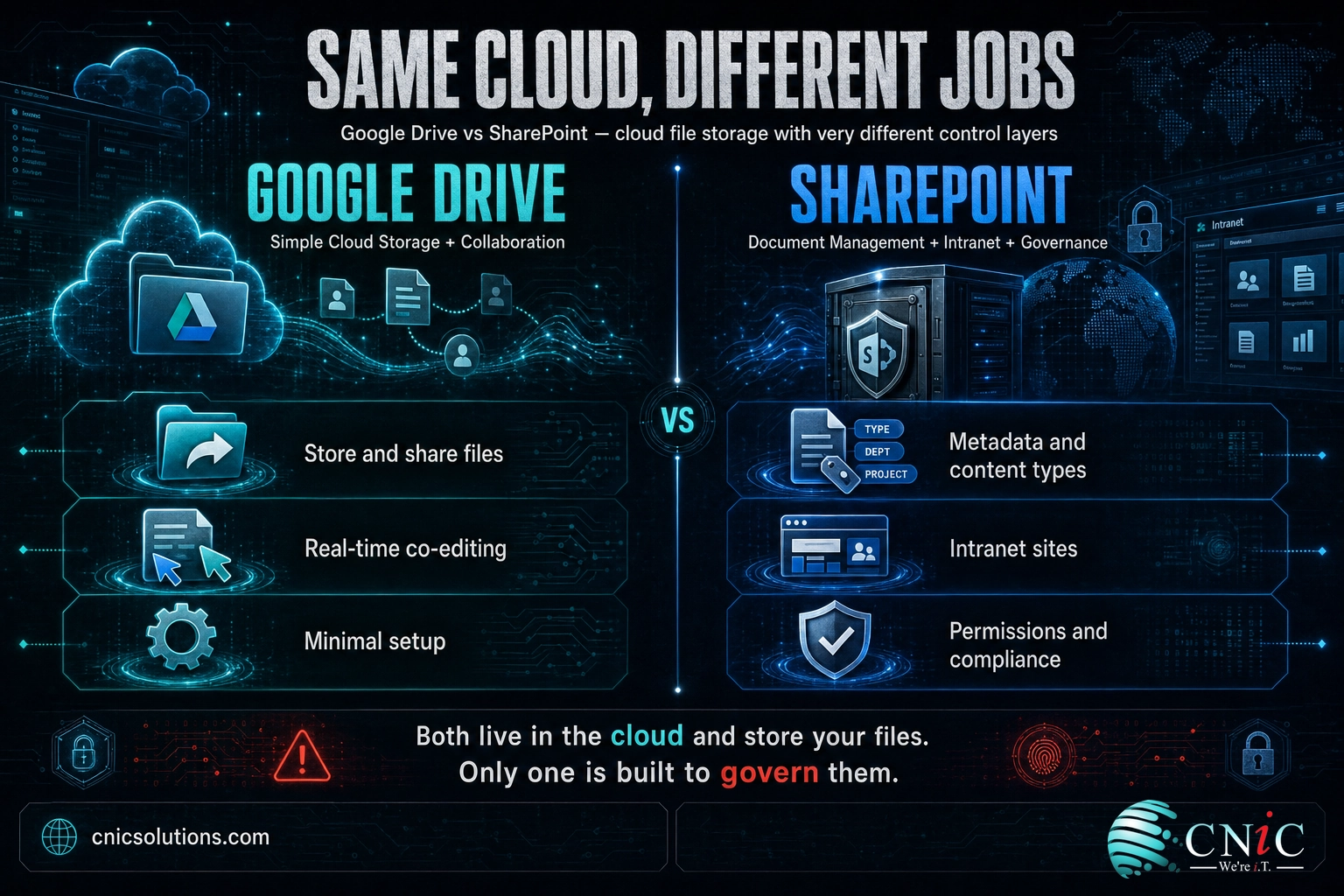
The most common mistake in this comparison is treating SharePoint and Google Drive as rivals doing the same job. They are not. Google Drive is a cloud storage service: a place to keep files, organize them into folders, share them with a link, and edit Google Docs and Sheets together in real time. SharePoint is a document management and collaboration platform: it stores files too, but it wraps them in structure (metadata, content types, libraries), enforces rules (permissions, retention, approval workflows), and builds internal websites and intranets on top of them.
A useful way to picture it: Google Drive is a very good, very fast filing cabinet that the whole team can open at once. SharePoint is a filing system with a records department, a librarian, and a set of business rules attached. For a five-person marketing shop, the filing cabinet is exactly right and the records department is overkill. For a 300-person firm under compliance obligations, the records department is the entire point and the plain filing cabinet is a liability.
There is one more thing you are really deciding, and it is bigger than either product. Neither tool is sold on its own island. Google Drive is part of Google Workspace, and SharePoint, since Microsoft retired its standalone plans for new customers, now comes bundled inside Microsoft 365. So picking between them is, underneath, picking between two ecosystems: Gmail, Docs, Sheets, and Meet on one side; Outlook, Word, Excel, Teams, and OneDrive on the other. If you have not settled that larger question yet, our companion guide on choosing between the two productivity suites is the right place to start, because the file platform tends to follow the suite. Both platforms also sit at the center of your wider move to cloud-based operations, so it is worth deciding deliberately rather than by inertia.
SharePoint: Overview, Strengths, and Limits
SharePoint is Microsoft’s platform for storing, organizing, and managing documents and building internal sites, delivered as part of Microsoft 365. Where a plain storage tool gives you folders, SharePoint gives you document libraries: collections of files that can carry metadata (client name, project, status, department), enforce version history and check-in/check-out, apply retention and approval workflows, and surface the right documents through custom views and search. Teams, the Microsoft chat and meetings app, actually stores its shared files in SharePoint behind the scenes, so most Microsoft 365 businesses are using SharePoint whether they realize it or not.
How it works
SharePoint organizes content into sites: a team site for a department or project, or a communication site for a company-wide intranet. Each site holds document libraries and lists, with permissions that can be set at the site, library, folder, or individual file level. Because it runs inside Microsoft 365, SharePoint inherits the same identity and security stack (Microsoft Entra ID for sign-in, Purview for compliance labeling, Defender for threat protection), which is what lets it satisfy strict governance requirements. If you are standing one up, the process is more involved than creating a Drive folder, which is why we wrote a step-by-step walkthrough for launching your first site.
Key strengths
- Structured document management. Metadata, content types, version control, and custom views turn a pile of files into a searchable, governed system, not just folders.
- Granular permissions and governance. Access, retention, sensitivity labels, and approval workflows give regulated and larger organizations the control they need.
- Intranet and process building. SharePoint sites become company portals, and with Power Automate they drive document-centric workflows and approvals.
- Deep Microsoft 365 integration. It is wired directly into Teams, Outlook, Office apps, and OneDrive, so files live where people already work.
Key limitations
- Complexity and setup. The power comes with a learning curve. Sites, libraries, and permissions need planning, and a badly structured SharePoint quickly becomes confusing.
- Overkill for small, simple teams. A small business that just needs shared folders will pay in complexity for capabilities it never uses.
- Best value only inside Microsoft 365. With standalone plans retired for new customers, getting SharePoint means adopting a Microsoft 365 business plan and, usually, its whole ecosystem.
Best for: Larger, document-heavy, and regulated organizations that need structure, governance, an intranet, and are already committed to Microsoft 365.
Source: Microsoft’s official SharePoint and Microsoft 365 limits documentation
Google Drive: Overview, Strengths, and Limits
Google Drive is the cloud storage service inside Google Workspace: a place to store any file, organize it into folders, share it with a few clicks, and, for Google’s own formats, edit Docs, Sheets, and Slides together in the browser in real time. For team files, Workspace adds Shared Drives, which belong to the organization rather than an individual, so files do not vanish when an employee leaves. The defining quality of Drive is that almost anyone can use it well within minutes, because it works the way people already expect cloud storage to work.
How it works
Drive runs entirely in the browser and on mobile, with nothing to install and nothing to patch. Sharing is a link or an email address with view, comment, or edit rights. Google’s own documents co-edit live, with multiple cursors on the page and every change saved automatically, which is the collaboration experience Google is known for. Administration happens in the Workspace admin console, and storage is pooled across the organization, so heavy users draw from a shared pool rather than each hitting a personal cap. It is simple by design, and that simplicity is a genuine feature, not a shortcoming.
Key strengths
- Simplicity and speed. Near-zero setup and a familiar interface mean teams adopt it immediately, with minimal training or IT overhead.
- Best-in-industry real-time collaboration. Live co-editing in Docs and Sheets is fluid and central to how the tool works, not an add-on.
- Powerful search. Google’s search finds files fast, even by content inside them, without requiring metadata setup.
- Pooled storage that scales. Shared storage grows cleanly by plan and flexes across users instead of trapping capacity per person.
Key limitations
- Limited document governance. Drive has sharing permissions, but not SharePoint’s metadata, content types, retention rules, and approval workflows for structured records management.
- No native intranet. Drive stores and shares files; it does not build company portals and internal sites the way SharePoint does.
- Compatibility friction with Office files. Complex Excel and Word files can lose formatting or advanced features when worked on in Google’s apps.
- Modest entry storage. Business Starter includes only 30 GB pooled per user, which fills quickly for file-heavy teams and pushes them to a higher plan.
Best for: Small and midsize, cloud-native, and collaboration-first teams that want simple, fast file storage with minimal setup and IT overhead.
Source: Google Workspace official pricing page
Head-to-Head Comparison Table
The table lines the two platforms up on what businesses weigh most. Prices are per user per month on annual commitments, current for 2026. Note that SharePoint’s figures reflect its bundling inside Microsoft 365.
| Criteria | SharePoint (in Microsoft 365) | Google Drive (in Google Workspace) |
|---|---|---|
| What it is | Document management + intranet platform | Cloud file storage + collaboration |
| Design philosophy | Structure, governance, control | Simplicity, speed, collaboration |
| Entry plan | Microsoft 365 Business Basic, $7 | Business Starter, $7 |
| Sold standalone? | No longer for new customers; bundled in M365 | Only as part of Google Workspace |
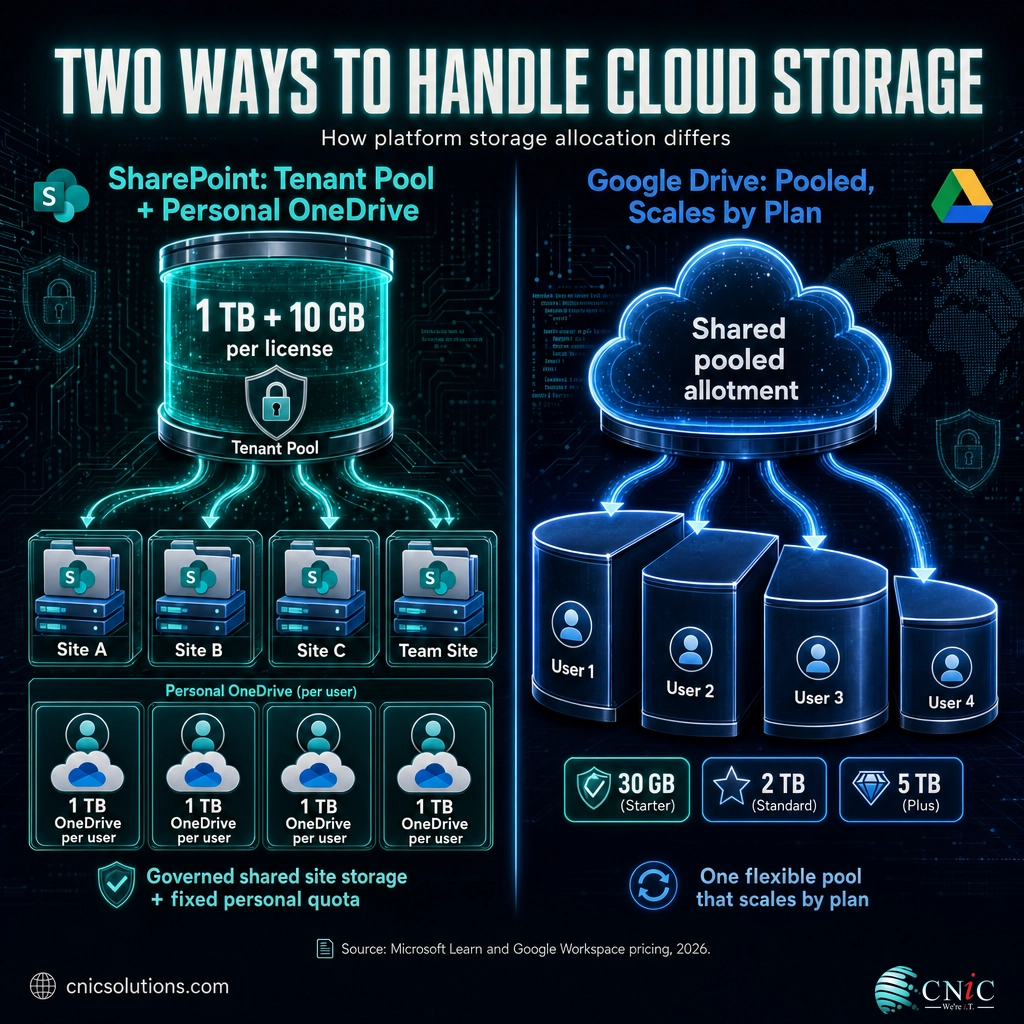
| Storage model | Tenant pool: 1 TB + 10 GB per license, plus 1 TB OneDrive per user | Pooled: 30 GB / 2 TB / 5 TB per user by plan |
| Document metadata | Yes: metadata, content types, custom views | Limited: folders and labels |
| Version control | Full history, with check-in/check-out | Automatic version history |
| Real-time co-editing | Capable, via Office apps | Best-in-industry, core to the tool |
| Intranet / portals | Yes: team and communication sites | No native intranet |
| Compliance tooling | Deep: Purview labels, retention, DLP | Cloud-native admin controls |
| Ease of adoption | Steeper: planning and setup needed | Immediate: minimal training |
Sources: Microsoft 365 business plans | Google Workspace pricing

The Five Decisions That Actually Matter
The feature lists run long, but only a few differences decide the outcome for most businesses. Here are the five that carry the real weight, each with a clear winner and the conditions under which that winner is right for you.
1. Structured document management vs. simple file storage
This is the fault line the whole decision runs along. If your business needs to treat documents as records (tagging them with metadata, applying retention schedules, routing them through approvals, and finding them by attributes rather than by remembering which folder they landed in) then SharePoint’s document libraries are built for exactly that, and Google Drive is not. If your team just needs to store files, share them, and work on them together without ceremony, Drive does that faster and with far less setup, and SharePoint’s machinery becomes friction you pay for and never use. Winner: SharePoint for structured document management; Google Drive for simple, fast file storage. Be honest about which one your team actually does more of.
2. Storage and pricing
On the headline price, the two match: both start at $7 per user per month on an annual plan. The storage models differ in a way that matters at scale. Microsoft 365 gives each user 1 TB of personal OneDrive storage and adds a shared SharePoint tenant pool of 1 TB plus 10 GB per licensed user, with individual sites able to grow to 25 TB. Google Drive uses one pooled allotment that scales by plan: 30 GB per user on Business Starter, 2 TB on Business Standard, and 5 TB on Business Plus, shared across the organization. The practical takeaway: Microsoft’s entry tier is far more generous on per-user file storage (1 TB versus 30 GB), while Google’s higher tiers offer large, flexible pools that suit heavy but uneven usage. Winner: Microsoft 365 on entry-tier storage value; a near-tie higher up, decided by how your usage is distributed.
Included Per-User File Storage on the Mid-Tier Business Plan (Business Standard, $14/user/month)
Sources: Google Workspace pricing and Microsoft 365 business plan pricing, 2026. Google’s storage is pooled across the organization; Microsoft’s OneDrive is a fixed per-user allocation, on top of which SharePoint adds a shared tenant pool of 1 TB plus 10 GB per license.
3. Everyday collaboration and ease of use
For live, in-the-document teamwork, Google Drive set the standard the rest of the industry chased. Multiple people editing the same Doc or Sheet at once, with visible cursors and instant saves, is the core experience, and for teams whose work is genuinely collaborative it is hard to beat. SharePoint collaborates capably through the Office apps and co-authoring, but the experience is built around richer, more structured documents and a heavier interface, so it is not as effortless for quick, shared editing. On the flip side, simplicity cuts both ways: Drive is faster to learn, but SharePoint’s structure pays off once a team’s document volume and rules outgrow plain folders. Winner: Google Drive for frictionless everyday collaboration; SharePoint once structure matters more than speed.
4. Security, compliance, and governance
Both platforms are secure at the foundation, backed by two of the largest security operations in the world. The difference is depth of control. SharePoint, through the Microsoft 365 stack, offers granular permissions, Microsoft Purview sensitivity labels, data loss prevention, retention policies, and conditional access, which is why it is favored in healthcare, legal, financial services, and other regulated fields that must prove how documents are handled. Google Drive provides strong cloud-native administration, sharing controls, and endpoint management, well-suited to businesses that want solid security without the complexity. Winner: SharePoint for deep governance and regulated environments; Google Drive for strong, simpler cloud-native security. Whichever you choose, the protection you actually get depends on configuring it correctly, which is where a managed cybersecurity program earns its place.
Myth: “My files are automatically backed up because they live in SharePoint or Google Drive.” Both Microsoft and Google protect their own infrastructure and keep deleted items in a recycle bin and version history for a limited retention window, but neither is a backup of your data. If a file is deleted past that window, overwritten, corrupted, or encrypted by ransomware, the platform will not bring it back for you. They operate a shared-responsibility model: they keep the service running, you are responsible for protecting your content. That is why every business on either platform should run an independent, third-party backup and recovery plan for its cloud files. Assuming the cloud already backs you up is how companies lose data they were certain was safe.
5. Ecosystem and long-term fit
Because neither tool stands alone, the last decision is the most consequential: which ecosystem do you want your business to live in? Choosing SharePoint pulls you into Microsoft 365, with Outlook, Word, Excel, Teams, and OneDrive, an environment that rewards teams doing document-heavy and Windows-based work. Choosing Google Drive pulls you into Google Workspace, with Gmail, Docs, Sheets, and Meet, an environment that rewards cloud-native, browser-first collaboration. The file platform rarely gets chosen in isolation; it tends to follow the suite, and the suite becomes the daily software environment for your whole company. Winner: whichever ecosystem your team will find natural. If that larger question is still open, settle it first, because it decides the file platform almost automatically.

Decision Framework: Choose the Right Platform
Set the branding aside and match the platform to your reality. Most businesses recognize themselves clearly in one of the two profiles below.
Choose SharePoint (Microsoft 365) if you:
- Need structured document management: metadata, content types, version control, and records retention.
- Operate under compliance requirements and must prove how documents are governed and secured.
- Want an internal intranet, company portals, or document-driven approval workflows.
- Are a larger or document-heavy organization, or already run Microsoft 365, Windows, and Office.
- Have the IT support to plan sites, libraries, and permissions properly.
Choose Google Drive (Google Workspace) if you:
- Want simple, fast file storage your team can use well within minutes.
- Collaborate constantly, with people shaping the same documents in real time.
- Are a small or midsize, cloud-native, or remote-first team that wants minimal IT overhead.
- Prefer browser-based tools and are already comfortable in Gmail and Chrome.
- Do not need heavy records management, retention rules, or an intranet.
If your team is genuinely split, run a short pilot before committing everyone. Put a small, representative group on the platform you are leaning toward for a few weeks of real work: a heavy collaborator, someone who manages sensitive documents, and whoever handles admin. A pilot surfaces the practical friction that feature charts never show, how your real files behave, whether staff adapt quickly, and where your existing tools plug in. It is far cheaper to learn that in a controlled test than after moving the whole company. And remember the choice is not permanent: files, folders, and permissions can be migrated between platforms in either direction, so a well-run migration is achievable if your needs change. The goal is to pick well now, not to pick perfectly forever.
What CNiC Solutions Recommends
After deploying and managing both platforms for businesses across a range of industries, our guidance is consistent: choose the platform that matches how your team actually stores and works on files, not the one with the longer feature list. For small, collaborative, cloud-native teams that value speed and simplicity, Google Drive inside Google Workspace is usually the better fit. For larger, document-heavy, or regulated organizations that need structure, governance, and an intranet, SharePoint inside Microsoft 365 is usually the stronger long-term choice. Both will serve a well-run business well.
The more important point is the one most comparisons skip: the platform you pick matters far less than how it is deployed, secured, and maintained. We routinely see businesses with SharePoint sprawl no one can navigate, Drive files shared far too openly, permissions left wide, compliance tools paid for but never switched on, and no independent backup of the cloud data they assume is safe. That is where an IT partner changes the outcome. CNiC Solutions helps you weigh the decision against your existing systems, migrate cleanly without downtime, structure and secure the platform correctly from day one, and keep the whole environment managed. If you want that decision made with an expert rather than a coin flip, our Virtual CIO guidance and day-to-day managed IT services cover it end to end.
Get expert help choosing and managing your cloud platform
Frequently Asked Questions
Is SharePoint or Google Drive better for a small business?
Is SharePoint the same as Google Drive?
How much do SharePoint and Google Drive cost for business?
Does SharePoint or Google Drive give you more storage?
Are my files automatically backed up in SharePoint or Google Drive?
About This Comparison and Its Sources
This comparison reflects SharePoint (within Microsoft 365) and Google Drive (within Google Workspace) business offerings as of 2026. Pricing and plan details come from the vendors’ own published sources: per-user pricing and plan contents are taken from Microsoft’s Microsoft 365 business plans and the Google Workspace official pricing page. SharePoint storage figures (a tenant pool of 1 TB plus 10 GB per licensed user, and a 25 TB per-site maximum) come from Microsoft’s official limits documentation. Prices are per user per month on annual commitments and can change; confirm current figures on the vendors’ pages before purchasing. Recommendations are CNiC Solutions’ own, based on deploying and managing both platforms for client businesses.



related posts
What Is a Firmware Update and Why It Matters for Security
October 6, 2026A firmware update is a manufacturer-issued revision to the low-level software built into a device, such…
What Is a Human Firewall? Turning Employees Into Your Best Defense
October 6, 2026A human firewall is the group of employees who, through security awareness and good habits, act…
What Is a Distributed System? How It Works and Why It Matters
October 5, 2026A distributed system is a collection of independent computers, called nodes, that are connected over a…
What Is a Firewall? How It Protects Your Business Network
October 5, 2026A firewall is a network security device or software that monitors incoming and outgoing traffic and…