

A frozen computer stops everything: the screen locks, the cursor stalls, and the work you were in the middle of hangs in the balance. It is one of the most common IT frustrations in any office. A 2016 Robert Half Technology survey of U.S. office workers found staff lose about 22 minutes a day to IT-related issues, roughly 91 hours a year per person, and an unresponsive machine is a familiar part of that toll. The good news is that most freezes are fixable in a few minutes, and there is a safe order to work through so you keep as much of your work as possible. This guide walks that sequence step by step, then shows you how to find the cause so it stops happening.
Key Takeaways
- Do not rush to the power button. Wait a minute first, then try to close the stuck program before forcing anything, so you protect unsaved work.
- Task Manager is your main tool. Ctrl+Shift+Esc lets you end a single frozen program without restarting the whole computer.
- Force restart is a last resort. Holding the power button is safe occasionally, but it costs you anything unsaved, so it comes last, not first.
- Repeated freezing has a cause. Drivers, low memory or disk space, overheating, malware, or failing hardware are the usual suspects, and Safe Mode helps you tell software from hardware.
- For a business, frequent freezes are a signal. One machine is an annoyance; a pattern across the team is a maintenance and monitoring problem worth handing to a managed IT partner.
What’s in This Guide
- What a Frozen Computer Actually Is
- Before You Begin
- Step 1: Pause and Confirm It Is Actually Frozen
- Step 2: Close the Unresponsive Program
- Step 3: End the Task in Task Manager
- Step 4: Force a Restart as a Last Resort
- Step 5: Restart in Safe Mode to Find the Cause
Stop it happening again:
What a Frozen Computer Actually Is
A freeze is different from a slow computer and different from a crash. When a computer is slow, it still responds, just sluggishly. When it crashes, it usually restarts itself or shows a blue screen. A freeze sits in between: the machine is on, the screen is lit, but it stops responding to your mouse and keyboard entirely, or one program locks up while the rest of the system keeps working.
That distinction matters because it points to the fix. A single program showing “Not responding” while the taskbar and other windows still work is a program freeze, and you can close just that program. A total freeze, where even Ctrl+Alt+Delete does nothing and the clock stops ticking, is a system freeze that usually needs a restart. Knowing which one you are looking at tells you how far down this list you need to go. Microsoft’s own guidance frames freeze troubleshooting the same way, by first identifying what was happening and how often it occurs before acting.
Source: Microsoft Learn: Windows-based computer freeze troubleshooting
Before You Begin
- What you need: Nothing extra. Every step here uses tools already built into Windows, plus the physical power button as a last resort.
- Time required: 2 to 10 minutes for the immediate fix. Diagnosing a repeat offender takes longer.
- Skill level: Beginner. If you can find the power button and press Ctrl+Alt+Delete, you can do everything in the fix sequence.
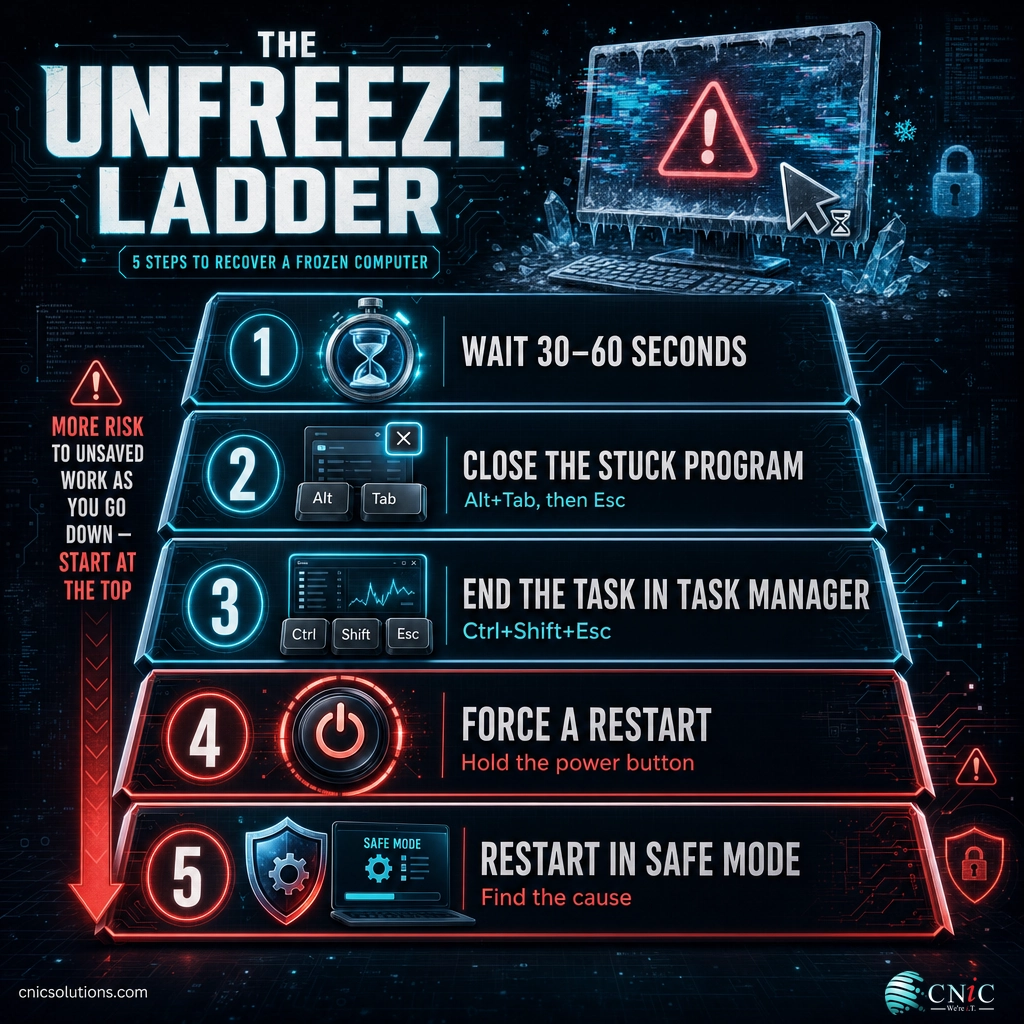
- One rule before you start: Work down the steps in order. Each one protects more of your unsaved work than the step after it, so jumping straight to the power button should always be your last move, not your first.
Step 1: Pause and Confirm It Is Actually Frozen
What to do: Stop clicking and wait 30 to 60 seconds. Watch the clock in the corner of the screen. If it keeps ticking and the hard drive light still flickers, the computer is working, not dead, and it may just be busy. Resist the urge to click the same button ten times, because those clicks queue up and can make things worse when the machine catches up.
Why this step matters: A large share of freezes are temporary. A program crunching a big file, an antivirus scan, or a Windows update installing in the background can make a machine unresponsive for a short while. Give it a moment and it often recovers on its own with everything intact.
What success looks like: The cursor starts moving again, the busy spinner disappears, and the program you were using responds. If that happens, you are done, and you have lost nothing.
Source: HP Tech Takes: How to unfreeze a locked-up computer
Step 2: Close the Unresponsive Program
What to do: If the wait did not help but part of the screen still responds, the problem is probably one stuck program rather than the whole system. Press Alt+Tab to cycle to your other open windows. If you can switch away, the rest of Windows is alive. Click the frozen program once and press Esc, or use the small close button in its top corner. Windows will often ask whether you want to wait for the program or close it.
Why this step matters: Closing a single misbehaving application is the least disruptive fix available. Everything else you have open, and any work saved in those windows, stays exactly where it is.
What success looks like: The frozen window closes, and the rest of your desktop responds normally. You may lose unsaved changes in that one program, but nothing else.
Source: HP Tech Takes: Use Alt+Tab and Esc to close a frozen program
Step 3: End the Task in Task Manager
What to do: Press Ctrl+Shift+Esc to open Task Manager directly. If that does nothing, press Ctrl+Alt+Delete and choose Task Manager from the menu. In the Processes list, look for the program marked Not responding, click it once, and choose End task. This forces the stuck program to close.
Why this step matters: Task Manager can reach a program that has stopped listening to normal clicks. It is the tool that lets you shut down just the offender while keeping the rest of your session, which is why it sits above the power button in the order.
What success looks like: The Not responding program disappears from the list and the freeze lifts. If several programs show Not responding at once, or Task Manager itself will not open, the whole system is likely frozen, and you move to the next step.
Source: Microsoft Learn: Check the response with Ctrl+Alt+Delete and Task Manager
Common mistake: reaching for the power button too soon
The instinct when a machine locks up is to hold the power button and start over. It works, but it is the most costly option, because it discards everything you had open and not yet saved, and in rare cases interrupts a disk write. Treat the power button as the emergency exit, not the front door. If the clock is still ticking or Task Manager still opens, you have gentler options that save your work, and you should use them first.
Step 4: Force a Restart as a Last Resort
What to do: When the screen, mouse, and keyboard are all completely unresponsive and Ctrl+Alt+Delete does nothing, press and hold the physical power button for 5 to 10 seconds until the computer powers off. Wait a few seconds, then press the power button again to turn it back on. On a laptop with a sealed battery, the same press-and-hold works.
Why this step matters: A full system freeze leaves no software route back. A forced power-off clears the locked state entirely, and the machine almost always boots normally afterward.
What success looks like: The computer shuts down, restarts, and loads Windows normally. If it froze because of a one-off glitch, it may now run fine for weeks. If it freezes again soon after, treat that as a signal to find the cause rather than repeating the force restart.
Source: HP Tech Takes: Force a restart with the power button

Step 5: Restart in Safe Mode to Find the Cause
What to do: If the computer keeps freezing, start it in Safe Mode. On Windows, hold Shift while choosing Restart, then go to Troubleshoot, Advanced options, Startup Settings, Restart, and choose Safe Mode. Safe Mode loads Windows with only the essential drivers and services and none of your usual startup programs.
Why this step matters: Safe Mode is the single most useful diagnostic move you can make yourself. It splits the problem in two. If the computer runs stably in Safe Mode, the freeze is caused by software, most often a driver, a startup program, or a third-party application. If it still freezes in Safe Mode, the cause is more likely hardware or the core system, which points toward professional testing.
What success looks like: You reach the desktop with “Safe Mode” shown in the corners, and you can use the machine long enough to see whether it stays stable. From there you can update or roll back drivers, remove a recently installed program, or run a malware scan, then restart normally to confirm the fix.
Source: Microsoft Learn: Isolating freeze causes with a clean boot and diagnostics
Why Your Computer Keeps Freezing
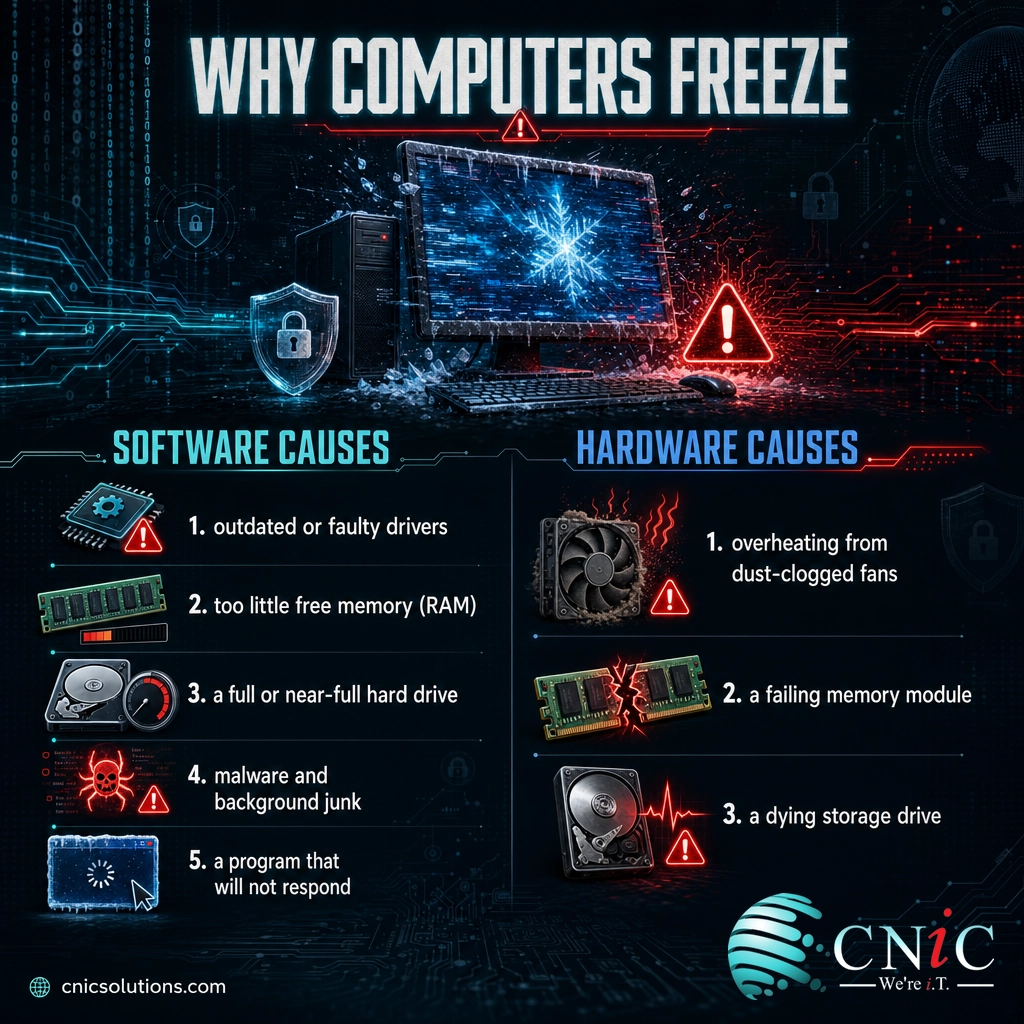
A single freeze is usually nothing. A pattern of freezing means something specific is wrong, and it is worth naming the cause rather than force-restarting your way through the day. Most repeat freezes trace back to one of a handful of issues, split between software and hardware.
| Cause | Type | What to do about it |
|---|---|---|
| Outdated or faulty driver | Software | Update Windows and device drivers, or roll back a driver that was updated just before the freezing started. This is the most common repeat cause. |
| Low memory or full disk | Software | Close heavy programs and browser tabs, and keep at least 15 to 20 percent of the drive free so Windows has room for temporary files. |
| Overheating | Hardware | Clear dust from vents and fans, make sure air can flow around the machine, and check that fans are spinning. A machine that freezes after running a while is often too hot. |
| Malware or background junk | Software | Run a full scan with Windows Security and a reputable on-demand scanner, then remove whatever is flagged. |
| Failing hardware (RAM or drive) | Hardware | Run built-in memory diagnostics and check drive health. A bad memory module or a dying drive causes freezes that no software fix will cure. This is where professional testing pays off. |
The order to work through them mirrors the fix sequence: rule out the free software causes first (drivers, disk space, malware), then look at the physical machine (heat, then memory and drive). If updating drivers, freeing space, and clearing malware do not stop the freezing, the odds shift toward hardware, and that is the point to bring in help rather than keep guessing.
Source: Microsoft Support: Tips to improve PC performance in Windows | Microsoft Learn: Freeze troubleshooting and data collection
Myth: “A frozen computer means the whole machine is broken.”
A freeze feels catastrophic, but it rarely means the computer is failing. The large majority of freezes are software hiccups: a stuck program, a driver conflict, or a resource shortage, all of which clear with a restart and stay gone once the cause is fixed. Genuine hardware failure is real but far less common, and it announces itself through a pattern, freezing that returns quickly, that continues in Safe Mode, or that arrives alongside blue screen errors or unusual noises. Do not write off a machine after one freeze. Work the steps, watch for a pattern, and only then treat it as a hardware question.
When to Call a Professional
If you have reached this point and the computer still freezes after updating drivers, freeing disk space, clearing malware, and testing in Safe Mode, the problem has moved beyond a quick fix. That is the natural handoff to professional help, and there are clear signals for it: the freezing keeps returning no matter what you try, it happens on more than one machine, it comes with blue screen errors like a recurring IRQL_NOT_LESS_OR_EQUAL stop error, or the machine makes unusual noises or runs hot to the touch.
For a business, the math is straightforward. Fixing one freeze is free. Losing a chunk of every workday across a team, or losing data when a force restart wipes unsaved work, is not. A managed IT provider can read the diagnostic logs that point to the failing driver or component, test memory and drives properly, standardize updates and drivers across every device so one bad update does not ripple through the office, and monitor systems so a struggling machine is flagged before it locks up on someone mid-task. If the same computer keeps freezing, or several do, that is the point where outside help usually costs less than the lost time.
Keep every business computer stable with managed IT support
Prevent Future Freezes
Most freezing is preventable with a light maintenance routine. The same habits that keep a machine from freezing also keep it fast and secure, so the effort pays off in more than one way.
- Keep Windows and drivers current. Install updates promptly. Many freezes are fixed by a driver or system update, and out-of-date drivers are a leading repeat cause.
- Leave the drive room to breathe. Keep at least 15 to 20 percent of the storage drive free so Windows always has space for temporary files and memory paging.
- Do not overload memory. If the machine freezes only when many programs and browser tabs are open, it is short on memory. Close what you are not using, or add RAM.
- Keep it clean and cool. Clear dust from vents and fans a couple of times a year and give the machine airflow. Heat is a quiet, common cause of freezing.
- Scan for malware and remove junk. Background threats and unwanted programs both consume resources and cause instability.
- Save often, and back up automatically. You cannot prevent every freeze, but automatic saving and backup mean a force restart costs you almost nothing.
For a single computer, this is a personal checklist. Across a business, doing it by hand on every machine does not scale, and that is exactly where monitoring the health of every device from one place turns freezing from a recurring surprise into something caught early. A managed provider pushes updates fleet-wide, watches for the memory, disk, and temperature warning signs that precede a freeze, and standardizes hardware so problems are rarer and easier to fix.
Stop malware-driven freezes with business endpoint security
Standardize and monitor your business hardware
Source: Microsoft Support: Tips to improve PC performance in Windows
Quick Reference Table
When a machine locks up, work this table top to bottom and stop as soon as it responds. Each row down the list risks a little more of your unsaved work than the one above it.
| # | Step | How | Risk to your work |
|---|---|---|---|
| 1 | Wait and confirm | Pause 30 to 60 seconds, watch the clock | None |
| 2 | Close the stuck program | Alt+Tab, then click it and press Esc | Only that program’s unsaved work |
| 3 | End the task | Ctrl+Shift+Esc, select Not responding, End task | Only that program’s unsaved work |
| 4 | Force a restart | Hold the power button 5 to 10 seconds | All unsaved work |
| 5 | Restart in Safe Mode | Shift+Restart, then Startup Settings | Diagnostic step, run after a restart |
Frequently Asked Questions
What is the fastest way to unfreeze a computer?
Is it bad to force shut down a frozen computer by holding the power button?
Why does my computer keep freezing over and over?
Will I lose my work if my computer freezes?
When should a business call IT support about a computer that keeps freezing?
Methodology and Sources
This guide compiles the standard, documented steps for handling an unresponsive Windows computer, ordered from the least disruptive action to the most, so readers protect as much unsaved work as possible. The escalation sequence (waiting, closing a single program with Alt+Tab and Esc, ending a task in Task Manager with Ctrl+Shift+Esc or Ctrl+Alt+Delete, and forcing a restart only as a last resort) and the consumer unfreeze steps follow HP Tech Takes guidance. The diagnostic framing (identifying the freeze type and frequency first, checking the response to Ctrl+Alt+Delete, and using Safe Mode and system diagnostics to separate software from hardware causes) follows Microsoft’s official Windows freeze-troubleshooting documentation. Preventive maintenance guidance (updates and drivers, disk space, memory, and malware) follows Microsoft’s “Tips to improve PC performance in Windows.” The productivity figure, that U.S. office workers lose about 22 minutes a day, roughly 91 hours a year, to IT-related issues, comes from a 2016 survey commissioned by Robert Half Technology.
Primary and authoritative sources: Microsoft Learn: Windows-based computer freeze troubleshooting | Microsoft Support: Tips to improve PC performance in Windows | HP Tech Takes: How to unfreeze a computer | Robert Half Technology: Wasted Workday survey (2016).



related posts
What Is Network Penetration Testing? Types and Process
October 25, 2026Network penetration testing is a controlled, authorized simulation of a real cyberattack on your network, run…
What Is NIST Compliance? Frameworks, Requirements, and Who Needs It
October 25, 2026NIST compliance means aligning your organization's security program with the cybersecurity standards published by the National…
What Is Mobile Device Management (MDM)? A Guide for Businesses
October 24, 2026Mobile Device Management (MDM) is software that lets an organization remotely enroll, configure, secure, and monitor…
What Is MFA? How Multi-Factor Authentication Protects Your Accounts
October 24, 2026Multi-factor authentication (MFA) is a security method that requires two or more separate proofs of identity…