

A cron job is a command or script scheduled to run automatically at a set time or interval on Unix and Linux systems. It is handled by a background service called the cron daemon, which checks every minute for tasks that are due and runs them. Cron jobs are how routine work, backups, log cleanup, report generation, gets done on schedule without anyone lifting a finger.
If you have ever wished a server would just run a task at 2 AM so you do not have to, that is exactly what cron is for. Cron is the time-based job scheduler built into Unix-like operating systems, and it has been quietly automating system work since the 1970s. Once you understand its five-field scheduling syntax, you can automate almost anything that runs from the command line. This guide explains what a cron job is, how to read and write the crontab syntax, how to create and manage jobs, common real-world examples, and the scheduling pitfalls that trip people up.
Key Takeaways
- Cron schedules tasks to run automatically at a specified time or interval, with no manual effort.
- The schedule uses five fields: minute, hour, day of month, month, and day of week, followed by the command.
- Four operators do most of the work:
*(every),,(list),-(range), and/(step). - You manage jobs with crontab:
crontab -eto edit,crontab -lto list,crontab -rto remove. - Watch the gotchas: the day-of-month/day-of-week OR rule, the server time zone, and silent failures.
What’s in This Guide
What a Cron Job Is (and the Terms)
Three related terms get used interchangeably, but they each mean something specific:
- Cron (or the cron daemon, sometimes
crond) is the background process that wakes up every minute, checks for scheduled work, and runs whatever is due. You do not interact with it directly. - A cron job is any single task you have scheduled, a nightly database backup, a log rotation on Sundays, a health check every five minutes. Each one is a cron job.
- The crontab (short for “cron table”) is the file where those jobs live, one line per job. Each line tells the daemon when to run a command and what command to run.
The name itself comes from Chronos, the Greek word for time. Cron is best suited to repetitive, recurring tasks; for a one-time future task, the at command is the better tool.
The Crontab Syntax: Five Fields
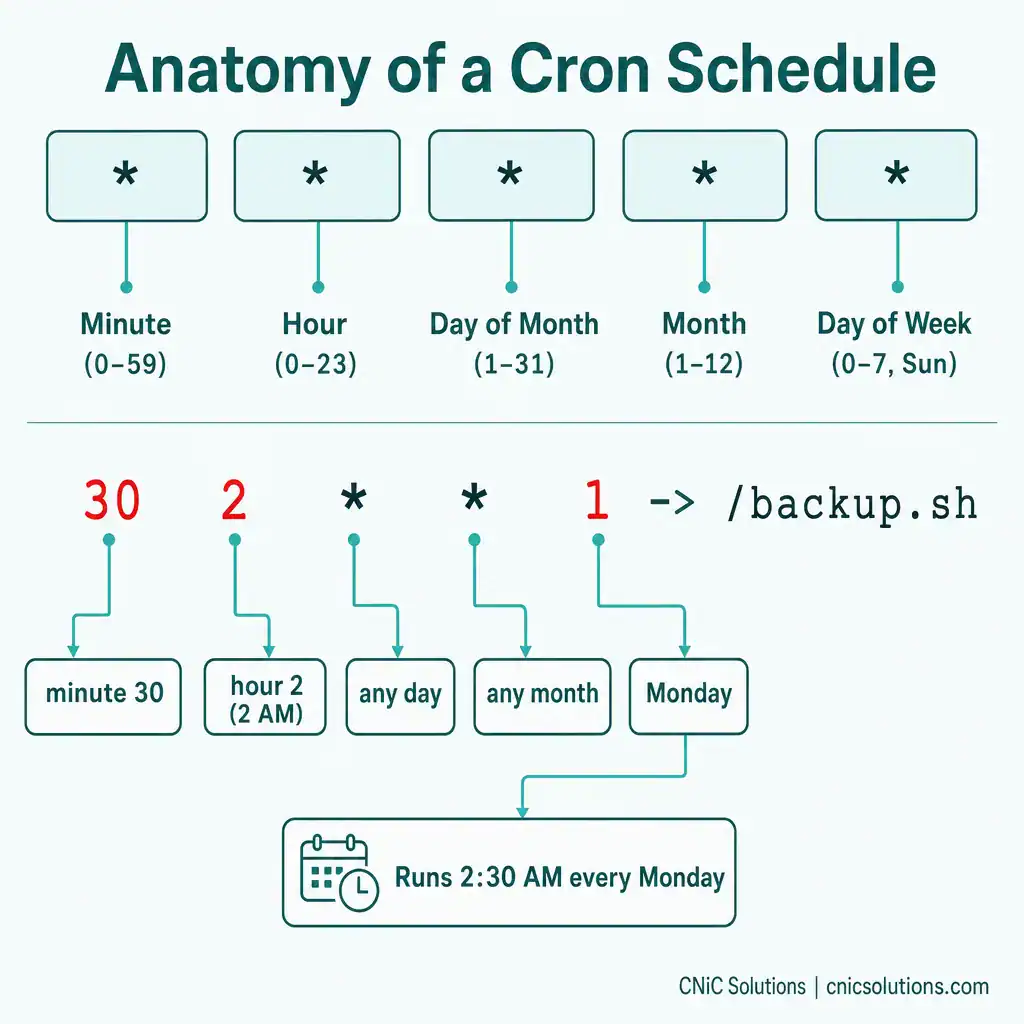
Every cron job is one line: five time fields that define when, followed by the command that defines what. The five fields always appear in the same order:
* * * * * command-to-run
| | | | |
| | | | +--- Day of week  (0-7)   (0 and 7 both = Sunday)
| | | +----- Month        (1-12)
| | +------- Day of month (1-31)
| +--------- Hour         (0-23)
+----------- Minute       (0-59)
The cron daemon evaluates each field independently and runs the command when the current time matches all five fields at once. All five fields are mandatory; if you do not care about a particular field, you put an asterisk in it. So reading a real example left to right:
30 2 * * 1 /usr/local/bin/backup.sh
|  | | | |
|  | | | +-- Monday
|  | | +---- every month
|  | +------ every day of the month
|  +-------- hour 2 (2 AM)
+----------- minute 30
That line runs backup.sh at 2:30 AM every Monday. Once you can read the five fields in order, you can decode any cron schedule.
The Operators That Make It Flexible
Raw numbers only get you so far. Four operators let a single field express almost any pattern:
| Operator | Meaning | Example | Result |
|---|---|---|---|
* |
Every value | * * * * * |
Every minute |
, |
List of values | 0 9,17 * * * |
At 9 AM and 5 PM |
- |
Range (inclusive) | 0 9-17 * * * |
Every hour, 9 AM to 5 PM |
/ |
Step value | */15 * * * * |
Every 15 minutes |
You can combine them. 0 0 * * 1-5 runs at midnight on weekdays (Monday through Friday). 0 8,12,17 * * 1-5 runs at 8 AM, noon, and 5 PM on weekdays. The ranges are inclusive on both ends, so 9-17 covers hours 9 through 17.
A note on the extended operators you may see elsewhere (L for last day, W for nearest weekday, # for the nth weekday): these are not part of standard Unix/Linux cron. They belong to other schedulers like Quartz or cloud services such as AWS EventBridge. On a normal Linux server, stick to the four operators above.
Special Strings (Shortcuts)
Most modern cron implementations support shortcut strings that replace the five-field syntax for common schedules, making your crontab more readable:
| String | Equivalent to | Meaning |
|---|---|---|
@reboot |
n/a | Once, when the system starts up |
@hourly |
0 * * * * |
Top of every hour |
@daily |
0 0 * * * |
Once a day at midnight |
@weekly |
0 0 * * 0 |
Once a week (Sunday midnight) |
@monthly |
0 0 1 * * |
Once a month (1st, midnight) |
@yearly |
0 0 1 1 * |
Once a year (Jan 1, midnight) |
So @daily /usr/local/bin/cleanup.sh is a cleaner way to write 0 0 * * * /usr/local/bin/cleanup.sh. Note that @reboot fires when the cron daemon starts (effectively system boot), not on every daemon restart, and not all implementations support these strings, so check your system if you depend on them.
How to Create and Manage Cron Jobs
Each user has their own crontab, and you manage it with the crontab command. There are really only three you use day to day:
crontab -e: Edit your crontab (opens it in your default editor). Add a job, save, and exit. The daemon picks up the change automatically; no restart required.crontab -l: List your current cron jobs. If the output is empty, you have none scheduled.crontab -r: Remove your crontab entirely. Use with care, this deletes all your jobs with no confirmation.
A practical workflow: run crontab -e, add a line like 0 2 * * * /path/to/script.sh, save, and you are done. To change a schedule later, run crontab -e again, edit the line, and save.
Worth knowing: a user crontab runs jobs with that user’s permissions. There is also a system-wide crontab (typically /etc/crontab and the /etc/cron.d directory) that administrators use, and it includes an extra field specifying which user runs each command. Access to scheduling can be controlled with the cron.allow and cron.deny files.
Common Cron Job Examples
Here are patterns you will use constantly, ready to adapt:
| Schedule | When it runs | Typical use |
|---|---|---|
* * * * * |
Every minute | Monitoring or rapid polling (use sparingly) |
*/5 * * * * |
Every 5 minutes | Health checks |
0 * * * * |
Every hour, on the hour | Hourly syncs |
0 2 * * * |
2:00 AM daily | Nightly backups |
0 9 * * 1-5 |
9:00 AM on weekdays | Daily reports (skip weekends) |
0 2 * * 0 |
2:00 AM every Sunday | Weekly maintenance |
0 0 1 * * |
Midnight on the 1st | Monthly reports or billing |
A useful habit: to capture a job’s output (which otherwise gets emailed to the user, or lost), redirect it to a log file. Appending >> /var/log/myjob.log 2>&1 to the command sends both standard output and errors to that file.
Common Pitfalls to Avoid
The Day-of-Month / Day-of-Week Trap
This is the single most misunderstood part of cron. When both the day-of-month (field 3) and day-of-week (field 5) are restricted (neither is *), cron treats them as a logical OR, not AND. The job runs when either field matches. So 0 0 13 * 5 does not mean “Friday the 13th”, it means “every 13th of the month and every Friday.” If you need a true AND condition, handle the extra check inside your script.
A few more that cause silent headaches:
- Time zone: Cron uses the server’s system time zone, which is often UTC on cloud servers. A job set for “9 AM” runs at 9 AM server time, not necessarily your local time. Check with the
datecommand. - Daylight saving time: When clocks spring forward, a job scheduled in the skipped hour will not run; when they fall back, a job in the repeated hour may run twice. Be careful with time-sensitive jobs like billing.
- Silent failure: If your syntax is wrong or a path is invalid, cron usually fails quietly, no error, no warning. Always test the command manually first, and use full absolute paths (cron runs with a minimal environment, so it may not find commands the way your interactive shell does).
- Heavy jobs at the top of the hour: Many people schedule at
:00, so the top of the hour gets crowded. Offsetting a heavy job by a few minutes (e.g.3 0 * * *instead of0 0 * * *) can avoid resource contention.
Frequently Asked Questions
What is a cron job?
What are the five fields in a cron job?
How do I create a cron job?
What does the asterisk mean in a cron job?
What does 0 2 * * * mean in cron?
About This Guide
This guide describes standard Unix/Linux cron (the Vixie/cronie implementation used by default on most distributions, including Debian, Ubuntu, RHEL, CentOS, and Fedora). Cron syntax, field ranges, operators, special strings, and crontab commands are well-established and consistent across these systems. Some schedulers and cloud platforms (Quartz, AWS EventBridge, Google Cloud Scheduler, and others) use extended or slightly different syntax, including extra fields or additional operators; where behavior can differ, that is noted in the text. Always verify against your own system’s documentation (man 5 crontab) before relying on a schedule in production.



related posts
What Is NIST Compliance? Frameworks, Requirements, and Who Needs It
October 25, 2026NIST compliance means aligning your organization's security program with the cybersecurity standards published by the National…
What Is Network Penetration Testing? Types and Process
October 25, 2026Network penetration testing is a controlled, authorized simulation of a real cyberattack on your network, run…
What Is Mobile Device Management (MDM)? A Guide for Businesses
October 24, 2026Mobile Device Management (MDM) is software that lets an organization remotely enroll, configure, secure, and monitor…
What Is MFA? How Multi-Factor Authentication Protects Your Accounts
October 24, 2026Multi-factor authentication (MFA) is a security method that requires two or more separate proofs of identity…