

A browser push notification scam hijacks a real, useful browser feature (the small alerts that news and email sites send to your desktop) and turns it into a delivery system for fake virus warnings, phony delivery notices, and prize pop-ups that lead to phishing and malware. The trick is that you have to be fooled into allowing it once, usually by a fake “Click Allow to continue” prompt, and after that the alerts keep coming even when your browser is closed. This guide explains exactly how the scam works, shows real examples, and walks through how to spot, block, and remove these notifications in every major browser, then how to keep them from coming back.
Before You Begin
What you need: access to the web browser (Chrome, Edge, Firefox, or Safari) that is showing the notifications, and a few minutes in its settings. Nothing you do here can harm your device. Estimated time: about 10 to 15 minutes to remove a bad site and lock down the setting, plus a malware scan that runs in the background. Skill level: beginner. If you can open your browser’s settings menu, you can do every step. For a business: the same fixes apply, but the goal is to set them once through managed policy for every employee rather than device by device.
Key Takeaways
- It is a hijacked feature, not a virus. The scam abuses the browser’s built-in web notifications, so it starts only after you are tricked into clicking “Allow” on a permission prompt.
- The tell is the browser itself. A real virus scan or Windows update never appears as a browser notification with a Chrome, Edge, or Firefox icon and a website as its source.
- The pop-ups are a delivery channel. They push fake alerts that feed phishing and tech-support fraud, which cost victims over $1.4 billion in 2024 (FBI IC3).
- Two moves fix it: remove the offending site from notification settings, then turn on the setting that stops any site from asking again.
- For businesses it is an entry point. One employee’s stray “Allow” on a work device can open a path to company systems, which is why permissions belong under managed policy.
What’s in This Guide
- What a Browser Push Notification Scam Is
- Real Examples of the Scam
- How to Tell a Real Alert From a Fake One
- Step 1: Recognize It and Do Not Interact
- Step 2: Remove the Site in Google Chrome
- Step 3: Remove It in Microsoft Edge
- Step 4: Remove It in Firefox and Safari
- Step 5: Block All Future Requests at the Source
- Step 6: Scan for Malware and Adware
- Step 7: Protect Your Whole Team
- When to Call a Professional
- Troubleshooting Common Problems
- How to Keep Them From Coming Back
- Frequently Asked Questions
What a Browser Push Notification Scam Is
Web push notifications are a legitimate browser feature. They let a site you trust, like a news outlet or your webmail, send a small message to your desktop even when that site is not open in a tab. A browser push notification scam abuses that feature. A deceptive website asks for the same permission a real site would, but disguises the request so you grant it by accident. Once you do, the site can send you an unlimited stream of alerts, and those alerts are built to look like something urgent and official.
The reason this works is that the permission prompt itself is real and comes from your browser, so it looks trustworthy. The deception is in the fake context wrapped around it. A page will show a message like “Click Allow to confirm you are not a robot,” “Click Allow to continue to the video,” or “Click Allow to download your file.” The button you press is the genuine browser prompt to enable notifications, but you were told it does something else entirely.
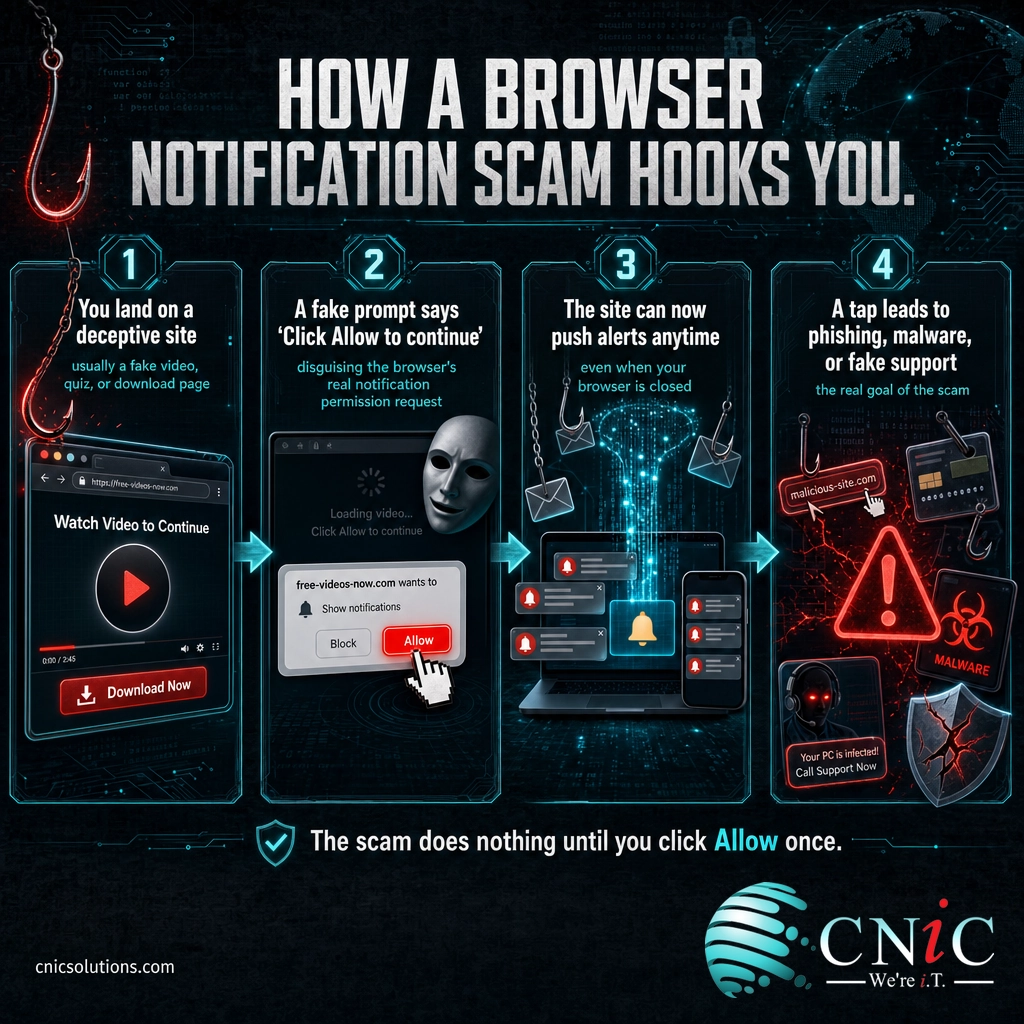
After that single click, the site behaves like any subscribed sender: it can push notifications that slide in from the corner of your screen at any time, including when your browser is minimized or closed. Because the alert is a system-level notification rather than a web page, it feels more official than a normal pop-up ad, which is exactly what the scammer is counting on. This is a form of social engineering, the same broad tactic behind email and text scams, and it is worth understanding alongside the social engineering tactics used to manipulate people more generally.
Myth: “It’s just an annoying ad, so I can ignore it.”
Treating these as harmless spam is the mistake that makes them work. A browser notification is not an ad you can wait out; it is a channel an attacker now controls, pointed directly at your desktop. Each notification is a fresh chance to send you to a phishing page, a fake tech-support number, or a malware download. Ignoring the pop-ups does nothing to close the channel. You have to actively remove the permission, which the steps below cover.
Real Examples of the Scam
These scams almost always impersonate something urgent so you react before you think. The specific costume changes, but the pattern is the same. Here are the forms you are most likely to see.
| What the notification claims | What it is really trying to do |
|---|---|
| “Your computer is infected. Scan now.” Styled to mimic a Windows or antivirus alert. | Send you to a fake “support” page or number where a scammer sells you fake software or takes remote control of your device. |
| “(1) new message” or “You have a package waiting.” A fake delivery or inbox notice. | Lead you to a phishing page that harvests logins, card details, or a small “redelivery fee.” |
| “You won a prize” or “Congratulations, you are today’s winner.” | Collect personal and payment information, or push adware and unwanted downloads. |
| “Your subscription has expired. Renew now.” Impersonating a known brand. | Steal account credentials or payment information on a spoofed login page. |
These are not hypothetical. In November 2025, security researchers at Malwarebytes documented a criminal platform called Matrix Push C2 built specifically to abuse browser notifications. It ships with ready-made fake notifications that impersonate trusted brands, including PayPal, Netflix, Cloudflare, TikTok, and the MetaMask crypto wallet, and it uses the classic fake video-player “Allow” trap to get permission in the first place. Its operators use the channel to push phishing links and malware and, in some cases, to drain victims’ cryptocurrency wallets. It is a clear sign that this is an organized attack method, not a nuisance.
Attackers also work hard on the first click, because nothing happens until you grant permission. In March 2026, Malwarebytes reported networks of fake quiz and “are you human” sites whose only real purpose was to trick visitors into enabling notifications. The lesson is that the “Allow” prompt is the whole game. If you never grant it, the scam has nowhere to go.
Source: Malwarebytes threat research on Matrix Push C2 | FBI IC3 2024 Internet Crime Report
How to Tell a Real Alert From a Fake One
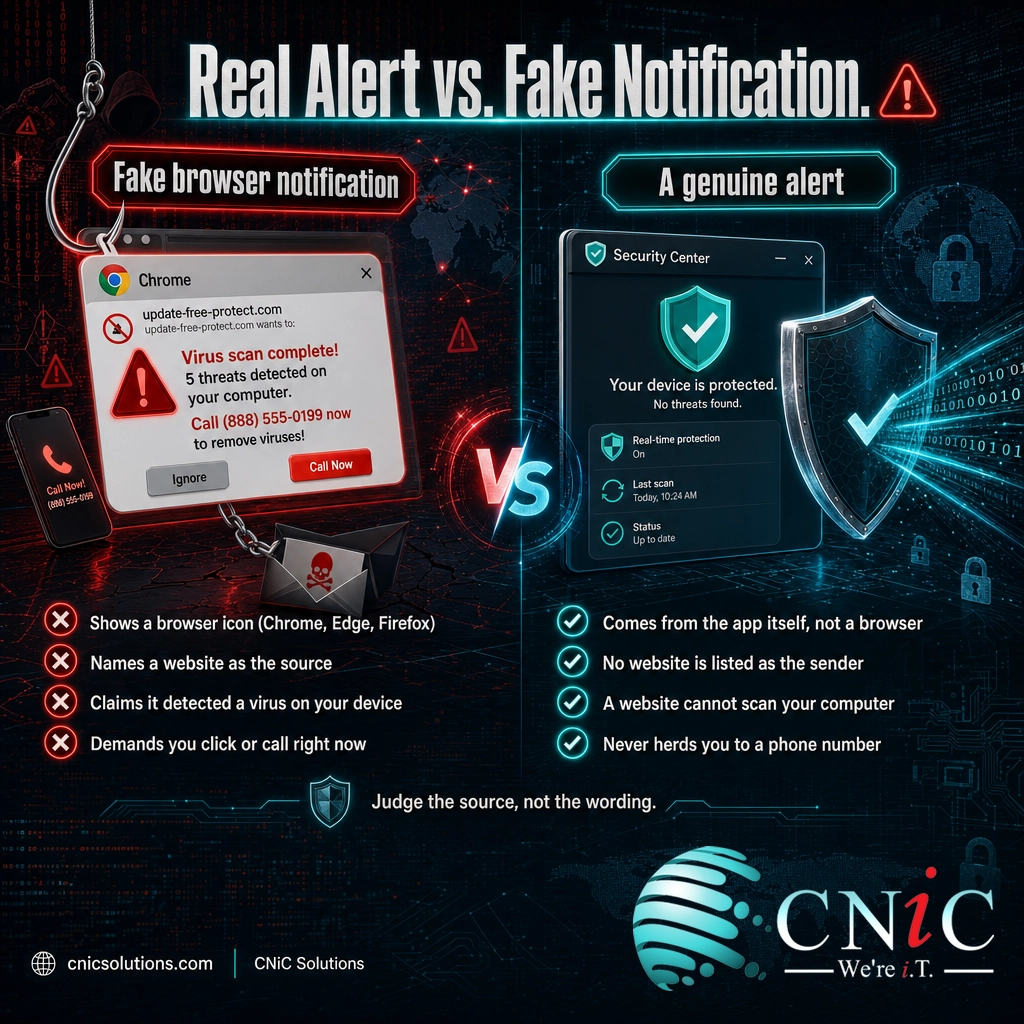
You do not need to judge these by their wording, because scammers copy official language and logos closely. Judge them by where they come from. A browser notification carries evidence a real alert never has.
Four reliable tells that a “warning” is a browser notification scam:
- It has a browser icon. Fake alerts appear as browser notifications and show a small Chrome, Edge, or Firefox logo. A real antivirus or Windows alert comes from the app itself, never from inside or beside a browser.
- It names a website as the source. Browser notifications display the site that sent them. If a “virus warning” is coming from an unfamiliar website address, it is a scam.
- It claims to know your device is infected. No website can scan your computer for viruses. Any notification that says it detected an infection is lying by definition.
- It pushes urgency and a single action. “Act now,” “call this number,” or “click to fix” is pressure designed to stop you from checking. Real software does not herd you to a phone number.
The same “check the source, not the wording” habit protects you across every channel scammers use. It is exactly how you identify a fake text message and how you sort real email from the many types of phishing attacks aimed at businesses.
Get a free assessment of your business’s threat protection
Step 1: Recognize It and Do Not Interact
What to do: the moment a suspicious alert appears, do not touch it. Do not click the notification body, do not click any link or phone number it offers, and (this is the part people get wrong) do not click “Block,” “Dismiss,” or even the little X inside the fake pop-up. Some scam alerts turn those controls into links too. Instead, ignore the pop-up entirely and go fix the permission in your browser settings, which the next steps cover.
Why this matters: the scammer’s only goal is a click. Interacting even to close a fake alert can open a new scam tab or confirm to the attacker that a real person is on the other end.
What success looks like: you leave the notification alone, close any tab that opened it, and never call a number or “renew” anything it demanded.
Common mistake: calling the number or clicking to “remove the virus”
The fake “your computer is infected” alert is the front end of a tech-support scam. Calling the number connects you to a scammer who will ask for remote access to your device or payment to “fix” a problem that does not exist. The FBI’s Internet Crime Complaint Center tied more than $1.4 billion in 2024 losses to tech-support fraud, and it hits people over 60 hardest. The alert cannot see your computer. There is nothing to remove except the notification permission.
Step 2: Remove the Site in Google Chrome
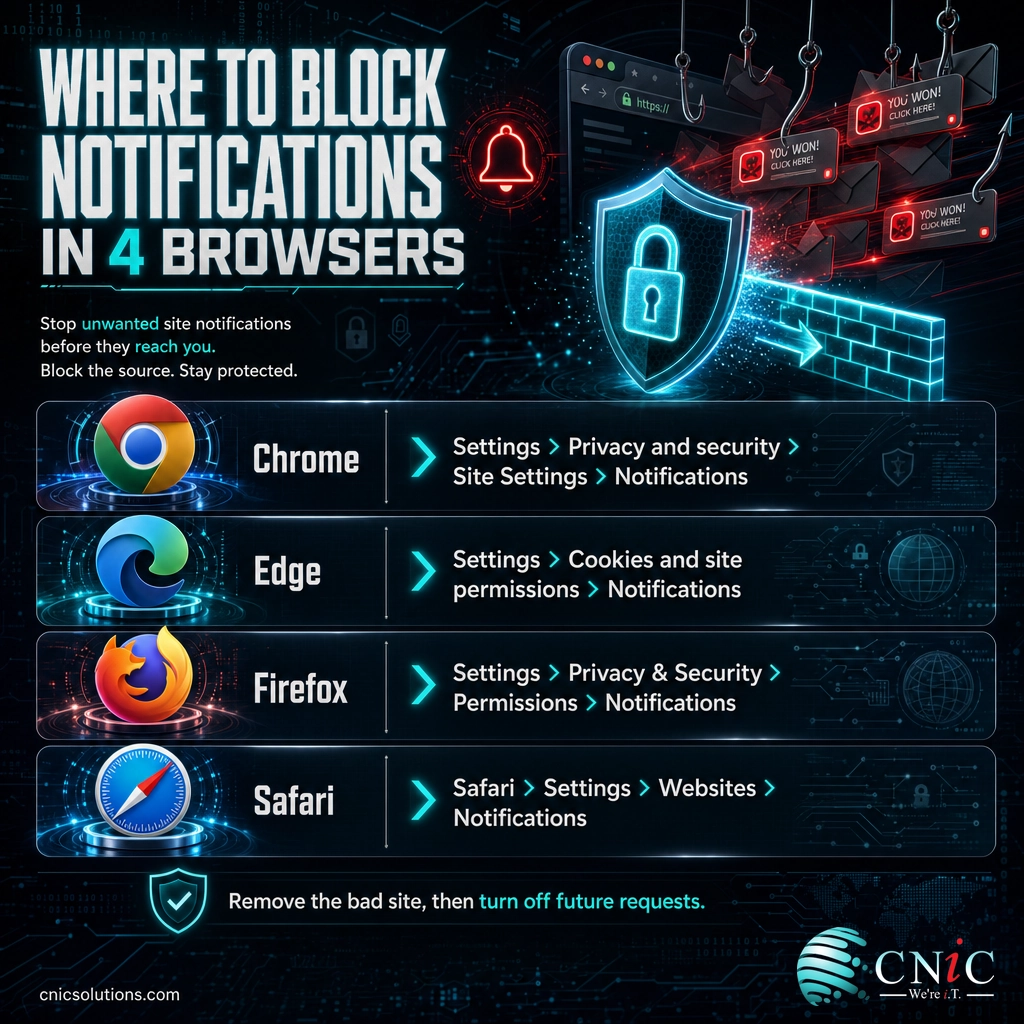
What to do: open Chrome and click the three-dot menu in the top right, then Settings. Go to Privacy and security, then Site Settings, then Notifications. Under “Allowed to send notifications,” look for any website you do not recognize or did not intend to subscribe to. Click the three dots beside it and choose Remove or Block. On an Android phone, the path is Chrome menu, Settings, Notifications, then Site Settings to find and turn off the site.
Why this matters: removing the site revokes the permission you were tricked into granting, which is what actually stops the stream of alerts. Nothing else you do will help until this permission is gone.
What success looks like: the unfamiliar site no longer appears in the “Allowed” list, and the notifications stop.
Step 3: Remove It in Microsoft Edge
What to do: open Edge and click the three-dot menu, then Settings. Select Cookies and site permissions, then Notifications. Under the “Allow” list, find the suspicious website, click the three dots next to it, and choose Remove.
Why this matters: Edge and Chrome are both built on Chromium, so a site granted permission in one is handled the same way in the other. The fix is identical: revoke the site’s permission at its source.
What success looks like: the scam site is cleared from Edge’s “Allow” list and the desktop alerts cease.
Step 4: Remove It in Firefox and Safari
What to do: the idea is the same in every browser, only the menu names change.
- Firefox: open the menu, go to Settings, then Privacy & Security. Scroll to Permissions, click Settings next to Notifications, select the unwanted site, and choose Remove Website.
- Safari (Mac): open Safari, then Settings, then the Websites tab, then Notifications in the sidebar. Select the site and click Deny or Remove.
Why this matters: people often use more than one browser, and a scam site only needs permission in the one you clicked “Allow” in. Checking each browser you use makes sure none is still subscribed.
What success looks like: no unrecognized sites remain in any browser’s notification permission list.

Step 5: Block All Future Requests at the Source
Removing one bad site solves today’s problem. This step solves the whole category by making sure no site can trick you into a subscription again.
What to do: in the same Notifications settings screen for each browser, turn on the master control that stops sites from asking:
- Chrome: select “Don’t allow sites to send notifications.”
- Edge: turn off “Ask before sending (recommended)” so requests are silenced.
- Firefox: check “Block new requests asking to allow notifications.”
- Safari: deselect “Allow websites to ask for permission to send notifications.”
Why this matters: the entire scam depends on getting you to click “Allow.” If sites cannot ask, the fake “Click Allow to continue” prompts have no button to hijack. This one setting neutralizes every future version of the trick while still letting you manually enable notifications for a site you genuinely want.
What success looks like: you stop seeing permission prompts entirely as you browse, and no new scam notifications can appear.
Step 6: Scan for Malware and Adware
What to do: if you (or an employee) clicked one of the fake alerts before removing it, run a full malware scan to be safe. On Windows, open Windows Security, go to Virus & threat protection, and run a Full scan; if anything persists, run a Microsoft Defender Offline scan, which catches threats that resist removal while Windows is running. A reputable third-party anti-malware tool works as well.
Why this matters: the notification permission itself is not malware, but the pages these alerts lead to can install adware or worse. A clean scan confirms a stray click did not leave something behind.
What success looks like: a completed scan that reports no threats, or one that quarantines what it finds. On a business device, this is also the moment to make sure your defenses against social engineering and endpoint protection are actually running.
Have your endpoints managed, scanned, and monitored for you
Step 7: Protect Your Whole Team
For a business, cleaning one laptop is not the finish line. The same scam that wastes a home user’s afternoon can be the first move against a company, because a fake alert on a work device can lead an employee to enter a real password on a phishing page or install something they should not. The goal at the organizational level is to remove the decision from each individual.
What to do: put browser notification behavior under policy instead of leaving it to chance:
- Set notification permissions through managed browser policy, so company devices block or restrict notification requests by default across Chrome, Edge, and Firefox.
- Deploy endpoint protection (EDR) so that if a fake alert does lead to a malware download, the behavior is caught and contained on the device.
- Include these pop-ups in security awareness training, so staff recognize the “Click Allow” trap the same way they are learning to spot phishing email.
- Filter known malicious sites at the network or DNS level so the scam pages that serve these prompts are harder to reach in the first place.
Why this matters: asking every employee to correctly identify every fake pop-up, every time, is a losing strategy. Setting the defense once, centrally, is how you make a whole team resistant instead of hoping no one slips.
What success looks like: notification requests are controlled by policy on managed devices, endpoints are monitored, and employees know to report a suspicious pop-up rather than click it.
When to Call a Professional
Clearing a scam notification off your own browser is a job you can finish in a coffee break. Protecting an organization from what these scams lead to is a different scale of work. It is worth bringing in a managed IT and cybersecurity partner when:
- The alerts led to a click, a call, or a download and you are not certain what was exposed. Fast, expert containment is what keeps one mistake from becoming an incident.
- You need this handled across every employee device, which means managed browser policy, endpoint protection, and web filtering deployed and maintained consistently rather than machine by machine.
- You cannot monitor devices around the clock, which is the piece most small and midsize businesses cannot staff internally, and the one that most affects how fast a threat is caught.
- You need to meet compliance or cyber-insurance requirements that increasingly mandate endpoint protection, monitoring, and user training.
A partner turns a one-time cleanup into a posture that is watched and maintained, which is where real protection lives.
Put an experienced security leader in charge of your defenses
Troubleshooting Common Problems
Most of the trouble people hit with these scams falls into a few predictable buckets. Here is how to clear each one.
| The problem | How to fix it |
|---|---|
| Notifications still appear after I removed the site | Check every browser you use, not just one. Also confirm you removed the site rather than only closing the pop-up, and restart the browser so the change takes effect. |
| I cannot find the site in my notification settings | The alert may be coming from a different browser or from adware rather than a subscription. Run the malware scan in Step 6, then re-check each browser’s notification list. |
| The alerts are on my phone | Use the mobile browser’s Site Settings (Chrome menu, Settings, Notifications, Site Settings on Android) to remove the site, and turn off the phone-level notification permission for that browser app. |
| I already clicked “Allow” by accident | That is fine to fix: removing the site in Steps 2 to 4 revokes the permission completely. Then run a scan in case the page you were sent to installed anything. |
| New scam sites keep asking me | You skipped Step 5. Turn on the master “don’t allow sites to send notifications” setting so no site can ask again. |
How to Keep Them From Coming Back
Once you have removed the bad site and blocked future requests, staying clean is mostly about a few steady habits. The scam only ever gets a foothold through a single careless “Allow,” so the maintenance comes down to refusing to give it one.
- Never click “Allow” to continue. A legitimate site does not require notifications to play a video, unlock a download, or prove you are human. That framing is always the trap.
- Keep the master block on. Leaving “don’t allow sites to send notifications” enabled costs you nothing and closes the door permanently. Turn it on for a site only when you deliberately want its updates.
- Keep your browser and security tools updated, so the newest protections against malicious sites and downloads are in place.
- Report suspicious pop-ups at work rather than dismissing them quietly, so your IT team can spot a pattern and block the source for everyone.
- Pair habits with monitoring. On business devices, browser policy and endpoint monitoring keep the protection in place even on the day someone is rushed and stops paying attention.
Kept up, these habits make the browser notification scam a non-event: the prompts never appear, and the channel the attacker needs is never opened.
Frequently Asked Questions
What is a browser push notification scam?
Are browser notification pop-ups actually dangerous or just annoying?
How do I tell a real security alert from a fake browser notification?
How do I stop browser notification spam for good?
Can a browser notification scam infect my whole company?
Sources
The Matrix Push C2 platform, its abuse of browser push notifications, the fake video-player “Allow” trap, and its impersonation of brands including PayPal, Netflix, Cloudflare, TikTok, and MetaMask are documented by Malwarebytes threat research (November 2025). The observation that fake quiz and “are you human” sites exist mainly to trick users into enabling notifications is also from Malwarebytes (March 2026). Tech-support fraud losses exceeding $1.4 billion in 2024, and the disproportionate targeting of people over 60, are from the FBI Internet Crime Complaint Center (IC3) 2024 Internet Crime Report. Browser settings paths reflect the current versions of Chrome, Microsoft Edge, Mozilla Firefox, and Safari. No statistics in this article are estimated or invented; each is drawn from the primary source named.
Primary and authoritative sources: Malwarebytes: Matrix Push C2, FBI IC3 2024 Internet Crime Report, NJCCIC guidance on browser push notifications.



related posts
What Is ZTNA (Zero Trust Network Access)?
November 3, 2026Zero Trust Network Access (ZTNA) is a security service that grants a verified user access to…
Zero Trust Statistics for 2026: Adoption, Maturity, and Breach Impact
November 3, 2026Zero trust has become the default security strategy on paper, but not yet in practice. Okta's…
What Is XDR (Extended Detection and Response) and How Does It Protect…
November 2, 2026Extended detection and response (XDR) is a security platform that collects and correlates threat data from…
What Is Zero Trust Security? A Guide for Small Businesses
November 2, 2026Zero Trust security is a cybersecurity model built on one rule: never trust, always verify. Instead…