

To create a SharePoint site, sign in to Microsoft 365, open SharePoint from the app launcher, click Create site, and choose a team site for collaboration or a communication site for broadcasting information. From there you name the site, set its privacy and language, add owners and members, and SharePoint provisions it in under a minute. The clicking is easy. The decisions behind the clicks are what matter, because a well-structured SharePoint site becomes the place your team finds everything, while a rushed one becomes a mess people avoid. That is not a small problem: a landmark McKinsey Global Institute study found employees spend an average of 1.8 hours every day, roughly 9.3 hours a week, just searching for and gathering information. This guide walks through the entire process the right way, from the one decision you cannot undo to the permissions and backup steps most tutorials skip.
Before You Begin
A few minutes of preparation prevents the two mistakes that force people to start over: picking the wrong site type and leaving the site wide open.
- What you need: a Microsoft 365 subscription that includes SharePoint Online (most Business and Enterprise plans do) and permission to create sites in your organization.
- One decision to make first: team site or communication site. You cannot convert one to the other later, so read the section below before you click Create.
- Estimated time: 5 minutes to create the site, 20 to 30 minutes to name it, set permissions, and organize it properly.
- Skill level: beginner friendly. The wizard is guided and requires no code. The judgment calls, not the buttons, are where a little planning pays off.
- Have ready: a clear site name, a short description, the list of people who need access, and a second person to name as an owner.
Key Takeaways
- Choose the site type first. Team site for collaboration, communication site for broadcasting. This choice is permanent, so decide before you create.
- The creation wizard takes minutes. Create site, pick a type and template, name it, set privacy and language, add members, done.
- Name at least two owners. A site owned by one person becomes a problem the day that person leaves.
- Set privacy and external sharing deliberately. The default is convenient, not necessarily secure. Match access to who should really see the content.
- Microsoft does not fully back up your data. Under the shared responsibility model, protecting your SharePoint content is your organization’s job, not Microsoft’s.
What’s in This Guide
- What a SharePoint Site Is (and the One Decision You Cannot Undo)
- Before You Click Create: Permissions and a Naming Plan
- Step 1: Open the SharePoint Start Page and Click Create Site
- Step 2: Choose a Team Site or a Communication Site
- Step 3: Select a Template
- Step 4: Name Your Site and Set the Web Address
- Step 5: Set Privacy, Sensitivity, and Language
- Step 6: Add Owners and Members
- Step 7: Build Out Navigation, Libraries, and Permissions
- When to Bring in Your IT Team or a Managed Provider
- Governance, Security, and Backup After Launch
- Troubleshooting Common Problems
- Frequently Asked Questions
What a SharePoint Site Is (and the One Decision You Cannot Undo)
A SharePoint site is a secure, web-based workspace in Microsoft 365 where a group stores documents, shares information, and works together. It is the content backbone behind Microsoft Teams, company intranets, and shared document libraries. SharePoint is not a niche tool: Microsoft reported it passed 200 million monthly active users in 2020, doubling in a single year, and it has only grown as the layer that stores files across Microsoft 365. If your business runs on Microsoft 365, you are almost certainly using SharePoint already, whether you realize it or not.
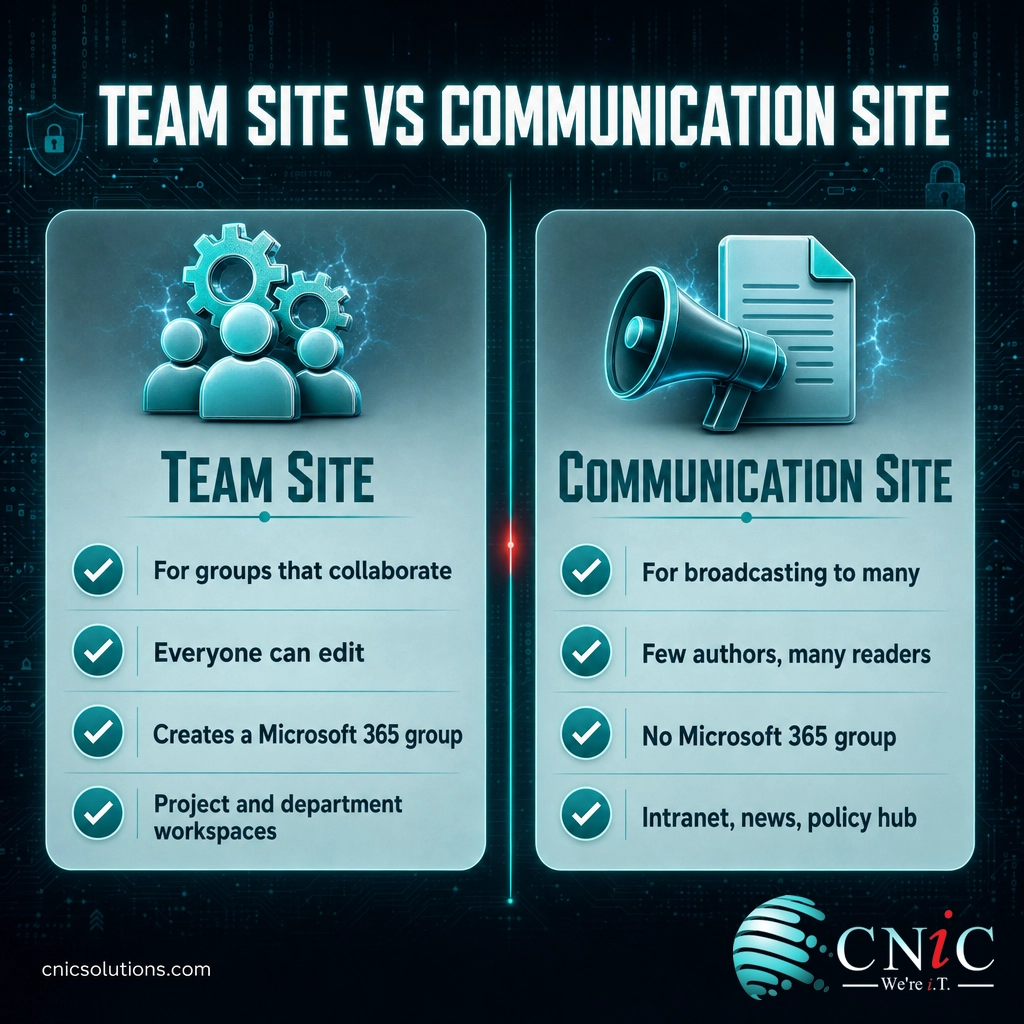
Before you create anything, you have to answer one question, and it is the single most consequential choice in this entire guide: do you need a team site or a communication site?
| Team Site | Communication Site | |
|---|---|---|
| Built for | A group that collaborates and edits together | Broadcasting news and info to a broad audience |
| Who contributes | Most or all members | A small set of authors; everyone else reads |
| Microsoft 365 group | Yes, with shared mailbox, calendar, and Teams | No group is created |
| Typical use | Project sites, department workspaces, team hubs | Company intranet, newsroom, policy or HR hub |
| Permissions | Managed through the Microsoft 365 group | SharePoint Visitors, Members, and Owners groups |
Myth: “I can just switch the site type later if I pick wrong.”
You cannot. SharePoint does not offer any way to convert a team site into a communication site or the reverse, because they are built on different underlying structures. If you choose wrong, your only fix is to create a brand new site of the correct type and migrate all your content and permissions across. That rework is exactly why the type decision belongs at the very start, not after you have already loaded documents and invited people.
Source: Microsoft Support: Team site vs communication site | Microsoft 365 Blog: SharePoint 200 million users milestone
Before You Click Create: Permissions and a Naming Plan
Two things decide whether creation goes smoothly. First, can you create a site at all? By default, most users in a Microsoft 365 organization can, but administrators often restrict site creation so new sites do not multiply without oversight. If the Create site button is missing later, that is why, and it is a good policy, not a bug.
Second, agree on a naming convention before you name anything. The name you type becomes the web address, and once a hundred sites exist with names like “Team Site 3” and “New Project Final,” nobody can find anything. A simple, consistent pattern (for example, department then purpose) keeps the environment navigable as it grows. This is small effort now that saves large cleanup later.
If your organization already uses Microsoft 365 for other workloads, this planning connects to the same discipline as migrating your email to Microsoft 365: a little structure up front prevents a lot of disorder later.
Source: Microsoft Learn: Manage site creation in SharePoint
1Step 1: Open the SharePoint Start Page and Click Create Site
What to do:
- Sign in to Microsoft 365 with your work account.
- Open the app launcher (the grid icon in the top left) and select SharePoint.
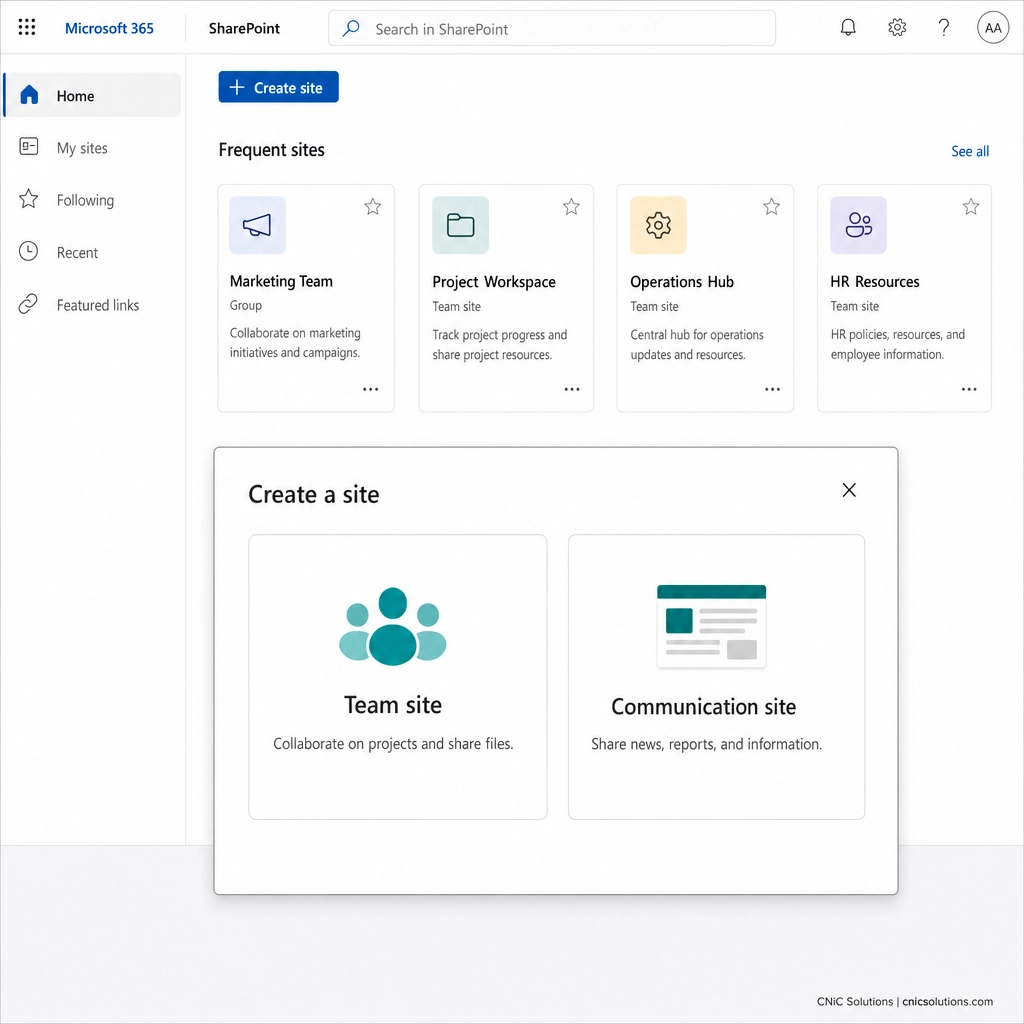
- On the SharePoint start page, click + Create site near the top left.
Why this step matters: the guided Create site wizard is the supported, correct way to make a site. It provisions everything (the group, permissions, and storage) behind the scenes so nothing is misconfigured.
What success looks like: a panel opens asking you to choose a site type. If the Create site button is not there, your admin has restricted creation, and you should request the site from your IT team rather than looking for a workaround.
Source: Microsoft Support: Create a site in SharePoint
2Step 2: Choose a Team Site or a Communication Site
What to do: in the panel that opens, select Team site or Communication site based on the decision you made earlier. If several people will create and edit content and it should stay within a defined group, choose a team site. If a few people will publish content for many to read, choose a communication site.
Why this step matters: this is the choice you cannot reverse. Everything downstream (whether a Microsoft 365 group is created, how permissions work, and how the site looks) flows from it.
What success looks like: you select the type that matches how the content will actually be used, not just the one that looks nicer. When in doubt, a team site is the safer default for internal collaboration.
Common mistake: defaulting to a team site for an intranet
Because team sites appear first, people often pick one to build a company intranet or news hub. A communication site is the right tool for that job: it is designed for a broad, mostly read-only audience and looks like a polished web page. Match the tool to the audience, not to whichever button is on the left.
3Step 3: Select a Template
What to do: choose a template that fits your purpose. Team sites offer standard collaboration layouts; communication sites offer Topic, Showcase, and Blank options. Preview the choices, then click Use template. Templates preload useful pages and web parts, and you can change everything afterward.
Why this step matters: a good template gives you a working structure on day one instead of a blank page, which is the difference between a site people adopt and one that sits empty.
What success looks like: the site opens with a starting layout you can edit, rather than an intimidating blank canvas. If nothing fits, Blank is a perfectly valid starting point.
4Step 4: Name Your Site and Set the Web Address
What to do:
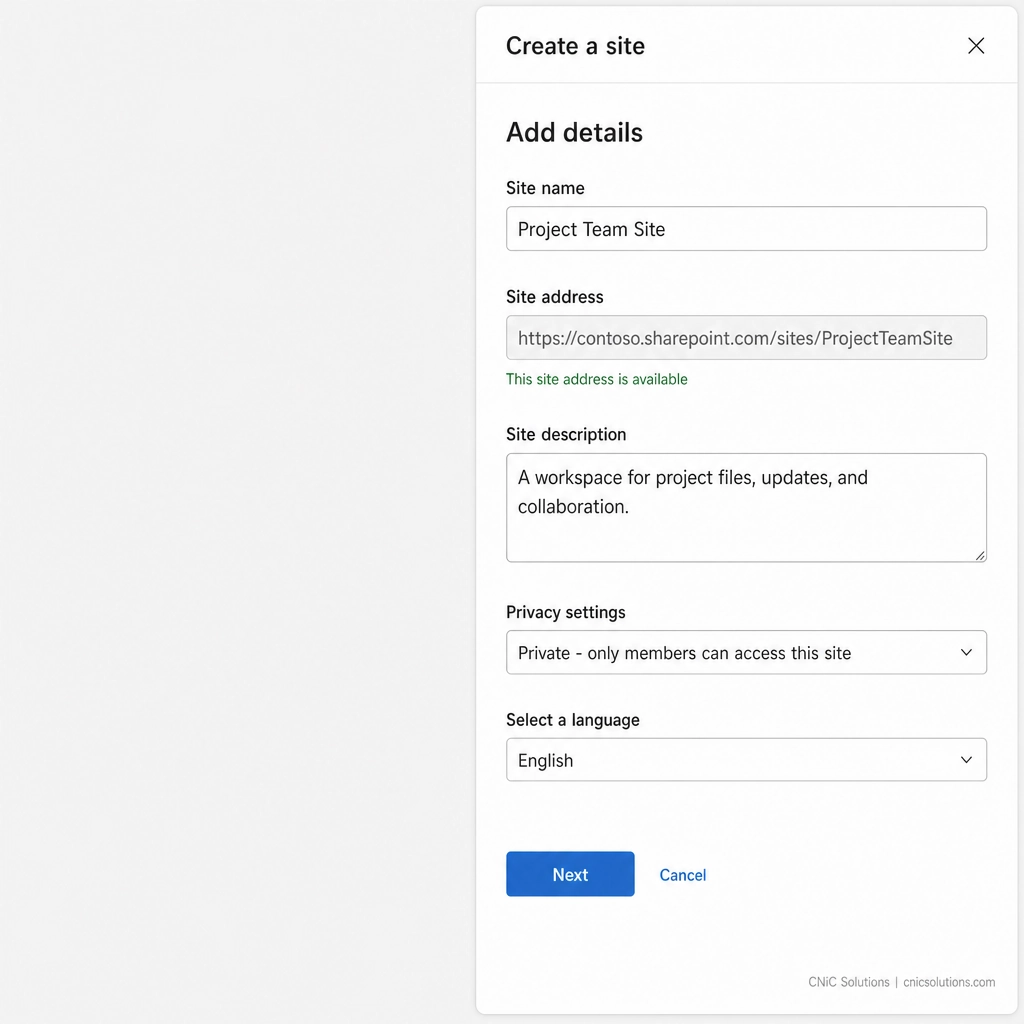
- Enter a clear site name. The site address and, for a team site, the group email fill in automatically. Edit them if needed.
- Keep the address clean. Per Microsoft, the only symbols allowed in the site address are underscores, dashes, single quotes, and periods, and it cannot start or end with a period.
- Add a short site description so people (and you, months from now) know what the site is for.
Why this step matters: the address is effectively permanent and shapes every link people share. A clear name and description are your first and cheapest act of governance.
What success looks like: the name reads clearly, the address follows your naming convention, and the description states the site’s purpose in one line.
Source: Microsoft Support: Create a site in SharePoint
5Step 5: Set Privacy, Sensitivity, and Language
What to do:
- For a team site, set privacy to Private (only members can access) or Public (anyone in your organization can access). Private is the right default for most business content.
- Apply a sensitivity label if your organization uses them, to enforce the correct handling and sharing rules automatically.
- Choose the default site language carefully. It cannot be changed after the site is created.
Why this step matters: privacy and sensitivity are where security is either set correctly or quietly left too open. The convenient default is not always the safe one.
What success looks like: access matches who should genuinely see the content, and any regulated or confidential material is covered by the right sensitivity label from the start.
Common mistake: leaving external sharing on the default
New sites often inherit organization-wide external sharing settings. For a site that will hold client records, financial data, or anything regulated, confirm who can share externally before you add content, not after something has already been shared with the wrong person. In regulated fields like healthcare, legal, and finance, that setting is a compliance control, not a convenience toggle.
6Step 6: Add Owners and Members
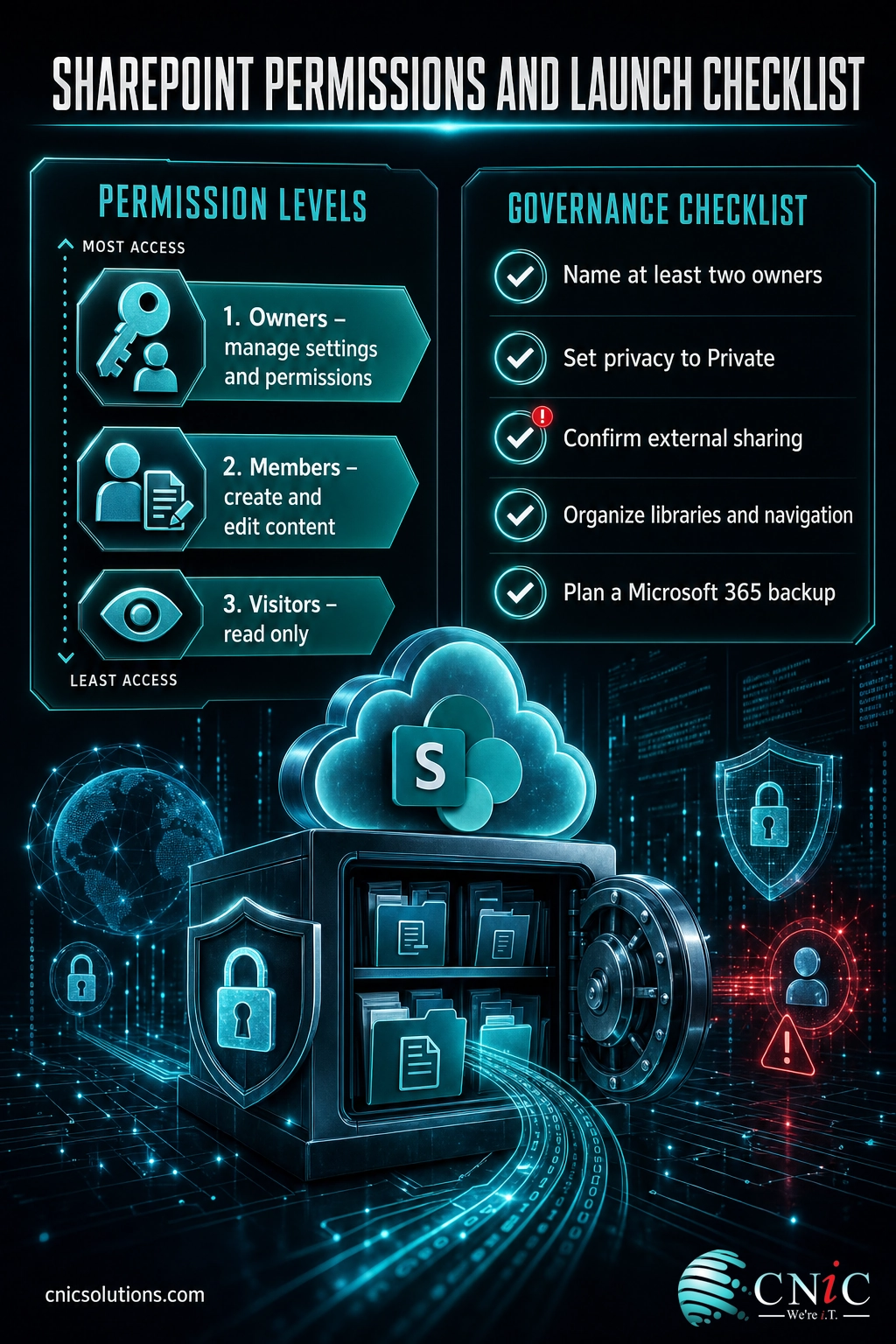
What to do: when prompted, add owners and members. Add at least one owner besides yourself, then add the members who need access. Owners manage settings and permissions; members create and edit content. Click Finish.
Why this step matters: a site with a single owner is a liability. When that one person leaves or is out, nobody can manage permissions, and recovering control becomes an IT ticket. Two owners is the minimum for continuity.
What success looks like: the site launches with at least two owners and the correct members, and you can add or remove people at any time from the site’s Members settings.
7Step 7: Build Out Navigation, Libraries, and Permissions
What to do: now that the site exists, make it usable:
- Create document libraries and lists that match how your team organizes work, rather than dumping everything into the default Documents library.
- Edit the navigation and home page so the important things are one click away.
- Review permission levels and confirm the external sharing setting for this specific site.
Why this step matters: creation is the beginning, not the finish line. A site people can navigate is a site people use; a disorganized one gets abandoned for email attachments and personal drives, which is the exact problem SharePoint is meant to solve.
What success looks like: a new team member could open the site and find what they need without asking. That is the real test of a well-built SharePoint site.

When to Bring in Your IT Team or a Managed Provider
Creating one site for a small team is genuinely a do-it-yourself task. Standing up SharePoint as the backbone for an entire organization is not. If you find yourself facing any of these, it is time to involve IT rather than improvising:
- Many sites, one structure. When dozens of departments and projects each need a site, you need a governance plan, naming standards, and a hub structure, not sites created ad hoc by whoever needed one that day.
- Migrating from file servers or another platform. Moving years of files, folder permissions, and version history into SharePoint without breaking links or losing access control is a project, not a click.
- Regulated data. If SharePoint will hold healthcare, legal, or financial records, permissions, sensitivity labels, retention, and external sharing become HIPAA, PCI-DSS, or SOC 2 controls that must be configured and documented correctly.
- External collaboration at scale. Sharing with clients and vendors safely means guest access policies and conditional access, not one-off share links.
This is the quiet, behind-the-scenes work a managed IT partner handles so your team can just use SharePoint and trust that it is set up correctly. CNiC Solutions plans, secures, and manages Microsoft 365 and SharePoint environments for businesses across Texas and nationwide, from a single site to an organization-wide rollout.
Get your Microsoft 365 environment managed properly
Governance, Security, and Backup After Launch
A SharePoint site is not “set and forget.” Three things keep it healthy, secure, and recoverable over time.
Review permissions on a schedule. Access sprawls. People change roles, projects end, and external guests linger. A periodic review of who can see and share each site’s content is basic security hygiene and a common audit finding when it is skipped. Building this into your broader security posture is part of a sound business cybersecurity program.
Enforce naming and governance as you grow. The convention you set for one site only helps if it is applied to the hundredth. As the environment expands, hub sites, lifecycle policies, and clear ownership keep it navigable instead of chaotic.
The mistake that costs businesses their data: assuming Microsoft backs it up
Microsoft keeps its platform running and holds deleted items in the recycle bins for a limited window, but that is not a backup. Under Microsoft’s shared responsibility model, protecting your own content against accidental deletion, ransomware, malicious insiders, and retention gaps is your organization’s responsibility. If someone deletes a SharePoint site or its contents and the recycle bin window passes, that data can be gone for good. A dedicated Microsoft 365 backup is the only reliable way to guarantee recovery.
Getting a resilient, recoverable copy of your SharePoint and Microsoft 365 data is exactly what a proper data backup and recovery plan is for, so a bad click or an attack never becomes permanent loss.
Protect your Microsoft 365 data with real backup
Source: Microsoft Learn: Shared responsibility in the cloud | Microsoft Services Agreement
Troubleshooting Common Problems
| Problem | What it means | What to do |
|---|---|---|
| No “Create site” button appears | Your admin has restricted who can create sites | Request the site through your IT team or help desk instead of seeking a workaround. |
| “The site address is already in use” | Another site already claims that URL | Pick a slightly different, still-clear address that fits your naming convention. |
| Members cannot see or open the site | They were not added, or the site is set to Private | Add them under Members, and confirm the privacy setting matches who should have access. |
| You chose the wrong site type | Team and communication sites cannot be converted | Create a new site of the correct type and migrate the content and permissions across. |
| External sharing is blocked | Organization or site-level sharing policy is restricting it | Have an admin confirm the tenant and site sharing settings, balanced against your security and compliance rules. |
Source: Microsoft Learn: Create a site in SharePoint
Frequently Asked Questions
What is the difference between a SharePoint team site and a communication site?
Do I need admin permissions to create a SharePoint site?
Can I change a team site into a communication site later?
Is a SharePoint site automatically backed up by Microsoft?
How long does it take to create a SharePoint site?
Methodology and Sources
This guide documents the current, supported process for creating a SharePoint site in Microsoft 365, following Microsoft’s official Create a site and site management documentation. The team site versus communication site distinction, the non-convertible nature of the two, address formatting rules, privacy and language settings, and the site-creation restriction behavior all follow Microsoft Support and Microsoft Learn guidance. The SharePoint usage figure is Microsoft’s own 200 million monthly active user milestone reported on the Microsoft 365 Blog in 2020, cited here with that date for historical context. The information-search time figure is from the McKinsey Global Institute report “The social economy,” a widely cited landmark study, used to illustrate the cost of poor findability. The shared responsibility and backup guidance reflects Microsoft’s published cloud shared responsibility model and Services Agreement.
Primary and authoritative sources: Microsoft Support (Create a site in SharePoint), Microsoft Learn (Create a site), Microsoft Learn (Manage site creation), Microsoft 365 Blog (SharePoint 200 million users), McKinsey Global Institute (The social economy).



related posts
What Is Network Penetration Testing? Types and Process
October 25, 2026Network penetration testing is a controlled, authorized simulation of a real cyberattack on your network, run…
What Is NIST Compliance? Frameworks, Requirements, and Who Needs It
October 25, 2026NIST compliance means aligning your organization's security program with the cybersecurity standards published by the National…
What Is Mobile Device Management (MDM)? A Guide for Businesses
October 24, 2026Mobile Device Management (MDM) is software that lets an organization remotely enroll, configure, secure, and monitor…
What Is MFA? How Multi-Factor Authentication Protects Your Accounts
October 24, 2026Multi-factor authentication (MFA) is a security method that requires two or more separate proofs of identity…