

Email migration to Microsoft 365 is the process of moving your business’s email, calendars, contacts, and mailbox data from an existing system, such as an on-premises Exchange server or another email provider, into Microsoft 365’s cloud-hosted Exchange Online. Done well, it happens in the background with little or no interruption to daily email.
Moving your company email to Microsoft 365 is one of those projects that sounds simple until you are the one responsible for it. What actually happens to everyone’s mail? Will messages get lost? Will the office lose email for a day while it all switches over? The honest answer is that a Microsoft 365 migration is very routine when it is planned properly, and genuinely painful when it is not. This guide walks through exactly what to expect: what gets moved, the migration methods Microsoft offers and which one fits your business, the phases a real migration goes through, how long it takes based on Microsoft’s own performance data, and the pitfalls that cause downtime so you can avoid them.
Key Takeaways
- Migration means moving mailboxes, not rebuilding them. Email, calendars, and contacts move together on Exchange-based methods; IMAP moves mail only.
- There are five main methods: cutover, staged, hybrid, IMAP, and PST import. The right one depends on your current system and how many mailboxes you have.
- Downtime is avoidable. Mail keeps flowing on the old system while data copies in the background; the MX record is switched only after mailboxes are verified.
- Timelines are data-driven. Microsoft’s figures show most mailboxes under 10 GB migrate in about a day; the whole project runs from a couple of weeks upward.
- The plan is the project. Most migration pain comes from skipping preparation: mailbox cleanup, DNS records, licensing, and a tested pilot.
What’s in This Guide
What a Microsoft 365 Migration Actually Means
At its core, an email migration copies your users’ mailboxes from wherever they live today into Exchange Online, the email engine inside Microsoft 365. “Wherever they live today” is the important part, because it shapes the whole project. You might be coming from an on-premises Exchange server sitting in a closet, from Google Workspace, from a legacy hosted email service, or from a mix of all three after years of acquisitions and quick fixes.
Two terms tend to cause confusion. The first is the name itself: Office 365 was renamed Microsoft 365, so “Office 365 migration” and “Microsoft 365 migration” refer to the same thing. The second is the difference between migration and setup. Setting up Microsoft 365 gives everyone empty mailboxes. Migration is what fills those mailboxes with your existing mail, calendars, and contacts so the move feels invisible to staff rather than like starting over with a blank inbox.
The goal of a good migration is continuity. When it is done, people open Outlook, their mail history is there, their calendar is intact, and they carry on. The work that makes that possible happens behind the scenes, which is exactly why understanding the moving parts is worth your time before the project starts.
What Gets Migrated (and What Doesn’t)
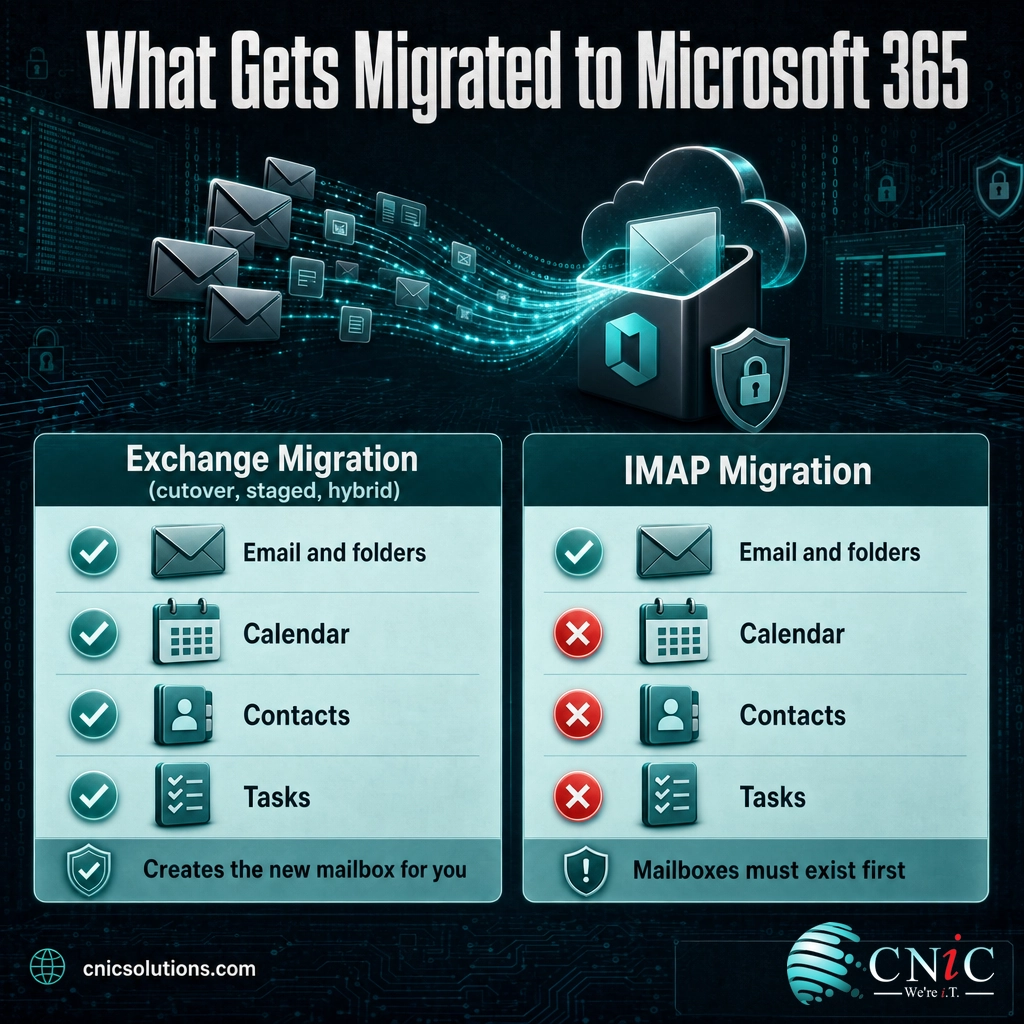
What moves depends on the method you use, and this is one of the most common sources of surprise. Exchange-based migrations are comprehensive. Migrations that rely on IMAP are deliberately narrower.
| Item | Exchange migration (cutover / staged / hybrid) | IMAP migration |
|---|---|---|
| Email messages and folders | Migrated | Migrated |
| Calendar items | Migrated | Not migrated |
| Contacts | Migrated | Not migrated |
| Tasks | Migrated | Not migrated |
| Creates the new mailbox for you | Yes | No, mailboxes must exist first |
According to Microsoft’s documentation, an IMAP migration moves only the items in a user’s inbox and other mail folders. Contacts, calendar items, and tasks cannot come across through IMAP, and IMAP does not create the Microsoft 365 mailboxes either, so those have to be set up before the mail is pulled over. That does not make IMAP a bad choice, it is often the right tool when you are leaving a non-Exchange system, but it does mean planning for how contacts and calendars get rebuilt.
There is also a hard ceiling worth knowing early. Microsoft’s migration performance data lists mailboxes larger than 200 GB as not supported by the standard onboarding paths. Very large or heavily archived mailboxes need to be trimmed, archived, or handled with a different approach before the project begins.
The Five Migration Methods, and Which One Fits
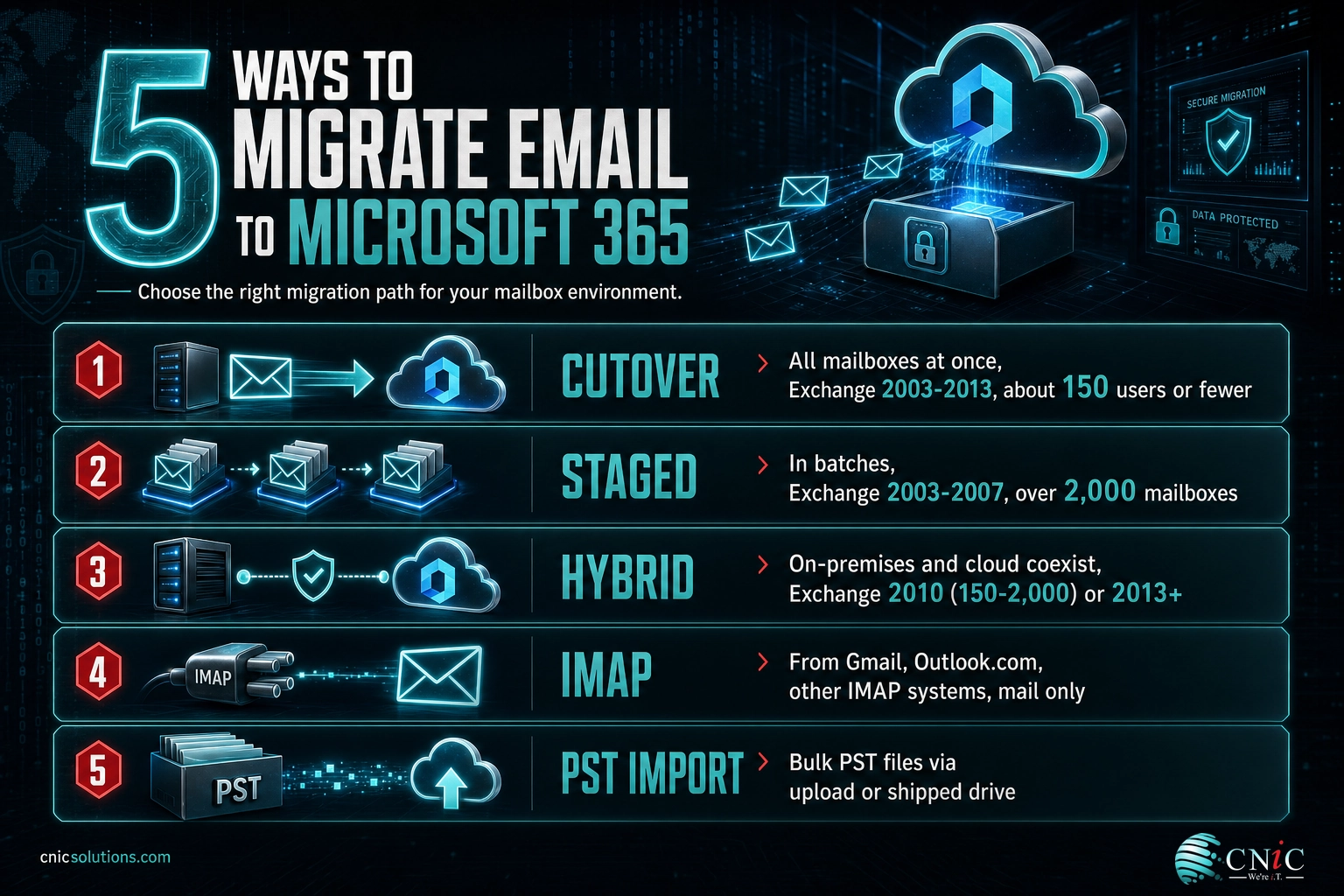
Microsoft supports several migration paths, and the correct one is determined mostly by two things: what system you are moving from, and how many mailboxes you have. Here is how they break down.
- Cutover migration: Every mailbox moves in a single pass. Microsoft supports this for Exchange 2003 through 2013 with fewer than 2,000 mailboxes, but adds an important caveat: because of how long it takes to create and move that many users, it is more reasonable in practice to keep a cutover to around 150 users or fewer. This is the typical path for a small business.
- Staged migration: Mailboxes move in batches over time. This applies to older Exchange 2003 and 2007 environments with more than 2,000 mailboxes.
- Hybrid migration: On-premises and Microsoft 365 mailboxes coexist, and users move gradually while both systems work together. Microsoft recommends this for Exchange 2010 with 150 to 2,000 mailboxes, for anyone who wants to move in small batches over time, and for Exchange 2013 or later. It is the most flexible option and the standard choice for larger or more cautious organizations.
- IMAP migration: Mail is pulled from any IMAP-capable system, including Gmail, Outlook.com, and other providers. As covered above, it moves mail folders only and needs mailboxes created in advance.
- PST import: For organizations holding large volumes of email in PST files, the Import Service uploads that data over the network or via a physical drive you ship to Microsoft. It is often used alongside another method rather than on its own.
Choosing between these is where many projects either start smoothly or start crooked. A ten-person firm on a single old Exchange box is a clean cutover. A 300-person company on Exchange 2016 that cannot tolerate any disruption is a hybrid. A design studio leaving Google Workspace is an IMAP or specialized Gmail migration with a plan for contacts and calendars. Getting this decision right is the single most important step in the whole project.

What to Expect: The Migration Phases
Regardless of method, a real migration follows a recognizable arc. Knowing the phases tells you what “progress” should look like week to week.
- Discovery and planning. Someone inventories every mailbox, its size, shared mailboxes, distribution lists, and any oddities like public folders. This is where the migration method and timeline are decided, and where mailbox cleanup pays off by cutting the volume that has to move.
- Preparation. The Microsoft 365 tenant is set up, licenses are assigned, your domain is verified, and DNS records are readied. Users are created and, for hybrid, the connection between on-premises Exchange and the cloud is built.
- Pilot migration. A small group of mailboxes moves first. This is the rehearsal: it surfaces problems with Outlook profiles, mobile devices, permissions, and mail flow while the stakes are low.
- Bulk migration. With the pilot validated, the remaining mailboxes move, in one pass for a cutover or in batches for staged and hybrid. Throughout this phase, the old system keeps running and receiving mail, so nothing is lost while data copies.
- MX cutover and validation. Once mailboxes are confirmed in Microsoft 365, the domain’s MX record, the DNS setting that tells the internet where to deliver your mail, is pointed at Microsoft 365. From this moment new mail arrives in the cloud mailboxes. The team verifies mail flow, Outlook, mobile, and any lingering items.
- Decommission and support. After a stabilization window, the old system is retired and users get help with the small changes they notice. Good migrations budget for this hand-holding period rather than declaring victory at cutover.
The pattern to notice: the disruptive-sounding step, switching where mail is delivered, comes near the end and only after everything else is confirmed. That sequencing is what keeps a migration boring, in the best possible way.
How Long Does It Take?
Two different clocks matter here. One is how long an individual mailbox takes to copy. The other is how long the overall project runs. They are not the same, and conflating them is why estimates so often feel wrong.
For individual mailboxes, Microsoft publishes duration guidance based on analysis of previous customer migrations. For on-premises Exchange onboarding, the numbers look like this:
Larger mailboxes take proportionally longer: Microsoft’s data puts a 50 to 100 GB on-premises mailbox at roughly 4 days at the median, and 100 to 200 GB mailboxes at around 10 days, with the slowest 10 percent stretching to a month. Because the service moves a limited number of mailboxes at once, the total calendar time for a whole company is driven far more by mailbox count and size than by any one transfer.
For the overall project, plan in weeks, not days. A small office with clean mailboxes and a straightforward cutover can be done in roughly two to four weeks including planning and a pilot. Mid-sized and hybrid deployments commonly run several weeks longer because of coexistence setup, batching, and change management. Migration speed also depends on real-world factors Microsoft calls out directly: your available network bandwidth, network stability, firewall and intrusion-detection settings, the source system’s own limits, and the mix of large versus many-small items in each mailbox.
A useful example from Microsoft’s own documentation: a 4 GB mailbox holding 400 items with large attachments migrates faster than a 4 GB mailbox holding 100,000 small items. Same size, very different duration. This is why an accurate estimate always starts with a real inventory, not a guess based on total storage.
What Can Go Wrong (and How to Avoid It)
Most migration horror stories trace back to a handful of avoidable mistakes. The good news is that each one has a known countermeasure.
Myth: “Migrating means the office loses email for a day.” This is the fear that drives people to postpone the project, and it is wrong when the work is done properly. During migration your existing system keeps sending and receiving mail while copies are made in the background. Email delivery only shifts when the MX record is repointed, and that is a deliberate, quick change made after mailboxes are verified. Downtime comes from poor planning, not from migration itself.
The failure points to watch for, and plan around:
- DNS and MX missteps. Lowering your MX record’s TTL before the cutover, and repointing it only once mailboxes are confirmed, keeps mail from being delayed or misdelivered during the switch.
- Skipping the pilot. Moving everyone at once with no rehearsal turns small, fixable issues into company-wide ones. A pilot batch is cheap insurance.
- Licensing and provisioning gaps. A mailbox with no license, or a user account created incorrectly, stalls that person’s move. Provisioning and license assignment belong in the preparation phase, not mid-migration.
- Bloated mailboxes. Years of unmanaged mail inflate both time and risk. Archiving or cleaning up before you start, especially near that 200 GB ceiling, shortens the whole project.
- Forgetting the endpoints. Outlook profiles, cached credentials, and mobile devices all need reconfiguring after cutover. Building that into a communication plan prevents a flood of confused help requests on day one.
Nearly every item on that list is a planning task, not a technical mystery. That is the real lesson of email migration: the difficulty lives in preparation and sequencing, which is precisely why businesses hand the project to a team that has run it many times before.
How to Get Started
A Microsoft 365 migration is very achievable, but it rewards a methodical approach: inventory first, pick the right method, rehearse with a pilot, and save the MX cutover for last. For a small business with a single clean mailbox source, an internal admin can often manage it. For anything with coexistence needs, compliance obligations, or a low tolerance for disruption, the calculus usually favors experienced help, because the cost of a mishandled cutover, in lost mail and lost trust, dwarfs the cost of doing it right.
CNiC Solutions plans and runs Microsoft 365 email migrations for small and midsize businesses as part of our cloud solutions: inventorying mailboxes, choosing the method that fits your environment, protecting mail flow through the DNS cutover, and supporting your team afterward so the move feels invisible. Because email rarely lives in isolation, migrations are frequently handled alongside ongoing managed IT support, and for organizations weighing where a cloud move fits in a broader technology roadmap, our Virtual CIO services help align the decision with business risk and budget.
Talk to CNiC about migrating your email to Microsoft 365
Source: Microsoft Learn: Ways to migrate email to Microsoft 365 | Microsoft Learn: Migration performance and best practices
Frequently Asked Questions
What is an Office 365 migration?
How long does a Microsoft 365 email migration take?
Will email go down during the migration?
What is the difference between cutover and hybrid migration?
Do contacts and calendars migrate too?
About This Guide and Sources
The migration methods, mailbox-count guidance, item-level behavior (including the IMAP limitations and the 200 GB ceiling), the default 20-mailbox concurrency, and the per-mailbox duration figures in this guide are drawn from Microsoft’s official product documentation on Microsoft Learn: Ways to migrate multiple email accounts to Microsoft 365 and Microsoft 365 migration performance and best practices. Microsoft’s duration figures are median (P50) and 90th-percentile (P90) estimates based on analysis of prior customer migrations; actual times vary by environment, network, and mailbox mix. Overall project timelines (two to four weeks and up) are typical planning ranges, not guarantees, and depend on organization size, method, and readiness. Any specific migration should begin with a real mailbox inventory.



related posts
What Is ZTNA (Zero Trust Network Access)?
November 3, 2026Zero Trust Network Access (ZTNA) is a security service that grants a verified user access to…
Zero Trust Statistics for 2026: Adoption, Maturity, and Breach Impact
November 3, 2026Zero trust has become the default security strategy on paper, but not yet in practice. Okta's…
What Is Zero Trust Security? A Guide for Small Businesses
November 2, 2026Zero Trust security is a cybersecurity model built on one rule: never trust, always verify. Instead…
What Is XDR (Extended Detection and Response) and How Does It Protect…
November 2, 2026Extended detection and response (XDR) is a security platform that collects and correlates threat data from…