

Calendar phishing is a scam that hides a malicious link inside a calendar invitation instead of a normal email, so it lands directly on your schedule, sets a reminder, and sits next to your real meetings. It works because a calendar invite feels more trustworthy than a cold email, and because Google Calendar and Microsoft 365 can add invites automatically before you decide whether to trust them. This guide explains what calendar phishing is, how to spot it, and the exact settings and habits that stop it, for both individuals and whole teams.
Before You Begin
What you need: access to your Google Calendar or Microsoft 365 / Outlook settings, and (for the team-wide steps) administrator access to your Google Workspace or Microsoft 365 tenant. Who should be involved: every user for the personal settings; whoever manages your email and calendar platform (internal IT or a managed provider) for the organization-wide controls. Estimated time: about 10 minutes for the personal settings, longer for the team-wide rollout and training. Skill level: anyone can do the personal steps; the admin and filtering steps assume basic familiarity with your Workspace or Microsoft 365 admin console.
Key Takeaways
- Calendar phishing bypasses your inbox. The bait rides in on a calendar invite, so it dodges the email filters people rely on and appears as a scheduled event with a reminder.
- Auto-add is the root cause. Google Calendar has long added invitations automatically, and Microsoft 365 can add them as tentative events. Turning that off is the single most effective fix.
- The invite itself is harmless. The damage only happens if you interact: click a link, scan a QR code, call a number, or enter credentials or payment details.
- Report, then delete. Reporting a suspicious invite as spam before deleting it trains the platform’s filters and helps protect everyone else.
- Teams need both settings and training. Enforced calendar settings, advanced filtering, and multifactor authentication catch what awareness misses, and awareness catches what filters miss.
What’s in This Guide
- What Calendar Phishing Is and Why It Works
- How a Calendar Phishing Attack Actually Happens
- How to Spot a Calendar Phishing Invite
- Step 1: Turn Off Automatic Invitations in Google Calendar
- Step 2: Restrict Calendar Auto-Adds in Microsoft 365 and Outlook
- Step 3: Report Suspicious Invites as Spam, Then Delete
- Step 4: Train Your Team to Recognize the Bait
- Step 5: Add Layered Email and Endpoint Defenses
- When to Call a Professional
- Troubleshooting Common Problems
- How to Maintain and Monitor Your Defenses
- Frequently Asked Questions
What Calendar Phishing Is and Why It Works
Calendar phishing is a form of social engineering that uses fake calendar invitations to deliver the same payload as a phishing email: a malicious link, a lure to call a fraudulent number, or a prompt to hand over credentials or payment details. Instead of hoping you open an email, the attacker gets an event onto your calendar, where it carries a reminder and the built-in credibility of something you scheduled.
That credibility is the whole point. Years of investment in spam and phishing email filters have trained attackers to look for channels those filters do not watch as closely. A calendar invite is one of them. When the invite is generated by a legitimate service such as Google Calendar, it can even arrive from a real, trusted domain, which helps it sail past defenses that would have flagged a suspicious email.
Phishing is not a fringe problem, and the calendar is one of its newer delivery routes. In its 2024 Internet Crime Report, the FBI’s Internet Crime Complaint Center (IC3) logged more phishing and spoofing complaints than any other crime category, part of a record 859,532 total complaints and $16.6 billion in reported losses. Attackers do not adopt a new technique unless it works, and calendar-based delivery keeps growing because it reaches inboxes that filters would otherwise protect.
Top Reported Cybercrime Categories by Complaint Volume (FBI IC3, 2024)
Source: FBI IC3 2024 Internet Crime Report. Phishing and spoofing was the most reported category; extortion was second.
If you want the fuller picture of how common and costly these attacks have become, our breakdown of current phishing volume, costs, and defense data puts hard numbers behind the trend. Calendar phishing is phishing that changed its address of delivery.
Myth: “A scam can’t reach me through my calendar, only my email.”
This is exactly the assumption calendar phishing exploits. Your calendar is a messaging surface. On default settings, someone who knows your email address can put an event on your schedule, and that event can contain links, a phone number, or instructions. Treating the calendar as a safe zone is what lets these invites work. The invite is not dangerous on its own, but the belief that it must be legitimate is.
Source: FBI IC3 2024 Internet Crime Report
How a Calendar Phishing Attack Actually Happens
Understanding the mechanics makes the invite easy to recognize. Most calendar phishing follows a predictable sequence, and security researchers have documented large campaigns that use it.
In late 2024, Check Point Research documented a campaign that sent more than 4,000 phishing messages in four weeks, affecting around 300 organizations across sectors including education, healthcare, construction, and banking. The attackers manipulated sender headers so messages appeared to come from Google Calendar on behalf of a known person, then routed victims through Google Forms or Google Drawings to a page disguised as a reCAPTCHA or support button, and finally to a fake site that harvested personal and payment information. The typical flow looks like this:
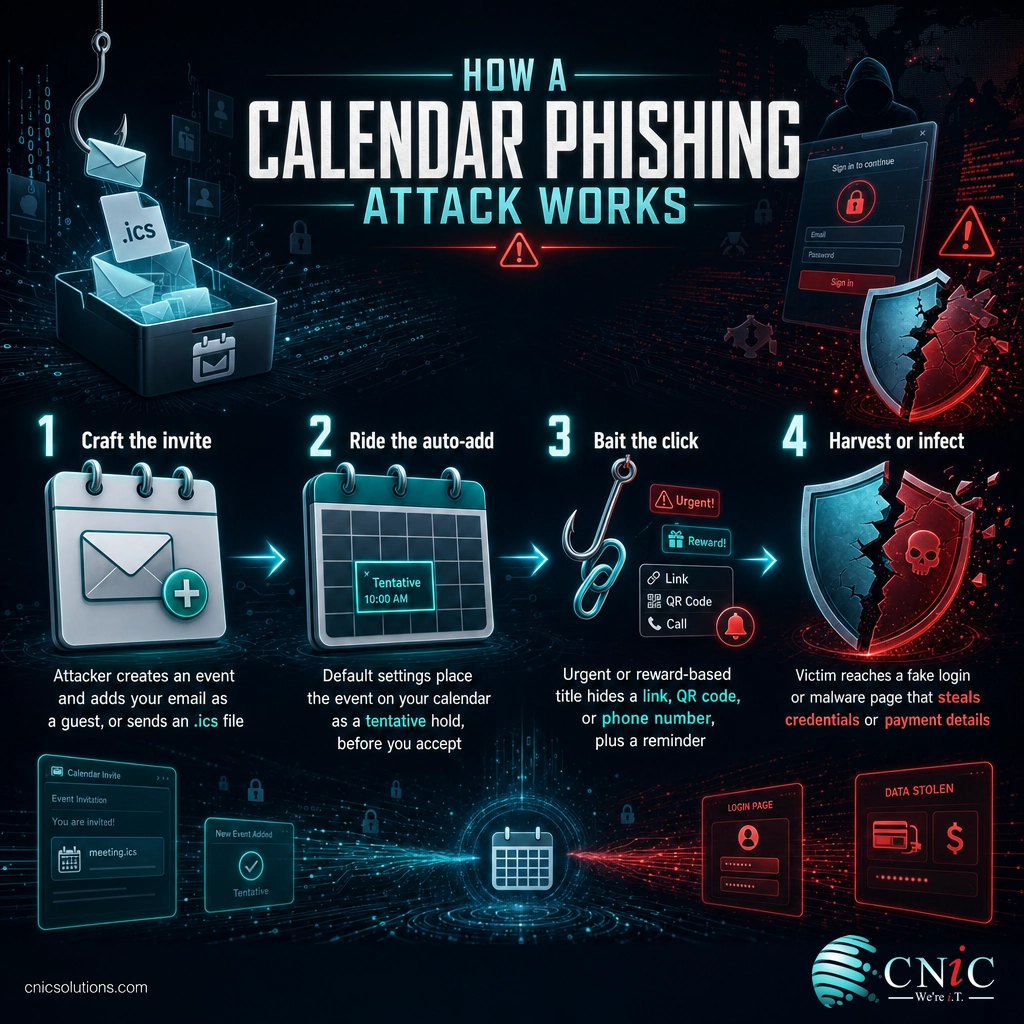
- Craft the invite: the attacker creates an event and adds your email address as a guest, or sends a calendar file (an .ics attachment) designed to be added to your schedule.
- Ride the auto-add: because of default settings, the event appears on your calendar, often as a tentative hold, before you have accepted or even seen an email about it.
- Bait the click: the event title and description use urgency or reward (a payment problem, a prize, a shared document, a job offer) and contain a link, QR code, or phone number.
- Harvest or infect: the link leads to a credential-stealing page or a malware download, and the fake reminder gives the attacker a second chance to reach you at the scheduled time.
The reason this bypasses so many defenses is that each step uses legitimate infrastructure. A real calendar service sends the invite. A real Google Forms or Microsoft page hosts the next step. Only the final destination is clearly malicious, and by then the victim has followed a trail of trusted-looking pages. It is a close cousin of the trick covered in our guide to phishing that clones a legitimate message you were expecting, applied to the calendar instead of the inbox.
Source: Check Point Research: Google Calendar phishing analysis
How to Spot a Calendar Phishing Invite
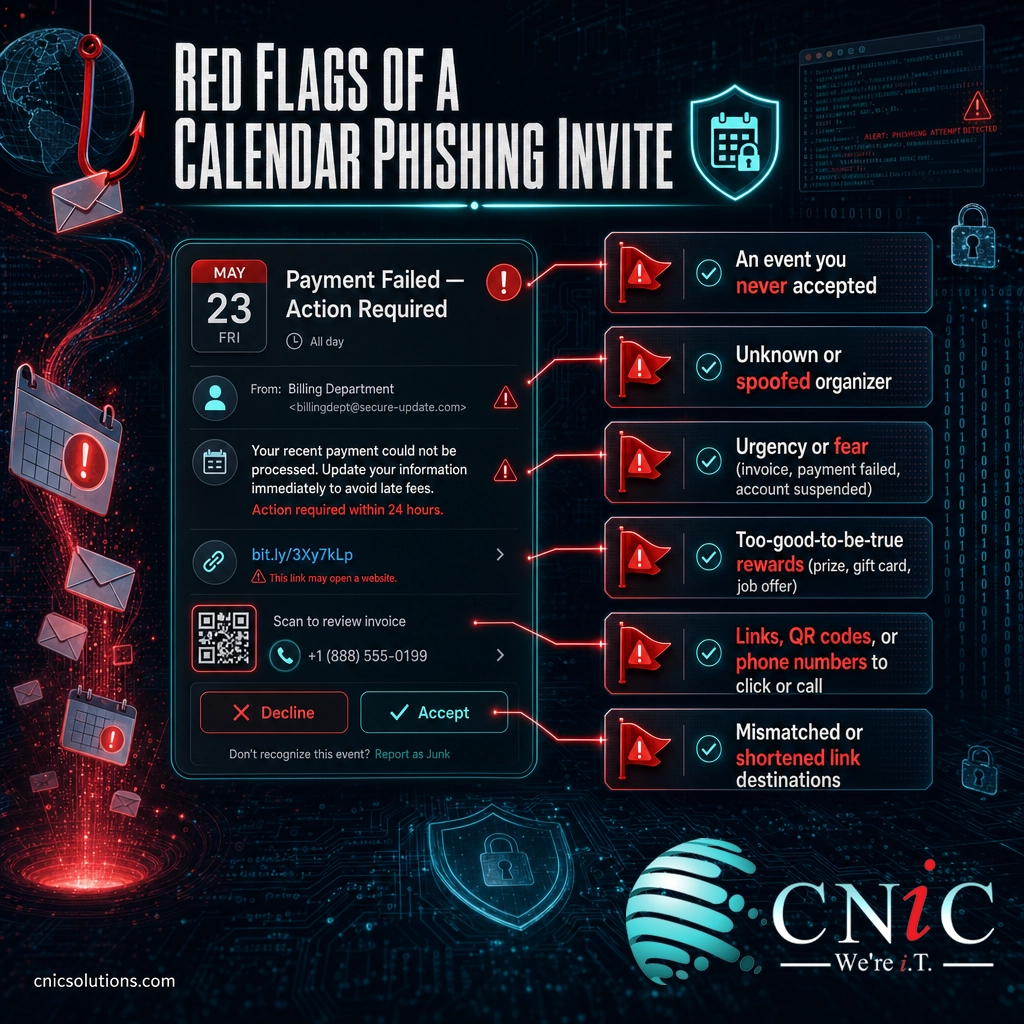
The warning signs are consistent, and once you know them a malicious invite is easy to identify. Treat any invite that shows one or more of these as suspicious until proven otherwise.
| Red flag | What it looks like |
|---|---|
| An event you never accepted | A meeting or reminder appears on your calendar that you have no memory of scheduling or agreeing to. |
| Unknown or spoofed organizer | The sender is not in your contacts, or the display name looks legitimate but the underlying email address does not match. |
| Urgency or fear | Titles like “Invoice overdue,” “Payment failed,” “Account suspended,” or “Action required” designed to make you react fast. |
| Too-good-to-be-true rewards | Prize wins, gift cards, bonuses, or job interviews you never applied for, all requiring you to click or reply. |
| Links, QR codes, or phone numbers | The event description asks you to click a link, scan a code, or call a number to “confirm,” “verify,” or “claim.” |
| Mismatched or hidden destinations | A link whose visible text and real destination differ, or a shortened URL that hides where it actually goes. |
The same instincts that catch a fraudulent email catch a fraudulent invite. If you want to sharpen those instincts across your team, our guides to the warning signs that give a phishing message away and real phishing examples broken down side by side translate directly to calendar invites.
Step 1: Turn Off Automatic Invitations in Google Calendar
This is the most important fix for anyone on Google Calendar or Google Workspace, because Google Calendar has historically added invitations to your calendar automatically by default. Changing one setting removes the auto-add that the entire attack depends on.
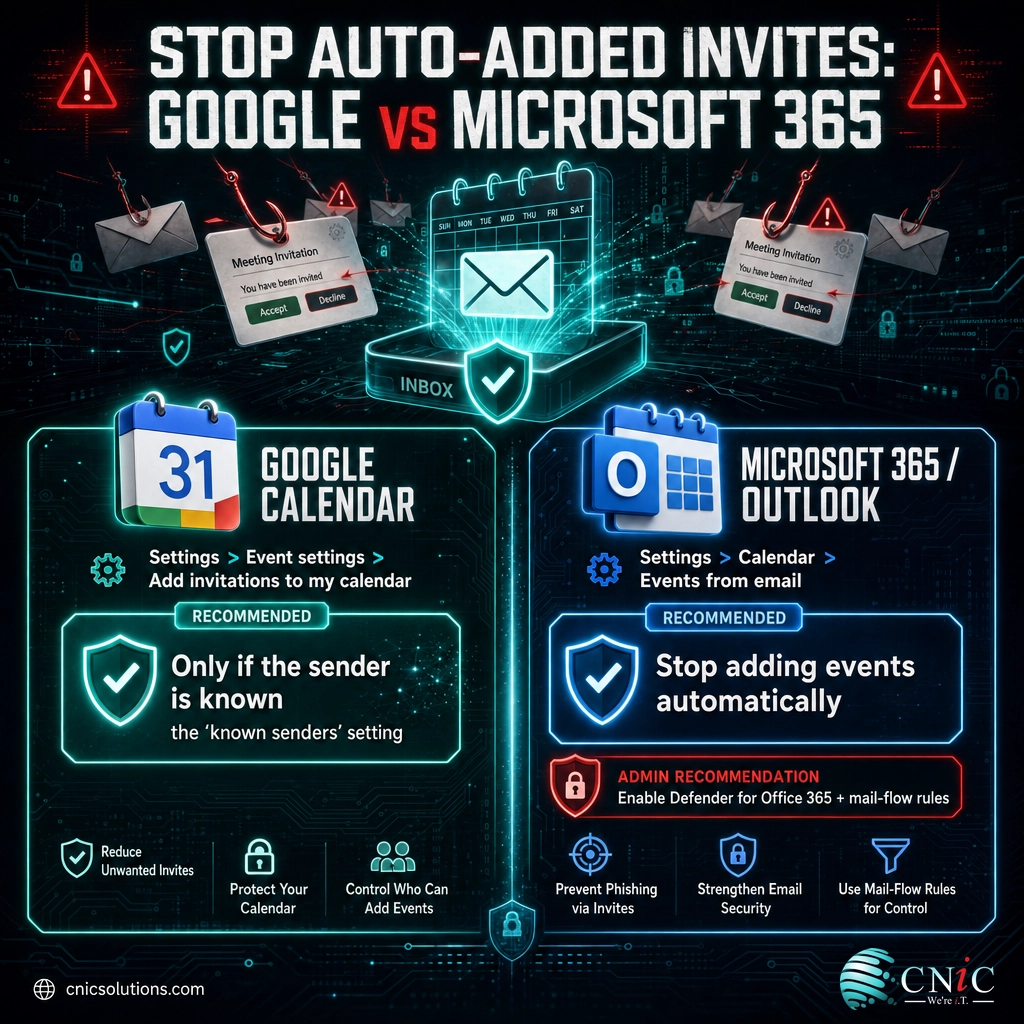
What to do: open Google Calendar on the web, click the gear icon and choose Settings, then select Event settings. Find Add invitations to my calendar and change it from From everyone to either Only if the sender is known or When I respond to the invitation in email. (In older versions of the interface the same control is labeled “Automatically add invitations,” where you choose “No, only show invitations to which I have responded.”)
Why this matters: “Only if the sender is known” is the setting Google specifically recommends against this attack. It stops invitations from people who are not in your contacts, and whom you have never emailed, from silently appearing on your calendar.
What success looks like: unexpected events from strangers no longer show up on your schedule. Invites from real colleagues and contacts still arrive normally, so nothing you actually need is lost.
Common mistake: hiding declined events instead of blocking auto-add
Some advice tells you to uncheck “Show declined events.” That only removes clutter after the fact; it does not stop malicious invites from being added or from firing reminders. The setting that actually protects you is “Add invitations to my calendar,” set to known senders or to respond-first. Change that one, not just the display option.
Source: Google Calendar Help: invitation and event settings
Step 2: Restrict Calendar Auto-Adds in Microsoft 365 and Outlook
Microsoft 365 and Outlook are also targeted, and while they usually require a user to accept an invite, they can still place an invitation on the calendar as a tentative event, which is enough to plant the bait and its reminder. Tighten the same behavior here.
What to do: in Outlook, turn off automatically adding events from email so message content is not auto-processed onto your calendar. In new Outlook and Outlook on the web this lives under Settings > Calendar > Events from email, where you can stop events from being added automatically. At the organization level, an administrator should enable Microsoft Defender for Office 365 protections (Safe Links and Safe Attachments) and mail-flow rules that filter or quarantine suspicious invitations before they reach users.
Why this matters: individual settings protect one person; tenant-level controls protect everyone at once and cover the users who never change a default. Filtering the invite before delivery is more reliable than depending on each person to notice it.
What success looks like: invites are not silently auto-added, risky links inside invitations are rewritten and scanned by Safe Links, and your administrator has a rule in place to catch obvious invite-based lures.
Source: Microsoft Support: events from email in your calendar | Microsoft Defender for Office 365

Step 3: Report Suspicious Invites as Spam, Then Delete
How you get rid of a bad invite matters. Reporting it before deleting it does more than clean your calendar; it feeds the platform’s filters and helps protect other users who may be hit by the same campaign.
What to do: open the suspicious event, use the More options (three-dot) menu, and choose Report as spam where available, then delete it. In Google Calendar you can report an invite as spam directly from the event. Do this before deleting, and never RSVP, click a link, scan a code, or call a number inside an invite you did not expect.
Why this matters: declining an invite can signal to an attacker that your address is live and monitored, which can invite more attempts. Reporting as spam both removes the event and improves detection for the next target.
What success looks like: suspicious invites are reported and gone, you have interacted with nothing inside them, and repeat attempts from the same source taper off as the platform learns.
Common mistake: clicking “No” or a link just to make it stop
Interacting with a phishing invite in any way, including tapping an “unsubscribe” or “remove me” link inside it, confirms your address is active and can lead somewhere malicious. The safe path is always report, then delete, without opening links or replying.
Step 4: Train Your Team to Recognize the Bait
Settings stop the automatic invites, but people still receive and open the ones that get through. For a business, employee awareness is the layer that turns each person from a target into a sensor.
What to do: teach your team three things. First, a calendar invite is not automatically trustworthy just because it appeared on their schedule. Second, the red flags from earlier in this guide (urgency, rewards, unknown senders, links and QR codes and phone numbers) apply to invites exactly as they do to email. Third, there is a single, easy way to report anything suspicious, so reporting is the reflex rather than clicking.
Why this matters: phishing succeeds by manipulating people, not just software. Ongoing awareness training and simulated phishing measurably reduce how often employees fall for these lures and how quickly they report the ones they spot.
What success looks like: employees pause on unexpected invites, report them through a known channel, and treat a calendar entry with the same healthy skepticism they would give a surprise email asking for money or credentials.
Add phishing awareness training and email security for your team
Step 5: Add Layered Email and Endpoint Defenses
No single control catches everything, so the goal is defense in depth: several layers so that if one fails, another stops the attack. This is where the organization-wide, technical protections come in.
What to do: combine the settings above with a stack of reinforcing controls:
- Advanced email and invite filtering: modern, AI-assisted filtering that inspects links and attachments inside invitations, not just plain email, and rewrites or detonates suspicious links before a user can reach them.
- Multifactor authentication (MFA): so that even if a user’s credentials are phished, a stolen password alone does not unlock the account.
- Endpoint detection and response (EDR): to catch and contain malware if a link does lead to a download.
- Continuous monitoring: eyes on alerts around the clock, so a successful click is detected and contained in minutes rather than discovered weeks later.
Why this matters: the calendar is one delivery route among many, and attackers rotate through whatever gets past your defenses. Layered controls protect against the whole family of phishing and social engineering, not just the calendar variant.
What success looks like: a phishing invite that slips past the settings still meets a filter, MFA, an alert, and a monitored response, so a single mistake never becomes a breach.
Get round-the-clock monitoring for your business
When to Call a Professional
The personal settings in this guide are quick and you should apply them today. There are clear points, though, where bringing in a managed IT and cybersecurity partner is the right call rather than a luxury:
- You need to enforce settings across a whole team and cannot rely on every employee to change a default correctly.
- Someone has already clicked a link or entered credentials from a suspicious invite, and you need to determine what was exposed and lock accounts down fast.
- You want advanced filtering, MFA, and 24/7 monitoring configured and maintained properly, not set up once and forgotten.
- You face compliance obligations (such as HIPAA, PCI-DSS, or SOC 2) that require documented email security and awareness training.
A provider brings the tenant-level configuration, the tested filtering, and the continuous monitoring that are impractical to build and watch alone, and turns a one-time cleanup into an ongoing defense.
Troubleshooting Common Problems
A few situations come up often once people start locking calendar phishing down. Here is how to handle them.
| Problem | Solution |
|---|---|
| Spam events keep reappearing after you delete them | You are deleting without reporting. Report each one as spam first, and confirm your “Add invitations to my calendar” setting is on known senders or respond-first, so new ones stop auto-adding. |
| You changed the setting but old spam events are still on the calendar | The setting only affects new invites. Report and delete the existing ones individually; they will not be replaced once auto-add is off. |
| Legitimate invites from clients stopped appearing automatically | Add trusted contacts to your address book so “known senders” recognizes them, or use “When I respond to the invitation in email,” which still surfaces invites, just without auto-adding. |
| Employees are unsure whether an invite is real | Give them one clear rule: do not interact, report it through your designated channel, and let IT verify. A quick check beats a wrong click. |
| The same fake sender keeps targeting your domain | Escalate to your administrator or IT partner to add mail-flow rules and filtering at the tenant level, and report the pattern so filters improve. |
How to Maintain and Monitor Your Defenses
Stopping calendar phishing is not a one-time task, because attackers change tactics and new employees join with default settings. Keep the protection current:
- Bake the settings into onboarding, so every new user’s calendar auto-add is locked down from day one rather than left on the risky default.
- Refresh awareness training regularly, and include calendar-based examples alongside email phishing so the lesson stays relevant.
- Review your filtering and rules as your platform and the threat landscape change, and act on what your reports surface.
- Keep monitoring in place, because the fastest way to limit damage from any phishing attempt is to detect a successful one quickly.
Maintaining that rhythm is exactly the kind of ongoing discipline a managed provider handles, so your defenses do not quietly drift back to defaults over time.
Put an experienced security leader in charge of your defenses
Frequently Asked Questions
What is calendar phishing?
How does a calendar phishing invite end up on my calendar without me accepting it?
Is calendar phishing dangerous if I never click the link?
How do I stop spam events in Google Calendar?
Can businesses block calendar phishing for the whole team?
Sources
Attack-scale and campaign figures are from Check Point Research’s analysis of a Google Calendar phishing campaign (more than 4,000 phishing emails over four weeks affecting roughly 300 brands) and from the FBI Internet Crime Complaint Center (IC3) 2024 Internet Crime Report (193,407 phishing and spoofing complaints, the most reported category, within 859,532 total complaints and $16.6 billion in losses). Calendar and email settings guidance follows Google Calendar Help and Microsoft Support and Microsoft Learn documentation, including Google’s recommended “known senders” setting and Microsoft Defender for Office 365. No statistics in this article are estimated or invented; each is drawn from the primary source named.
Primary and authoritative sources: FBI IC3 2024 Internet Crime Report, Check Point Research, Google Calendar Help, Microsoft Support, Microsoft Defender for Office 365, CISA: recognize and report phishing.



related posts
What Is BYOD? Bring Your Own Device Explained for Businesses
October 13, 2026BYOD (Bring Your Own Device) is a policy that lets employees use their own personal devices,…
What Is an Evil Twin Attack? How Fake Wi-Fi Hotspots Steal Your…
October 12, 2026An evil twin attack is a fake Wi-Fi hotspot that copies the name of a network…
What Is an IP Address? A Plain-English Guide for Business
October 12, 2026An IP address (Internet Protocol address) is a unique number assigned to every device on a…
What Is Allowlisting? How It Works and Why It Matters
October 11, 2026Allowlisting is a security approach that permits only pre-approved applications, files, or connections to run, and…