
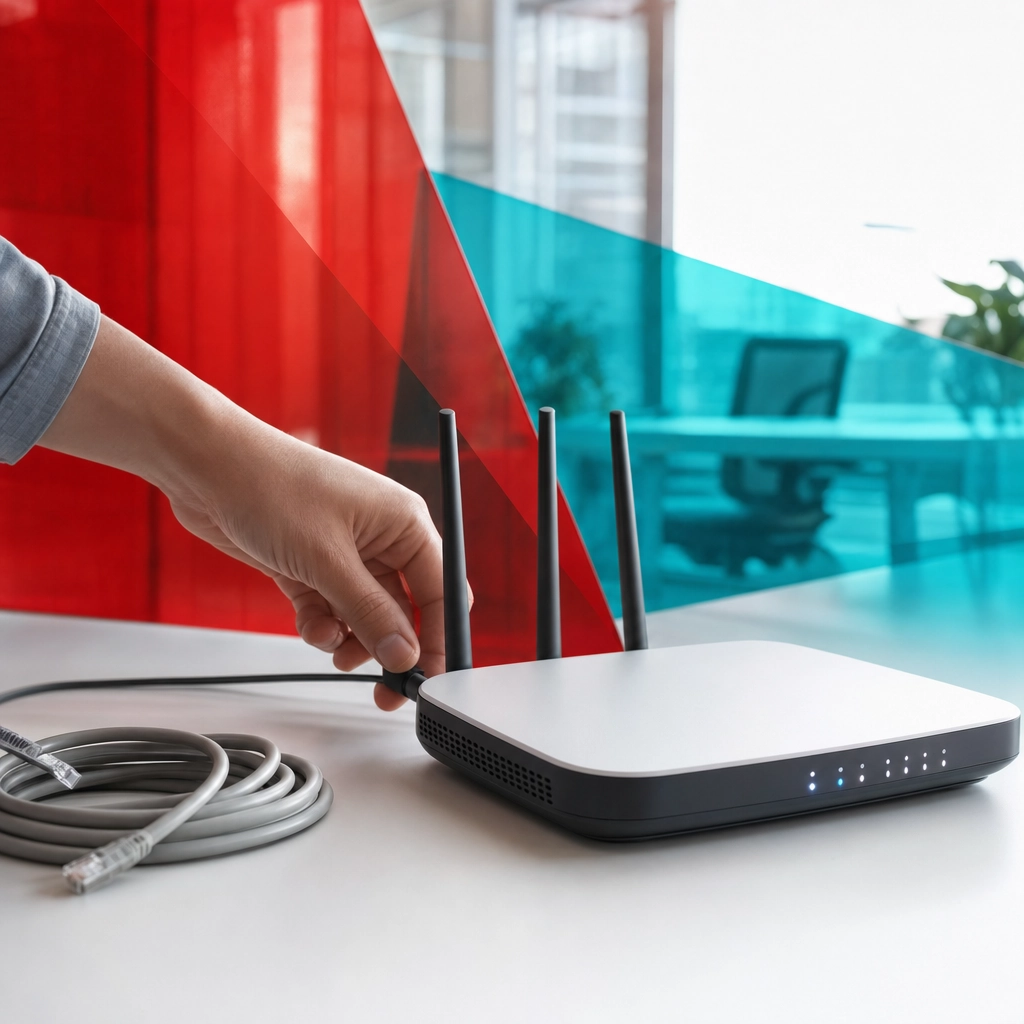
When your internet drops, slows to a crawl, or refuses to load a single page, rebooting your router is the fastest fix you can do yourself, and it works more often than any other single step. It is such reliable maintenance that the FBI has publicly urged every owner of a home or office router to power cycle their device, advice it issued after foreign cyber actors compromised hundreds of thousands of routers worldwide. This guide walks you through the correct way to reboot, in the right order, so a two-minute reset clears the glitch instead of masking it.
- What you need: access to your modem and router (or a single all-in-one gateway), and a phone or laptop to test the connection.
- Time required: about 5 minutes, most of it spent waiting for the devices to sync back up.
- Skill level: beginner. No tools, logins, or technical knowledge required.
- Good to know: a reboot keeps all of your settings. It is not the same as a factory reset, which erases them. We explain the difference below before you touch any button.
- Reboot, do not reset. A power cycle keeps your Wi-Fi name, password, and settings. The recessed pinhole reset button wipes them all.
- Order matters. Power the modem back on first and let it fully sync, then power on the router.
- Wait a full 60 seconds with both devices unplugged so power drains and your provider registers the disconnect.
- Pull the plug, do not just tap a button. Fully removing power clears the device far more thoroughly.
- If reboots stop working, the cause is elsewhere: a provider outage, bad cable, aging hardware, or stale firmware. That is the point to call for professional network support.
What’s in This Guide
- Reboot vs. Restart vs. Reset: What Each One Does
- Step 1: Locate Your Modem and Router
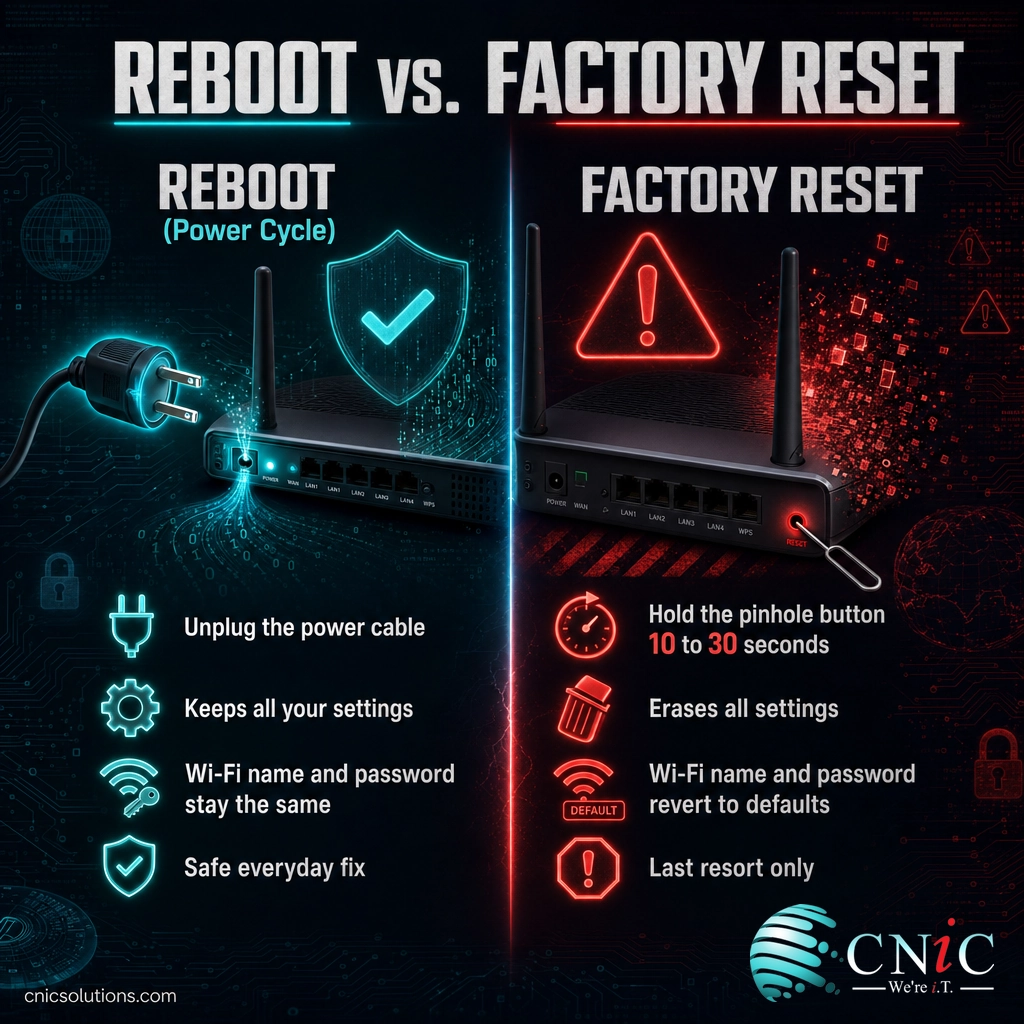
- Step 2: Power Down Both Devices
- Step 3: Wait a Full 60 Seconds
- Step 4: Power the Modem Back On First
- Step 5: Power the Router Back On
- Step 6: Reconnect and Test
- When to Call a Professional
- Troubleshooting: When a Reboot Isn’t Enough
- Maintain and Monitor Your Network
- Frequently Asked Questions
Reboot vs. Restart vs. Reset: What Each One Does
These three words get used interchangeably, but they mean very different things, and confusing them is how people accidentally erase their entire network setup. Get the distinction straight before you press anything.
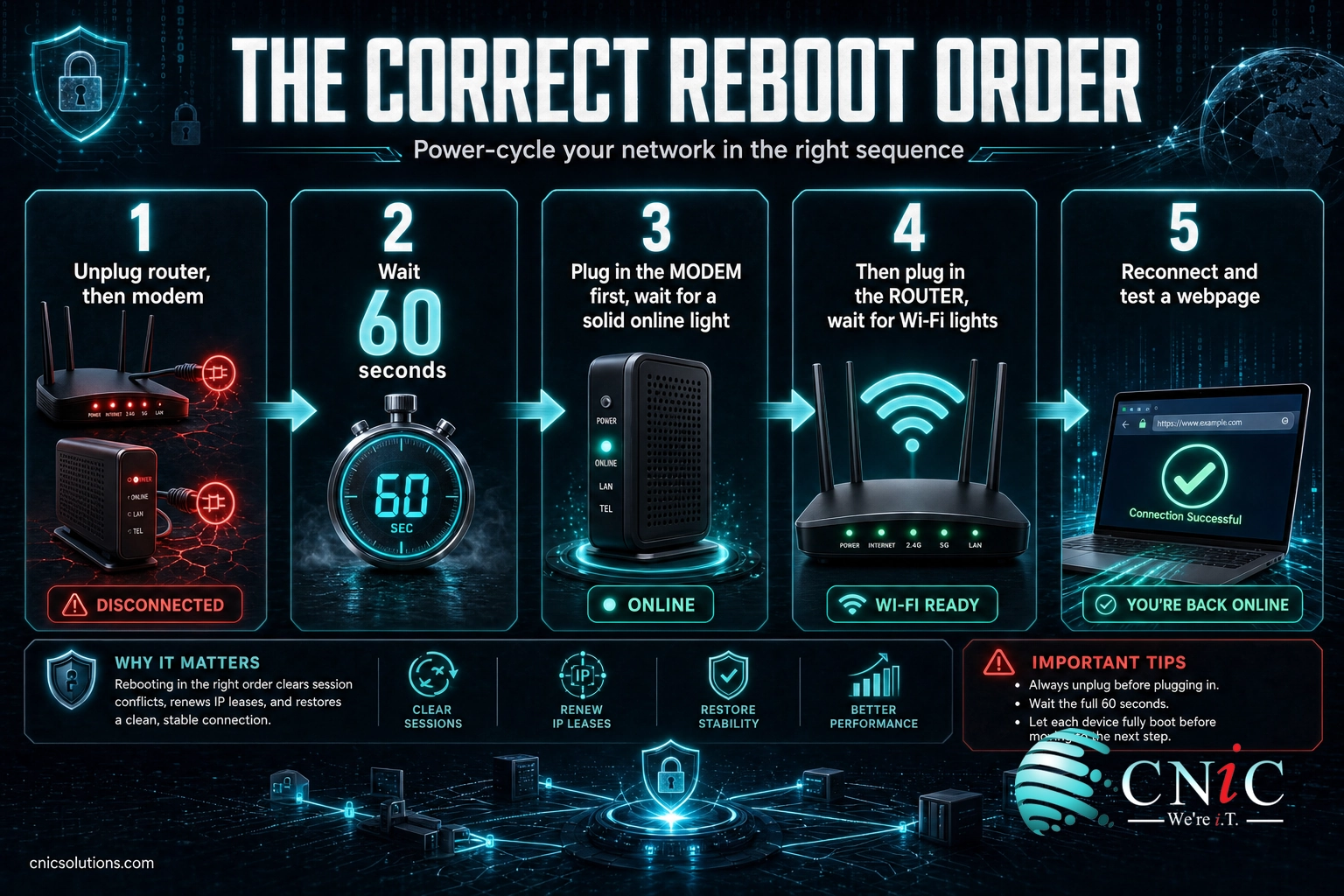
A reboot, also called a restart or a power cycle, just turns the device off and back on. It clears the router’s short-term memory, drops stale connections, refreshes the address it was assigned by your provider, and reloads the software cleanly. Every one of your settings survives: your Wi-Fi name, your password, your custom configuration. This is the fix you want in almost every situation.
A factory reset is a different action entirely. It uses the small recessed pinhole button on the back of the device, held down for 10 to 30 seconds with a paperclip, and it wipes the router back to the way it left the factory. Your Wi-Fi name and password revert to the defaults printed on the label, and any setting you ever changed is gone. A reset is a last resort for a badly misconfigured device, not a routine fix.
Step 1: Locate Your Modem and Router
What to do: Find both devices and figure out which is which. The modem is the box with the cable, fiber, or phone line from outside coming into it. It is what connects your building to your internet provider. The router is what takes that single connection and shares it out to all your devices over Wi-Fi and Ethernet. In many homes and small offices the two are combined into one all-in-one gateway supplied by the provider, in which case you only have a single unit to power-cycle.
Why this step matters: The reboot order depends on knowing which device does what. A modem and a router recover in a specific sequence, so identifying them now prevents a half-finished restart that leaves you still offline.
What success looks like: You can point to your modem, your router, and their power cables, or you have confirmed you have a single combined gateway. If you are ever unsure how your equipment is wired together, our small business network setup guide breaks down each piece.
Step 2: Power Down Both Devices
What to do: Unplug the power cable from the back of the router first, then unplug the modem. Pull the cord out of the device or the wall, do not just flip a rocker switch or tap a front-panel button. If your modem has a battery backup, remove that battery too, or the device never fully powers down.
Why this step matters: Fully removing power is what actually clears the device. A front-panel button often only puts the unit to sleep and leaves the same stuck state in memory, which is why a “quick restart” so often changes nothing.
What success looks like: Every light on both devices is off. A completely dark modem and router mean power is fully drained and you are ready to wait.
Step 3: Wait a Full 60 Seconds
What to do: Leave both devices unplugged for at least 60 seconds. Set a timer if you tend to rush this. If you are troubleshooting a persistent problem, waiting two full minutes does no harm and sometimes helps.
Why this step matters: Two things happen during that minute. First, the small amount of electricity stored in the device’s capacitors finally drains, which is what actually clears the stuck state. Second, your internet provider’s equipment registers that your modem has dropped offline and prepares to hand back a fresh, clean session when it returns. Plug back in too quickly and the provider may resume the same broken session you were trying to escape.
What success looks like: A full minute has passed with both devices dark and unplugged. Now you are ready to bring them back up, in the correct order.

Step 4: Power the Modem Back On First
What to do: Plug the modem back in before the router. Give it a full one to two minutes to power up and reconnect to your provider. Watch the front-panel lights: you are waiting for the “online,” “internet,” or “sync” light to turn solid rather than blinking.
Why this step matters: The modem is your link to the outside internet. It has to re-establish that connection and be completely stable before anything downstream can use it. If you power the router on while the modem is still negotiating with your provider, the router tries to grab a connection that is not ready yet, and you end up back where you started.
What success looks like: The modem’s online or internet light is solid and steady, not flashing. That solid light is your signal that the connection to your provider is live and it is safe to move on. If you have a single combined gateway, skip to Step 6 once all of its lights are stable.
Step 5: Power the Router Back On
What to do: With the modem stable, plug the router back in. Wait another one to two minutes while it boots up, broadcasts its Wi-Fi networks, and pulls a fresh connection from the modem. Let every status light settle before you test anything.
Why this step matters: A router that starts from a stable modem picks up clean connection settings and rebuilds its Wi-Fi cleanly. Rushing this stage is the single most common reason a reboot “does not work.” The devices had not finished coming back up yet.
What success looks like: The router’s power and Wi-Fi lights are solid and steady. Your network name reappears in the Wi-Fi list on your phone or laptop, which means the router is broadcasting and ready for devices to connect.
Step 6: Reconnect and Test
What to do: Reconnect one device to your Wi-Fi or plug it in over Ethernet, then open a browser and load a website you do not normally visit, so you are not just seeing a cached page. Try a second site to be sure. If you use a work laptop that was connected before the reboot, it usually rejoins on its own within a few seconds.
Why this step matters: Testing confirms the connection is genuinely restored rather than half-working. Loading a fresh page rather than a cached one is the difference between “it looks fine” and “it actually works.”
What success looks like: Pages load quickly and reliably on more than one device. That is a successful reboot. If you got here and the connection is back, you are done, and this is the fix that resolves the large majority of everyday connection complaints.
When to Call a Professional
If you reach this step and your connection is still down after a proper power cycle, or if you find yourself rebooting several times a week just to stay online, the router is no longer the real problem. Repeated reboots are a symptom, and for a business they are an expensive one. In its 2024 downtime study of more than 1,000 organizations, ITIC found that just 4 percent said a single hour of downtime cost their company less than $100,000. For a small or midsize business, a flaky connection is not an inconvenience, it is lost revenue every hour it drags on.
That is the moment to bring in help that can diagnose the underlying cause: a failing device, an overloaded network, stale firmware, or a line fault your provider needs to fix. CNiC Solutions provides root-cause analysis and ongoing support so your team stops firefighting the same connection week after week.
Troubleshooting: When a Reboot Isn’t Enough
A reboot clears most everyday glitches, but not every problem lives inside the router. When a clean power cycle does not fix it, work through these common causes before you replace any hardware.
| Problem | Likely cause | What to do |
|---|---|---|
| No internet on any device after rebooting | Provider outage or a modem that never fully synced | Check your provider’s outage page or app, and confirm the modem’s online light is solid. If the modem cannot sync, call your provider. |
| Wi-Fi works, but one device won’t connect | The issue is that single device, not the router | Restart the device, forget and rejoin the Wi-Fi network, and confirm you are using the correct password. |
| Connection drops every few days | Overheating, aging hardware, or heavy network load | Improve airflow around the device, and have the network assessed if it keeps recurring. Frequent drops signal a deeper issue. |
| Slow speeds even when connected | Outdated firmware, signal interference, or too many devices | Update the router firmware, relocate the router away from obstructions, and check how many devices are competing for bandwidth. |
| Reboots help for a day, then it’s slow again | A memory or firmware fault masked by restarting | Update firmware, and if the pattern continues, the device likely needs replacing or professional evaluation. |
Keeping your router’s firmware current deserves special attention, because it is both a performance fix and a security one. The U.S. Cybersecurity and Infrastructure Security Agency advises checking your router manufacturer’s website to confirm you are running the latest firmware, changing default administrator passwords and network names, and turning off features like remote management and WPS that you do not use. Outdated firmware is one of the most common reasons a router grows slow and unstable over time, and it is a frequent entry point for attackers.
Because an unpatched router is a security exposure as much as a performance one, keeping the whole network hardened is worth doing deliberately. See how CNiC’s Cybersecurity Services protect your business network end to end.
Source: CISA Home Network Security guidance | FBI Internet Crime Complaint Center router advisory
Maintain and Monitor Your Network
A reboot is a fix, not a maintenance plan. A few habits keep connection problems from recurring in the first place:
- Reboot on a schedule. A power cycle every one to four weeks clears memory buildup before it becomes a noticeable slowdown. Some routers can be set to restart themselves overnight.
- Keep firmware current. Turn on automatic updates if your router supports them, or check the manufacturer’s site periodically. Updates fix bugs and close security holes.
- Watch the environment. Give the device airflow, keep it away from thick walls and interference, and do not bury it in a closet.
- Track how often you reboot. If restarts are becoming a weekly ritual, that is data. It usually means the hardware, the firmware, or the line needs real attention.
For a home, that is manageable on your own. For a business running phones, point-of-sale, cloud apps, and staff on a single network, connection reliability is too important to leave to periodic unplugging. Continuous monitoring catches a failing device or a saturated line before it takes the office offline. CNiC Solutions builds and maintains business networks that stay up, applying the kind of proactive network monitoring practices that turn reactive reboots into planned maintenance.
When keeping the connection alive stops being a monthly headache and starts being someone else’s job, your team gets its time back. Explore how Managed IT Services keep your network monitored and supported around the clock.
Source: CISA Home Network Security guidance | ITIC 2024 Hourly Cost of Downtime study
Frequently Asked Questions
How long should I unplug my router before turning it back on?
Should I restart my modem or my router first?
Is rebooting the same as resetting my router?
How often should I reboot my router?
Why does my internet still not work after rebooting?
Sources and References
This guide draws on primary guidance from U.S. government cybersecurity authorities and independent research:
- FBI Internet Crime Complaint Center (IC3), Public Service Announcement on home and office router security: the FBI’s recommendation that router owners power cycle (reboot) their devices.
- Cybersecurity and Infrastructure Security Agency (CISA), Home Network Security: guidance on firmware updates, default passwords, and disabling unused features.
- Information Technology Intelligence Consulting (ITIC), 2024 Hourly Cost of Downtime study: a survey of more than 1,000 organizations on the business cost of downtime.



related posts
What Is ZTNA (Zero Trust Network Access)?
November 3, 2026Zero Trust Network Access (ZTNA) is a security service that grants a verified user access to…
Zero Trust Statistics for 2026: Adoption, Maturity, and Breach Impact
November 3, 2026Zero trust has become the default security strategy on paper, but not yet in practice. Okta's…
What Is XDR (Extended Detection and Response) and How Does It Protect…
November 2, 2026Extended detection and response (XDR) is a security platform that collects and correlates threat data from…
What Is Zero Trust Security? A Guide for Small Businesses
November 2, 2026Zero Trust security is a cybersecurity model built on one rule: never trust, always verify. Instead…