
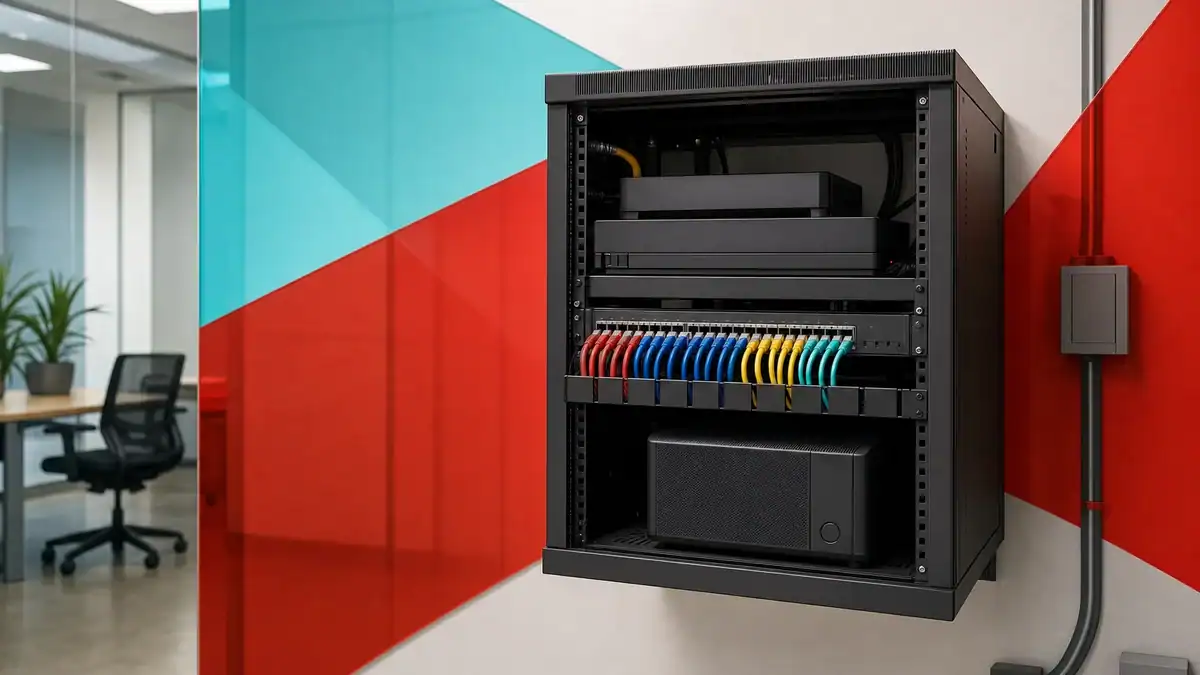
Setting up a small business network means connecting your computers, phones, printers, and internet into one reliable, secure system, and doing it in a way that will still work when you double in size. A good network is not a single box from an electronics store. It is a planned combination of a router and firewall, a switch, wireless access points, structured cabling, and the security and monitoring that keep it all running. This guide walks owners through the whole process, from sizing the network and choosing hardware to wiring, addressing, security, a step-by-step build, and knowing when to bring in a professional.
- Plan before you buy. The number of users, devices, locations, and your growth plans decide the hardware. Sizing the network first prevents the most expensive mistake: outgrowing it in a year.
- Four core devices do the work. A modem or ONT brings in the internet, a router and firewall direct and protect traffic, a switch connects wired devices, and access points provide Wi-Fi.
- Wired plus wireless is the standard. A wired backbone gives desktops, servers, and VoIP phones stable performance, while access points cover laptops, phones, and guests.
- Security is not optional. IBM put the global average data breach at $4.88 million in 2024, and small organizations are squarely in the target set.
- Most incidents start with people or unpatched gaps. Verizon found 68 percent of breaches involved a non-malicious human element, so passwords, updates, and staff habits matter as much as hardware.
- Segment the network. VLANs keep guests, payment systems, cameras, and staff traffic apart, which limits how far a problem can spread.
- Build in resilience. Backups, network monitoring, an uninterruptible power supply, and a second internet connection keep a business online when something fails.
- Know when to call a professional. As users, locations, and compliance needs grow, correct design and monitoring pay for themselves in avoided downtime.
What’s in This Guide
- What a Business Network Is, and the Pieces You Will Set Up
- Plan Before You Buy: Sizing Your Network
- The Core Hardware: Router, Firewall, Switch, and Access Points
- Wired and Wireless: Cabling and Wi-Fi
- Internet Connectivity: Bandwidth, ISPs, and Redundancy
- Network Addressing: IP, DHCP, DNS, Subnets, and VLANs
- Securing Your Business Network
- Step by Step: Building the Network
- Backup, Monitoring, and Keeping It Running
- DIY or Professional Setup: When to Bring In an MSP
- What to Do Next: Your Implementation Roadmap
- Related Resources
- Everything at a Glance: Summary Table
- Frequently Asked Questions
- Methodology and Sources
1What a Business Network Is, and the Pieces You Will Set Up
A business network is the system that lets every device in your company talk to each other and to the internet, quickly, reliably, and securely. When someone prints a document, opens a file on a shared drive, joins a video call, or takes a payment, the network is doing the work in the background. Setting one up is less about a single purchase and more about assembling a handful of parts that each have a clear job, then configuring them so they work together and keep intruders out.
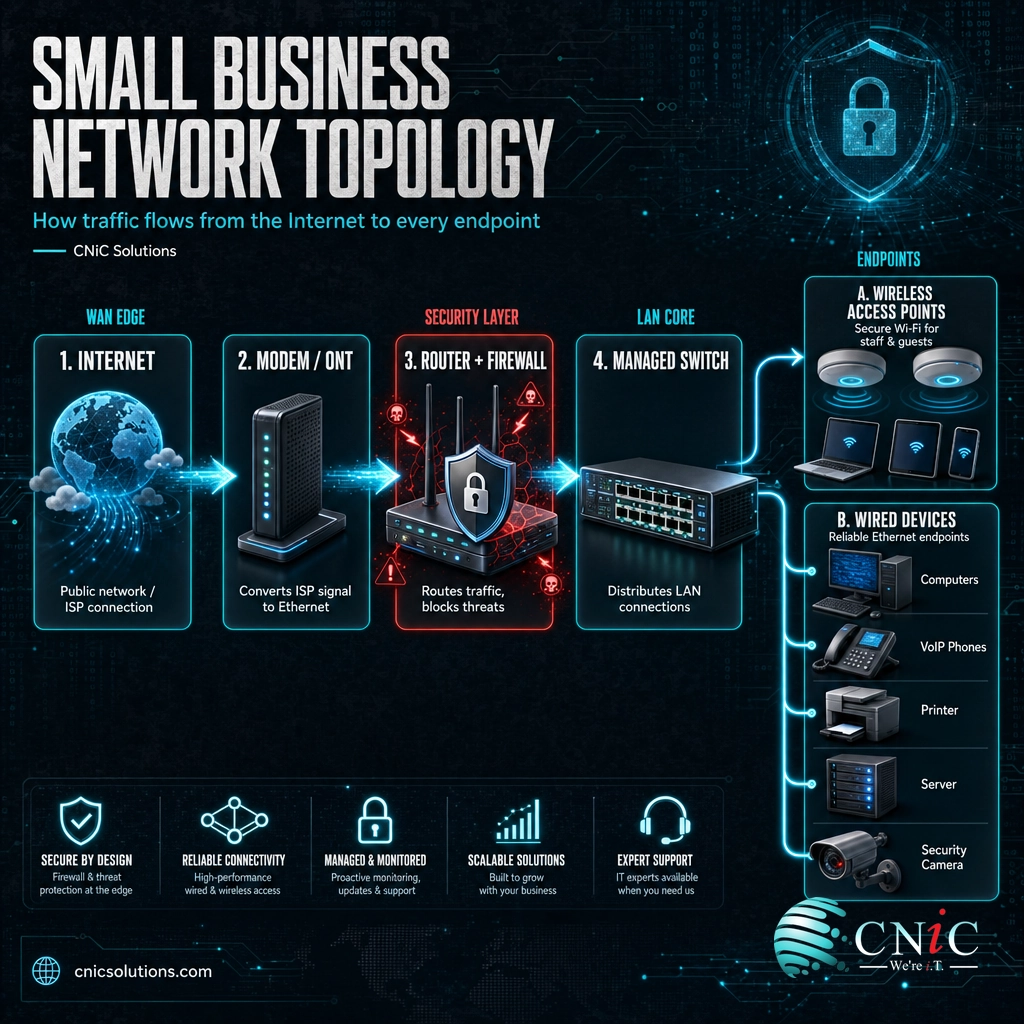
It helps to picture the path traffic takes. Your internet provider delivers a connection to a modem or an optical network terminal (ONT). That hands off to a router, which decides where traffic goes and, in a business setup, includes or sits behind a firewall that filters what is allowed in and out. The router connects to a switch, which is the hub that wired devices plug into so they can share the network. Wireless access points also connect to the switch and broadcast the Wi-Fi that laptops, phones, and tablets use. Underneath it all is cabling that carries the signal to wall jacks, plus power protection so a flicker in the electricity does not take the office offline.
Each piece matters because each solves a different problem. The router and firewall are your border. The switch is your internal traffic system. Access points are your wireless coverage. Cabling is the physical foundation that decides how fast and reliable the wired side can ever be. Skip or cut corners on any one, and the whole network inherits that weakness. A fast internet plan behind a weak firewall is a security problem; strong hardware on old, poor cabling is a performance problem. The goal of a good setup is balance, so no single part drags the rest down.
The mental model: internet comes in through the modem or ONT, the router and firewall protect and direct it, the switch distributes it to wired devices, and access points extend it wirelessly. Everything you buy and configure fits into one of those roles. If a device does not clearly serve one of them, question whether you need it.
One more idea shapes every decision that follows: a business network is built for people who depend on it to earn a living, not for a hobby. That raises the bar on reliability, security, and support. Consumer gear is designed for a home with a few devices and no consequences if it reboots at a bad moment. Business gear is designed for continuous operation, more connections, stronger security controls, and a longer support life. That difference runs through the rest of this guide.
Source: CISA guidance for small and medium businesses | NIST Small Business Cybersecurity Corner
2Plan Before You Buy: Sizing Your Network
The most expensive network mistake is not buying the wrong brand. It is buying for today and outgrowing it in a year, then paying to redo the work. Planning first is what separates a network that lasts from one that gets ripped out. Before you price a single device, answer a short list of questions about how your business actually works and where it is heading.
Start with people and devices. How many employees will connect at the same time, and how many devices does each person bring, counting a computer, a phone, and often a headset or tablet? Add the shared devices: printers, security cameras, point-of-sale terminals, VoIP phones, and any equipment specific to your industry. The total tells you how many switch ports and how much wireless capacity you need, with room to spare. A network planned to run at its limit on day one has nowhere to grow.
Then look at the work itself. A team that mostly uses email and a couple of cloud apps has very different needs from one that runs video calls all day, moves large design or medical files, or backs up to the cloud every night. Heavy, simultaneous use is what strains a network, so plan for the busy hour, not the quiet average. Finally, map the space and the future: how big is the office, does the layout create Wi-Fi dead zones, do you have more than one location, and where do you expect to be in two or three years. Multiple sites in particular change the design, because you then have to connect locations securely, which is where the difference between a local network and a wide-area network becomes a real decision.
| Planning question | Why it matters | What it decides |
|---|---|---|
| How many users and devices at peak? | Ports and wireless capacity are sized to the busiest moment, not the average. | Switch size, number of access points |
| Wired, wireless, or both? | Fixed devices want stable wired links; mobile devices and guests want Wi-Fi. | Cabling scope, access point placement |
| What kind of work is heaviest? | Video, large files, and cloud backup demand more bandwidth and reliability. | Internet plan, redundancy, quality of service |
| One location or several? | Multiple sites must be connected securely and consistently. | Firewall, VPN or SD-WAN, WAN design |
| Any compliance requirements? | HIPAA, PCI DSS, and SOC 2 impose real controls on segmentation and access. | VLANs, logging, security posture |
| Where will you be in 2 to 3 years? | Growth is cheaper to design in than to bolt on later. | Headroom in every component |
Writing these answers down turns a shopping trip into a design. It also makes it far easier to get useful help, because a provider or vendor can match equipment to real requirements instead of guessing. If you would rather not run this process alone, CNiC’s team plans and builds business networks around exactly these questions.
To design a network sized for how your business actually runs, start with See Networking Services
Source: FCC cybersecurity planning guidance for small businesses | CISA small and medium business resources
3The Core Hardware: Router, Firewall, Switch, and Access Points
Four devices carry the weight of almost every business network. Understanding what each one does, and why the business version differs from the home version, makes every buying decision clearer.
The router and firewall sit at the border of your network. The router connects your internal network to the internet and directs traffic between networks. The firewall inspects that traffic and blocks what does not belong. In many business products the two live in one appliance, often called a security gateway or a next-generation firewall. This is the single most important device for protecting the business, because it is the checkpoint every packet passes through on the way in or out. A business-grade firewall handles more simultaneous connections, supports VPNs for remote workers, logs activity for troubleshooting and compliance, and keeps receiving security updates for years.
The switch is the internal hub. Every wired device, computers, printers, servers, access points, and VoIP phones, plugs into a switch to reach the rest of the network. Switches come in two broad types. An unmanaged switch only passes traffic and needs no setup. A managed switch adds control: it supports VLANs to separate traffic, quality of service to prioritize voice and video, port monitoring, and remote management. For any business that cares about security or runs phones and cameras, a managed switch is the right call. Many business switches also provide Power over Ethernet, which delivers electricity and data over one cable so access points, cameras, and phones do not need a separate power outlet.
Access points broadcast your Wi-Fi. In a business, you want dedicated access points connected to the switch rather than relying on the wireless built into a consumer router, because dedicated units give better coverage, handle more devices, and let people roam the building without dropping the connection. Placement matters as much as the hardware. Access points belong on ceilings and open walls, spaced to cover the floor plan without dead zones, and away from the metal, concrete, and microwave interference that degrade a signal.
| Device | Its job | Business-grade feature to look for |
|---|---|---|
| Router / firewall | Connects to the internet, directs and filters all traffic | VPN support, logging, VLAN routing, ongoing firmware updates |
| Switch | Connects wired devices inside the network | Managed, with VLANs, quality of service, and PoE |
| Access point | Provides Wi-Fi coverage for wireless devices | Dedicated unit, seamless roaming, multiple SSIDs |
| UPS (power protection) | Keeps gear running through outages and surges | Runtime for the rack, clean shutdown signaling |
Myth: a consumer router from an electronics store is fine for a business. It can move traffic, but it typically lacks the throughput, VLAN support, VPN capacity, logging, and multi-year security updates a business relies on. When it fails or stops getting patches, the whole company feels it. Business-grade routing and firewalls exist because the consequences of an outage or a breach at work are not the same as at home.
To specify and install business-grade routing, switching, and wireless correctly, businesses use See Infrastructure Management
Source: Wi-Fi Alliance on Wi-Fi generations | CISA on securing network infrastructure devices
4Wired and Wireless: Cabling and Wi-Fi
Almost every business network is a mix of wired and wireless, and each side has a job it does best. Wired connections give the most stable, consistent performance, which is why desktops, servers, printers, and VoIP phones belong on cable. Wi-Fi delivers mobility and covers laptops, phones, tablets, and guests. The strongest design is a wired backbone with structured cabling to fixed workstations, plus well-placed access points layered on top for coverage.
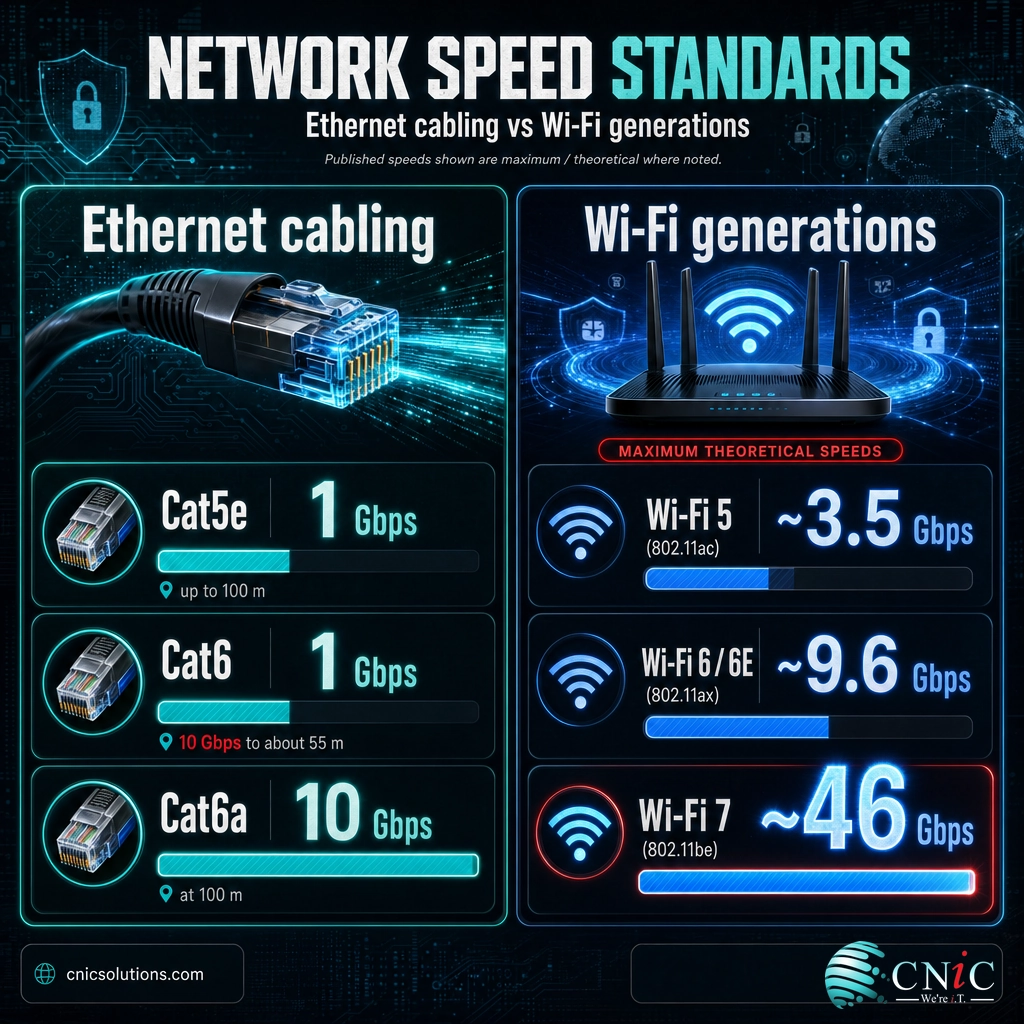
On the wired side, the cable itself sets a ceiling you cannot exceed with any hardware. Structured cabling standards define what each grade of Ethernet cable can carry and how far. Cat5e handles gigabit speeds and is often adequate for basic offices, Cat6 improves headroom and supports 10 gigabit over shorter runs, and Cat6a supports 10 gigabit across a full run. Because cabling is buried in walls and ceilings and is disruptive to replace, it is usually worth installing better cable than you need today so the physical layer does not become the bottleneck in a few years. The full tradeoff is worth understanding before an install, which is why it helps to compare Cat6 and Cat6a for your office.
| Cable grade | Max speed | Reach at top speed | Typical fit |
|---|---|---|---|
| Cat5e | 1 Gbps | 100 m | Basic offices, budget-sensitive runs |
| Cat6 | 1 Gbps (10 Gbps to ~55 m) | 100 m at 1 Gbps | Most new small business installs |
| Cat6a | 10 Gbps | 100 m | Future-proofing, heavy data, backbone runs |
On the wireless side, the Wi-Fi generation determines capacity and how well the network handles many devices at once. Wi-Fi 6 and the newer Wi-Fi 7 are built specifically for dense environments where dozens of devices compete for the same airspace, which is exactly the situation in a busy office. The headline speeds below are maximum theoretical rates under ideal conditions, so real throughput is lower, but the newer generations still deliver meaningfully better performance and efficiency when many clients are connected.
| Wi-Fi generation | IEEE standard | Max theoretical speed | Best for |
|---|---|---|---|
| Wi-Fi 5 | 802.11ac | ~3.5 Gbps | Older devices, light offices |
| Wi-Fi 6 / 6E | 802.11ax | ~9.6 Gbps | Dense offices, many devices |
| Wi-Fi 7 | 802.11be | ~46 Gbps | High-density, latency-sensitive work |
Cabling and access-point placement are where a self-install most often falls short, because the work is physical, standards-driven, and hard to redo. To get the wired foundation right, businesses turn to professional Plan Structured Cabling
Source: Wi-Fi Alliance on Wi-Fi standards and security | Telecommunications Industry Association (TIA cabling standards)
5Internet Connectivity: Bandwidth, ISPs, and Redundancy
Your internet connection is where the network meets the outside world, and for most businesses it is the single point everyone depends on. Two questions decide how you handle it: how much bandwidth do you need, and what happens when the connection goes down.
On bandwidth, the trap is to plan for average use. A team looks fine on paper until everyone joins video calls, syncs files, and runs a cloud backup at the same time, and the connection buckles. Plan for peak simultaneous use, add headroom for growth, and pay attention to upload speed as well as download, because cloud backup, video calls, and hosted phone systems all push data out. Where voice and video share the line with everything else, quality of service on a managed switch and router keeps calls clear by giving that traffic priority.
Redundancy is the question owners forget until the day it matters. If the network being down means the business stops earning, one internet connection is a single point of failure. The fix is a second connection, ideally from a different type of provider such as fiber paired with a cable or wireless backup, so a modern gateway can fail over automatically when the primary drops. This is also where the distinction between a local network and a wide-area connection matters, and businesses with multiple sites often use a VPN or SD-WAN to link locations securely over the internet. If you are weighing how your sites connect, it is worth understanding the difference between a LAN and a WAN before committing to a design.
Reliability rule of thumb: if an hour offline costs you real money or real trust, you need redundancy. That can mean a second internet line with automatic failover, a cellular backup for the firewall, or both. Redundancy is cheaper than the outage it prevents, and it is far cheaper than losing a customer because the phones and payment system went dark.
To design internet connectivity with the right capacity and automatic failover, businesses rely on CNiC’s See Telecommunications Services
Source: FCC broadband speed guide | CISA small and medium business guidance
6Network Addressing: IP, DHCP, DNS, Subnets, and VLANs
Once the hardware is in place, the network needs a logical structure so devices can find each other and reach the internet. This is the part owners find most abstract, but the concepts are straightforward and they underpin both performance and security.
Every device on the network needs an IP address, a numeric label that identifies it. Inside your office you use private IP ranges reserved for internal use, defined by internet standards: 10.0.0.0/8, 172.16.0.0/12, and 192.168.0.0/16. The most common small office range is something like 192.168.1.x. Rather than assign each address by hand, a DHCP service, usually running on the router, hands out addresses automatically as devices join. DNS, the domain name system, then translates human-friendly names such as a website address into the numeric IP the network actually uses. Together, DHCP and DNS are what make joining a network feel automatic.
Two more concepts turn a flat network into an organized, secure one. Subnetting divides your address space into smaller logical blocks, which keeps traffic organized and contained as the network grows; the mechanics are worth a closer look in a dedicated explainer on subnetting. VLANs, or virtual LANs, take that idea further by separating one physical network into isolated logical networks, so guest Wi-Fi, payment terminals, security cameras, and staff computers each live in their own lane on the same hardware. Segmentation is one of the highest-value security moves a small business can make, and it is explained in full in this guide to VLANs for business networks. Some businesses also route certain traffic through a proxy server for filtering and control.
Reserved private IP ranges (RFC 1918): 10.0.0.0 to 10.255.255.255, 172.16.0.0 to 172.31.255.255, and 192.168.0.0 to 192.168.255.255. These addresses are used only inside private networks and are never routed on the public internet, which is why every office can safely reuse 192.168.1.x without conflict.
You do not have to master this layer yourself, but you should insist that whoever builds your network sets up addressing, DHCP, DNS, and VLANs deliberately rather than leaving everything on one flat default network. That single design choice is the difference between a breach that stays contained and one that spreads.
Source: IETF RFC 1918 (private address allocation) | NIST guidance on secure enterprise network architecture

7Securing Your Business Network
A network that is fast but insecure is a liability, and small businesses are not too small to be targeted. Attackers favor automated, opportunistic attacks that scan the internet for weak configurations, which puts every business in scope regardless of size. The financial stakes are real, and they are well documented in primary research.
The good news is that most incidents exploit a small set of preventable weaknesses. Verizon’s analysis of real-world breaches found that 68 percent involved a non-malicious human element, such as someone falling for a social engineering attack or making a configuration mistake, while ransomware and extortion accounted for roughly a third of breaches. Separately, the exploitation of known but unpatched vulnerabilities as an entry point nearly tripled to 14 percent. In plain terms: strong passwords, timely updates, good habits, and network segmentation stop the large majority of what actually goes wrong.
How breaches actually happen (share of breaches, Verizon 2024 DBIR)
Source: Verizon 2024 Data Breach Investigations Report. Categories overlap and are not additive.
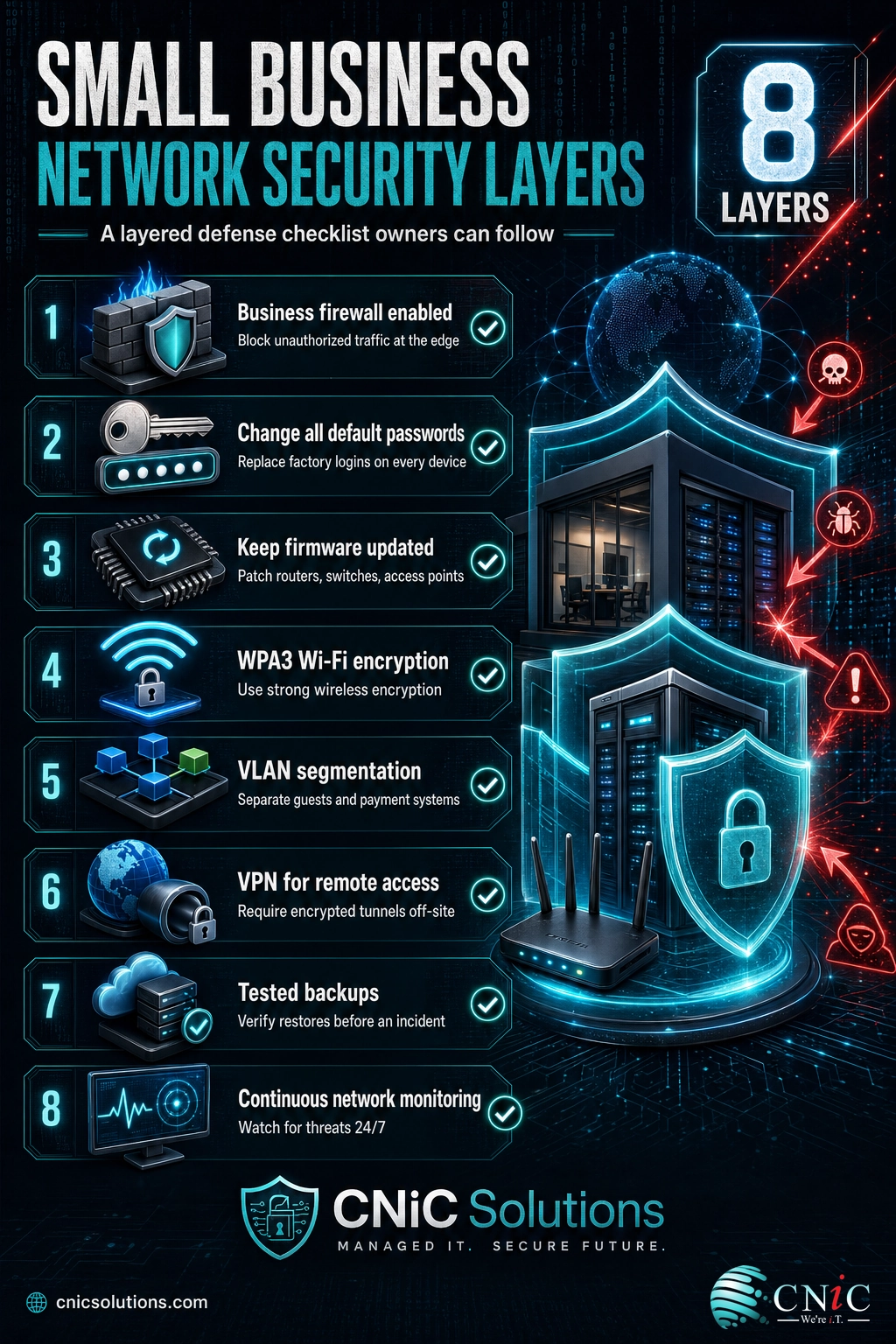
Translate that into setup steps. Change every default administrator password on the router, switches, and access points before the network goes live, because default credentials are public knowledge and among the first things attackers try. Keep firmware updated on all network gear, since the patch gap is exactly the weakness that tripled as an entry point. Use a business firewall and turn it on. Secure Wi-Fi with WPA3, or WPA2 at a minimum, and never leave an open or weakly protected wireless network. Put guests, cameras, payment systems, and untrusted devices on separate VLANs so a compromise in one lane cannot reach another. Require a VPN for any remote access into the network. For regulated businesses, these controls are not just good practice; segmentation, access control, and logging map directly to HIPAA, PCI DSS, and SOC 2 requirements.
Security is a layer you build in from the start, not a product you add at the end. To harden the network with a business firewall, segmentation, and monitoring, businesses work with CNiC’s Strengthen Network Security
Source: Verizon 2024 Data Breach Investigations Report | IBM Cost of a Data Breach Report 2024 | FBI IC3 2024 Internet Crime Report
8Step by Step: Building the Network
With the pieces understood, here is the order to actually put a small business network together. The sequence matters, because each step depends on the one before it, and doing security tasks early prevents having to redo work.
1. Finalize the plan and gather equipment. Confirm your user and device counts, choose your business router or firewall, switch or switches, and access points, and make sure you have the right cabling and an uninterruptible power supply. Lay out where each device will live, especially the network closet or rack and the access-point locations.
2. Run and terminate cabling. Install structured cabling from the network closet to each wall jack and access point location, following the grade you selected. Label both ends of every cable. This is the physical foundation, and it is the step most worth doing to standard, because it is the hardest to redo later.
3. Set up power protection. Place the router, firewall, and switches on an uninterruptible power supply so a brief outage or surge does not drop the network or damage equipment. Confirm the UPS has enough runtime to ride out short interruptions and signal a clean shutdown for anything sensitive.
4. Connect the core. Connect the internet feed from the modem or ONT to the WAN port on the router or firewall. Connect the router to the switch. This establishes the backbone that everything else hangs off.
5. Secure the hardware immediately. Before anything is in daily use, change every default administrator password, update firmware on the router, switch, and access points, and disable services you are not using. Doing this now, on a clean network, is far easier than retrofitting it later.
6. Configure addressing and segmentation. Set up DHCP and DNS on the router, define your subnets, and create VLANs to separate guest, staff, voice, camera, and payment traffic. Assign switch ports and wireless networks to the correct VLANs. This is where a flat network becomes an organized, defensible one.
7. Stand up Wi-Fi. Connect and position the access points, create separate secured networks for staff and guests, enable WPA3 or WPA2, and tune channels and placement to cover the space without dead zones or interference.
8. Connect and test devices. Bring computers, printers, phones, and other devices onto the correct networks. Test wired and wireless performance, confirm VLAN isolation actually works, verify internet and failover, and check that shared resources like printers and drives are reachable only where they should be.
9. Document everything. Record the IP scheme, VLANs, device inventory, passwords in a secure manager, and a simple network diagram. Good documentation turns future troubleshooting from a guessing game into a quick fix, and it is what a support partner needs to help fast.
Do not skip step 5. The most common self-install mistake is connecting everything, confirming it works, and moving on with default passwords still in place and firmware out of date. That is precisely the configuration attackers scan for. Securing the hardware before the network enters daily use is the single highest-return step in the whole build.
Source: CISA on securing network infrastructure devices | NIST Small Business Cybersecurity Corner
9Backup, Monitoring, and Keeping It Running
Setting up the network is the start, not the finish. A network that is installed and forgotten slowly drifts into trouble: firmware falls behind, a failing device goes unnoticed until it dies, and no one realizes a backup stopped running until the day they need it. Three ongoing practices keep a business network healthy.
Backup and recovery protect the data that flows across the network. A dependable approach keeps more than one copy, stores at least one off-site or in the cloud, and, critically, tests restores so you know the backup actually works. Backups that have never been tested are a common and painful surprise during a real incident. This matters most against ransomware, where a clean, recent, tested copy is often the difference between a quick recovery and a shutdown; businesses put this on a firm footing with Plan Backup and Recovery
Network monitoring watches the network so problems surface before they become outages. Monitoring tracks whether devices are online, whether links are saturated, and whether something is behaving abnormally, and it alerts someone so a failing switch or a maxed-out connection is addressed on a schedule rather than during a crisis. For a business that depends on being online, this is the difference between planned maintenance and an emergency.
Maintenance and lifecycle keep the network current. Firmware and security updates continue for the life of the equipment, hardware gets replaced before it fails rather than after, and the documentation stays up to date as the network changes. Because these tasks are easy to defer and easy to forget, many businesses hand ongoing operation to a provider that manages updates, monitoring, and support as a service. To keep the network monitored, patched, and supported day to day, businesses use CNiC’s Explore Managed IT Resources
The quiet failures to guard against: an untested backup, a monitoring blind spot, and out-of-date firmware. None of them announce themselves, and all three turn a manageable event into a serious one. Building monitoring and tested backups into the network from day one is far cheaper than discovering a gap during an outage.
Source: CISA StopRansomware resources | NIST Small Business Cybersecurity Corner
10DIY or Professional Setup: When to Bring In an MSP
Not every business needs help setting up a network, and this guide is meant to make a self-install possible for those who want it. The honest question is where the line sits between a reasonable DIY project and a job worth handing to a professional, because getting that judgment right saves money either way.
A self-install makes sense when the office is small, the needs are simple, the wiring already exists, and an hour of downtime is an inconvenience rather than a crisis. In that situation, a business router, a managed switch, an access point, and careful attention to the security steps above will serve well. The case for professional help grows with every factor that raises the stakes: more users and devices, structured cabling to install, security and compliance requirements, multiple locations to connect, and a real cost attached to downtime.
A managed IT provider brings three things a DIY build usually cannot. First, correct design the first time, so the network is sized, segmented, and secured properly instead of being reworked after problems appear. Second, documentation and support, so troubleshooting is fast and the knowledge does not live only in one person’s head. Third, ongoing monitoring and maintenance, so the network stays healthy rather than drifting toward its next failure. The value is measured in outages that never happen and a network that grows with the business instead of being rebuilt every few years.
| Situation | Reasonable DIY | Bring in a professional |
|---|---|---|
| Users and devices | A handful, simple needs | Growing team, many devices |
| Cabling | Wiring already in place | New structured cabling required |
| Security and compliance | Basic security is enough | HIPAA, PCI DSS, or SOC 2 in play |
| Locations | Single office | Multiple sites to connect |
| Cost of downtime | An hour offline is tolerable | Downtime costs real money or trust |
For a network designed, secured, documented, and supported for how your business actually operates, start a conversation with CNiC’s Get Virtual CIO Guidance
Source: CISA small and medium business guidance | NIST Small Business Cybersecurity Corner
11What to Do Next: Your Implementation Roadmap
If you are setting up or upgrading a network, work the steps in priority order. The table below turns everything above into a sequence, with a sense of urgency and the CNiC service that supports each stage.
| Action | Priority | Timeline | Relevant service |
|---|---|---|---|
| Document users, devices, sites, and growth plans | Critical | Week 1 | Networking / Virtual CIO |
| Select business-grade router, switch, and access points | Critical | Week 1 to 2 | Infrastructure Management |
| Install or verify structured cabling | High | Week 2 to 3 | Cabling Installation |
| Change default passwords and update firmware | Critical | At install | Cybersecurity Services |
| Configure DHCP, DNS, subnets, and VLAN segmentation | High | At install | Networking Services |
| Secure Wi-Fi with WPA3 and separate guest access | High | At install | Networking Services |
| Add internet redundancy and failover | Medium to High | Week 3 to 4 | Telecommunications |
| Set up tested backups and network monitoring | Critical | Week 3 to 4 | Data Backup / Managed IT |
| Document the network and hand to ongoing support | High | Ongoing | Managed IT Services |
To turn this roadmap into a built, secured, and supported network for your business, start with a free consultation: Get a Free Consultation
12Related Resources
These guides go deeper on the parts of network setup that most often raise questions. Read them alongside this pillar to make specific decisions with confidence.
- LAN vs. WAN: What’s the Difference?. How local and wide-area networks differ, and when multi-site connectivity changes your design.
- Cat6 vs. Cat6a: Which Ethernet Cable Does Your Office Need?. Choosing the right cabling grade for speed, reach, and future-proofing.
- Power over Ethernet (PoE) Explained. Powering access points, cameras, and phones over the data cable.
- What Is a VLAN? Virtual LANs Explained for Business Networks. Segmenting one network into secure, isolated lanes.
- What Is a Subnet? Subnetting Explained. Organizing your address space as the network grows.
- What Is a Proxy Server? Types and Business Uses. Filtering and controlling traffic for security and policy.
Authoritative external resources: for foundational guidance, the NIST Small Business Cybersecurity Corner, CISA’s small and medium business resources, the FCC’s small business cybersecurity guidance, and the Wi-Fi Alliance security overview are all primary, vendor-neutral references worth bookmarking.
13Everything at a Glance: Summary Table
The full network setup, component by component, with what each part does and the practical choice for a small business.
| Element | What it does | Small business guidance |
|---|---|---|
| Modem / ONT | Brings the internet connection into the building | Provided by your ISP; confirm it matches your plan speed |
| Router | Directs traffic between your network and the internet | Business-grade, with VPN and VLAN support |
| Firewall | Filters traffic in and out to block threats | Business firewall, often combined with the router |
| Switch | Connects wired devices inside the network | Managed switch with VLANs, QoS, and PoE |
| Access point | Broadcasts Wi-Fi for wireless devices | Dedicated units, placed for full coverage |
| Structured cabling | Physical medium for wired connections | Cat6 for most installs, Cat6a to future-proof |
| UPS | Protects gear through outages and surges | Size runtime to your rack and critical devices |
| IP addressing | Identifies each device on the network | Private ranges (e.g. 192.168.1.x), assigned by DHCP |
| DHCP | Assigns IP addresses automatically | Enabled on the router for the main network |
| DNS | Translates names into IP addresses | Reliable provider or ISP DNS, configured on the router |
| Subnetting | Divides address space into logical blocks | Plan for growth and organization from the start |
| VLANs | Separates traffic into isolated logical networks | Split guest, staff, voice, camera, and payment traffic |
| Wi-Fi security | Protects wireless access | WPA3 preferred, WPA2 minimum; never open |
| Guest network | Isolates visitors from business systems | Separate VLAN and SSID, no access to internal resources |
| VPN | Secures remote access into the network | Required for any off-site connection |
| Default passwords | Factory logins on all devices | Change every one before going live |
| Firmware updates | Patch known vulnerabilities | Update at install and on an ongoing schedule |
| Internet redundancy | Keeps the business online if a link fails | Second connection with automatic failover if downtime is costly |
| Backup and recovery | Protects and restores data | Multiple copies, off-site, and tested restores |
| Network monitoring | Detects problems before they cause outages | Continuous monitoring with alerting |
| Documentation | Records the design for support and growth | IP scheme, VLANs, inventory, and a diagram, kept current |
14Frequently Asked Questions
What equipment do I need to set up a small business network?
How much does it cost to set up a network for a small business?
Do I need a business router or is a consumer router fine?
Should my office network be wired or wireless?
What is the difference between a router, a switch, and an access point?
How do I secure a small business network?
What is a VLAN and does my small business need one?
How much internet bandwidth does a small business need?
Should I set up my business network myself or hire a professional?
How long does it take to set up a small business network?
15Methodology and Sources
How this guide was built
This guide combines established networking standards with current, primary-source security research so that owners can make setup decisions grounded in facts rather than vendor marketing. Technical specifications for cabling and Wi-Fi reflect published industry standards; security figures come from the most recent primary reports available at the time of writing.
Primary sources cited:
- IBM Cost of a Data Breach Report 2024 (global average breach cost)
- Verizon 2024 Data Breach Investigations Report (human element, ransomware, vulnerability exploitation)
- FBI IC3 2024 Internet Crime Report (reported losses and complaints)
- IETF RFC 1918 (private IP address ranges)
- Wi-Fi Alliance (Wi-Fi generations and WPA3 security)
- NIST Small Business Cybersecurity Corner and CISA (small business network security guidance)
Cabling speeds and reach reflect ANSI/TIA-568 structured cabling standards; Wi-Fi speeds are maximum theoretical rates defined by the IEEE 802.11 standards and are higher than real-world throughput. Security statistics are drawn from vendor-neutral and government primary reports and are not additive across categories.
Last Updated: August 2026



related posts
What Is a Distributed System? How It Works and Why It Matters
October 5, 2026A distributed system is a collection of independent computers, called nodes, that are connected over a…
What Is a Firewall? How It Protects Your Business Network
October 5, 2026A firewall is a network security device or software that monitors incoming and outgoing traffic and…
What Is a Data Center? Types, Components, and How They Work
October 4, 2026A data center is a physical facility that houses the servers, storage, and networking equipment a…
What Is a DDoS Attack? How DDoS Attacks Work and How to…
October 4, 2026A DDoS attack (distributed denial-of-service attack) is an attempt to take a website, application, or network…