

Microsoft Teams is where most of the workday now happens: it passed 320 million monthly active users, and for many businesses it is the front door to chat, calls, meetings, and files. The problem is that the same app that keeps everyone connected can also keep everyone interrupted. These 15 Microsoft Teams tips and tricks are built to flip that balance, so Teams drives focus and output instead of pings and noise.
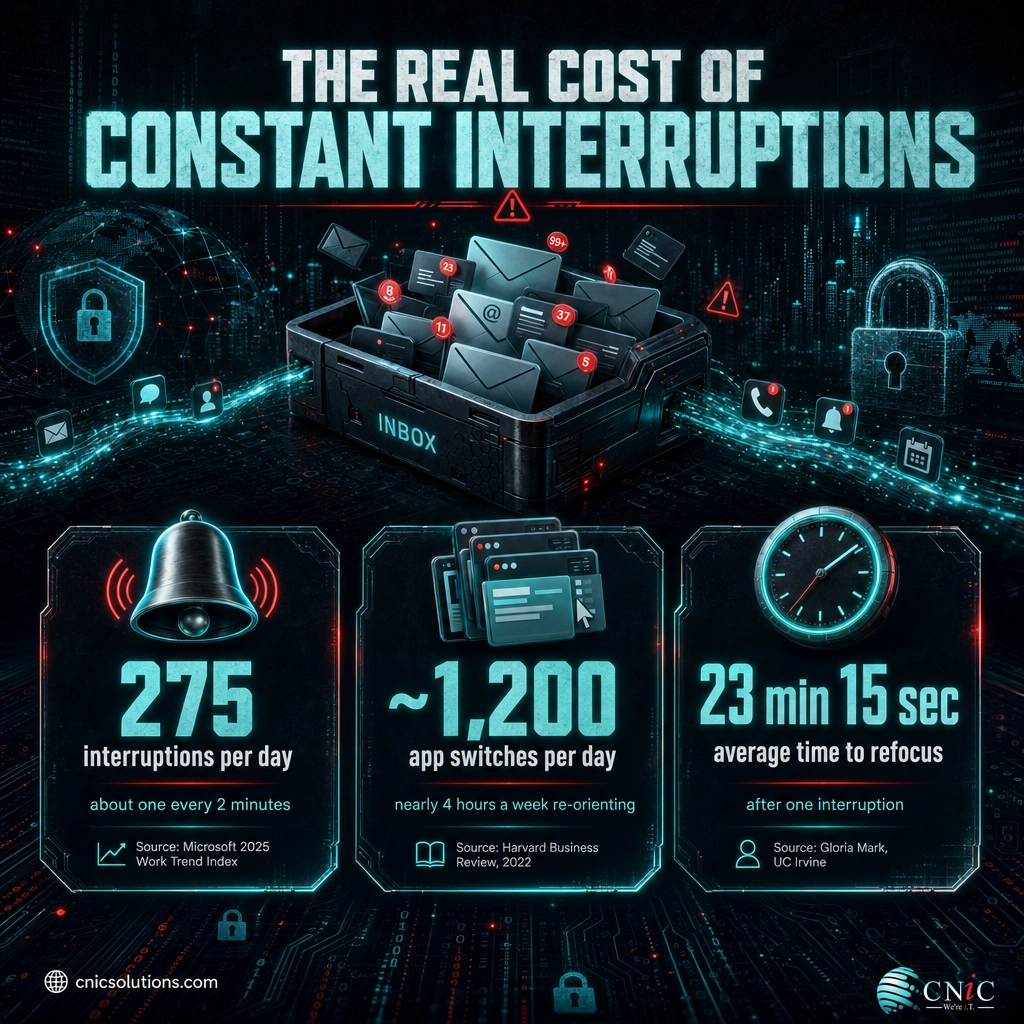
- The average knowledge worker is interrupted roughly every two minutes during core hours, about 275 times a day, so the biggest Teams win is controlling notifications, not chasing every ping.
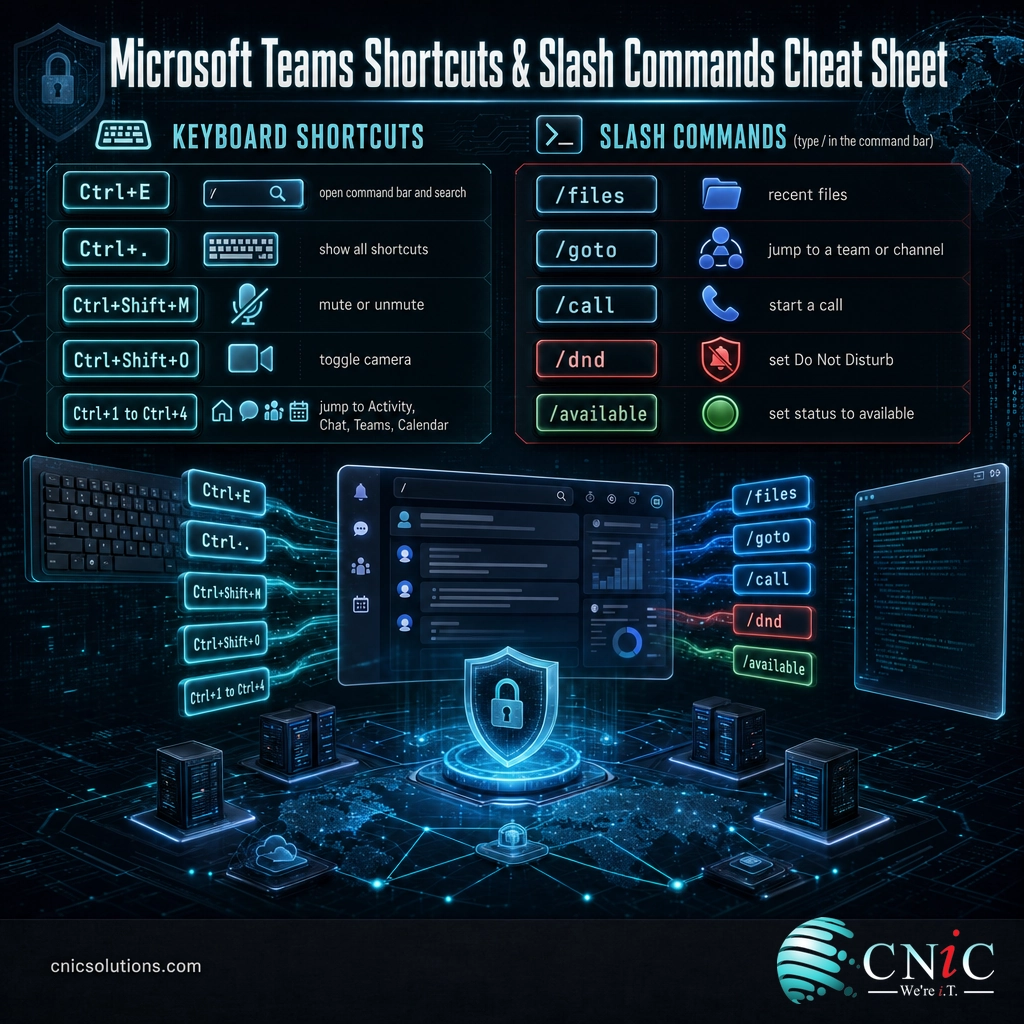
- Keyboard shortcuts and slash commands (starting with Ctrl+E and Ctrl+.) remove dozens of clicks a day and are the fastest habit to build.
- Consolidating work inside Teams tabs and channels reduces app switching, which costs workers close to four hours a week in lost re-orientation time.
- Fewer, better meetings beat more meetings: shifting status updates to channels and recordings protects the time people need to actually create.
- Productivity gains only stick when Teams is secured, so treat multi-factor authentication, external access, and app governance as part of the setup.
What’s in This Guide
- 1. Master the command bar and slash commands
- 2. Learn the keyboard shortcuts that save real time
- 3. Take control of your notifications
- 4. Use @mentions and tags deliberately
- 5. Organize teams and channels so you can find things
- 6. Turn messages into action with Save, Tasks, and Loop
- 7. Replace meetings with async channel conversations
- 8. Get more from the meetings you do keep
- 9. Present and focus better on video calls
- 10. Collaborate on files in place, not by email
- 11. Use the right channel type for the job
- 12. Protect focus with status, quiet hours, and DND
- 13. Cut app switching with tabs and apps
- 14. Find anything fast with search and filters
- 15. Lock down Teams so the gains stick
Put it to work:
Why These Tips Matter
Teams is not the problem, but the way most teams use it out of the box is. Microsoft’s own research on the “infinite workday” found that employees are interrupted or switch tasks about 275 times a day, roughly once every two minutes during core working hours, thanks to a steady stream of meetings, emails, and chats. Each of those interruptions carries a cost that is larger than the ping itself.
Attention does not snap back instantly after a distraction. Research from Gloria Mark at the University of California, Irvine found it takes an average of 23 minutes and 15 seconds to fully return to a task after an interruption. Multiply that by a day full of Teams pings and you can see why “just checking one message” quietly eats the morning. The tips below are ordered to attack this directly: control the interruptions first, then build faster habits on top.
Source: Microsoft 2025 Work Trend Index | Gloria Mark, UC Irvine research paper
If your team runs on Teams for calls and meetings as well as chat, these habits pay off even faster. Getting the setup right is also part of supporting a hybrid workforce, where people need to reach each other without living inside a notification storm.
Explore managed team messaging and collaboration
1 Master the Command Bar and Slash Commands
The command bar at the very top of Teams is the fastest control in the app, and most people never use it. Press Ctrl+E (Cmd+E on Mac) to jump into it from anywhere, then search across every message, person, and file. Type a forward slash to run commands instead of clicking through menus: /files opens recent files, /goto jumps to a team or channel, /call starts a call, and /dnd sets Do Not Disturb.
Why it matters: Navigation is invisible time. Shaving three or four clicks off a task you do fifty times a day adds up to real minutes back, and it keeps you in flow instead of hunting through the sidebar.
How to do it: Press Ctrl+E, type a slash, and read the list of commands Teams suggests. Pick three you will actually use, such as /files, /goto, and /available, and force yourself to use them for a week until they are automatic.
2 Learn the Keyboard Shortcuts That Save Real Time
Teams has a full shortcut map, and you do not have to memorize it from a manual. Press Ctrl+. (Ctrl and the period key) to pop open the complete list any time. The high-value ones to learn first are Ctrl+Shift+M to mute or unmute in a call, Ctrl+Shift+O to toggle your camera, Ctrl+Shift+Spacebar to move to the meeting controls, and Ctrl+1 through Ctrl+4 to jump between Activity, Chat, Teams, and Calendar.
Why it matters: Fumbling for the mute button on a call is the small friction everyone recognizes. Shortcuts remove that friction and make you look sharper in meetings while saving clicks all day.
How to do it: Print or screenshot the shortcut list from Ctrl+. and keep it visible for two weeks. Start with mute and camera toggles, since you use those in every call.
3 Take Control of Your Notifications
Default notifications treat every channel as equally urgent, which is how you end up interrupted 275 times a day. Open Settings, then Notifications and activity, and be ruthless. Turn off banner pop-ups for channels you only skim and send them to the feed instead. Keep banners on for @mentions and for the one or two channels that genuinely need a fast response.
Why it matters: Notifications are the single biggest lever on this list. Every banner you switch off is one fewer 23-minute recovery you have to pay for later.
How to do it: Set channel notifications per channel by selecting the three dots next to a channel name, then Channel notifications. Choose “All activity” only for critical channels and “Off” or “@mentions only” for the rest.
It feels productive to answer every ping instantly, but the data says otherwise. When people are interrupted every couple of minutes and lose more than 20 minutes re-focusing each time, a culture of instant response quietly destroys the deep-work hours where real output happens. A responsive team sets expectations for reply windows and protects focus time. It does not try to reply to everything the second it arrives.
4 Use @Mentions and Tags Deliberately
An @mention is a targeted signal, so treat it that way. Use @name when you need one specific person to act, and reserve @channel or @team for the rare message everyone truly needs to see. For groups you message often, such as a project pod or a role, create a tag so you can @mention the whole group by name without notifying the entire team.
Why it matters: Overusing @channel trains people to ignore notifications, which defeats the purpose. Precise mentions keep the signal-to-noise ratio high so important messages actually get noticed.
How to do it: Create tags from the team name, then Manage tags. When you post, type @ followed by the tag name to reach that group only. Save @team for genuine all-hands announcements.
5 Organize Teams and Channels So You Can Find Things
A cluttered left rail is a daily tax. Pin the channels you live in to the top, hide the ones you rarely touch, and keep each channel focused on a single topic instead of letting one general channel absorb everything. When a project ends, archive its team rather than leaving a dead channel in everyone’s list.
Why it matters: Findability is speed. When channels map cleanly to real topics, people post in the right place and search actually works, which cuts the “where was that message” hunt to seconds.
How to do it: Right-click any channel to pin or hide it. Agree on a simple naming pattern with your team, such as project or department prefixes, so the list stays scannable as it grows.
6 Turn Messages Into Action With Save, Tasks, and Loop
Important messages scroll away fast. Use the Save option (the bookmark on the message’s more-options menu) to set aside anything you need to revisit, then find it all under your saved items. For work that needs tracking, add the Tasks by Planner app to turn conversations into assignable to-dos. For live, shared lists that update in place, drop a Loop component into a chat so everyone edits the same content without spawning ten reply threads.
Why it matters: Ideas and requests that live only in the chat stream get lost. Converting them into saved items or tasks means nothing important falls through the cracks.
How to do it: Hover a message, choose the more-options menu, and select Save this message. Pin the Tasks app to your left rail, and use the Loop button in the message box for collaborative checklists and tables.
Get day-to-day IT management handled for you
7 Replace Meetings With Async Channel Conversations
Not everything deserves a calendar invite. Microsoft’s 2023 Work Trend Index found the average employee spends 57 percent of their Microsoft 365 time communicating in meetings, email, and chat, and only 43 percent creating in documents, spreadsheets, and presentations. Every status meeting you convert into a channel post or a two-minute recorded clip hands time back to the “creating” side of that split.
Why it matters: Meeting overload is the most visible drain on a team’s calendar. Shifting updates to async communication frees uninterrupted blocks where the actual work gets done.
How to do it: Before booking a meeting, ask whether a channel post with clear questions would do. For updates, record a short clip or write a threaded summary so people can respond on their own schedule.
Source: Microsoft 2023 Work Trend Index
8 Get More From the Meetings You Do Keep
For the meetings that survive the async test, make them work harder. Record them so anyone who missed it can catch up instead of pulling you into a repeat conversation. Turn on live transcription and captions for accessibility and for a searchable record, and let the built-in AI recap or Copilot summarize decisions and action items so nobody has to be the designated note-taker.
Where the average employee’s Microsoft 365 time goes
Source: Microsoft 2023 Work Trend Index, “Will AI Fix Work?”
Why it matters: A meeting that produces no shared record often triggers follow-up meetings. Recording, transcription, and AI recaps turn one conversation into a reusable asset the whole team can reference.
How to do it: Start recording from the More menu in a meeting, and enable transcription in the same place. Recordings and transcripts save automatically so you can search them later.
9 Present and Focus Better on Video Calls
Video calls are where distraction and awkwardness pile up, and Teams has tools for both. Blur or replace your background to stay professional from anywhere, use spotlight to lock the view on the current presenter, and use PowerPoint Live so attendees can read slides at their own pace. Reactions and the raise-hand feature let people respond without talking over each other.
Why it matters: Cleaner, more focused calls are shorter calls. Features that reduce cross-talk and visual clutter keep meetings on track and respect everyone’s time.
How to do it: Set background effects on the pre-join screen before you enter a call. During the call, use the reactions menu for raise hand, and share slides through PowerPoint Live rather than a plain screen share when you want interactivity.
10 Collaborate on Files in Place, Not by Email
Emailing attachments back and forth creates a mess of conflicting versions. In Teams, files posted to a channel live in the connected SharePoint or OneDrive library, so multiple people can co-author the same document in real time from the Files tab. There is one version, one source of truth, and a full history you can roll back to.
Why it matters: Version confusion wastes time and causes mistakes. Co-authoring in place means the document everyone sees is always the current one, with no “final_v3_reallyfinal” chaos.
How to do it: Upload or create files from a channel’s Files tab and choose “Edit in Teams” or the desktop app. If you are moving a mailbox into this workflow, plan ahead for what to expect when you migrate email to Microsoft 365 so files and identities land cleanly.
11 Use the Right Channel Type for the Job
Teams offers three channel types, and matching them to the work keeps things both organized and secure. A standard channel is open to the whole team for general collaboration. A private channel restricts a sensitive conversation to a chosen subset of members. A shared channel (Teams Connect) lets you bring in people from outside the team or organization without adding them to everything else.
Why it matters: Putting external partners or HR-sensitive topics in a standard channel is a common oversight. Choosing the right channel type controls who sees what, which is both a productivity and a security decision.
How to do it: When you add a channel, select Standard, Private, or Shared based on the audience. Use shared channels for client and vendor collaboration so external access stays scoped to that channel only.
Keep collaboration safe as your team scales
12 Protect Focus With Status, Quiet Hours, and DND
Your status is a communication tool, not just a color. Set Do Not Disturb during focus blocks, add a custom status message like “Heads-down until 2pm, urgent only” so people self-triage, and turn on quiet hours in the mobile app so work stops pinging your phone after hours. Priority access still lets key contacts break through DND when it truly matters.
Why it matters: Focus time has to be defended, not hoped for. Clear status signals let a team respect each other’s deep-work windows without anyone feeling ignored.
How to do it: Set your status and status message from your profile picture at the top of Teams. Configure quiet hours and quiet days under Settings, then Notifications, in the mobile app.
13 Cut App Switching With Tabs and Apps
Every jump to another browser tab or program is a small tax on attention. Harvard Business Review research found workers toggle between different apps and websites nearly 1,200 times a day, which adds up to just under four hours a week spent re-orienting after each switch. Teams lets you pull the tools you use most into the conversation itself as tabs: Planner, OneNote, Power BI dashboards, Approvals, and many third-party apps.
Why it matters: App switching is a hidden productivity leak most teams never measure. Bringing key tools into Teams as tabs keeps context in one place and cuts the constant hop between windows.
How to do it: In any channel, click the plus sign at the top to add a tab and pick the app you need. Start with Planner for task boards and a shared OneNote for team notes.
Source: Harvard Business Review, 2022
14 Find Anything Fast With Search and Filters
Teams holds a huge amount of institutional memory, and search is how you get it back. Use Ctrl+E to search, then filter results by messages, people, or files to zero in quickly. Right-click a message to translate it inline when you work across languages, and open the Immersive Reader to have a message read aloud or reformatted for easier reading.
Why it matters: The answer to “did we decide this already?” usually exists in Teams. Fast, filtered search turns that buried history into a resource instead of a reason to ask around and wait.
How to do it: After searching with Ctrl+E, use the filter icon to narrow by type and the dropdowns to scope by team or channel. Learn the Files filter first, since finding the right document is the most common search.
15 Lock Down Teams So the Gains Stick
Every tip above assumes Teams is a place you can trust. The convenience features that make it productive, such as guest access, external sharing, and third-party apps, also widen the ways data can leave your organization. Multi-factor authentication, external access policies, safe links and attachment scanning, guest governance, and data-loss-prevention rules keep those doors watched without slowing anyone down.
Why it matters: A single account takeover or leaked file can erase months of productivity gains and trust. Security is not the opposite of productivity, it is what protects it.
How to do it: Enforce MFA for every user, review external access and guest settings, and turn on Microsoft’s safe links and attachment protection. If your team does not have someone owning these policies, a managed IT or Virtual CIO partner can configure and monitor them for you.
Source: Microsoft, Teams monthly active users
How to Prioritize This List
Fifteen tips at once is a recipe for doing none of them. Start where the return is highest for the least effort: notifications and status. Those two alone reclaim the interrupted hours that everything else builds on. Then layer in the speed habits (shortcuts and search) and the structural changes (channel design, tabs, meeting rules) over the following weeks.
| Tip | Priority | Difficulty | Impact |
|---|---|---|---|
| Control notifications | Do first | Easy | High |
| Status, quiet hours, DND | Do first | Easy | High |
| Async instead of meetings | Do first | Medium | High |
| Command bar and shortcuts | This week | Easy | Medium |
| Deliberate @mentions and tags | This week | Easy | Medium |
| Save, Tasks, and Loop | This week | Medium | Medium |
| Tabs and apps to cut switching | This month | Medium | High |
| Channel design and types | This month | Medium | Medium |
| Meeting recording and recaps | This month | Easy | Medium |
| Secure Teams (MFA, external access) | Ongoing | Hard | Critical |
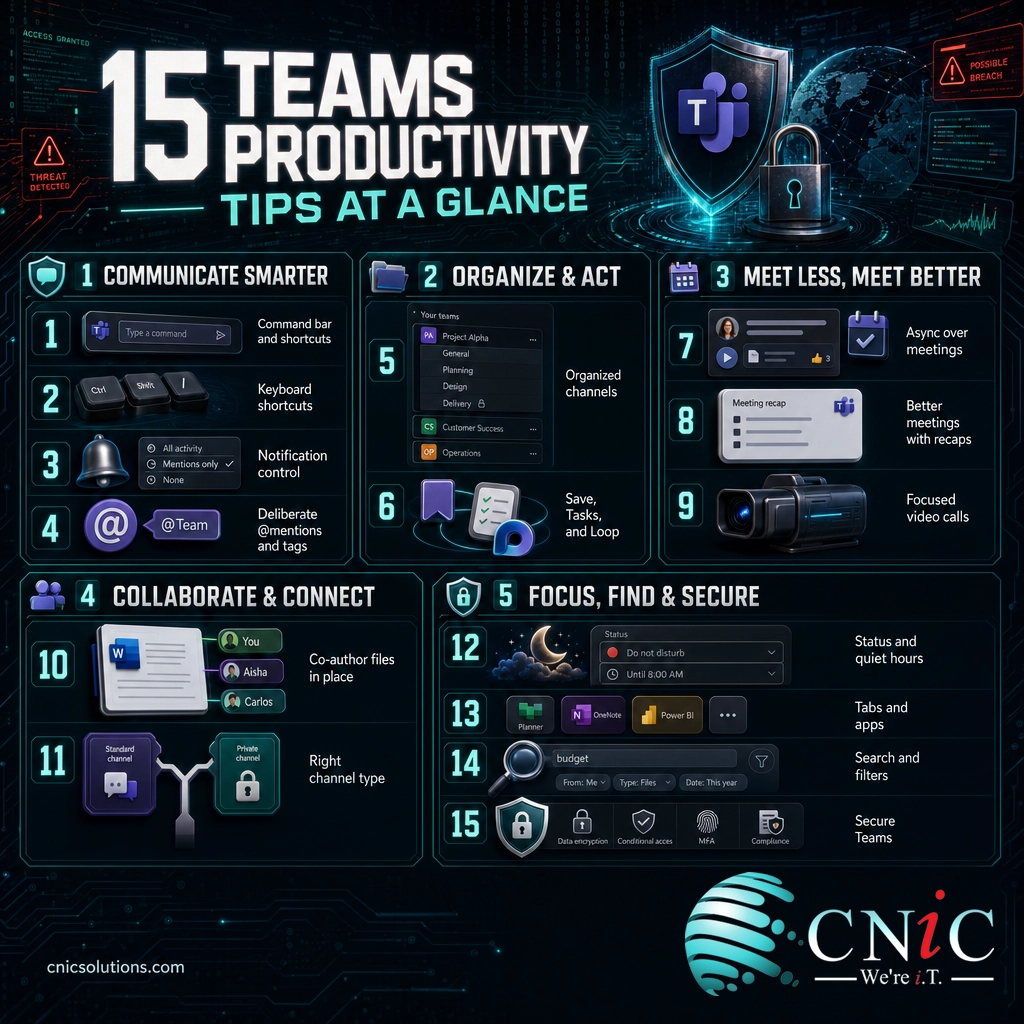
Summary Table: The 15 Tips at a Glance
| # | Tip | Why it matters | Difficulty |
|---|---|---|---|
| 1 | Command bar and slash commands | Fastest navigation in the app | Easy |
| 2 | Keyboard shortcuts | Removes dozens of clicks a day | Easy |
| 3 | Notification control | Cuts the interruptions that cost the most | Easy |
| 4 | Deliberate @mentions and tags | Keeps signal above noise | Easy |
| 5 | Organized channels | Makes messages and files findable | Medium |
| 6 | Save, Tasks, and Loop | Nothing important gets lost | Medium |
| 7 | Async over meetings | Protects time for real work | Medium |
| 8 | Better meetings | One record instead of repeat calls | Easy |
| 9 | Focused video calls | Shorter, cleaner meetings | Easy |
| 10 | Co-author files in place | One version of the truth | Easy |
| 11 | Right channel type | Controls who sees what | Medium |
| 12 | Status and quiet hours | Defends focus time | Easy |
| 13 | Tabs and apps | Cuts costly app switching | Medium |
| 14 | Search and filters | Turns history into a resource | Easy |
| 15 | Secure Teams | Protects every other gain | Hard |
Frequently Asked Questions
What is the single most useful Microsoft Teams shortcut?
How do I stop Microsoft Teams notifications from interrupting me?
What is the difference between a standard, private, and shared channel in Teams?
Can Microsoft Teams reduce the number of meetings we hold?
Do Microsoft Teams productivity tips create any security risk?
Sources
Sources and methodology
All statistics in this guide come from primary sources: Microsoft’s own workplace research and Harvard Business Review’s published study on application switching. Teams feature descriptions reflect the standard desktop app at time of writing. Figures are reported as published, with the year noted so readers can weigh currency.
- Microsoft 2025 Work Trend Index, “Breaking down the infinite workday” (interruptions per day; based on Microsoft 365 productivity signals from more than 30,000 knowledge workers).
- Microsoft 2023 Work Trend Index, “Will AI Fix Work?” (57% communicating vs 43% creating split).
- Harvard Business Review (2022), “How Much Time and Energy Do We Waste Toggling Between Applications?” (about 1,200 app toggles per day; near four hours a week re-orienting).
- Gloria Mark et al., University of California, Irvine, “The Cost of Interrupted Work” (average 23 minutes 15 seconds to return to a task after an interruption).
- Microsoft, “Teams Grows to 320 Million Monthly Active Users” (reported October 2023).
Teams pays off most when it sits inside a well-run communication stack. If you want the whole setup, from how Teams Phone stacks up against traditional VoIP to security and governance, handled by a team that manages it day to day, that is exactly the kind of work a managed IT and Virtual CIO partner takes off your plate.



related posts
Zero Trust Statistics for 2026: Adoption, Maturity, and Breach Impact
November 3, 2026Zero trust has become the default security strategy on paper, but not yet in practice. Okta's…
What Is ZTNA (Zero Trust Network Access)?
November 3, 2026Zero Trust Network Access (ZTNA) is a security service that grants a verified user access to…
What Is XDR (Extended Detection and Response) and How Does It Protect…
November 2, 2026Extended detection and response (XDR) is a security platform that collects and correlates threat data from…
What Is Zero Trust Security? A Guide for Small Businesses
November 2, 2026Zero Trust security is a cybersecurity model built on one rule: never trust, always verify. Instead…