
To move a window that is off screen back to your desktop, click its icon on the taskbar to select it, then hold the Windows key and press the Left or Right arrow. That single shortcut snaps the window back onto your primary display, and it works in both Windows 10 and Windows 11. If the window drifted off after you unplugged a second monitor or a laptop dock, the real fix is pressing Windows plus P and choosing PC screen only. This guide walks through every reliable way to rescue a lost window, in the order you should try them, so you are never stuck clicking a title bar you cannot see.
Before You Begin
A few seconds of orientation makes every method below faster:
- Nothing is broken. An off-screen window is a position problem, not an application fault. The app is running fine; Windows is just drawing it in a spot you cannot see.
- Tools you will use: the taskbar, a keyboard, and the built-in Windows Settings. No downloads and no third-party utilities are required.
- Select the window first. Every keyboard trick here acts on the active window, so you always start by clicking the window’s taskbar icon or pressing Alt plus Tab to focus it.
- Estimated time: under 2 minutes for the keyboard methods.
- Skill level: beginner friendly. If you can press two keys at once, you can do this.
Key Takeaways
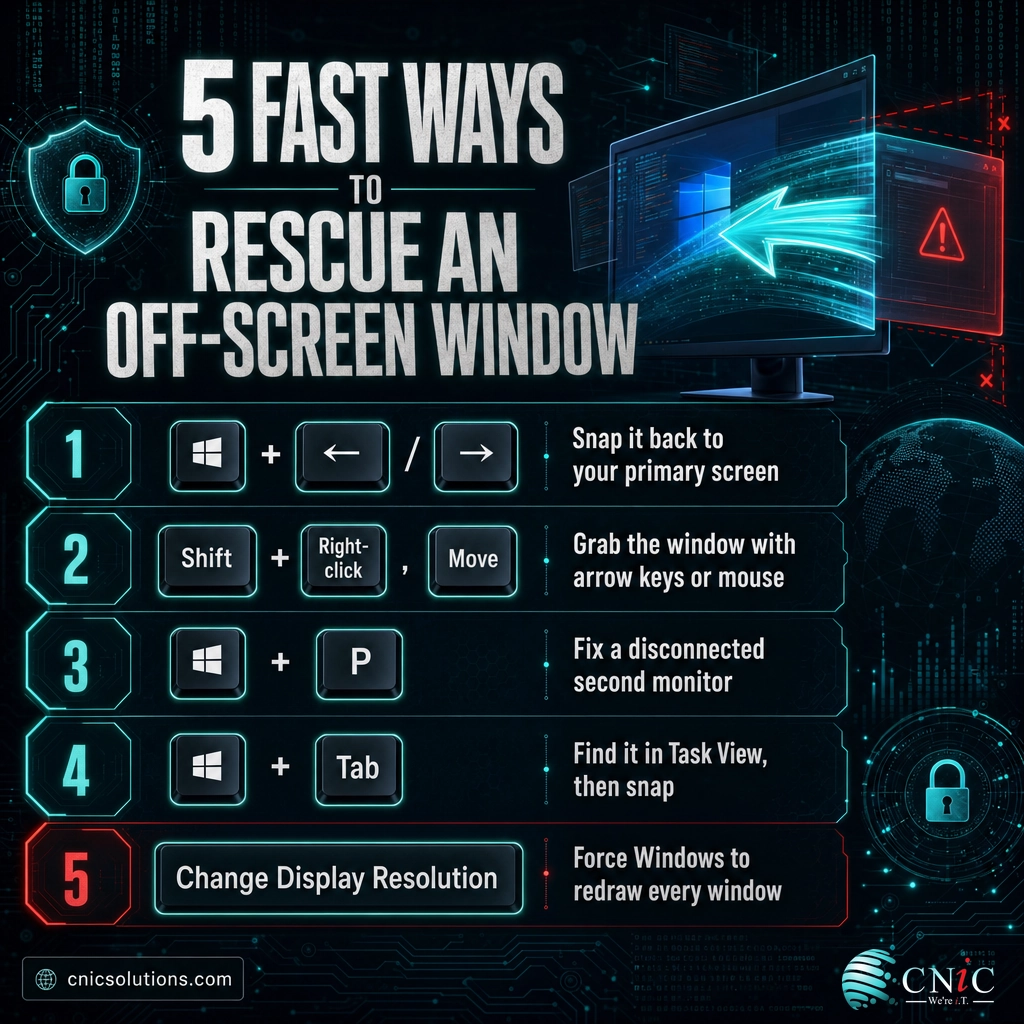
- Select, then snap. Click the taskbar icon, then press Windows key plus Left or Right arrow. This is the fastest fix and the one to try first.
- The universal fallback is Shift plus right-click, then Move. It works on every version of Windows, even when snapping does not.
- A disconnected monitor is the most common cause. Windows plus P, then PC screen only, drags windows back from a display that is no longer plugged in.
- No third-party tools needed. Every method uses features already built into Windows, which matters most on managed work computers.
- If it keeps happening across many machines, the real fix is standardizing display and docking settings, not repeating the rescue each time.
What’s in This Guide
- Why Windows End Up Off Screen
- Step 1: Select the Off-Screen Window
- Step 2: Snap It Back With Windows Key + Arrow
- Step 3: Use the Shift + Right-Click Move Trick
- Step 4: Fix a Ghost Monitor With Windows + P
- Step 5: Corral It With Task View
- Step 6: Toggle Display Resolution to Force a Refresh
- When to Call a Professional
- Troubleshooting Common Problems
- Prevent It From Happening Again
- Frequently Asked Questions
Why Windows End Up Off Screen
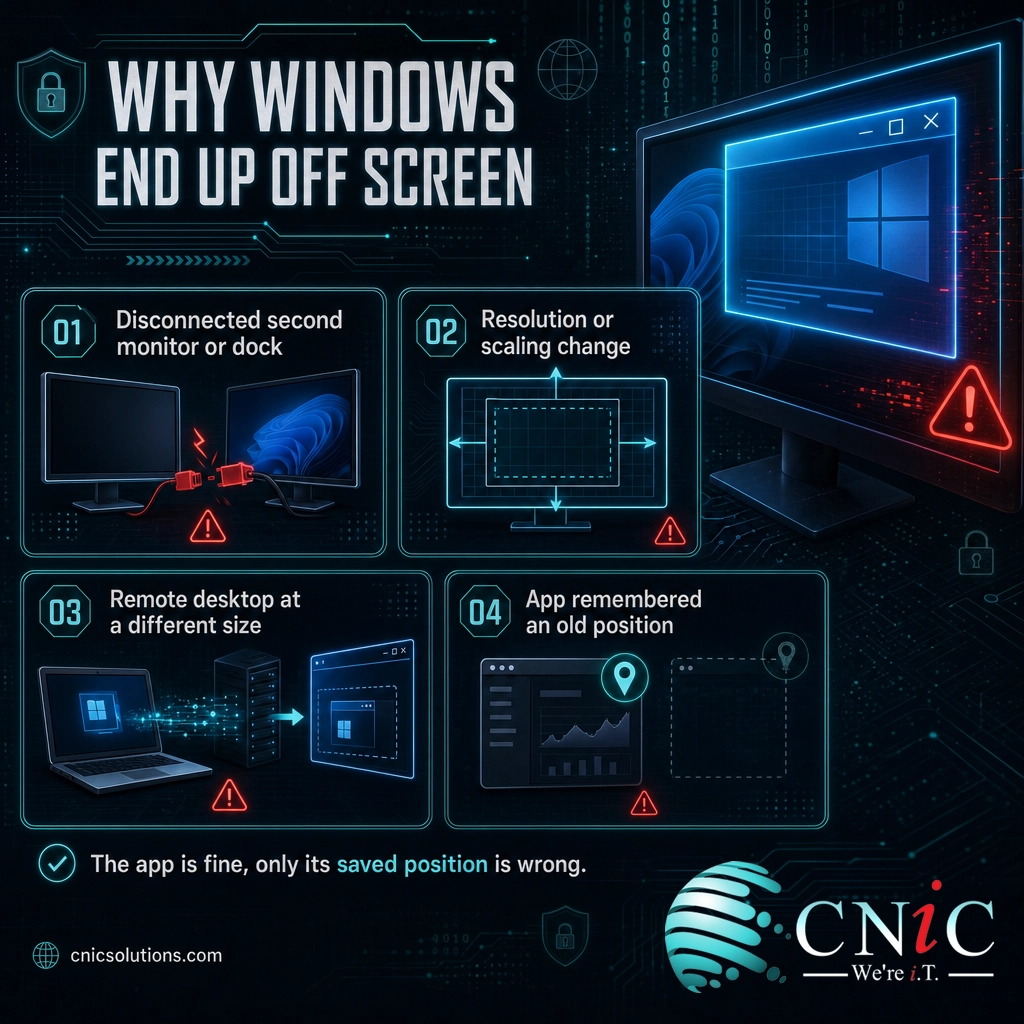
Understanding the cause tells you which fix to reach for. A window “lost” off screen is almost never a crash. Windows remembers where each application was last positioned and reopens it at those exact coordinates. When the screen those coordinates belonged to disappears or changes, the window reopens in empty space beyond your visible desktop.
The usual triggers are all everyday events:
- A disconnected second monitor or dock. You undock a laptop or unplug an external display, and windows that lived on that screen are now positioned off the edge of your remaining screen. This is the single most common cause.
- A resolution or scaling change. Switching to a lower resolution shrinks the desktop, leaving windows that were near the old edge stranded outside the new one.
- Remote desktop at a different size. Connecting to a machine at one screen size and later opening it at another leaves apps remembering the larger canvas.
- An application remembering stale coordinates. Some programs save an exact position that no longer maps to any current display.
Myth: “A window stuck off screen means the app is broken.”
This is false, and believing it leads people to force-quit or reinstall software they never needed to touch. The application is open and working normally; only its saved position is wrong. Every method in this guide moves the window, not the program. There is no need to close it, repair it, or reinstall anything to get it back.
Source: Microsoft Support: Keyboard shortcuts in Windows
1Step 1: Select the Off-Screen Window
Before any keyboard trick can work, the lost window has to be the active window. This step is the foundation for Steps 2, 3, and 5.
What to do:
- Single-click the application’s icon on the taskbar so it becomes the focused window, or
- Hold Alt and tap Tab until the off-screen window’s thumbnail is highlighted, then release.
Why this step matters: the snap and Move commands act on whichever window is active. Skip the selection and you will end up moving the wrong window.
What success looks like: the window’s taskbar icon shows as active (highlighted or underlined), even though you still cannot see the window itself.
2Step 2: Snap It Back With Windows Key + Arrow
This is the fastest method and the one to try first. It uses the Snap feature built into Windows 10 and 11.
What to do:
- With the window selected from Step 1, hold the Windows key and tap the Left arrow or Right arrow.
- The window snaps to that half of your primary screen, back in full view.
- Tap the arrow again, or press Windows key + Up arrow to maximize it, once it is back where you can see it.
Why this step matters: it repositions the window with a single shortcut, no menus and no mouse hunting.
What success looks like: the window appears pinned to the left or right half of your main display. If nothing happens, the window may not be selected, so repeat Step 1 and try again, or move on to Step 3.
Source: Microsoft Support: Snap your windows
3Step 3: Use the Shift + Right-Click Move Trick
When snapping does not respond, this is the universal fallback. It works on every version of Windows and gives you direct control over the window’s position.
What to do:
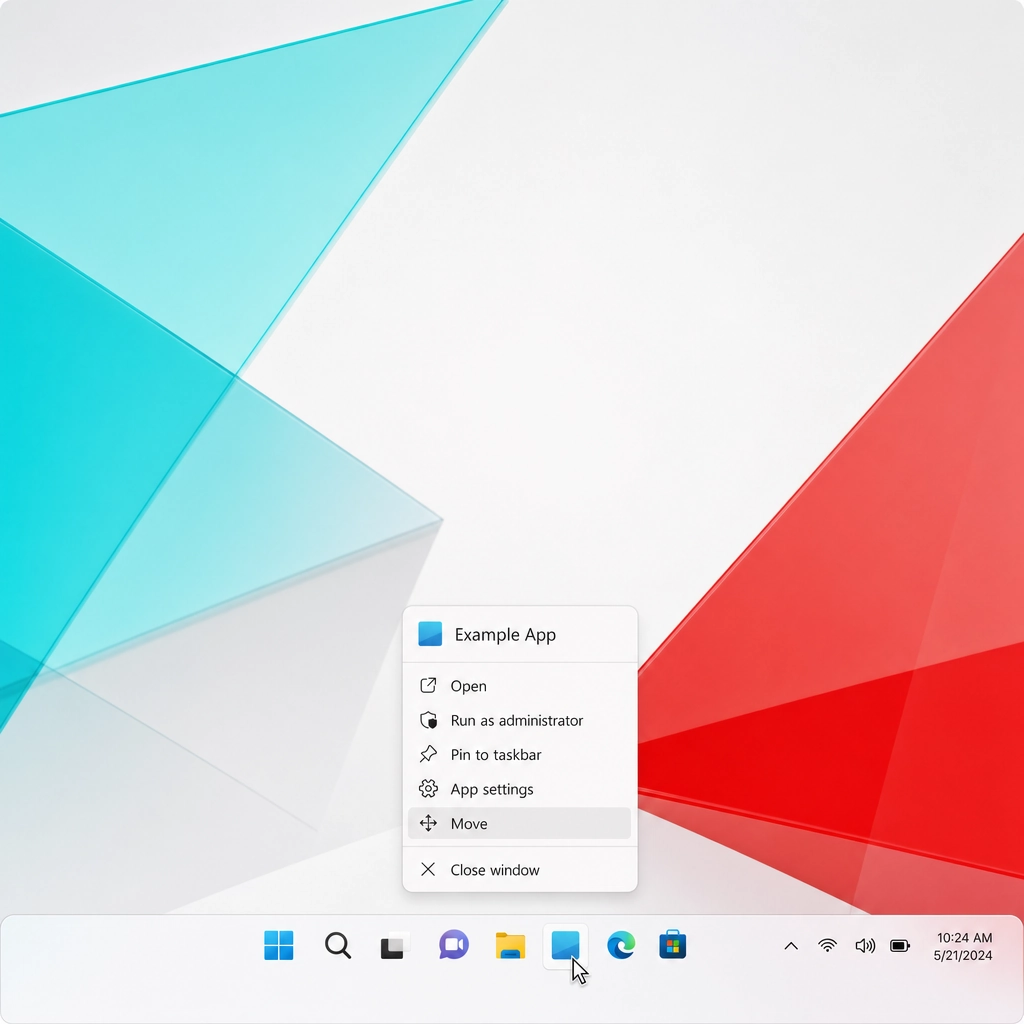
- Hold Shift and right-click the window’s icon on the taskbar.
- Choose Move from the menu. Your pointer becomes a four-headed move cursor.
- Press any arrow key once to “grab” the window, then move your mouse. The whole window now follows the cursor, so drag it fully onto your screen and click to drop it.
Keyboard-only variant: select the window, press Alt + Space to open its system menu, press M for Move, then use the arrow keys to walk it back onto the screen and press Enter.
Why this step matters: it does not depend on Snap or on the window being partly visible. As long as the taskbar icon exists, you can retrieve the window.
What success looks like: the window visibly moves with your mouse or arrow keys until it sits on your desktop.
Note: Alt + Space behaves differently on some Windows 11 builds
On certain Windows 11 versions, Alt + Space is mapped to a search or command overlay instead of the window system menu. If pressing Alt + Space does not open the small Move and Size menu, use the Shift plus right-click method above instead, which is consistent across every build.
Source: How-To Geek: Move a lost, off-screen window back to your desktop
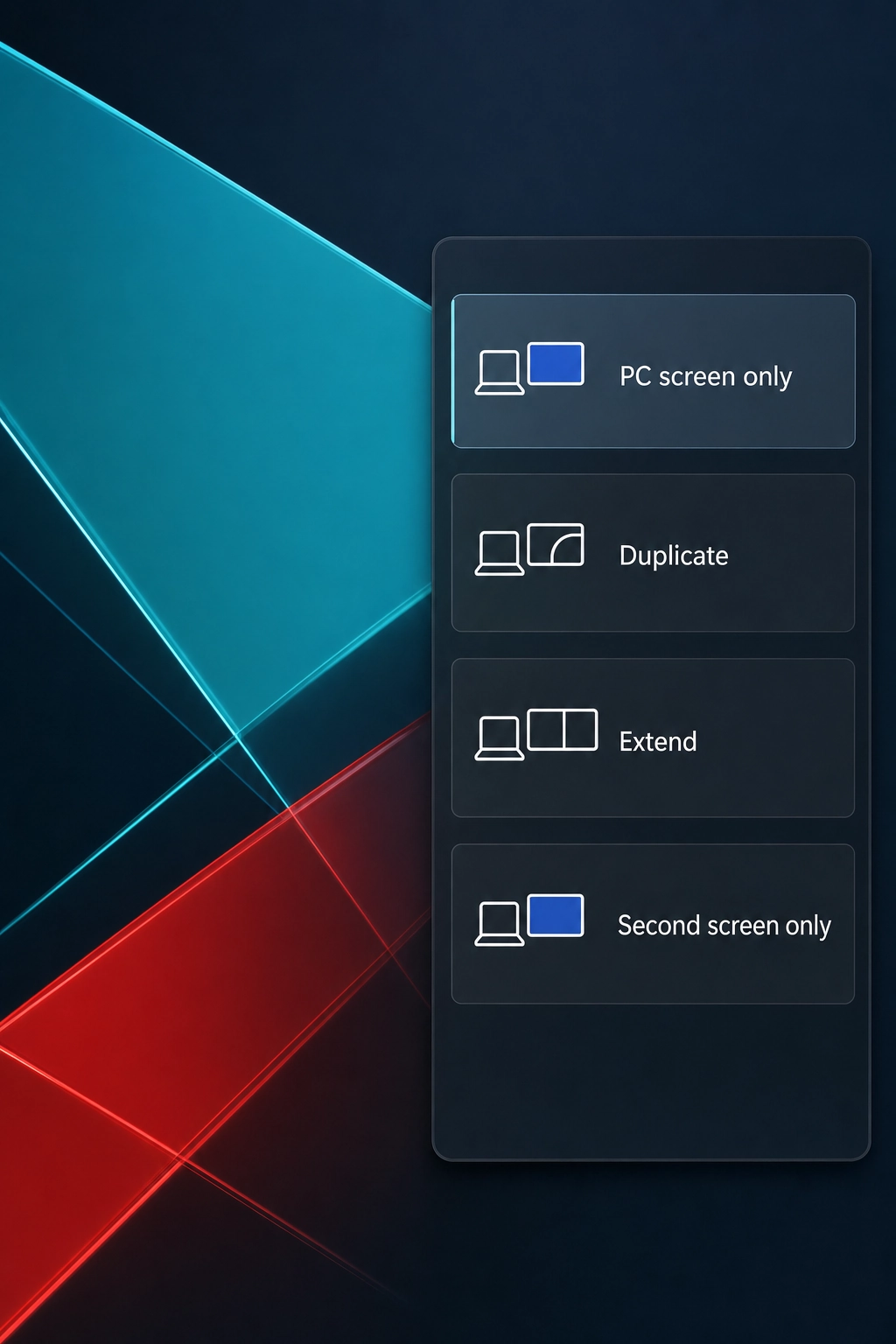
4Step 4: Fix a Ghost Monitor With Windows + P
If the window disappeared right after you unplugged an external display or undocked a laptop, this is your fix, and it targets the actual root cause rather than the symptom.
What to do:
- Press Windows key + P to open the Project panel.
- Select PC screen only.
- Windows collapses to your single active display and pulls windows back from the monitor that is no longer connected.
Why this step matters: when Windows still thinks a disconnected monitor is present, it keeps placing windows there. Forcing PC screen only removes the phantom display and its off-screen real estate in one move.
What success looks like: the missing windows reappear on your primary screen as Windows consolidates everything onto the one display.
Source: NinjaOne: How to move a window that is off-screen | Microsoft Support: Keyboard shortcuts in Windows
5Step 5: Corral It With Task View
Task View helps when you are not sure which taskbar icon belongs to the lost window, because it shows every open window as a labeled thumbnail.
What to do:
- Press Windows key + Tab to open Task View.
- Click the thumbnail of the off-screen window to bring it into focus.
- Press Windows key + Left or Right arrow to snap it onto your active display.
Why this step matters: it gives you a visual list of everything open, so you can positively identify the lost window before repositioning it.
What success looks like: you spot the window in Task View, select it, and snap it back into view.
6Step 6: Toggle Display Resolution to Force a Refresh
Reserve this for stubborn cases where a window refuses to respond to any of the shortcuts above. Changing the resolution forces Windows to redraw every window against a new set of screen dimensions.
What to do:
- Right-click the desktop and choose Display settings.
- Under Display resolution, pick a different value and apply it.
- Confirm the change, then switch the resolution back to your normal setting.
Why this step matters: the redraw recalculates where every window sits, which often shakes a stranded window back onto the visible desktop.
What success looks like: after the screen flickers through the resolution change, the off-screen window reappears in the visible area.
Two more quick options
- Snap Layouts (Windows 11): press Windows key + Z to open the Snap Layouts overlay and drop the active window into a zone on your visible screen.
- Cascade windows (Windows 10 only): right-click an empty part of the taskbar and choose Cascade windows to stack all open windows onto the primary display. This option was removed from the Windows 11 taskbar menu.
Source: NinjaOne: How to move a window that is off-screen

When to Call a Professional
Rescuing one window is a two-minute job. But if you are an office manager or business owner watching the same problem surface again and again, across different people’s machines, the window is not really the issue, and chasing it each time is wasted effort.
Recurring off-screen windows across a team almost always trace back to inconsistent setups: docks configured differently on each desk, mismatched monitor resolutions, display scaling that varies machine to machine, and undocking habits that Windows has to keep guessing around. On a properly managed fleet, those variables are standardized once. Docking stations, resolution defaults, and display profiles are set the same way on every workstation, so windows land where they should and stay there. When a genuinely stuck session does happen, there is a help desk to call instead of a staff member losing twenty minutes to it.
This is the quiet, day-to-day work a managed IT partner takes off your plate. CNiC Solutions supports businesses of every size across Texas and nationally, standardizing the endpoint and display setup so small annoyances like this stop eating into your team’s day.
Get your team’s computers managed and standardized
Troubleshooting Common Problems
| Problem | What it means | What to do |
|---|---|---|
| Windows key + arrow does nothing | The lost window is not the active window | Click its taskbar icon or Alt + Tab to select it first, then repeat the snap shortcut. |
| No Move option when you right-click the taskbar icon | You right-clicked without holding Shift | Hold Shift while right-clicking the icon, then choose Move. |
| The window comes back off screen every time you open the app | Windows keeps loading it on a disconnected display | Press Windows + P and select PC screen only, and move windows to the primary screen before disconnecting monitors. |
| Alt + Space opens search instead of the window menu | A Windows 11 build has remapped that shortcut | Use the Shift + right-click Move method, which is consistent across all builds. |
| This happens on many office computers at once | Display and docking settings are inconsistent across the fleet | Standardize resolution, scaling, and docking configuration on every workstation, or have a managed IT provider set it once. |
Source: How-To Geek: Windows 10 vs 11 taskbar options | Microsoft Support: Snap your windows
Prevent It From Happening Again
A few habits keep windows from wandering off screen in the first place:
- Move windows to your main screen before disconnecting. Drag open apps onto the primary display, or press Windows + P and choose PC screen only, before you undock or unplug an external monitor.
- Disconnect displays through Windows, not by yanking the cable. Letting Windows register the change cleanly helps it reposition windows correctly.
- Keep your resolution and scaling consistent. Frequent resolution changes are a leading trigger for stranded windows.
- Restart the app if a single program is the repeat offender. Closing and reopening it clears the stale saved position for that one application.
For a single computer, these habits are enough. For a business running many machines, keeping display, docking, and resolution settings consistent across every workstation is exactly the kind of standardization that prevents dozens of small tickets before they happen. A Virtual CIO plans that consistency into how your whole environment is set up, so the little issues never accumulate.
If you want the underlying workstation configuration handled and kept uniform across the office, that falls under ongoing IT infrastructure oversight. And if you landed here mid-troubleshooting, our companion guides on fixing the IRQL_NOT_LESS_OR_EQUAL blue screen cover the deeper Windows errors that occasionally show up alongside display problems.
Talk to CNiC about hassle-free managed IT
Frequently Asked Questions
Why did my window move off the screen in the first place?
What is the fastest way to get an off-screen window back?
The window came back off screen after I unplugged my monitor. How do I fix that permanently?
Does the Windows plus arrow shortcut work in both Windows 10 and Windows 11?
This keeps happening across all our office computers. Is there a real fix?
Methodology and Sources
This guide documents built-in, Microsoft-native methods for moving an off-screen window back onto a visible desktop in Windows 10 and Windows 11, ordered from fastest to fallback. Keyboard shortcuts (Windows key plus arrow, Windows plus P, Windows plus Tab, Windows plus Z) and the Snap behavior follow Microsoft’s official Windows keyboard shortcuts and Snap documentation. The Shift plus right-click Move command and the Windows 10 versus Windows 11 taskbar differences are corroborated by How-To Geek and NinjaOne. No downloadable or third-party utilities are recommended, in keeping with the standard of not running unvetted tools on business machines. This is a procedural topic, so no statistics are claimed.
Primary and authoritative sources: Microsoft Support (Keyboard shortcuts in Windows), Microsoft Support (Snap your windows), How-To Geek, NinjaOne.



related posts
Zero Trust Statistics for 2026: Adoption, Maturity, and Breach Impact
November 3, 2026Zero trust has become the default security strategy on paper, but not yet in practice. Okta's…
What Is ZTNA (Zero Trust Network Access)?
November 3, 2026Zero Trust Network Access (ZTNA) is a security service that grants a verified user access to…
What Is XDR (Extended Detection and Response) and How Does It Protect…
November 2, 2026Extended detection and response (XDR) is a security platform that collects and correlates threat data from…
What Is Zero Trust Security? A Guide for Small Businesses
November 2, 2026Zero Trust security is a cybersecurity model built on one rule: never trust, always verify. Instead…