

The Local Group Policy Editor is the built-in Windows console that lets you control how a computer behaves, from password rules and USB restrictions to update timing and login banners, all without touching the registry by hand. The fastest way to open it is to press the Windows key plus R, type gpedit.msc, and press Enter. Microsoft’s own Group Policy Settings Reference for Windows 11 catalogs thousands of individual policy settings reachable through this single tool, which is why knowing every way to open it, and how to recover when it appears to be missing, saves real time for anyone who administers Windows.
- What you need: A PC running Windows 11 or Windows 10 Pro, Enterprise, or Education. Home editions do not include the editor by default (there is a fix below).
- Permissions: Local administrator rights to change most machine-wide (Computer Configuration) settings. You can open and browse the editor as a standard user.
- Time required: Under two minutes to open it; a few extra minutes if you need to enable it on a Home edition.
- Skill level: Beginner to intermediate. Every method below is copy-and-type simple.
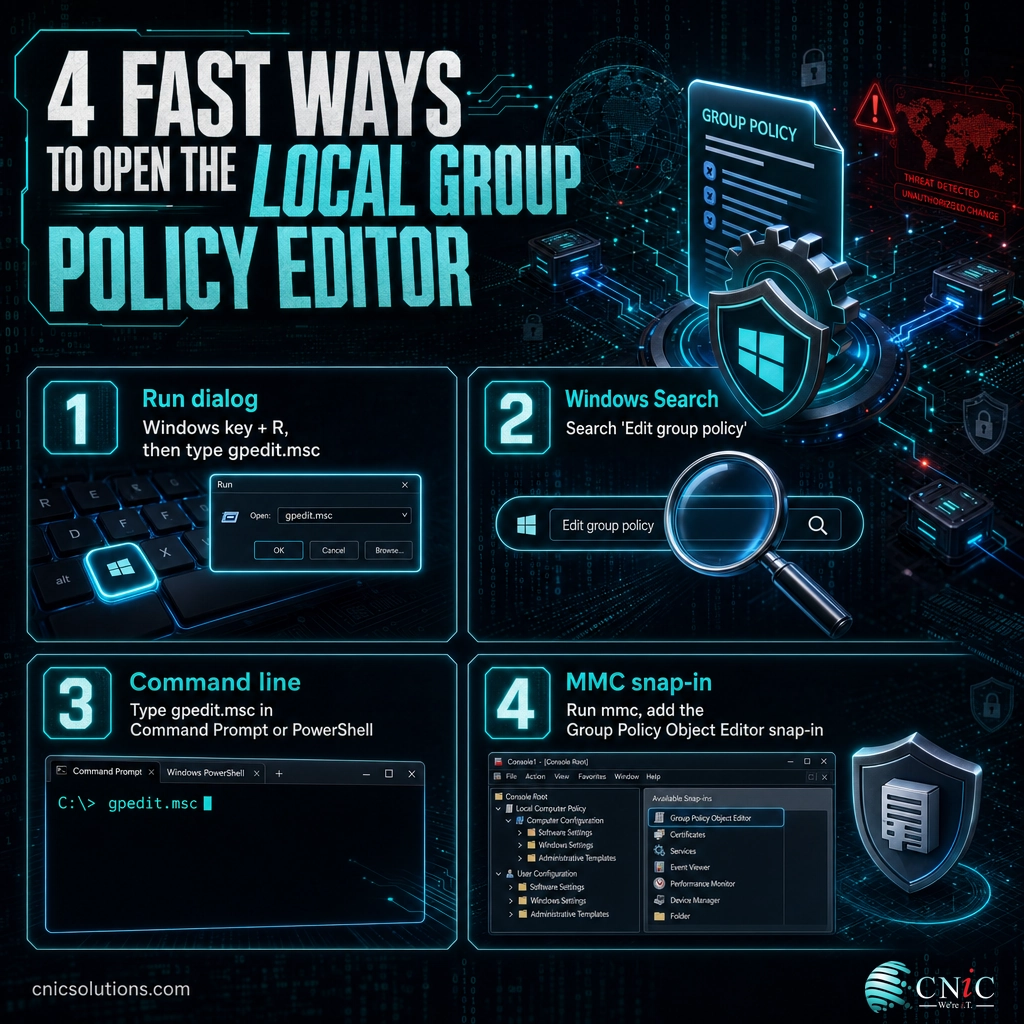
- The universal command is gpedit.msc, and it works from Run, Search, Command Prompt, and PowerShell.
- The editor is included only in Pro, Enterprise, and Education editions of Windows 11 and Windows 10.
- On Windows Home, gpedit is not installed by default; you can enable it or make the same changes in the Registry Editor.
- Use the MMC snap-in method when you need to target a specific local user or group rather than the whole computer.
- After changing a policy, run gpupdate /force so the setting applies without waiting for the next refresh.
What’s in This Guide
- What the Local Group Policy Editor Actually Does
- Method 1: Open It with the Run Dialog
- Method 2: Open It from Windows Search
- Method 3: Open It from Command Prompt or PowerShell
- Method 4: Build a Custom Console with MMC
- Method 5: Enable gpedit on Windows Home
- When to Call a Professional
- Troubleshooting: Common Errors and Fixes
- Maintain and Monitor Your Policies
- Frequently Asked Questions
What the Local Group Policy Editor Actually Does
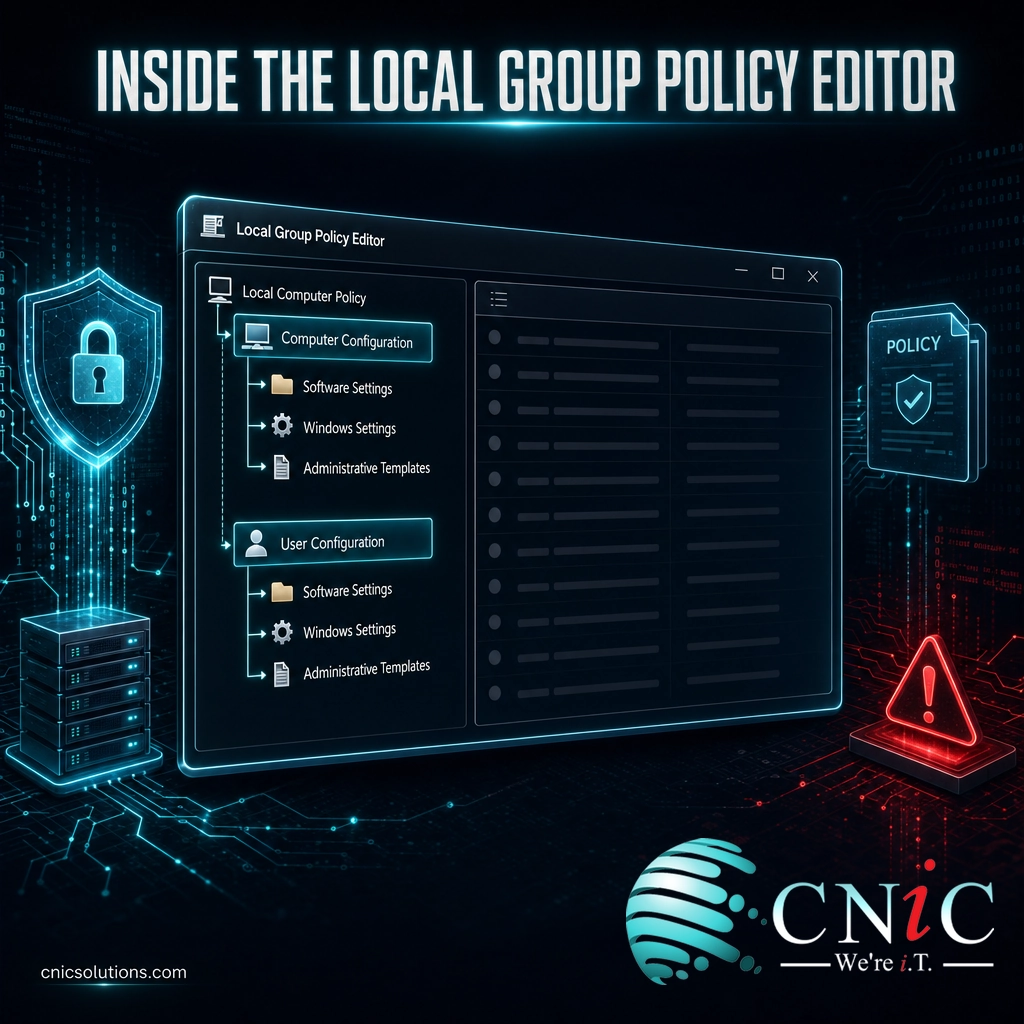
The Local Group Policy Editor (its file name is gpedit.msc) is a management console that exposes hundreds of Windows settings in one organized tree. It splits into two halves: Computer Configuration, which applies to the whole machine no matter who signs in, and User Configuration, which applies to user accounts. Inside each half you will find Software Settings, Windows Settings, and Administrative Templates, where the bulk of the tunable options live.
Group Policy is how businesses standardize behavior across their fleet without visiting each desk. A single policy can require complex passwords, hide specific Control Panel items, disable removable storage, control which apps launch at startup, or set the lock-screen message. On a domain, those same rules are pushed from a server; on a standalone PC, the local editor is where you set them.
Because so many of these settings touch security, keeping them consistent is part of a healthy layered approach to infrastructure security. It is also closely related to how organizations manage devices at scale, which is why growing teams often pair Group Policy with dedicated tools like the ones covered in our guide to mobile device management for small business.
Source: Microsoft Learn: Open the Local Group Policy Editor | StatCounter Global Stats: Desktop OS Market Share
Method 1: Open It with the Run Dialog
What to do: Press the Windows key plus R to open the Run dialog. Type gpedit.msc and press Enter or click OK.
Why this step matters: The Run dialog is the shortest path on every supported edition of Windows, and it does not depend on search indexing or a terminal being open.
What success looks like: A window titled “Local Group Policy Editor” opens, showing “Local Computer Policy” at the top of the left pane with Computer Configuration and User Configuration beneath it.
This is the method most administrators use out of habit. If Windows returns an error that it cannot find gpedit.msc, that almost always means you are on a Home edition; jump to Method 5.
Source: Microsoft Learn: Open the Local Group Policy Editor
Method 2: Open It from Windows Search
What to do: Click Start or press the Windows key, then type Edit group policy (or gpedit.msc). Select the result that appears, usually labeled “Edit group policy” under Best match.
Why this step matters: Search is the most discoverable route for anyone who does not remember keyboard shortcuts, and it surfaces the Control Panel entry point that opens the same console.
What success looks like: The same “Local Group Policy Editor” window opens. If nothing matches your search, the feature is not installed on your edition.
Search relies on the Windows indexing service. If the result does not appear even on a Pro machine, the index may be rebuilding; the Run dialog in Method 1 bypasses it entirely.
Source: Microsoft Learn: Open the Local Group Policy Editor
Method 3: Open It from Command Prompt or PowerShell
What to do: Open Command Prompt or Windows PowerShell (or the newer Windows Terminal), type gpedit.msc, and press Enter.
Why this step matters: When you are already working in a terminal, remoting into a machine, or writing a setup script, launching the editor from the command line avoids breaking your flow.
What success looks like: The editor launches in its own window while your terminal stays open. You do not need to run the terminal as administrator just to open the console, though administrator rights are still required to change most computer-wide settings.
Source: Microsoft Learn: Open the Local Group Policy Editor
Method 4: Build a Custom Console with MMC
The first three methods open Group Policy for the whole local computer. When you need to apply settings to a specific local user or group, and not everyone who signs in, you build the console yourself through the Microsoft Management Console.
What to do:
- Press the Windows key plus R, type mmc, and press Enter. Approve the User Account Control prompt.
- Choose File, then Add/Remove Snap-in.
- In the list of available snap-ins, select Group Policy Object Editor and click Add.
- In the Select Group Policy Object dialog, leave “Local Computer” for the machine, or click Browse and open the Users tab to pick a specific user or the Administrators/Non-Administrators group.
- Click Finish, then OK. Save the console with File then Save if you want to reuse it later.
Why this step matters: Local Group Policy is not just one object. Windows supports separate policy for administrators, non-administrators, and individual accounts, and the snap-in is the only way to reach those targeted objects.
What success looks like: Your custom console lists a snap-in such as “Local Computer\Administrators Policy,” and edits there apply only to that scope.
Source: Microsoft Learn: Local Group Policy Editor and MMC snap-ins

Method 5: Enable gpedit on Windows Home
If you searched for gpedit.msc and Windows replied that it “cannot find” the file, you are almost certainly on Windows Home. The Local Group Policy Editor is not part of the Home edition. You have three honest options.
Option A: Make the change in the Registry Editor instead
Every Group Policy setting ultimately writes to the Windows registry. On Home editions, the supported path is to make the equivalent change directly in the Registry Editor (regedit). This is the route Microsoft’s documentation points Home users toward, because it uses a tool that ships with every edition. The tradeoff is that you must know the exact key, value name, and data for the policy you want, so it is best when you are following a specific, trusted set of instructions.
Option B: Upgrade to Windows Pro
Upgrading the machine from Home to Pro adds the Local Group Policy Editor natively, along with BitLocker, Remote Desktop hosting, and domain-join support. For a business that will manage many settings, the upgrade is usually cheaper than the time spent working around the missing tool. On a domain or with a modern management platform, these settings are pushed centrally, so individual machines rarely need to be touched at all.
Option C: Unofficial enablement scripts
You will find community scripts that use the built-in DISM tool to add the Group Policy packages to a Home edition. These are not supported by Microsoft, can behave inconsistently across feature updates, and are a poor fit for any machine that holds business or client data. If you are tempted by this route on a work computer, treat it as a signal to standardize device management properly instead.
Standardizing configuration across a mix of Home and Pro machines is one of the most common reasons businesses move to centrally managed device policies, so nobody has to remember which PC supports which tool.
See how managed IT keeps every device configured
Source: Microsoft Learn: Windows editions and features
When to Call a Professional
Opening the editor is simple. Deciding what to change, across dozens or hundreds of machines, is where risk lives. If you reach a point where you are editing the registry on Home machines by hand, applying the same setting to computer after computer, or trying to enforce security baselines (password complexity, account lockout, USB control, audit logging) consistently, that is the moment to hand it to a team that manages policy centrally.
A managed IT partner replaces one-machine-at-a-time edits with a single, tested configuration pushed to every device, backed out safely if something breaks. For regulated businesses in healthcare, legal, or finance, that consistency is also how policy maps to frameworks like HIPAA, PCI-DSS, and SOC 2 during an audit. CNiC Solutions builds and maintains those baselines so your settings are documented, uniform, and defensible.
Troubleshooting: Common Errors and Fixes
Most problems opening gpedit.msc trace back to just a handful of causes. Here are the ones we see most often and how to resolve each.
| Symptom | Likely cause | Fix |
|---|---|---|
| “Windows cannot find gpedit.msc” | You are on a Home edition, which does not include the editor | Use the Registry Editor, upgrade to Pro, or move to managed device policies (see Method 5) |
| Editor opens but settings are greyed out | You are signed in as a standard user without administrator rights | Sign in with an administrator account, or ask your admin to make the change |
| Policy set, but nothing changed on the PC | The policy has not refreshed yet, or a domain policy is overriding it | Run gpupdate /force, then sign out or restart; on a domain, the server policy wins |
| “MMC could not create the snap-in” | Corrupted system files or a damaged policy store | Run sfc /scannow, then DISM /Online /Cleanup-Image /RestoreHealth from an admin terminal |
| Change caused a problem and you want it back | A policy was set to Enabled or Disabled that should be Not Configured | Reopen the same policy and select “Not Configured” to return it to the Windows default |
The command that resolves the most confusion is gpupdate /force. Group Policy refreshes on a schedule (roughly every 90 minutes for computers, with some settings only applying at startup or sign-in), so a change can look like it failed when it is only waiting. Forcing an update settles that question immediately.
Source: Microsoft Learn: gpupdate command reference
Maintain and Monitor Your Policies
Opening the editor once and changing a setting is the easy part. Keeping those settings correct over time is the work that actually protects a business. Windows feature updates can reset or deprecate policies, new machines arrive without your baseline, and a single well-meaning edit on one PC can quietly break a login script or a security control.
A few habits keep local policy healthy:
- Document every change. Record the policy path, the value, and the reason. Undocumented settings are the hardest problems to diagnose later.
- Prefer “Not Configured” as your baseline. Only Enable or Disable a policy when you have a reason. It keeps the machine close to a known-good Windows default.
- Re-check after major updates. After a Windows feature update, confirm critical policies survived.
- Automate what you repeat. The moment you are applying the same setting by hand to more than a couple of machines, a management platform will do it faster and without drift. This is the same principle behind other routine sysadmin work, like the scheduled jobs covered in our explainer on how cron jobs schedule recurring tasks.
For most growing companies, the right long-term answer is not to remember five ways to open gpedit.msc on every desk. It is to centralize configuration so the correct policy is applied, monitored, and corrected automatically, which is exactly what ongoing managed cybersecurity and configuration delivers.
Source: Microsoft Learn: Group Policy processing and refresh
Frequently Asked Questions
What is the command to open the Local Group Policy Editor?
Why can’t I find gpedit.msc on my computer?
Do I need administrator rights to open the Local Group Policy Editor?
Is the Local Group Policy Editor the same as the Group Policy Management Console?
Do changes in the Local Group Policy Editor apply immediately?
Sources and References
All procedures verified against Microsoft’s official documentation for the Local Group Policy Editor and Group Policy processing. Edition availability reflects current Windows 11 and Windows 10 servicing. Desktop operating system usage figure from StatCounter Global Stats.
Get a free assessment of your IT configuration



related posts
Zero Trust Statistics for 2026: Adoption, Maturity, and Breach Impact
November 3, 2026Zero trust has become the default security strategy on paper, but not yet in practice. Okta's…
What Is ZTNA (Zero Trust Network Access)?
November 3, 2026Zero Trust Network Access (ZTNA) is a security service that grants a verified user access to…
What Is XDR (Extended Detection and Response) and How Does It Protect…
November 2, 2026Extended detection and response (XDR) is a security platform that collects and correlates threat data from…
What Is Zero Trust Security? A Guide for Small Businesses
November 2, 2026Zero Trust security is a cybersecurity model built on one rule: never trust, always verify. Instead…