

Setting up IT for a remote or hybrid team is no longer a temporary arrangement, it is core infrastructure. About a quarter of all paid workdays in the United States now happen at home, up from roughly 7 percent before 2020, and that shift has permanently changed how small businesses buy, secure, and support technology. This guide walks through every layer of a remote work IT setup, from the laptop on a kitchen table to the identity system, cloud apps, backups, and monitoring behind it, so a small business can build a setup that is productive, secure, and affordable. Wherever a decision has real security or cost consequences, we show the data and the practical rule to follow.
- Remote work is structural, not seasonal. Full work-from-home days rose from 7 percent of paid workdays in 2019 to roughly 26 percent in 2025, so remote IT deserves permanent planning, not a stopgap.
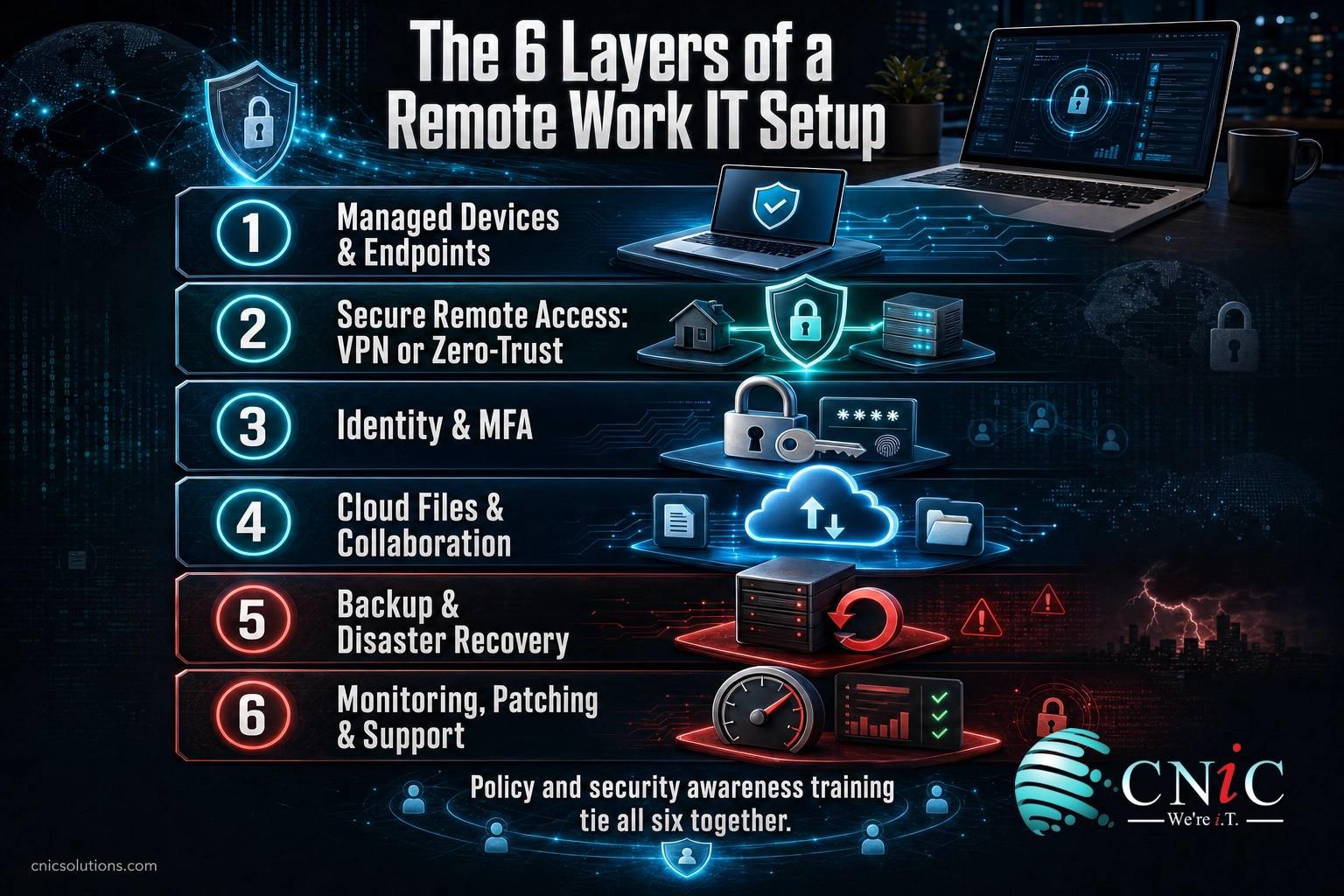
- Six layers make a complete setup: managed devices, secure remote access, identity and MFA, cloud collaboration, backup and recovery, and ongoing monitoring and support.
- People and passwords are the weak point. 60 percent of breaches involve a human element and 22 percent start with stolen credentials, so multi-factor authentication and training matter more than any single gadget.
- Unmanaged devices are a hidden liability. 46 percent of systems with corporate logins found in credential-theft malware logs were unmanaged, likely personal or home machines.
- A VPN is necessary but not sufficient. Pair it with MFA, fast patching, and endpoint protection, or move to zero-trust access that verifies every request.
- Cloud does not replace backup. Follow the 3-2-1 rule and test restores; the provider protects the platform, not your data.
- The breach math is unforgiving. The average U.S. data breach reached an all-time high of $10.22 million in 2025, so prevention is cheaper than recovery for a business of any size.
- Write it down. A remote work policy, an onboarding and offboarding checklist, and quarterly training turn scattered tools into a real program.
What’s in This Guide
- Remote Work IT Setup: What It Is and Why the Stakes Are Higher
- Devices and Endpoints: Company-Owned vs. BYOD
- Internet, VPN, and Secure Remote Access
- Identity and Access: Passwords, MFA, and Single Sign-On
- Cloud Files, Collaboration, and Communication
- Backup, Business Continuity, and Disaster Recovery
- Security Awareness, Phishing, and Human Risk
- Policies, Compliance, and Secure Onboarding
- Monitoring, Patching, and Ongoing Support
- Budgeting Your Remote IT Stack
- What to Do Next: Implementation Roadmap
- Related Resources
- The Complete Remote IT Setup Checklist
- Frequently Asked Questions
Remote Work IT Setup: What It Is and Why the Stakes Are Higher
A remote work IT setup is the full stack of hardware, software, connectivity, and security that lets an employee do their job safely from anywhere. In an office, much of that stack is invisible: the firewall, the wired network, the physical door lock, and the person who walks over when something breaks. When work moves to homes, coffee shops, and client sites, every one of those protections has to be rebuilt in software and policy. Getting that translation right is the difference between a team that is productive and protected and one that is quietly exposed.
The reason this matters more than ever is scale. Remote work is not a pandemic leftover that is fading away. Research from Stanford economists tracking American workers found that full work-from-home days climbed from about 7 percent of all paid workdays in 2019 to roughly 26 percent in 2025, settling into a durable hybrid norm rather than reverting. For a small business, that means a meaningful share of your data now lives and moves outside any office you control.
Share of U.S. paid full workdays done from home
Source: WFH Research (Barrero, Bloom, and Davis), reported via Stanford, 2025.
That distributed footprint changes the risk math. When work is spread across dozens of home networks and personal devices, the attack surface grows, and the cost of a mistake has climbed to record levels. The 2025 IBM Cost of a Data Breach report put the average U.S. breach at an all-time high of $10.22 million, the highest of any country for the fifteenth year running. The global average was far lower at $4.44 million, which underscores how expensive a breach is specifically for a business operating in the United States.
None of this means small businesses should fear remote work. It means the setup deserves the same intentional design an office would get. The rest of this guide breaks that design into six practical layers, plus the policies and support that hold them together. If your business is weighing how much of this to run yourself versus hand off, our overview of what managed IT services actually include is a useful companion, and the payoff of managed IT for distributed teams is worth reading before you decide.
How to read this guide: Each section covers one layer of the stack, the specific risk it addresses, the data behind it, and a plain rule to follow. You do not need to build all six layers in a week. The implementation roadmap near the end sequences them by priority so you can start with the changes that reduce the most risk first.
Source: WFH Research (Barrero, Bloom, and Davis) | IBM Cost of a Data Breach Report | FBI IC3 2024 Internet Crime Report
Talk to a Virtual CIO About Your Remote Setup
Devices and Endpoints: Company-Owned vs. BYOD
Every remote work setup starts with the device in the employee’s hands, and the first real decision is whether the business owns it or the employee does. Company-owned devices cost more up front, but they let you standardize the hardware, install security tools, encrypt the disk, and wipe the machine remotely if it is lost or the person leaves. A bring-your-own-device (BYOD) approach saves money and lets people use hardware they already like, but it hands you far less control over what else is running on that machine and who else uses it.
The data makes the tradeoff concrete. Verizon’s 2025 Data Breach Investigations Report analyzed credential-stealing malware logs and found that 46 percent of the systems carrying corporate logins were unmanaged, meaning they were most likely personal laptops or home machines operating outside any security monitoring. Those are exactly the devices a loose BYOD policy invites onto your business data. The same report noted that among ransomware victims, a majority had credentials exposed in infostealer logs before the attack ever landed.
This does not make BYOD unacceptable, it makes unmanaged BYOD unacceptable. If you allow personal devices, the price of admission is enrollment in a mobile device management or endpoint management tool that can enforce disk encryption, require a screen lock and a current operating system, separate business apps and data from personal ones, and selectively wipe company information without touching the employee’s photos. If you cannot enforce those controls, issue company hardware instead. For the security software itself, our comparison of the top endpoint detection and response tools for smaller companies covers what to look for.
| Factor | Company-Owned | BYOD (Managed) |
|---|---|---|
| Up-front cost | Higher (business buys hardware) | Lower (employee provides device) |
| Control | Full: standardized, locked down | Partial: policy-enforced containers |
| Security tooling | Pre-installed and mandatory | Requires enrollment and consent |
| Data separation | Clean: device is business-only | Managed profile keeps work data apart |
| Offboarding | Reclaim or fully wipe device | Selective wipe of business data only |
| Best fit | Regulated data, larger teams | Cost-sensitive teams with strong policy |
Whichever path you choose, three controls are non-negotiable on every remote endpoint: full-disk encryption so a stolen laptop does not become a stolen database, endpoint detection and response (EDR) software that watches for malicious behavior rather than only known viruses, and automatic operating system and application updates. These are the modern replacement for the office firewall that used to sit between your people and the internet.
Myth: “We are too small to be a target.” Attackers rarely pick small businesses by name. They scan for exposed credentials and unpatched devices at scale, and an unmanaged home laptop with a saved corporate password is exactly what their automated tools look for. Size does not hide you; managed devices and monitoring do.
Source: Verizon 2025 Data Breach Investigations Report
Get a Free Endpoint Security Audit
Internet, VPN, and Secure Remote Access
Once the device is sorted, the next layer is how that device reaches your business systems safely across the open internet. There are two questions here: is the connection fast and reliable enough to work, and is it secure enough to trust. On the reliability side, guidance for remote teams generally points to a minimum of around 25 Mbps of download bandwidth for smooth video calls and file collaboration, with a wired connection or a strong Wi-Fi signal preferred over a marginal one. Slow, dropping connections are not just an annoyance, they push people toward insecure workarounds.
On the security side, the traditional answer is a virtual private network (VPN), which encrypts the traffic between a remote device and your network. A VPN is worth having, but it is widely misunderstood as a complete solution. The Cybersecurity and Infrastructure Security Agency has warned that because VPNs run around the clock, organizations often fall behind on patching them, leaving a critical, internet-facing service exposed. CISA’s guidance is explicit: keep VPN appliances fully updated, require multi-factor authentication on every remote connection, configure tunneling deliberately, and expect a rise in phishing aimed at remote workers.
The point of a VPN, and its limit: A VPN protects data in transit and can hide traffic from a shared or public network. It does not check whether the connecting device is healthy, does not stop a valid but stolen password, and does not filter phishing. Treat it as one control among several, never as the whole security layer.
This is why many small businesses are moving toward zero-trust network access (ZTNA) instead of, or alongside, a classic VPN. A VPN drops a device onto your network and largely trusts it once connected, which means one compromised laptop can reach far. ZTNA flips that model: it grants access to specific applications only, and it re-verifies the user and device on every request. If an account is compromised, the blast radius is limited to what that one account was allowed to touch, not the whole network.
| Capability | Traditional VPN | Zero-Trust Network Access |
|---|---|---|
| Access model | Device joins the whole network | Access to specific apps only |
| Trust | Trusted once connected | Re-verified on every request |
| Blast radius if breached | Broad lateral movement possible | Limited to the granted app |
| Device health checks | Usually none by default | Built into the access decision |
| Best fit | Simple, legacy internal apps | Cloud-forward, hybrid teams |
For most small businesses the practical answer is layered: secure the network path (VPN or ZTNA), harden the office edge that remote workers still connect back to, and monitor for attacks against that access. Getting the underlying network design right is foundational, and our step-by-step small business network setup guide and breakdown of how managed firewalls work both go deeper than we can here.
Source: CISA Enterprise VPN Security advisory (AA20-073A)
Explore Managed Networking Support
Identity and Access: Passwords, MFA, and Single Sign-On
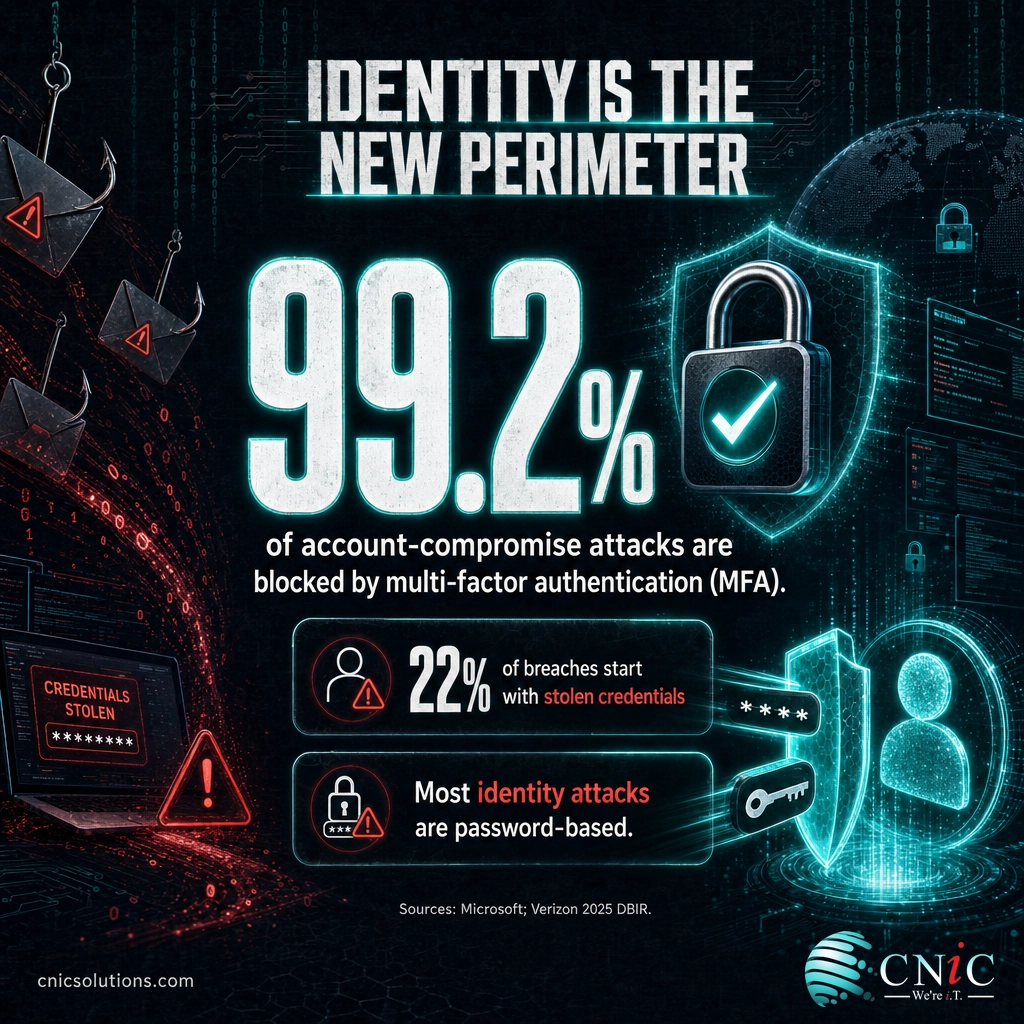
When work moves off the office network, identity becomes the new perimeter. There is no longer a building to walk into, so the question of who is allowed into a system comes down almost entirely to a login. That makes credentials the single most attacked part of a remote setup, and the data is blunt about it. Verizon’s 2025 report found that 22 percent of breaches began with stolen or abused credentials, the most common initial access route of all. Microsoft, which observes an enormous volume of attacks, reports that the large majority of the identity attacks it sees are password-based.
The most powerful single fix is multi-factor authentication (MFA), which requires a second proof of identity beyond the password, usually a prompt on a phone or a hardware key. Microsoft’s own analysis of its Azure Active Directory population found that MFA blocked more than 99.2 percent of account-compromise attacks, and it now enforces MFA on sign-ins on the strength of that evidence. No other control comes close to that return on effort for the cost.
MFA is the floor, not the ceiling. Three more identity practices belong in every remote setup. First, a password manager for the whole team, so people can use long, unique passwords for every service without memorizing them, which quietly eliminates the password reuse that lets one leak unlock many accounts. Second, single sign-on (SSO), which routes all your apps through one hardened identity provider so you can enforce MFA once, everywhere, and shut off access in one place. Third, least-privilege access, which means each person can reach only the systems their role requires, so a compromised account cannot roam.
Not all MFA is equal. Text-message codes are far better than nothing, but they can be intercepted or phished. Where you can, prefer an authenticator app with number matching or a hardware security key, especially for administrators and anyone with access to financial systems. Attackers specifically target the accounts that can move money or reset other accounts.
How breaches begin: top initial-access routes (2025)
Source: Verizon 2025 Data Breach Investigations Report.
Identity is also where remote onboarding and offboarding live, and we return to that in the policy section. For now, the rule is simple: turn on MFA everywhere today, put every account behind a single identity provider you control, and give people the least access their job needs. If you want the broader context on why these controls matter, our guide to essential security measures every small business should have in place ties them together.
Source: Microsoft Research: How effective is MFA at deterring cyberattacks? (2023) | Verizon 2025 DBIR
See CNiC Cloud & Identity Solutions
Cloud Files, Collaboration, and Communication
A remote team cannot share a filing cabinet or lean over a desk, so the cloud becomes the shared workspace. This layer covers three things: where files live, how people work on them together, and how they talk to each other and to customers. Getting it right removes the friction that makes people email attachments around, which is both a productivity drain and a security risk.
For files and productivity, most small businesses standardize on one of the two major cloud suites, Microsoft 365 or Google Workspace, rather than stitching together free consumer tools. A single suite gives you cloud file storage with version history, real-time co-editing, and, crucially, central administrative control over sharing, MFA, and account lifecycle. Consolidating scattered documents into one platform is one of the highest-value moves a remote setup can make, and moving an existing email footprint is its own project, which is why we wrote a walkthrough of what to expect when migrating email to Microsoft 365.
| Need | What it does | What to standardize on |
|---|---|---|
| File storage & sync | Central, versioned, access-controlled files | One cloud suite (Microsoft 365 or Google Workspace) |
| Real-time collaboration | Co-editing, comments, shared drives | The document tools inside that suite |
| Team messaging | Quick chat, channels, presence | One primary chat platform |
| Video meetings | Calls, screen share, recording | One primary conferencing tool |
| Business phone | Calls to customers from any device | Cloud phone system (UCaaS / VoIP) |
Communication is where remote setups often sprawl. When a business phone still rings only on a desk in an empty office, remote staff resort to personal cell numbers, which fragments customer contact and creates a records gap. A cloud phone system, delivered as unified communications as a service (UCaaS) or voice over IP (VoIP), moves the business line to an app on any device, with a shared number, voicemail-to-email, and call routing that follows the person, not the building. Our comparison of the best phone systems for remote teams and our breakdown of VoIP versus Microsoft Teams Phone can help you choose.
Consolidation is a security control, not just tidiness. Every extra unmanaged app is another place data can leak and another login to protect. Fewer, well-administered platforms with central sharing controls and MFA beat a pile of point tools, and they are far easier to lock down when someone leaves.
One caution as you move into the cloud: convenience can outrun governance. Default sharing settings are often too open, and it is easy for a document to become public, or for a departing employee to keep sync access on a personal device. Set sharing to the most restrictive workable default, review external sharing periodically, and make sure the cloud suite’s admin controls are actually configured rather than left at their out-of-the-box state. If you are weighing how much to move to the cloud at all, our look at the tradeoffs between cloud and on-premise infrastructure and our fuller breakdown of business cloud computing lay out the decision.
Source: CISA Telework Guidance and Resources
Compare Business Phone & UCaaS Plans
Backup, Business Continuity, and Disaster Recovery
Distributing your workforce also distributes your data, and that raises a question many small businesses answer wrong: if everything is in the cloud, do we still need backups? The answer is yes, without exception. Cloud providers operate under a shared responsibility model. They keep the platform running and protect their own infrastructure, but the data you put into it remains your responsibility. Accidental deletion, a ransomware infection that syncs to the cloud, or a compromised account can erase cloud data as thoroughly as a failed hard drive.
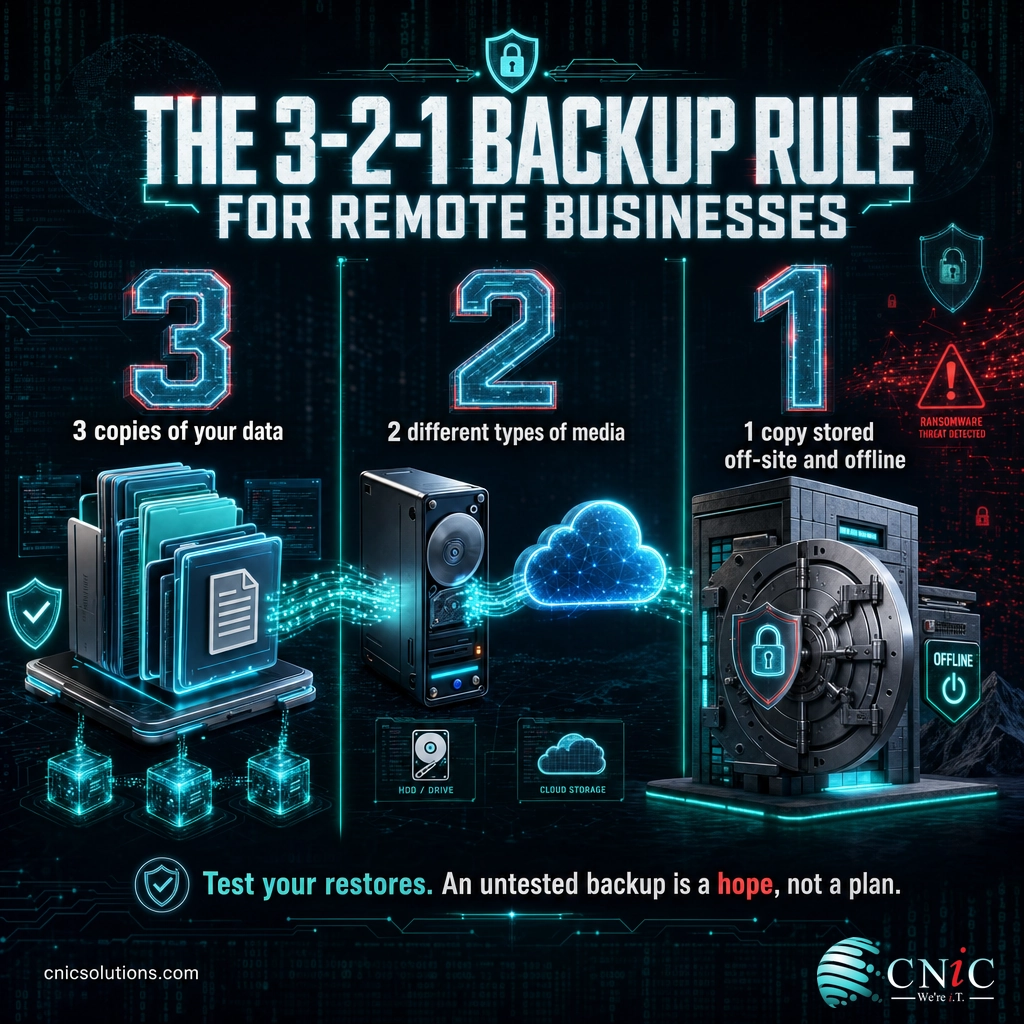
The durable standard is the 3-2-1 rule: keep three copies of your data, on two different types of media, with at least one copy stored off-site or in a separate cloud. For a remote-first business, that usually means the live data in your cloud suite, a third-party backup of that suite, and an independent off-site copy that is not reachable from the same admin account. The reason for the separation is ransomware: if your backup is deleteable by the same login that got compromised, it is not really a backup.
Backup is only half the story. The other half is recovery: how fast you can get working again after an outage, an attack, or a lost device. This is the province of a disaster recovery plan and, increasingly, disaster recovery as a service (DRaaS), which keeps a ready-to-spin-up copy of your systems so downtime is measured in minutes rather than days. For a remote team with no office to fall back on, a tested recovery plan is what turns a bad day into a manageable one. We walk through both in our guides to building a disaster recovery plan step by step and disaster recovery as a service.
An untested backup is a hope, not a plan. The most common and painful discovery during an incident is that the backups were running but could not actually be restored, or were missing a critical system. Schedule real restore tests on a regular cadence and document how long a full recovery takes, so the number in your plan is real.
Backup and recovery sit inside a broader discipline called business continuity, which asks what your business needs to keep operating through any disruption, not only an IT one. If you want to formalize that thinking, start with our step-by-step guide to creating a business continuity plan.
Source: CISA Cybersecurity Best Practices
Explore Backup & Disaster Recovery
Security Awareness, Phishing, and Human Risk
Every layer so far protects systems. This one protects the people using them, and it is the layer with the highest payoff because people are where most breaches actually start. Verizon’s 2025 report found that 60 percent of breaches involved a human element, whether that was a click on a phishing link, a misdirected email, or a reused password. Remote workers are more exposed to this than office staff, because they are isolated from the quick “does this email look right to you?” sanity check a colleague at the next desk provides.
Phishing is the sharp end of this. The FBI’s Internet Crime Complaint Center recorded 193,407 phishing and spoofing complaints in 2024, making it the single most reported type of cybercrime, and business email compromise, a targeted phishing variant that tricks staff into moving money or data, accounted for close to $2.8 billion in reported losses that year. Remote teams that approve invoices and change payment details over email are exactly the target, because an attacker only has to impersonate one trusted person convincingly.
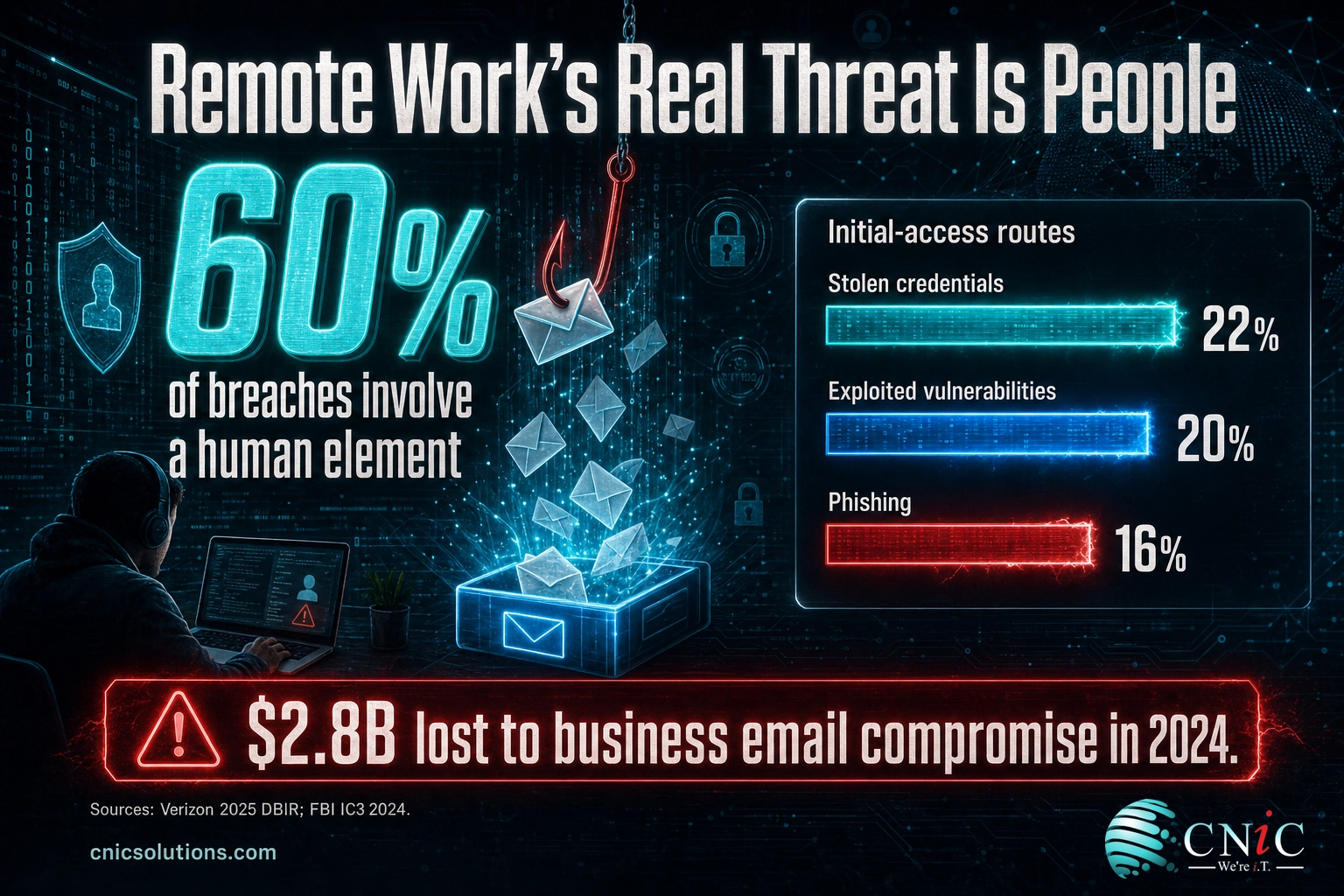
The defense is a security awareness program, not a one-time slideshow. The elements that work are short, frequent training with realistic examples rather than an annual lecture, simulated phishing tests that give people safe practice at spotting a fake, and a simple, blame-free way to report something suspicious so a real threat surfaces fast. Pair that with a hard rule that any change to payment details or wire instructions is verified through a second channel, such as a phone call to a known number, never by replying to the email. Our guides on how to recognize a phishing email make good training material to share with a distributed team.
Make reporting the easy path. Remote workers often stay quiet after a mistaken click because they are embarrassed or unsure who to tell. A one-click report button and a stated no-blame policy turn your whole team into an early-warning system. The faster a compromised account is flagged, the smaller the damage.
Source: Verizon 2025 DBIR | FBI IC3 2024 Internet Crime Report
Policies, Compliance, and Secure Onboarding
Tools without rules drift. A remote work IT setup only holds together when the expectations are written down and applied the same way to everyone. At minimum, a small business needs a short, readable remote work and acceptable use policy that states which devices are allowed, what security software is required, how to handle company data, what to do with a lost device, and how to report a problem. This document does not need to be long. It needs to exist, to be acknowledged by every employee, and to be enforced by the technical controls in the earlier sections rather than by trust alone.
Compliance raises the stakes for businesses in regulated fields. Healthcare, legal, financial services, and any business handling personal data carry specific obligations for how that data is stored, transmitted, and accessed, and remote work does not lower the bar. A distributed setup has to demonstrate the same encryption, access control, and audit trails a compliant office would. Our overview of data privacy best practices is a solid starting point for translating those obligations into everyday remote practice.
The highest-risk moments in any remote setup are the first and last day of employment. Onboarding a remote hire means provisioning their accounts with least-privilege access, enrolling their device in management, and requiring MFA before the first login, all before they touch live data. Offboarding is where small businesses most often stumble: an account left active after someone leaves is a standing door into your systems. The rule is to disable accounts and revoke access the same day a person departs, reclaim or wipe the device, and reassign ownership of their files.
Orphaned accounts are a breach waiting to happen. Every active login for a former employee, contractor, or unused service is an entry point no one is watching. Tie offboarding to a checklist in your identity system so access is removed automatically and completely, not left to memory during a busy week.
| Lifecycle stage | Key actions |
|---|---|
| Onboarding | Provision least-privilege accounts, enroll device, enforce MFA, deliver policy and first training |
| Ongoing | Review access periodically, patch, run phishing simulations, monitor endpoints |
| Role change | Adjust permissions to the new role, remove access that no longer applies |
| Offboarding | Disable accounts same day, reclaim or wipe device, transfer file ownership, revoke tokens |
Written policy, documented onboarding and offboarding, and a periodic access review are what elevate a collection of tools into an actual program a business, an auditor, or an insurer can trust. If policy and strategy are where you feel least equipped, this is exactly the gap a virtual CIO is meant to fill.
Source: NIST Cybersecurity Framework
Monitoring, Patching, and Ongoing Support
A remote work IT setup is not a project you finish, it is a system you run. The final layer is the ongoing work that keeps every other layer healthy: watching devices and accounts for trouble, applying updates before attackers exploit them, and giving remote staff a fast way to get help when something breaks. Without this layer, even a well-built setup decays, because unpatched software and unmonitored endpoints slowly reopen the doors you closed.
Patching deserves special attention in a remote setup because it is both critical and easy to neglect. Verizon’s 2025 report found that 20 percent of breaches began with an exploited vulnerability, and the window between a flaw becoming public and attackers using it keeps shrinking. In an office, IT could push updates across a managed network. With devices scattered across homes, that job requires remote management tools that can deploy patches, verify they installed, and flag the machines that fell behind. Our look at the latest patch management data shows how quickly backlogs build without a system.
The mechanism most small businesses use for this is remote monitoring and management (RMM), the tooling that continuously tracks the health of every device and account, pushes updates, and alerts a technician to investigate an issue, often before the employee even notices. Paired with a help desk that remote staff can reach quickly, RMM is what makes a distributed team feel supported rather than stranded. It is also the practical reason many small businesses hand remote IT to a managed provider: the tools and the round-the-clock coverage are expensive to build in-house for a small team.
Reactive support does not scale to remote. Waiting for a remote employee to report that something is broken means problems fester unseen across many locations. Continuous monitoring flips the model to proactive, catching a failing drive, a missed patch, or a suspicious login while it is still a small problem.
Whether you run this layer yourself or outsource it, the requirements are the same: every remote device monitored, updates applied and verified on a schedule, security alerts reviewed by someone who can act, and a support path employees can actually reach. If you are weighing the build-versus-outsource question, our comparison of fully managed versus co-managed IT and our overview of the benefits of outsourcing IT for small businesses lay out the tradeoffs.
Source: Verizon 2025 DBIR | CISA Known Exploited Vulnerabilities Catalog
Get Proactive Remote IT Monitoring
Budgeting Your Remote IT Stack
None of this is useful if a small business cannot afford it, so the last design question is how to budget for a remote setup in a way that is predictable. The most reliable approach is to plan across four buckets rather than treating IT as one lumpy line item. Two are one-time or periodic (hardware and setup), and two are recurring (subscriptions and support). Seeing them separately keeps a surprise laptop replacement from wrecking a monthly plan, and it makes the tradeoffs between doing it yourself and outsourcing visible.
| Budget bucket | What it covers | How it is usually billed |
|---|---|---|
| Hardware | Laptops, monitors, headsets, security keys | One-time, on a refresh cycle |
| Software subscriptions | Cloud suite, security, backup, phone system | Per user, per month |
| Setup & configuration | Provisioning, migration, policy, hardening | One-time project, per rollout |
| Ongoing support | Monitoring, patching, help desk, security | Per user, per month (or in-house salary) |
The recurring, per-user model is what makes remote IT budgetable. Because most of the software and support in a modern setup is priced per user per month, cost scales cleanly with headcount: adding a person adds a known amount, and removing one removes it. That predictability is a major reason small businesses move remote IT to a managed service rather than absorbing uneven capital costs and the salary of specialists they cannot fully utilize. To size the recurring piece realistically, see our breakdown of what managed IT services typically cost.
Budgeting also has to weigh the cost of not doing this. The record-high breach figures earlier in this guide are not abstract: a single ransomware event or a business email compromise can cost a small business more than years of security spending. Framing the budget as risk reduction, not overhead, usually clarifies the decision. To put structure around the whole number, our small business IT budgeting guide walks through building the full plan.
Cheapest is rarely least expensive. Skipping backup, monitoring, or MFA lowers this month’s bill and raises the odds of a five- or six-figure incident. Budget for the controls that prevent the losses in the FBI and IBM data, and treat them as the price of operating a distributed business, not as optional extras.
Source: IBM Cost of a Data Breach Report
What to Do Next: Implementation Roadmap
You do not have to build all six layers at once, and you should not try to. The sequence below orders the work by how much risk it removes per unit of effort, so a small business can start with the highest-impact changes this week and layer in the rest over a quarter. Each row maps to the CNiC service that supports it if you would rather not run that layer yourself.
| Action | Priority | Timeline | Relevant Service |
|---|---|---|---|
| Turn on MFA for every account, admins first | Critical | This week | Cybersecurity |
| Enroll every device in management with encryption and EDR | Critical | Weeks 1–2 | Managed IT |
| Deploy a password manager and single sign-on | High | Weeks 1–2 | Cybersecurity |
| Secure remote access: patch the VPN or adopt zero-trust access | High | Weeks 2–4 | Networking |
| Stand up backup and test a real restore | High | Weeks 2–4 | Backup & Recovery |
| Consolidate files and communication onto one cloud suite | Medium | Month 1–2 | Cloud Solutions |
| Move the business phone line to a cloud phone system | Medium | Month 1–2 | UCaaS |
| Launch security awareness training and phishing tests | High | Month 1, then ongoing | Cybersecurity |
| Write the remote work policy and onboarding/offboarding checklist | Medium | Month 1–2 | Virtual CIO |
| Set up continuous monitoring, patching, and a help desk | High | Ongoing | Managed IT |
The pattern across the roadmap is that the fastest, cheapest actions (MFA, device enrollment, a password manager) also remove the largest share of risk, because they target the credential and endpoint weaknesses that the breach data identifies as the top entry points. Start there, then work down the list. If you would rather have this designed and run for you, that is precisely what a managed IT partnership delivers, and a virtual CIO can prioritize it around your specific business.
Related Resources
This pillar is the map. The guides below go deeper on individual layers of a remote work IT setup, and the external sources are the primary research the statistics in this guide are drawn from.
CNiC guides that build on this pillar:
- The payoff of managed IT for companies with remote employees
- Best endpoint detection and response tools for smaller companies
- Step-by-step small business network setup guide
- How to recognize a phishing email
- Build a disaster recovery plan step by step
- Create a business continuity plan
- Best phone systems for remote teams
- Small business IT budgeting guide
Primary sources referenced in this guide:
The Complete Remote IT Setup Checklist
Use this table as a single-screen reference. Each row is one control, why it matters, and the layer it belongs to. If you can check off every row, you have a remote work IT setup that is genuinely productive, secure, and ready to scale.
| Control | Why it matters | Layer |
|---|---|---|
| Standardized company or managed BYOD devices | Control and consistency across the fleet | Devices |
| Full-disk encryption on every device | A lost laptop is not a lost database | Devices |
| Endpoint detection and response (EDR) | Catches malicious behavior, not just known viruses | Devices |
| Automatic OS and app updates | Closes the vulnerabilities behind 20% of breaches | Devices |
| Adequate, reliable home internet (25+ Mbps) | Prevents insecure workarounds and lost time | Access |
| Patched VPN or zero-trust network access | Encrypts and controls the path to your systems | Access |
| MFA on every account | Blocks 99%+ of account-compromise attacks | Identity |
| Password manager for the whole team | Ends password reuse across services | Identity |
| Single sign-on through one identity provider | Enforce and revoke access in one place | Identity |
| Least-privilege access by role | Limits how far a compromise can spread | Identity |
| One cloud productivity suite | Central control over files and sharing | Cloud |
| Restrictive default sharing settings | Stops accidental public or external exposure | Cloud |
| Cloud phone system (UCaaS / VoIP) | Business line follows the person, not the desk | Cloud |
| Third-party backup of cloud data | Provider protects the platform, not your data | Backup |
| 3-2-1 backup with an isolated off-site copy | Survives ransomware and account compromise | Backup |
| Tested disaster recovery plan | Turns an outage into minutes, not days | Backup |
| Security awareness training, run quarterly | Addresses the 60% of breaches involving people | Awareness |
| Simulated phishing and easy reporting | Safe practice plus fast threat detection | Awareness |
| Out-of-band verification for payment changes | Defends against business email compromise | Awareness |
| Written remote work and acceptable use policy | Turns tools into an enforceable program | Policy |
| Onboarding and offboarding checklist | No orphaned accounts, no standing back doors | Policy |
| Continuous monitoring and RMM | Proactive fixes before problems spread | Support |
| Verified patch management on a schedule | Keeps remote devices from falling behind | Support |
| Reachable help desk for remote staff | Support that keeps a distributed team working | Support |
Frequently Asked Questions
What do you need for a remote work IT setup?
Is a VPN enough to secure remote workers?
Should remote employees use personal devices (BYOD)?
How much does it cost to set up IT for a remote team?
What is the biggest security risk with remote work?
Do I still need backups if everything is in the cloud?
How do I onboard and offboard remote employees securely?
What is the difference between a VPN and zero-trust network access?
How many remote employees do you need before you need managed IT?
Methodology & Sources
This guide synthesizes primary research on remote work prevalence, breach costs, and attack patterns with established security practice for small and midsize businesses. Statistics are drawn from the sources below and cited inline at the section where they appear. Figures are presented as reported by each source; where a range or population-specific figure exists, we note it in context.
- WFH Research (Barrero, Bloom, and Davis), share of paid work-from-home days, reported via Stanford, 2025.
- IBM Cost of a Data Breach Report 2025, average U.S. and global breach cost.
- Verizon 2025 Data Breach Investigations Report, human element, credential and vulnerability entry points, unmanaged-device findings.
- FBI Internet Crime Complaint Center (IC3) 2024 Internet Crime Report, total losses, phishing complaints, and business email compromise.
- Microsoft Security research on multi-factor authentication effectiveness and identity attack volume.
- CISA telework guidance and Enterprise VPN Security advisory (AA20-073A).
- NIST Cybersecurity Framework for policy and access-control practice.
Last Updated: August 2026. This guide is reviewed and refreshed as new annual reports are published.



related posts
What Is ZTNA (Zero Trust Network Access)?
November 3, 2026Zero Trust Network Access (ZTNA) is a security service that grants a verified user access to…
Zero Trust Statistics for 2026: Adoption, Maturity, and Breach Impact
November 3, 2026Zero trust has become the default security strategy on paper, but not yet in practice. Okta's…
What Is XDR (Extended Detection and Response) and How Does It Protect…
November 2, 2026Extended detection and response (XDR) is a security platform that collects and correlates threat data from…
What Is Zero Trust Security? A Guide for Small Businesses
November 2, 2026Zero Trust security is a cybersecurity model built on one rule: never trust, always verify. Instead…