

DHCP (Dynamic Host Configuration Protocol) is a client/server protocol that automatically assigns a device its IP address and related network settings, such as the subnet mask, default gateway, and DNS servers, the moment it joins a network. It replaces slow, error-prone manual setup with centralized, automatic addressing, so devices just connect and work.
Every device on a network needs a unique IP address to communicate, the same way every building on a street needs its own address for mail to arrive. Someone, or something, has to hand out those addresses and make sure no two devices get the same one. On almost every business network, that job belongs to DHCP. It works silently in the background every time a laptop opens, a phone joins the Wi-Fi, or a new printer is plugged in. This guide explains what DHCP is, the four-step process it uses to assign an address, what else it configures beyond the IP, how leases work, how it differs from DNS (the two are constantly confused), and why getting it right matters for a business network.
Key Takeaways
- DHCP hands out IP addresses automatically. Without it, an administrator would configure every device by hand.
- It uses a four-step exchange called DORA: Discover, Offer, Request, Acknowledge.
- It assigns more than an IP. It also delivers the subnet mask, default gateway, and DNS servers a device needs to actually communicate.
- Addresses are leased, not permanent. Devices renew automatically, and unused addresses return to the pool.
- DHCP and DNS are different jobs. DHCP gets a device onto the network; DNS helps it find other things by name.
- It is a security surface too. A rogue DHCP server can hijack traffic, which is why business networks harden it.
What’s in This Guide
- What DHCP Is
- How DHCP Works: The DORA Process
- What DHCP Assigns Besides the IP Address
- DHCP vs DNS: Clearing Up the Confusion
- DHCP Leases and Renewal
- Dynamic vs Static: When to Use a Reservation
- DHCP and Network Security
- Why DHCP Matters for Your Business
- Frequently Asked Questions
- Related Networking Terms
What DHCP Is
DHCP stands for Dynamic Host Configuration Protocol. It is a client/server system that automatically provides a device (the client) with an IP address and the other settings it needs to operate on a network. It is defined as an internet standard by the IETF in RFC 2131, and it builds on the older Bootstrap Protocol (BOOTP).
The word “dynamic” is the key. Before DHCP, an administrator had to assign every device a fixed IP address by hand, keep a spreadsheet of which address went where, and reclaim addresses when machines left. On a network of any size that is tedious and easy to get wrong, and two devices accidentally sharing an address will knock each other offline. DHCP automates the whole thing: a server holds a pool of available addresses, leases one to each device as it connects, and returns addresses to the pool when they are no longer in use.
In a small business, the DHCP server is often built into the internet router or firewall. In larger environments it usually runs on a dedicated server (for example, the DHCP Server role in Windows Server) so that addressing can be managed centrally across multiple locations and subnets.
How DHCP Works: The DORA Process
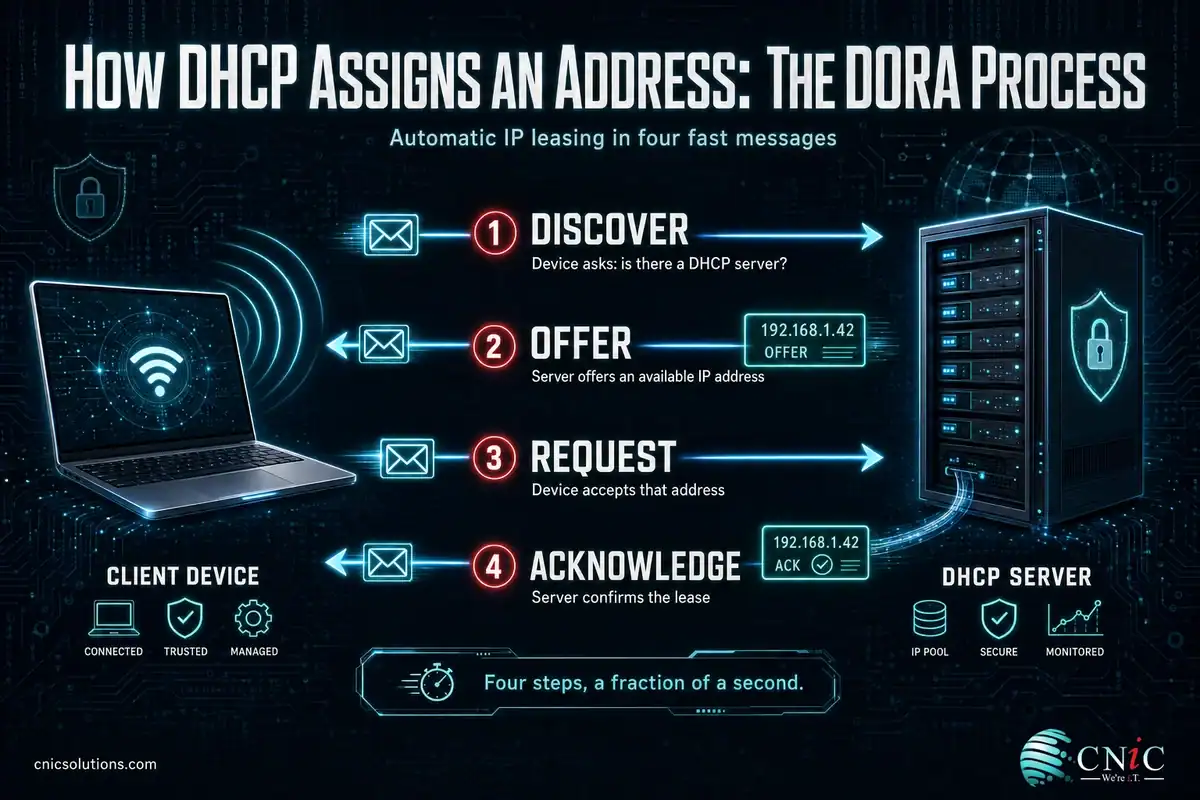
When a device joins a network, it does not yet have an IP address, so it cannot just ask a specific server for one. Instead, DHCP uses a four-step exchange that networking professionals remember by the acronym DORA: Discover, Offer, Request, Acknowledge. Here is what happens in the fraction of a second after you connect:
- Discover: The device broadcasts a “DHCP Discover” message to the entire local network, essentially asking, “Is there a DHCP server out there, and can I get an address?”
- Offer: Any DHCP server that hears the request replies with a “DHCP Offer,” proposing an available IP address from its pool along with the other settings the device will need.
- Request: The device selects one offer (there may be more than one on larger networks) and broadcasts a “DHCP Request” message stating that it accepts that specific address.
- Acknowledge: The server confirms with a “DHCP Acknowledge” (ACK) message, finalizing the lease. The device applies the configuration and is ready to communicate.
The exchange uses UDP, with the server listening on port 67 and the client on port 68. Because the first messages are broadcasts, they normally stay within the local network segment. When a DHCP server sits on a different subnet, a DHCP relay agent forwards these requests across, which is what lets one central server handle addressing for an entire multi-subnet office without a server on every segment. For the exact message formats, Microsoft’s documentation notes that DHCP is defined by RFCs 2131 and 2132.
What DHCP Assigns Besides the IP Address
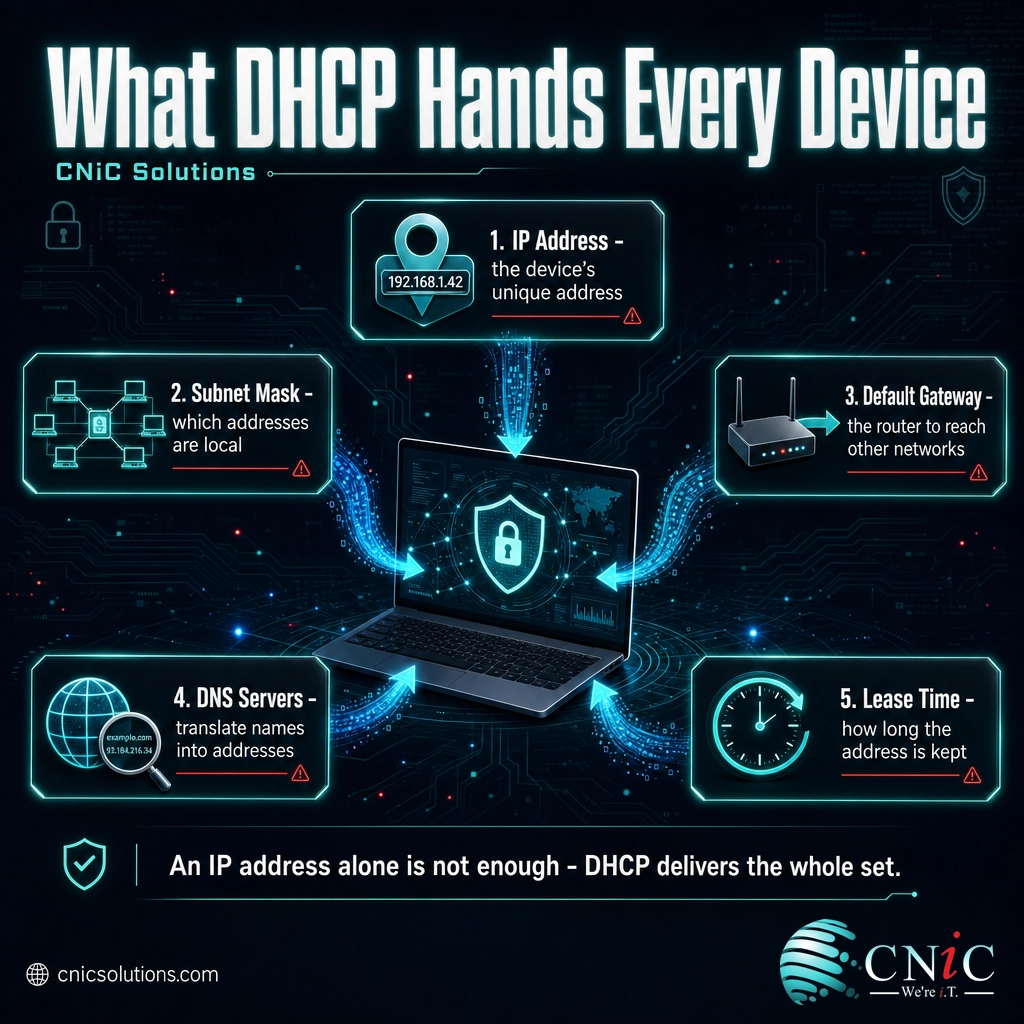
People think of DHCP as “the thing that gives you an IP address,” and it does, but an IP address alone is not enough for a device to actually communicate. DHCP delivers a small bundle of settings, called DHCP options, in the same exchange. The most important ones are:
- IP address: The unique address the device uses on the network.
- Subnet mask: Tells the device which portion of the network it belongs to, so it knows which other addresses are local versus remote. (This is closely tied to how a network is divided into subnets.)
- Default gateway: The address of the router that traffic goes through to reach other networks and the internet. Microsoft’s documentation lists this DHCP option under its formal name, “Router.”
- DNS servers: The addresses of the servers that translate names like cnicsolutions.com into IP addresses, so the device can browse by name.
- Lease duration: How long the device may keep the address before renewing.
Additional options can include the domain name, time (NTP) servers, and vendor-specific settings. The takeaway is that DHCP does not just place a device on the network; it hands over everything the device needs to find its way around once it is there.
DHCP vs DNS: Clearing Up the Confusion
DHCP and DNS are the two protocols people most often mix up, partly because they work together and both deal with IP addresses. They do completely different jobs. The simplest way to keep them straight: DHCP gets a device onto the network; DNS helps it find things once it is there.
| DHCP | DNS | |
|---|---|---|
| What it does | Assigns a device its IP address and network settings | Translates names into IP addresses |
| When it runs | When a device joins the network | Every time you reach a site or service by name |
| Question it answers | “What is my address?” | “What address is example.com?” |
| Analogy | Assigning your house its street number | The phone book that looks up an address by name |
They connect at one point worth knowing: DHCP is what tells your device which DNS servers to use. So DHCP configures the setting that DNS then relies on. One hands out the address; the other resolves names using a server address that was itself handed out by DHCP.

DHCP Leases and Renewal
DHCP does not give a device an address permanently. It leases it for a set period, commonly anywhere from a few hours to several days depending on how the network is configured. Leasing is what keeps the address pool healthy: when a device leaves and its lease expires, that address is freed up for the next device that needs one.
Renewal happens automatically and invisibly. A device does not wait until its lease is up to act. It normally tries to renew at about halfway through the lease period by contacting the server that gave it the address. If that succeeds, and it usually does, the device keeps the same IP address and extends the lease. If the original server cannot be reached, the device tries again later in the lease window (a stage called rebinding) by broadcasting to any available server. Only if the lease fully expires with no server reachable does the device lose the address.
What happens when no DHCP server answers? If a device sends its Discover message and gets no reply at all, most operating systems fall back to a self-assigned “link-local” address in the 169.254.x.x range (Automatic Private IP Addressing). The device can then talk to other devices doing the same thing on the local segment, but it will not reach the internet. A machine stuck on a 169.254 address is a classic sign that DHCP is not responding, often because the server, router, or relay is down.
Dynamic vs Static: When to Use a Reservation
DHCP is the right default for the large majority of devices, laptops, phones, tablets, and workstations, that come and go and do not need to be found at a fixed address. Set-and-forget is exactly the point.
Some devices, though, are better off with a consistent address. A file server, a network printer, a security camera, a firewall, or a point-of-sale system is something other devices need to reach reliably, and chasing a changing address makes that harder. There are two ways to give a device a stable address:
- Static IP: The address is configured manually on the device itself and never changes. It works, but it lives outside DHCP’s records, so it has to be tracked carefully to avoid conflicts.
- DHCP reservation: The DHCP server is told to always hand the same address to one specific device, identified by its hardware (MAC) address. The device still uses DHCP normally, but it gets the same address every time. This gives you the stability of a static IP while keeping every address managed in one place.
For most business networks, reservations are the cleaner choice: you get predictable addresses for the devices that need them without maintaining a separate, hand-kept list that DHCP knows nothing about. Getting this split right is part of designing a network that stays organized as it grows, which is why it comes up early when setting up a business network from scratch.
DHCP and Network Security
Because DHCP quietly configures every device that joins, it is also a point attackers target. Two risks are worth understanding.
The rogue DHCP server problem. DHCP has no built-in way for a device to verify that an Offer came from a legitimate server. If an attacker (or even a misconfigured home router someone plugged in) starts answering Discover messages, devices may accept its settings, including a malicious default gateway or DNS server that routes their traffic through the attacker. This is a real man-in-the-middle risk on an unprotected network.
The other common issue is far more mundane: pool exhaustion. If the pool of available addresses is too small for the number of devices, or an attacker floods the server with fake requests to drain it (a “DHCP starvation” attack), legitimate devices stop getting addresses and cannot connect at all.
Managed networks address both with switch-level protections such as DHCP snooping, which lets the network trust DHCP replies only from the port where the real server lives and drop replies from anywhere else. Combined with proper network segmentation and monitoring, that closes off the rogue-server path. These controls are standard practice in a well-run environment, and they are the kind of detail that separates a network that merely works from one that is genuinely resilient. This is a natural extension of broader segmentation using VLANs.
Why DHCP Matters for Your Business
For most business owners, DHCP is invisible, and that is exactly how it should be. When it works, people plug in, connect, and get to work without a thought. The reasons it matters become obvious only when it is designed poorly or fails:
- It scales your network without manual work. Adding devices, opening a new office, or supporting a fleet of laptops that move between sites all happen automatically instead of requiring hand configuration for each one.
- It prevents address conflicts. Centralized assignment means two devices never end up fighting over the same address, one of the more frustrating and hard-to-diagnose network problems.
- It makes troubleshooting faster. When addressing is managed in one place, an administrator can see what has an address, what is reserved, and what is failing, rather than hunting through individually configured machines.
- It is a security control, not just a convenience. Properly hardened DHCP, with snooping, authorized servers, and sensible pool sizing, closes off a whole class of attacks that an unmanaged setup leaves wide open.
The gap between “DHCP happens to be turned on in our router” and “our addressing is designed, reserved, and secured” is where a lot of small networks quietly carry risk. CNiC Solutions designs and manages business networks so that addressing, segmentation, and security work together rather than being left to defaults, through our business networking services. For organizations that want their entire IT environment monitored and maintained, that networking work fits within fully managed IT support.
Talk to CNiC about designing and securing your business network

Frequently Asked Questions
What is DHCP?
How does DHCP assign an IP address?
What is the difference between DHCP and DNS?
What is a DHCP lease?
Should a device use DHCP or a static IP address?
Related Networking Terms
- Subnet: A logical division of a network; the subnet mask DHCP assigns tells a device which addresses are local.
- VLAN: A way to separate one physical network into isolated virtual networks, often each with its own DHCP scope.
- LAN vs WAN: The difference between your local network and the wider network beyond your router, where DHCP operates only on the LAN side.
- Network segmentation: Splitting a network into zones to limit risk, which pairs directly with DHCP hardening.
- Proxy server: An intermediary that handles traffic on a device’s behalf, separate from how the device gets its address.
- Default gateway: The router address, delivered by DHCP, that a device uses to reach other networks.
- DNS: The naming system whose server addresses DHCP configures on each device.
About This Guide and Sources
The definitions and mechanics in this guide, DHCP as a client/server protocol, the four-step DORA exchange (Discover, Offer, Request, Acknowledge), the DHCP options for subnet mask, default gateway (Router) and DNS servers, the lease and renewal model, DHCP relay agents, reservations, and the fallback to a 169.254.x.x link-local address, reflect the internet standard defined by the IETF in RFC 2131 and RFC 2132 and are consistent with vendor documentation such as Microsoft’s Windows Server DHCP overview. Specific lease durations, pool sizes, and renewal timers vary by network and configuration; the figures described here (such as renewal at roughly half the lease) are standard default behavior, not fixed values for every network. Security practices such as DHCP snooping and server authorization are widely established mitigations for rogue-server and starvation attacks.



related posts
What Is Network Penetration Testing? Types and Process
October 25, 2026Network penetration testing is a controlled, authorized simulation of a real cyberattack on your network, run…
What Is NIST Compliance? Frameworks, Requirements, and Who Needs It
October 25, 2026NIST compliance means aligning your organization's security program with the cybersecurity standards published by the National…
What Is Mobile Device Management (MDM)? A Guide for Businesses
October 24, 2026Mobile Device Management (MDM) is software that lets an organization remotely enroll, configure, secure, and monitor…
What Is MFA? How Multi-Factor Authentication Protects Your Accounts
October 24, 2026Multi-factor authentication (MFA) is a security method that requires two or more separate proofs of identity…